
So akzeptieren Sie Zahlungen in WordPress ohne WooCommerce
Zuletzt aktualisiert am

Die meisten WordPress-Website-Besitzer, die Zahlungen in WordPress ohne WooCommerce akzeptieren möchten, installieren es am Ende trotzdem. Und das ist das falsche Werkzeug für jeden, der ein Zahlungsformular anstelle eines Shops benötigt.
WooCommerce ist eine vollständige E-Commerce-Plattform, die um Produkte, Lagerbestand, einen Warenkorb und die Bestellverwaltung aufgebaut ist. Wenn Sie Freiberufler, eine gemeinnützige Organisation oder ein Kursanbieter sind, trifft keiner dieser Punkte auf Ihre Situation zu.
Wir haben das aus erster Hand erlebt. Die Einrichtung eines Shops zur Erhebung einer Servicegebühr oder zur Abwicklung einer Spende bedeutet, dass Sie Steuer- und Versandregeln konfigurieren müssen, die Sie nie verwenden werden, und jeden Kunden durch einen Warenkorb leiten, bevor er bezahlen kann.
Das ist Reibung, die auf einen Checkout aufgeschlagen wird, der Sekunden dauern sollte, und jeder unnötige Schritt ist eine Chance, dass jemand den Prozess abbricht. Hier ist WP Simple Pay praktisch. Es bringt ein Zahlungsformular in wenigen Minuten auf jeder Seite live, ohne einen Warenkorb.
In diesem Artikel zeigen wir Ihnen, wie Sie Zahlungen in WordPress ohne WooCommerce akzeptieren können.
Warum Sie WooCommerce für Zahlungen nicht benötigen
Die Annahme einer Zahlung und der Betrieb eines Online-Shops sind zwei verschiedene Dinge, und WooCommerce bündelt sie.
Ein dediziertes Zahlungs-Plugin kümmert sich um die Zahlungsseite ohne die Shop-Maschinen. So erhalten Sie ein Formular, das Geld sammelt, ohne den Produktkatalog, den Warenkorb oder die Bestellverwaltung, die Sie sonst konfigurieren müssten.
Ein reines Zahlungs-Plugin verbindet Ihre WordPress-Website direkt mit einem Zahlungsabwickler, und für WP Simple Pay ist dieser Abwickler Stripe. Sie erstellen ein Formular, legen einen Preis fest, wählen eine Zahlungsart (einmalig oder wiederkehrend) und veröffentlichen es.
Aus unserer Erfahrung deckt diese Einrichtung die Mehrheit der WordPress-Website-Besitzer ab: Freiberufler, die Anzahlungen erhalten, gemeinnützige Organisationen, die Spendenaktionen durchführen, Kursanbieter, die Anmeldungen abrechnen, und Veranstalter, die ein Formular und keinen vollständigen Shop benötigen.
Das Ergebnis ist ein Stripe-Zahlungsformular auf jeder Seite, ohne dass ein Warenkorb zwischen Ihrem Kunden und dem Zahlungsbutton steht.
Nun sehen wir uns an, warum die Verwendung von WooCommerce für Ihre WordPress-Website übertrieben ist.
Warum WooCommerce für Zahlungen übertrieben ist
Wir haben mit vielen Website-Besitzern zusammengearbeitet, die WooCommerce installiert haben, um eine einzelne Zahlung zu erhalten, und mehr Zeit für die Einrichtung aufgewendet haben, als sie jemals erwartet hätten.
Hier zeigt sich die Reibung tendenziell:
- Es ist für Shops, nicht für Formulare gemacht: WooCommerce ist um Produkte, Lagerbestand und Warenkörbe herum konzipiert. Um ein eigenständiges Zahlungsformular live zu schalten, müssen Sie ein „Produkt“ erstellen, eine Checkout-Seite konfigurieren und Funktionen deaktivieren, die Sie nie verwenden werden.
- Die Einrichtung dauert viel länger als nötig: Eine frische WooCommerce-Installation erfordert die Konfiguration von Zahlungs-Gateway-, Steuer- und Versand-Einstellungen, bevor etwas live geschaltet wird, selbst wenn Sie nur eine Pauschalgebühr erheben.
- Jede Zahlung läuft über einen Warenkorb: WooCommerce leitet Kunden vor dem Checkout durch einen „In den Warenkorb legen“-Flow, was die richtige Benutzererfahrung für einen Shop mit mehreren Artikeln ist. Aber eine unnötige Hürde für eine Servicegebühr, eine Spende oder eine Mitgliedschaftszahlung.
- Laufende Wartung summiert sich: WooCommerce und seine Erweiterungen erfordern regelmäßige Updates, Kompatibilitätsprüfungen und periodische Aufmerksamkeit, während ein reines Zahlungs-Plugin eine viel kleinere Angriffsfläche für die Wartung darstellt.
WP Simple Pay eliminiert diesen gesamten Overhead und gibt WordPress-Websitebesitzern genau das, was sie brauchen: ein Stripe-Zahlungsformular, das in wenigen Minuten auf jeder Seite live ist. Für einen direkten Vergleich, wie ein Zahlungs-Plugin im Vergleich zu einem vollständigen Shop abschneidet, siehe unsere Aufschlüsselung von WooCommerce vs. WP Simple Pay.
Lassen Sie uns nun sehen, wie Sie WP Simple Pay in WordPress einrichten und ein einfaches Zahlungsformular erstellen können.
Zahlungen ohne WooCommerce akzeptieren
Für die Annahme von Stripe-Zahlungen auf WordPress ohne Warenkorb ist WP Simple Pay die beste Lösung auf dem Markt.
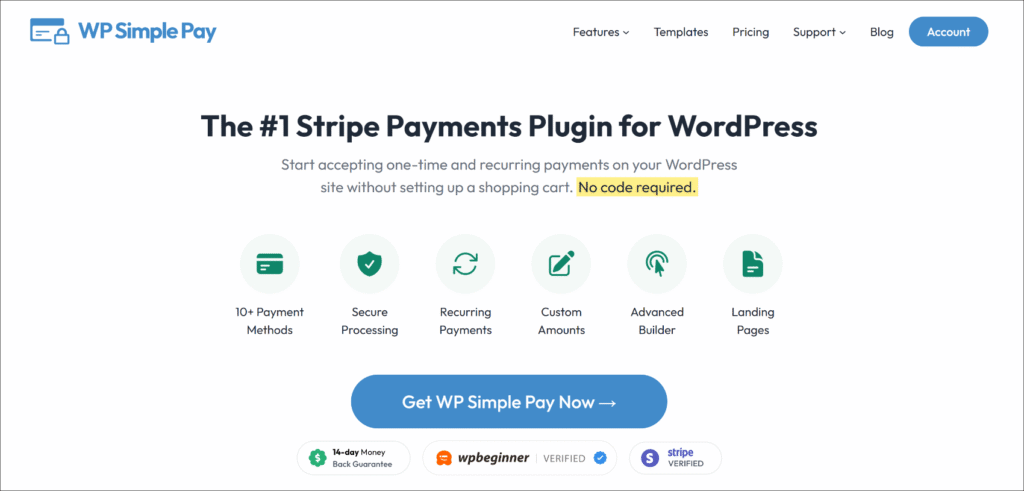
WP Simple Pay ist das #1 Stripe-Zahlungs-Plugin für WordPress. Es ermöglicht Ihnen, Einmal- und wiederkehrende Zahlungen über ein einziges Drag-and-Drop-Formular zu sammeln, das über Stripe mehr als 10 Zahlungsdienste unterstützt, wie z. B. Apple Pay, Google Pay, ACH Direct Debit, Klarna, Afterpay, Affirm und mehr, ohne einen Warenkorb einzurichten oder eine Zeile Code zu schreiben.
Hier ist, was es zur richtigen Wahl für dieses Tutorial macht:
- Über 10 Zahlungsmethoden – Akzeptieren Sie Karten, Apple Pay, Google Pay, ACH Direct Debit, Klarna, Afterpay, Affirm, Cash App Pay und mehr über Stripe, alles vom selben Formular aus, ohne dass eine Konfiguration pro Methode erforderlich ist.
- Vorgefertigte Zahlungs-Vorlagen – Wählen Sie aus fertigen Vorlagen für Einmalzahlungen, Abonnements, Spenden, Veranstaltungsanmeldungen und mehr, sodass Sie von einer funktionierenden Basis aus starten und nicht von einer leeren Seite.
- Keine zusätzliche 3% Transaktionsgebühr – WP Simple Pay Pro entfernt die zusätzliche Plugin-Gebühr von 3%, die die meisten Stripe-Plugins zusätzlich zu den Standard-Verarbeitungsgebühren von Stripe berechnen.
- Einmalige und wiederkehrende Zahlungen – Akzeptieren Sie beide Zahlungsarten über denselben Formular-Builder, ohne dass ein separates Abonnement-Plugin erforderlich ist.
Damit wollen wir sehen, wie Sie WP Simple Pay verwenden können, um Zahlungen in WordPress ohne WooCommerce zu akzeptieren.
Schritt 1: WP Simple Pay installieren und aktivieren
Um zu beginnen, können Sie die WP Simple Pay-Website besuchen und den Plan auswählen, der Ihren Bedürfnissen entspricht.
Nach Abschluss des Kaufs laden Sie die Plugin-ZIP-Datei von Ihrem WP Simple Pay-Konto-Dashboard herunter.
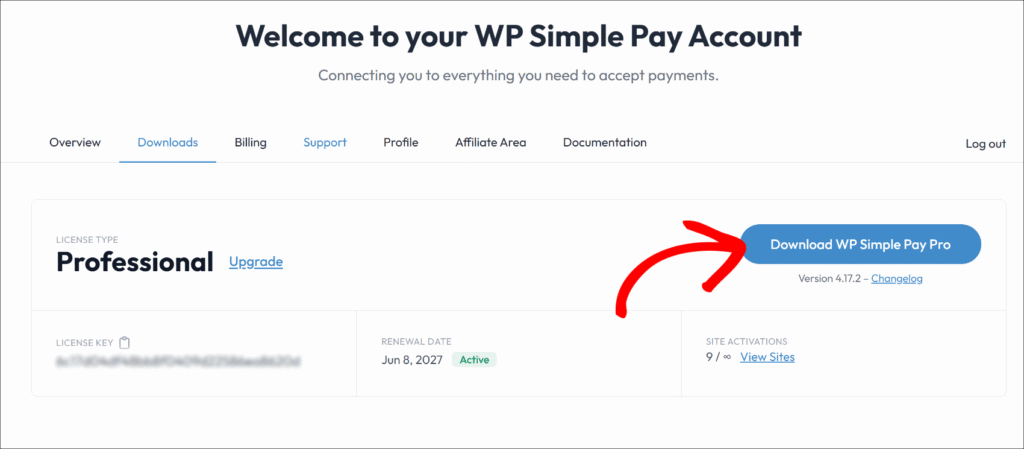
Dann können Sie die Plugin-Dateien über das WordPress-Admin-Panel hochladen und das Plugin installieren und aktivieren.
Nach der Aktivierung startet der WP Simple Pay-Einrichtungsassistent automatisch. Klicken Sie auf Los geht's, um mit der Verbindung Ihres Stripe-Kontos zu beginnen.
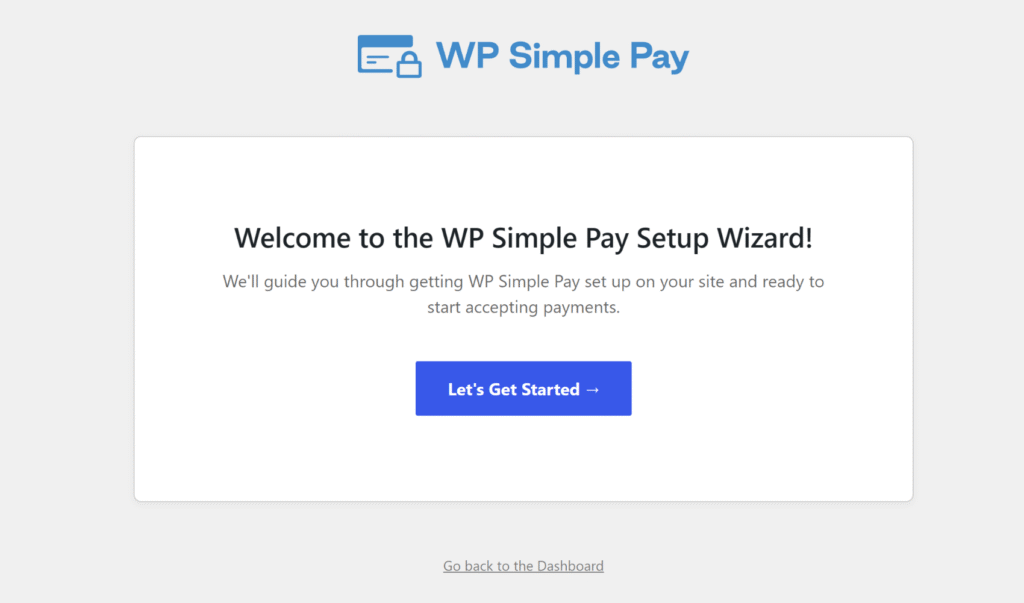
Hinweis: Wenn der Assistent nicht angezeigt wird, navigieren Sie zu WP Simple Pay » Einstellungen » Allgemein » Erweitert und klicken Sie auf die Schaltfläche Einrichtungsassistent starten. Hilfe bei der Installation von Plugins finden Sie im Leitfaden von WPBeginner, wie Sie ein WordPress-Plugin installieren.
WP Simple Pay ist installiert und einsatzbereit. Als Nächstes verbinden Sie es mit Ihrem Stripe-Konto.
Schritt 2: WordPress mit Stripe verbinden
Klicken Sie im Einrichtungsassistenten auf Mit Stripe verbinden und geben Sie die E-Mail-Adresse ein, die mit Ihrem Stripe-Konto verknüpft ist.
Die Autorisierung verbindet Ihre WordPress-Website mit Stripe, und neue Benutzer können vom selben Bildschirm aus ein Stripe-Konto erstellen, ohne sich separat anmelden zu müssen.
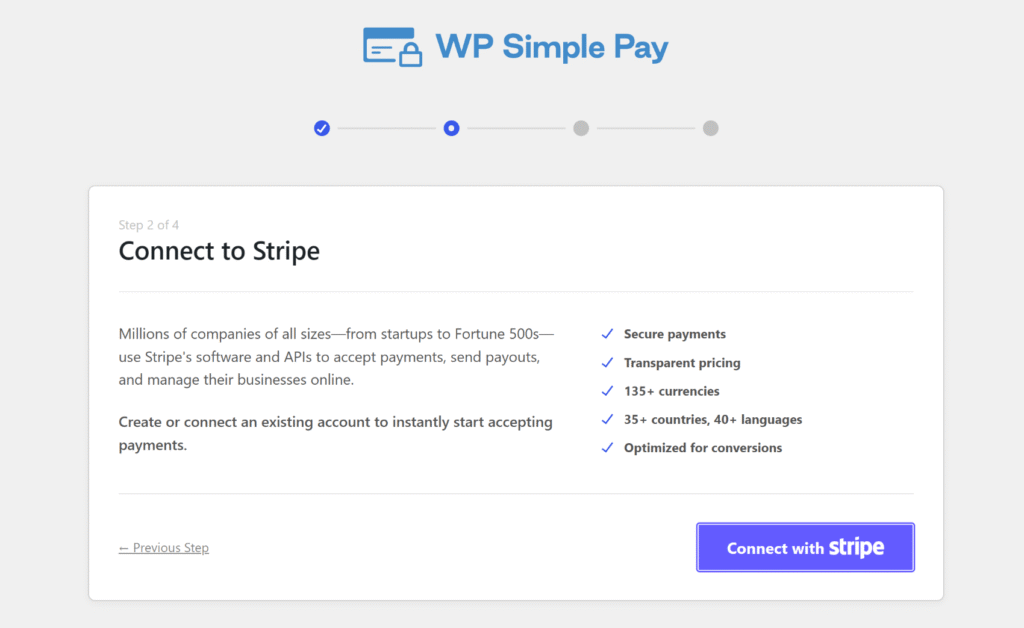
Nachdem die Verbindung hergestellt wurde, führt Sie der Assistent durch einige weitere Einrichtungsschritte, bevor Sie den Bildschirm 🎉 Einrichtung abgeschlossen erreichen. An diesem Punkt ist WP Simple Pay bereit, Zahlungsformulare zu erstellen.
Weitere Details zur Stripe-Verbindung finden Sie in der WP Simple Pay Stripe-Einrichtungsdokumentation.
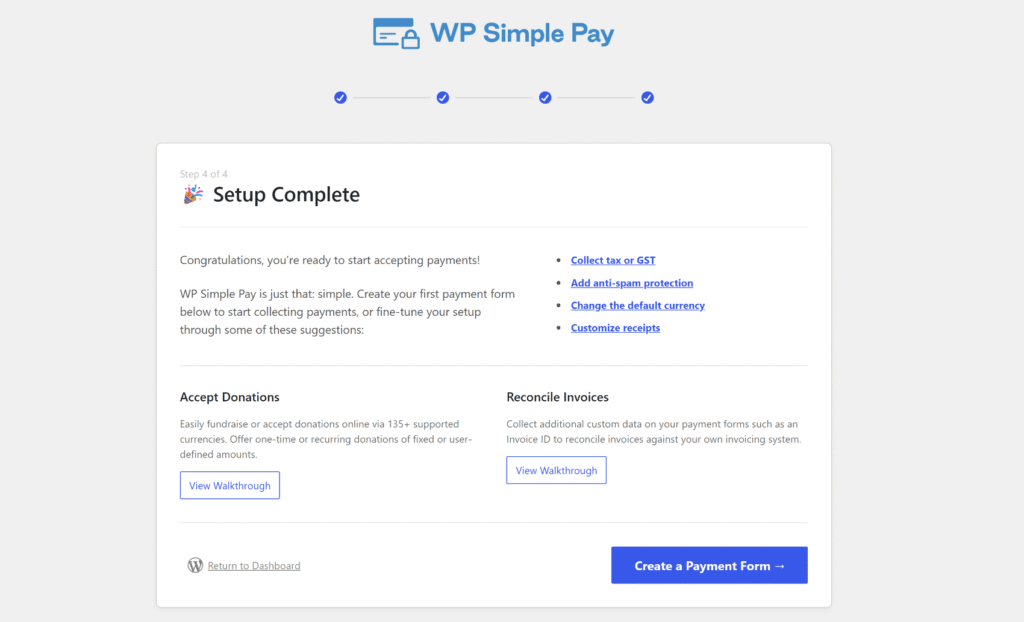
Hinweis: WP Simple Pay wird standardmäßig im Testmodus verbunden. Der Testmodus ermöglicht es Ihnen, Zahlungen mit Stripe-Testkarten durchzuführen, bevor Sie live gehen, sodass Sie bestätigen können, dass alles funktioniert, bevor echtes Geld im Spiel ist.
Schritt 3: Erstellen Sie Ihr Zahlungsformular
Klicken Sie als Nächstes auf die Schaltfläche Zahlungsformular erstellen im Einrichtungsassistenten, um ein neues Zahlungsformular für Ihre Website zu erstellen.
Oder gehen Sie in Ihrem WordPress-Dashboard zu WP Simple Pay » Zahlungsformulare und klicken Sie dann auf Neues Zahlungsformular hinzufügen.
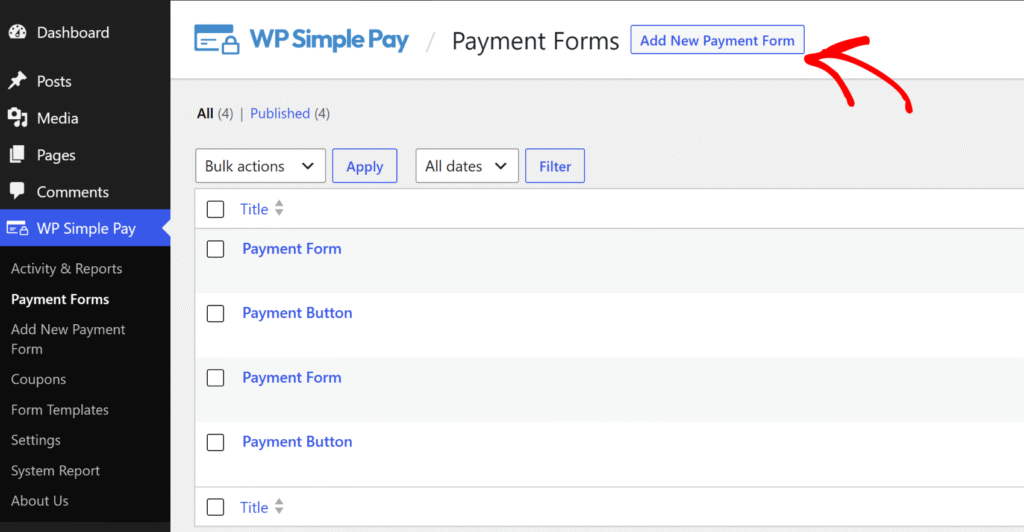
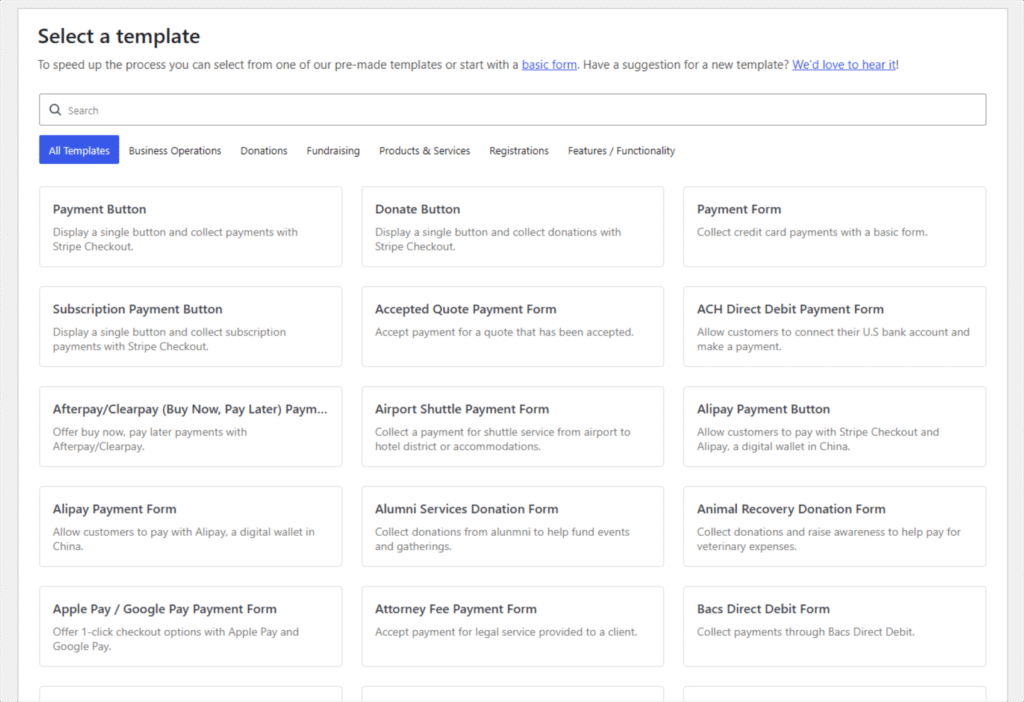
WP Simple Pay öffnet dann den Vorlagenauswahl, wo Sie einen Ausgangspunkt für Ihr Formular auswählen.
Für eine allgemeine einmalige Zahlung wählen Sie die Vorlage Zahlungsformular, für eine Fundraising-Seite wählen Sie Spenden-Button, für wiederkehrende Abrechnungen wählen Sie Abonnement-Zahlungsformular. Jede Vorlage ist vollständig anpassbar. Tipps, wie Sie mehr aus ihnen herausholen, finden Sie in unserem Leitfaden zur Verwendung von Zahlungsformularvorlagen in WordPress zur Umsatzsteigerung.
Jede Vorlage ist vollständig anpassbar. Tipps, wie Sie mehr aus ihnen herausholen, finden Sie in unserem Leitfaden zur Verwendung von Zahlungsformularvorlagen in WordPress zur Umsatzsteigerung.
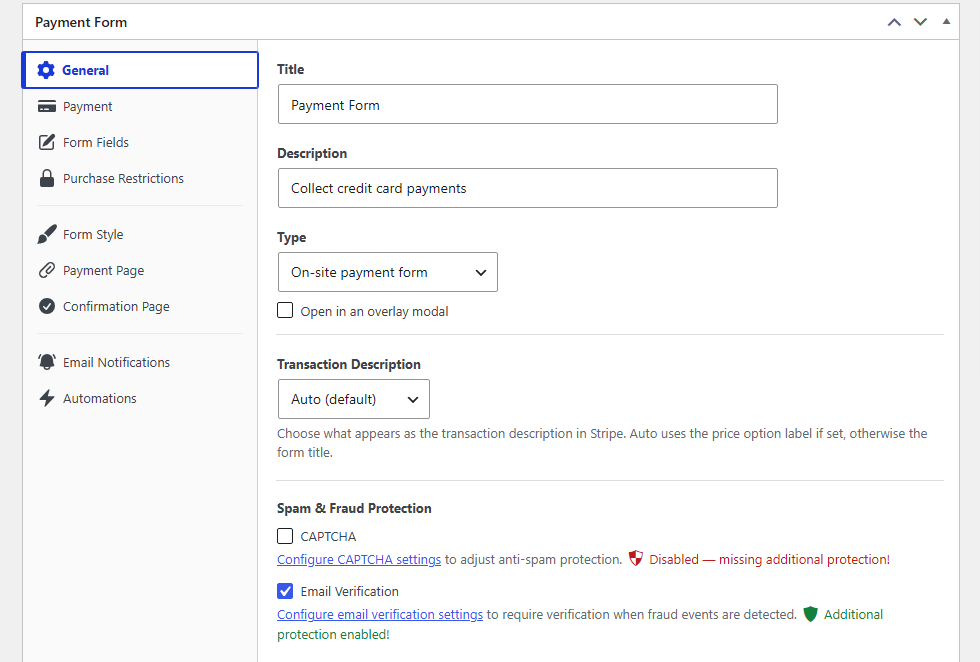
Auf der Registerkarte Allgemein geben Sie Ihrem Formular einen Titel und eine Beschreibung. Danach können Sie den Anzeigetyp auswählen, indem Sie auf das Dropdown-Menü Typ klicken. Hier sollten Sie 2 Optionen sehen:
- On-Site-Zahlungsformular bettet das Formular direkt auf der Seite ein.
- Off-Site Stripe Checkout-Formular sendet Kunden zu einer von Stripe gehosteten Checkout-Seite.
Und unter dem Dropdown-Menü Typ sehen Sie das Kontrollkästchen In einem Overlay-Modal öffnen, das es als Popup startet.
Hilfe bei der Entscheidung zwischen diesen Optionen finden Sie in unserem Leitfaden Eingebettete vs. Overlay vs. Stripe Checkout Zahlungsformulare.
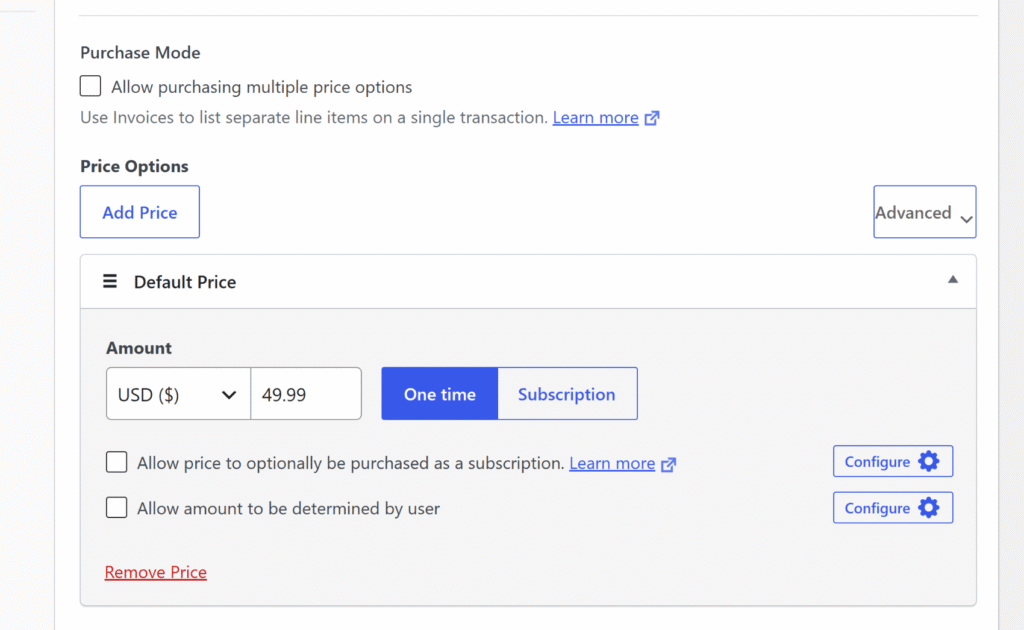
Klicken Sie als Nächstes auf die Registerkarte Zahlung und legen Sie die Währung, den Zahlungsbetrag und den Abrechnungstyp (einmalig oder Abonnement) fest.
Um Kunden die Wahl zwischen mehreren Preisen zu geben, klicken Sie auf Preis hinzufügen, um zusätzliche Preiszeilen hinzuzufügen, oder lesen Sie die WP Simple Pay Dokumentation zu Zahlungsoptionen für weitere Informationen.
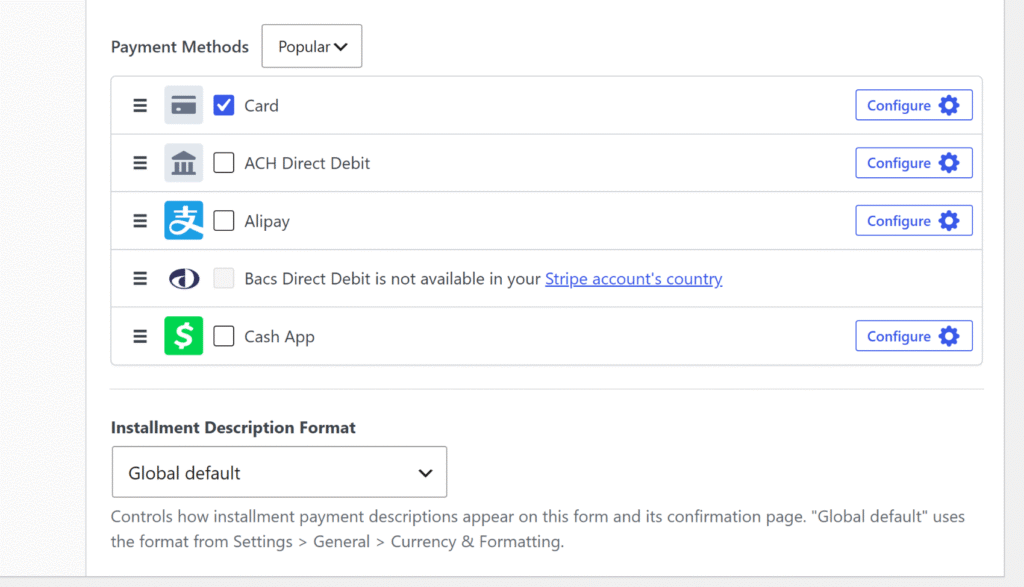
Sie können dann nach unten scrollen und die Zahlungsmethoden auswählen, die Sie Ihren Kunden anbieten möchten.
WP Simple Pay bietet über 10 Zahlungsoptionen, sodass Benutzer leichter eine für sie bequeme Option auswählen können.
Sobald dies erledigt ist, können Sie Ihr Zahlungsformular anpassen.
Auf der Registerkarte Formularfelder sehen Sie die Standardfelder, die Ihr Formular Kunden anzeigt: ein Feld für die E-Mail-Adresse, eine Preisauswahl und das Feld für die Karteneingabe.
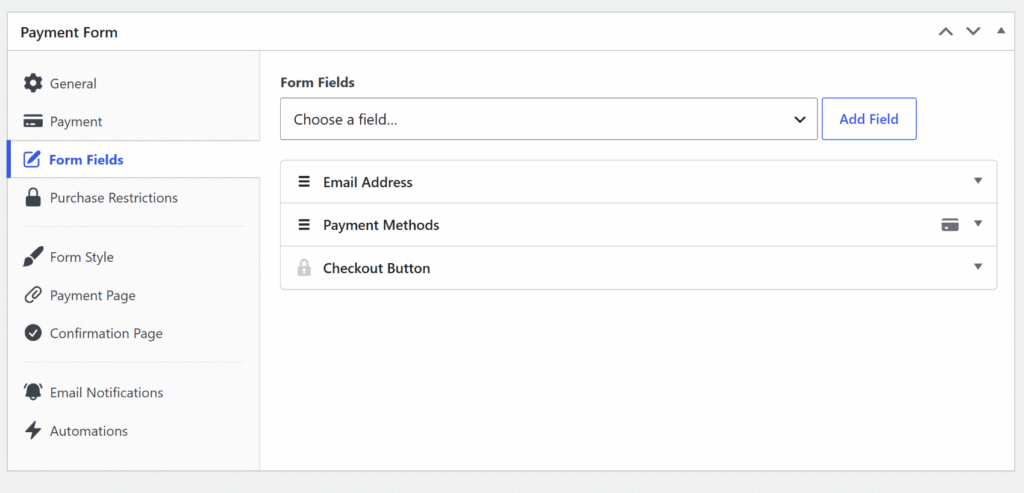
Wählen Sie im Dropdown-Menü Feldtyp auswählen einen Feldtyp aus und klicken Sie auf Feld hinzufügen, um ihn einzufügen.
Dies kann eine Telefonnummer, eine Texteingabe oder ein Kontrollkästchen sein.
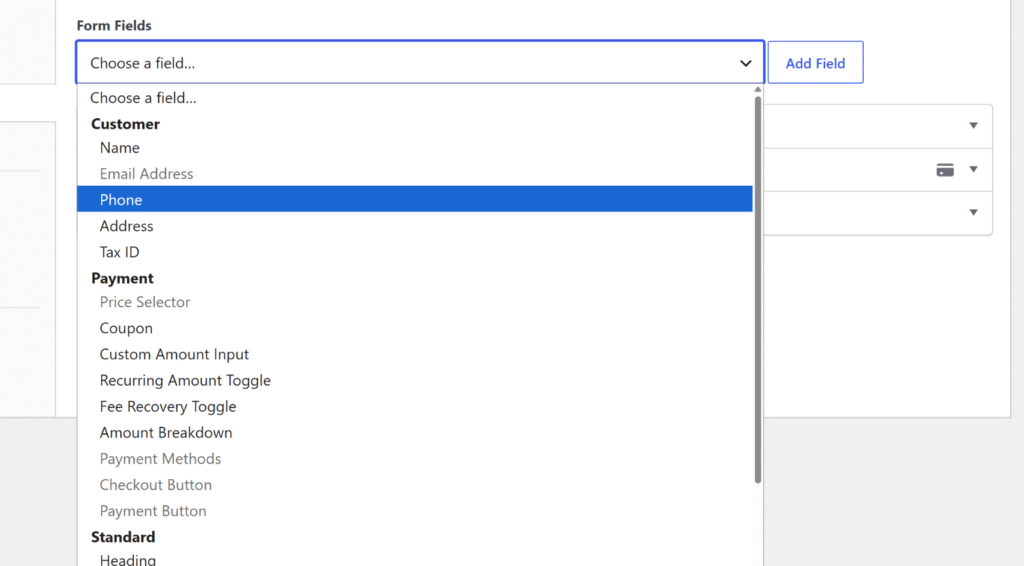
Als Nächstes können Sie jedes Formularfeld erweitern und weitere Details hinzufügen.
Wenn Ihr Formular konfiguriert ist, klicken Sie auf Veröffentlichen.
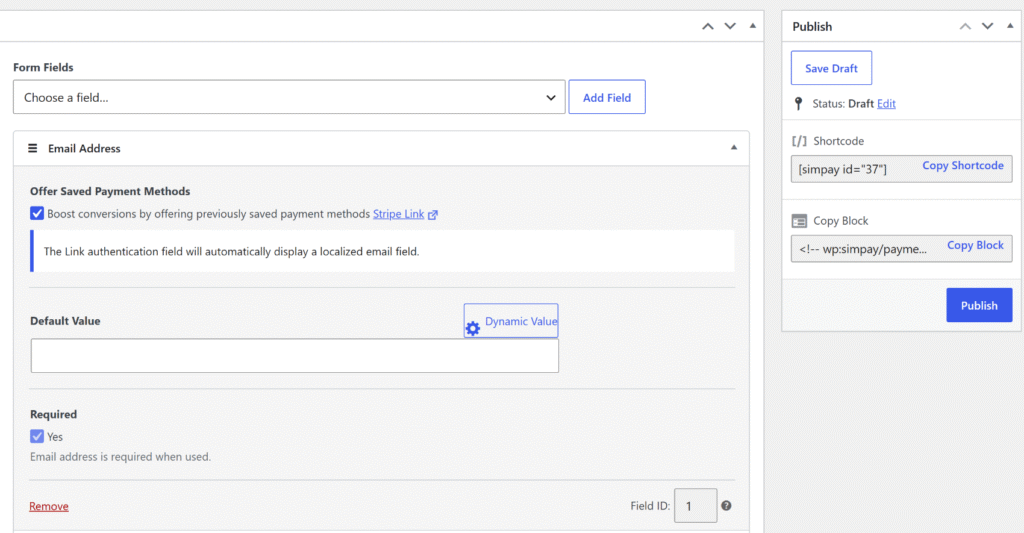
Schritt 4: Formular zu einer Seite hinzufügen und Testzahlung durchführen
Jetzt, da Ihr Formular bereit ist, können Sie es einfach überall auf Ihrer Website platzieren, um Zahlungen zu sammeln.
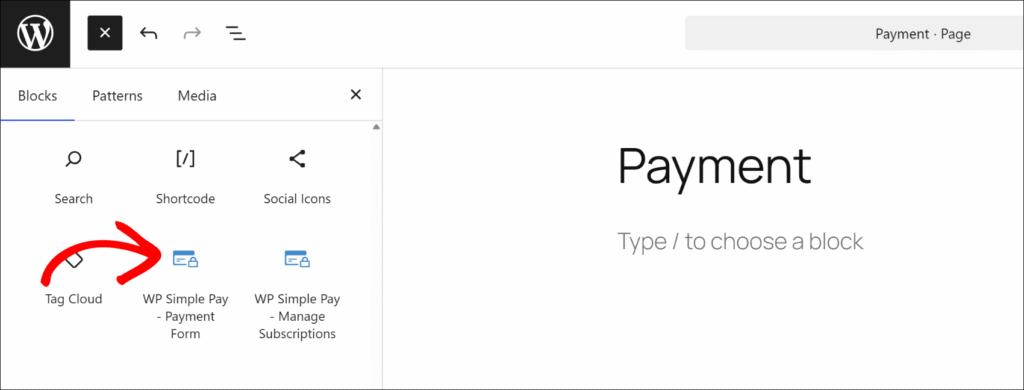
Erstellen Sie zunächst eine neue WordPress-Seite oder öffnen Sie eine vorhandene und fügen Sie dann einen WP Simple Pay – Zahlungsformular-Block aus dem WordPress-Inhaltseditor hinzu.
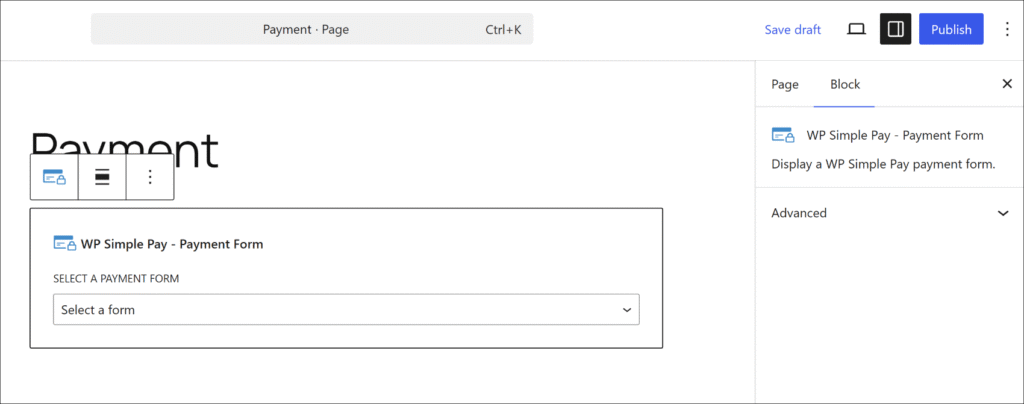
Sobald Sie den Block hinzugefügt haben, wählen Sie Ihr veröffentlichtes Formular aus dem Dropdown-Menü aus.
Jetzt können Sie auf Aktualisieren oder Veröffentlichen klicken, um die Seite live zu schalten.
Sie können auch den Shortcode aus dem Formular-Editor kopieren und in jedes Textfeld oder jeden Shortcode-Block auf der Seite einfügen.
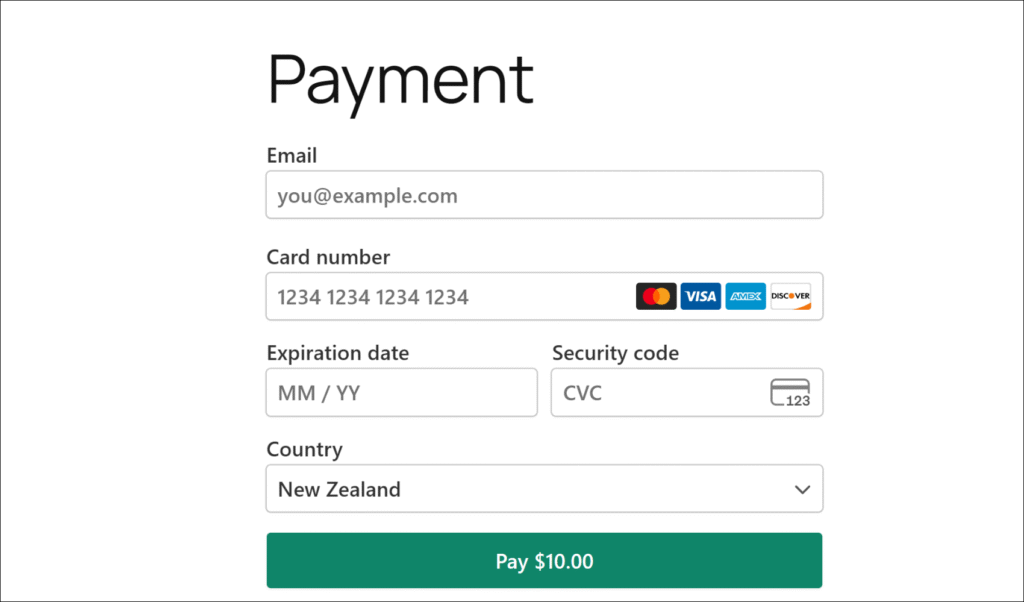
Wenn das Formular im Testmodus live ist, geben Sie die Stripe-Testkartennummer 4242 4242 4242 4242, ein beliebiges zukünftiges Ablaufdatum und eine beliebige 3-stellige CVC ein und senden Sie es ab. Die Bestätigungsnachricht wird angezeigt, und Sie finden eine vollständige Liste von Testkarten für verschiedene Zahlungsszenarien in Stripes Testdokumentation.
Von dort aus können Sie zu WP Simple Pay » Aktivität & Berichte navigieren, um zu bestätigen, dass die Testzahlung im Feed der letzten Aktivitäten angezeigt wird.
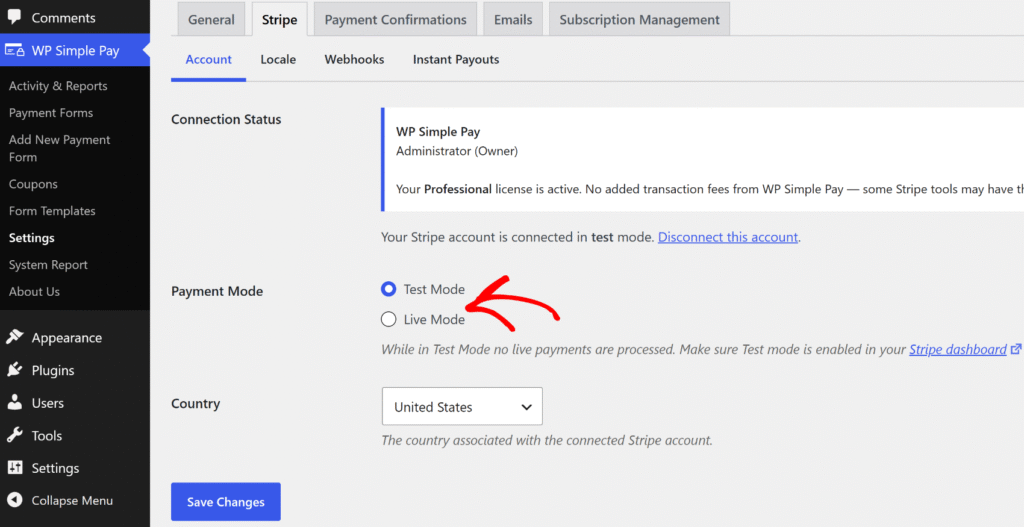
Sobald Sie bestätigt haben, dass die Testzahlung funktioniert, navigieren Sie zu WP Simple Pay » Einstellungen » Stripe » Konto und wechseln Sie den Zahlungsmodus -Radiobutton von Testmodus zu Live-Modus.
Ihr Formular ist jetzt bereit, echte Zahlungen anzunehmen.
Bonus: Wiederkehrende Zahlungen in WordPress akzeptieren
Wenn Sie Kunden nach einem Zeitplan abrechnen müssen, verwaltet WP Simple Pay wiederkehrende Abrechnungen aus demselben Formular-Builder, ohne dass ein separates Plugin erforderlich ist.
Ändern Sie auf der Registerkarte Zahlung den Zahlungstyp auf Abonnement und legen Sie das Abrechnungsintervall fest: täglich, wöchentlich, monatlich oder jährlich.
Sie können auch eine Einrichtungsgebühr, eine kostenlose Testphase oder eine festgelegte Anzahl von Abbuchungen für ratenähnliche Abrechnungen hinzufügen – diese erweiterten Abonnementoptionen erfordern den WP Simple Pay Pro Professional Plan oder höher. Grundlegende wiederkehrende Abrechnungen sind auf jedem WP Simple Pay Pro Plan verfügbar, beginnend mit Personal.
Eine vollständige Anleitung finden Sie in unserem Leitfaden zur Annahme wiederkehrender Zahlungen über Ihre WordPress-Website.
FAQs zu Zahlungsformularen ohne WooCommerce
1. Kann ich Zahlungen in WordPress ohne WooCommerce akzeptieren?
Ja. Ein dediziertes Zahlungs-Plugin wie WP Simple Pay verbindet WordPress direkt mit Stripe ohne WooCommerce. Sie erstellen ein gebrandetes Zahlungsformular, veröffentlichen es auf jeder WordPress-Seite und beginnen innerhalb von Minuten mit dem Sammeln von Zahlungen. Kein Produktkatalog, Warenkorb oder Shop-Konfiguration erforderlich.
2. Was ist das beste WordPress-Zahlungs-Plugin ohne WooCommerce?
WP Simple Pay ist das führende Stripe-Zahlungs-Plugin für WordPress, das von über 14.000 Website-Betreibern genutzt wird, die Zahlungen ohne einen vollständigen E-Commerce-Shop abwickeln müssen. Es unterstützt Einmalzahlungen und wiederkehrende Zahlungen, über 10 Zahlungsmethoden und vorgefertigte Vorlagen für Spenden, Abonnements und Veranstaltungsanmeldungen. Die Einrichtung dauert nur wenige Minuten, ohne dass ein Entwickler oder ein Warenkorb erforderlich ist.
3. Benötige ich ein Stripe-Konto, um WP Simple Pay zu nutzen?
Ja. WP Simple Pay wird von Stripe betrieben, das die gesamte Zahlungsabwicklung übernimmt und für digitale Dienstleistungsunternehmen, nicht für den Einzelhandel, konzipiert ist. Der Einrichtungsassistent enthält eine Schaltfläche Mit Stripe verbinden, die Sie durch die vollständige Verbindung ohne API-Schlüssel führt. Neue Benutzer können während der Einrichtung direkt im Assistenten ein Stripe-Konto erstellen, und Stripe unterstützt über 135 Währungen in über 45 Ländern.
4. Wie füge ich ein Zahlungsformular zu WordPress ohne WooCommerce hinzu?
Installieren Sie WP Simple Pay, verbinden Sie es mit Stripe über den Einrichtungsassistenten, gehen Sie dann zu WP Simple Pay » Zahlungsformulare, klicken Sie auf Neues Zahlungsformular hinzufügen und wählen Sie eine Vorlage aus. Legen Sie den Betrag, den Zahlungstyp und benutzerdefinierte Felder auf den entsprechenden Registerkarten fest und klicken Sie dann auf Veröffentlichen. Fügen Sie das Formular mit dem WP Simple Pay – Zahlungsformular Block oder einem Shortcode zu jeder WordPress-Seite hinzu.
5. Erhebt WP Simple Pay zusätzliche Gebühren über die von Stripe hinaus?
WP Simple Pay Pro erhebt keine zusätzlichen Transaktionsgebühren über die Standardverarbeitungsgebühr von Stripe hinaus. Die eigene Verarbeitungsgebühr von Stripe gilt für alle Transaktionen unabhängig vom Plugin. WP Simple Pay Lite beinhaltet eine zusätzliche Gebühr von 3 % pro Transaktion, die bei allen Pro-Plänen entfällt. Besuchen Sie die WP Simple Pay Preisübersicht für eine vollständige Aufschlüsselung der Tarife.
Sie wissen jetzt, wie Sie Zahlungen in WordPress ohne WooCommerce akzeptieren können: Installieren Sie WP Simple Pay, verbinden Sie es mit Stripe, erstellen Sie in wenigen Minuten ein Zahlungsformular und veröffentlichen Sie es auf jeder Seite.
Wir hoffen, dieser Artikel hat Ihnen geholfen zu lernen, wie Sie Zahlungen in WordPress ohne WooCommerce akzeptieren können. Möglicherweise möchten Sie auch unsere Anleitungen zum Akzeptieren wiederkehrender Zahlungen über Ihre WordPress-Website und zur Gestaltung des perfekten Zahlungsformulars in 9 Schritten sehen.
Bereit, Zahlungen anzunehmen? Starten Sie noch heute mit WP Simple Pay.
Um weitere Artikel wie diesen zu lesen, folgen Sie uns auf X.
Offenlegung: Unsere Inhalte werden von unseren Lesern unterstützt. Das bedeutet, wenn Sie auf einige unserer Links klicken, können wir eine Provision verdienen. Wir empfehlen nur Produkte, von denen wir glauben, dass sie unseren Lesern einen Mehrwert bieten.

Antwort hinterlassen