
The Ultimate Guide to Global Payment Methods on WordPress
Last updated on

Do you want to accept international payments on your WordPress site but aren’t sure where to start?
WordPress doesn’t process payments on its own, which means you need a plugin or payment gateway to handle the actual transactions. But here’s the good news: you don’t need a massive, bloated shopping cart system just to accept cross-border payments.
In this article, we’ll walk you through exactly how to set up global payment processing on your WordPress site, what it actually costs to run cross-border transactions, and how to choose a lightweight setup that won’t slow your site down.
Why Bother with International Payments?
If your site only supports local cards and a single currency, you could be missing out on customers who would love to buy from you but don’t see a payment method they’re comfortable with.
Maybe you’re a freelance designer billing clients overseas. Maybe you run an online course and your students are spread across three continents. Maybe you collect donations and your most generous supporters live halfway around the world. Whatever your situation, the technical barriers that used to make international payments a headache are mostly gone. Stripe handles the currency math on the fly. Your customers pay in their local currency, and you still receive the funds in yours.
Local Payment Methods Actually Matter
Not every country relies on credit cards. Payment preferences vary widely around the world, and assuming a standard card form is enough is a fast way to hurt your conversion rate.
In many European countries, bank-based payment methods like iDEAL and SEPA Direct Debit are often preferred over cards. In parts of Asia, digital wallets like Alipay and WeChat Pay are common. Other regions favor buy-now-pay-later options like Klarna.
Offering these local methods removes one of the biggest hurdles at checkout. When people see a payment method they already trust and use every day, they’re much more likely to complete their purchase.
Mobile Wallets Speed Everything Up
Digital wallets like Apple Pay and Google Pay have completely changed mobile checkout. When a customer taps Apple Pay on their phone, they skip the experience of typing a 16-digit card number on a tiny screen. It speeds up the checkout, reduces cart abandonment, and delivers a modern, professional experience.
The Real Cost of International Transactions
Before you open the floodgates to global buyers, let’s talk about what it actually costs. Gateway providers often advertise their domestic rates in large fonts and bury the international fees in the fine print.
Stripe charges 2.9% + 30¢ per successful U.S. domestic transaction, while PayPal’s standard card rate starts at 2.99% + 49¢. But look closer at Stripe’s international add-ons:
- International card fee: Adds 1.5% when the card was issued outside your country.
- Currency conversion fee: Adds another 1% when the transaction involves converting currencies.
Let’s do the math on a real transaction. If a customer in France buys your $100 digital product using an international credit card:
- Base fee: $2.90 + $0.30 = $3.20
- International card fee (1.5%): $1.50
- Currency conversion (1%): $1.00
- Total fees: $5.70 (5.7% of the transaction)
Compare 5.7% to a domestic 3.2%, and you quickly see why it’s important to factor these costs into your international pricing strategy. For a full breakdown of current rates, check Stripe’s pricing page.
Why a Lightweight Plugin Matters
There’s another cost that doesn’t show up on any pricing page: the overhead of running a full e-commerce platform when you don’t need one.
If you’re selling consulting hours, a digital download, or event tickets, a full e-commerce solution can add unnecessary complexity. You may end up needing premium hosting, paid extensions for basic features, and extra time troubleshooting site slowdowns.
A lightweight payment plugin designed specifically for Stripe skips all of this overhead and gets you to checkout faster.
Remove the additional 3% fee!
Most Stripe plugins charge an additional 3% fee for EVERY transaction
…not WP Simple Pay Pro!
The Best WordPress Plugins for Global Payments
Not all payment plugins handle international checkouts equally. Here’s a realistic look at your best options.
WP Simple Pay: The Lightweight Route
WP Simple Pay is the #1 Stripe payments plugin for WordPress. It skips the shopping cart entirely. If you sell services, memberships, donations, or digital products, this is the fastest way to get global payments running.
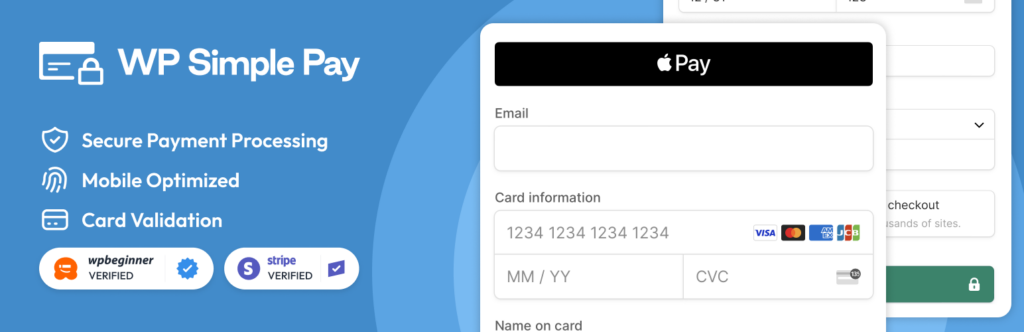
- It natively supports 135+ currencies through Stripe and handles the conversions automatically.
- It doesn’t bog down your site with cart databases or session bloat.
- You can turn on Alipay, iDEAL, SEPA, and Bancontact with a single click.
- Apple Pay and Google Pay work out of the box.
- The Professional and Elite plans hook into Stripe Tax to automatically calculate and collect VAT and GST based on where the buyer lives.
- You can pass Stripe processing fees on to your customers with the built-in Fee Recovery feature.
You don’t need to know how to code. You just drop a form onto a page, tweak the settings, and publish.
Pricing: Starts at $49.50/year.
Best for: Service providers, consultants, non-profits, and digital product sellers who want a fast checkout without the e-commerce overhead.
WooCommerce: The Full E-Commerce Solution
WooCommerce is the most popular e-commerce plugin for WordPress. If you have a physical warehouse, hundreds of SKUs, and complex shipping logistics, it’s a powerful platform built for that use case.

It can handle international payments, multiple currencies, and global tax compliance, but you’ll typically need to build that functionality out using a combination of free and premium add-ons. The setup takes more time and planning than a lightweight payment form.
Pricing: Free core plugin, but expect to invest in premium extensions and hosting to meet international payment needs.
Best for: Traditional retail businesses with physical inventory and complex shipping requirements.
WPForms: The All-Purpose Form Builder
WPForms is a popular drag-and-drop form builder for WordPress. You can build many types of forms with it, including payment forms.

It handles Stripe, PayPal, and Square, and supports multi-currency transactions. While basic Stripe payments are available on lower tiers with additional processing fees, the Pro plan includes full Stripe functionality without extra charges. It’s a great tool if you already need a form builder for surveys, registrations, or lead generation. However, if you only need payment forms, a dedicated payments plugin may be a more focused solution.
Pricing: $399.00/year for the Pro plan (required for full Stripe support without additional processing fees).
Best for: Sites that already need an advanced form builder for non-payment tasks.
Step-by-Step: Setting Up International Payments
Let’s get a global payment form live using WP Simple Pay. Assuming you already have a Stripe account and an SSL certificate on your WordPress site, this takes about ten minutes.
Step 1: Install the Plugin
From your WordPress admin dashboard:
- Go to Plugins » Add New
- Search for “WP Simple Pay”
- Click Install Now and then click Activate
The plugin’s setup wizard will walk you through connecting your Stripe account. For more details, see this step-by-step guide on how to accept Stripe payments in WordPress.
Step 2: Connect Your Stripe Account
Because WP Simple Pay uses Stripe’s secure servers, credit card numbers never touch your WordPress database. This keeps you off the hook for intense PCI compliance audits. To ensure the connection is secure, make sure you add SSL HTTPS in WordPress before going live.
- On the welcome screen, click Connect with Stripe
- Log into your Stripe account when redirected
- Authorize the connection
- You’ll be redirected back to your WordPress dashboard
For a detailed walkthrough, see our guide on how to connect Stripe to WordPress.
Step 3: Build the Form
- Go to WP Simple Pay » Add New
- Pick a payment form template that fits what you’re selling (like a digital product or a donation form).
- The visual builder will load up so you can customize the text and fields.
Step 4: Turn on Local Payment Methods
This is where you make the form truly global.
- Click the Payment tab at the left of the builder.
- Scroll down to the Payment Methods section.
- Toggle on the methods you want.
For a solid international reach, turn on Apple Pay, Google Pay, Alipay, WeChat Pay, iDEAL, Bancontact, and SEPA Direct Debit. Stripe automatically handles the verification and processing of these transactions.
Step 5: Handle the Currencies
Stay in the Payment tab and look for the Add Pice button:
- Set your base currency from 135+ supported currencies.
- To offer multiple currency options, add additional price options and set a different currency for each one. This lets buyers choose the currency that works best for them.
If you only set a single base currency, Stripe will charge the customer in that currency, and the customer’s bank will handle the conversion on their end.
Step 6: Test It
Never go live without testing.
- Go to WP Simple Pay » Settings and toggle on Test Mode.
- Grab some test credit card numbers from Stripe’s documentation.
- Run a test transaction to make sure the form behaves correctly.
- Turn off Test Mode when you’re done.
Step 7: Embed It
Drop the form onto any page using the block editor or use a shortcode. For the best conversion rates, consider putting your international payment form on a dedicated payment page stripped of navigation menus and sidebars.
Taxes, Fraud, and Compliance
Processing the payment is the easy part. Dealing with international tax requirements and fraud prevention takes a bit more planning.
International Tax Compliance
Taxes are the least fun part of selling globally. The rules vary widely:
- EU VAT ranges from 17% to 27% depending on the country.
- The UK charges 20% VAT.
- Australia applies a 10% GST.
- The US is a patchwork of state and local sales taxes.
Many governments now enforce “digital services taxes.” For example, if you sell a digital course to someone in Spain, Spain expects you to collect and remit VAT for that sale, even if you’re based in Texas.
Handling this manually is extremely time-consuming. WP Simple Pay’s Professional and Elite plans integrate with Stripe Tax to automatically collect taxes for your payments. It looks at the buyer’s IP and billing address, calculates the exact tax owed, adds it to the checkout, and logs it in your Stripe dashboard for tax season.
Fraud Prevention and SCA
Cross-border transactions naturally carry a higher risk of fraud and chargebacks. To stay safe, you should learn how to protect your business from credit card fraud by using built-in security tools.
If you sell to anyone in Europe, you need to comply with Strong Customer Authentication (SCA) laws. This requires two-factor authentication for online purchases, usually a prompt on the buyer’s banking app. Stripe handles this automatically, displaying the right authentication windows when a European card is detected.
Stripe also runs Stripe Radar in the background. It uses machine learning to flag suspicious behavior, such as a card issued in the UK being used from an IP address in a different country. You can adjust Radar’s rules in your Stripe dashboard to automatically block high-risk payments.
Bonus: Track Your Global Traffic
You can’t optimize for international buyers if you don’t know where they live. Use a tool like MonsterInsights to connect Google Analytics to your WordPress dashboard.
Go to the Reports section, check the Geography tab, and look at your traffic map. For exmaple, if you are bassed in the United States, and 20% of your visitors are coming from a country in Euopre but nobody is buying, you probably need to turn on SEPA Direct Debit and make sure your form supports Euros.
Frequently Asked Questions
Can I accept payments directly through WordPress?
Out of the box, no. WordPress is a content management system, not a payment processor. You need a plugin that connects to a payment gateway like Stripe or PayPal to accept payments on your WordPress site.
How do I add multiple currencies to my WordPress site?
Let your payment gateway handle the math. Use a Stripe-integrated plugin like WP Simple Pay to offer multiple price options in different currencies on your checkout form. Stripe uses real-time exchange rates. Never try to manually code or manage exchange rates yourself.
Can WooCommerce accept international payments?
Yes, but you’ll need to build it out. You’ll need the core plugin, a Stripe gateway extension, and likely a few premium add-ons to handle multi-currency transactions and global shipping. It works well for full e-commerce stores, but it’s a more complex setup.
How much do international transactions cost on Stripe?
Expect to pay around 5.4% to 5.7% total. That includes the standard 2.9% + 30¢, plus a 1.5% international card fee, plus a 1% currency conversion fee.
Do I need a traditional merchant account?
No. Stripe and PayPal act as both your gateway and your merchant account. You just sign up, link your bank account, and you can start accepting global payments immediately.
Is it safe to take credit cards on WordPress?
Yes, provided you do it right. Use an SSL certificate and a payment plugin that sends data straight to Stripe’s servers. If credit card numbers never actually touch your WordPress database, your risk is extremely low.
That’s it! We hope this article has helped you learn how to accept international payments on your WordPress site.
If you liked this article, you might also want to check out these other guides:
- How to Accept Stripe Payments in WordPress (Step by Step)
- How to Accept WeChat Pay on WordPress (Easy Way)
- How to Collect Taxes for Stripe Payments in WordPress
- How to Accept Additional Payment Methods in Stripe for Free
What are you waiting for? Get started with WP Simple Pay today!
To read more articles like this, follow us on X.
Disclosure: Our content is reader-supported. This means if you click on some of our links, then we may earn a commission. We only recommend products that we believe will add value to our readers.


Leave a Reply