
How to Accept BECS Direct Debit Payments in WordPress
Last updated on

Are you looking to accept BECS direct debit payments from visitors from Australia on your WordPress site?
Australian customers increasingly expect to pay by direct debit instead of a credit card for recurring bills and retainers. Most WordPress payment forms only take cards, with no built-in way to accept BECS Direct Debit payments from Australia.
We’ve worked with service businesses that quietly lost Australian retainer clients this way. The client never saw a direct debit option, so they assumed the business couldn’t support it.
WP Simple Pay adds BECS Direct Debit as a payment option on any WordPress form, without custom development.
In this article, we’ll show you how to accept BECS Direct Debit payments from Australian customers on a WordPress payment form.
Why Accepting BECS Direct Debit Matters
BECS stands for Bulk Electronic Clearing System. It’s the network Australian banks use to debit money straight from a customer’s bank account, the same way they already pay bills and memberships.
Setting up BECS Direct Debit on a payment form requires a mandate. The customer authorizes the debit by providing their bank account details and agreeing to Stripe’s Direct Debit Service Agreement.
BECS Direct Debit works the same way Bacs Direct Debit does for UK customers, using Australian bank accounts and Australian dollars instead.
Here’s why you should add BECS Direct Debits to your website as a payment option:
- Fewer abandoned checkouts from Australian customers. A payment form that only takes cards can feel unfamiliar to Australian buyers who expect a direct debit option from their own bank. Offering BECS Direct Debit meets them where they already prefer to pay.
- A better fit for retainers and subscriptions. BECS Direct Debit supports recurring billing, so it works well for service businesses billing Australian clients every month. A client authorizes the mandate once, and the following charges happen automatically.
- Fewer failed renewal payments. A BECS mandate isn’t tied to a card that can expire or get flagged by a bank. That makes it a steadier option for retainers than repeatedly re-running the same card, and it fits the same pattern as accepting ACH Direct Debit payments for US customers.
With that in mind, here’s how to add BECS Direct Debit to a WordPress payment form.
Accept BECS Direct Debit Payments with WP Simple Pay
For a WordPress site owner who wants to add BECS Direct Debit without hiring a developer, WP Simple Pay is the easiest and most direct way to do it.
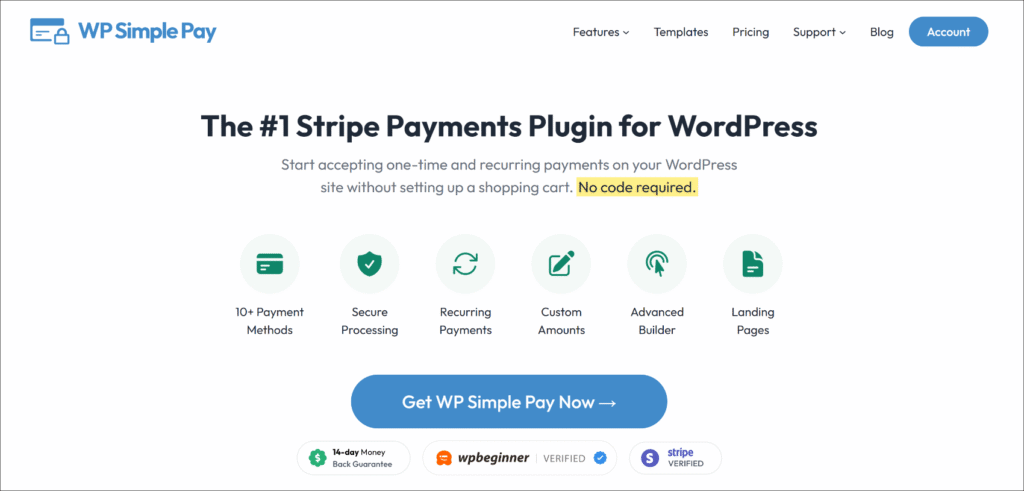
WP Simple Pay is the #1 Stripe payments plugin for WordPress. It lets site owners accept one-time and recurring payments without setting up a shopping cart, and BECS Direct Debit is one of more than 10 supported payment methods.
Here are some key features offered by WP Simple Pay:
- 10+ Payment Methods. WP Simple Pay supports BECS Direct Debit alongside cards, Apple Pay, Google Pay, ACH Direct Debit, and more, all from the same form.
- Recurring Payments and Subscriptions. Set up a retainer or membership charge once, and WP Simple Pay handles the renewal billing automatically through Stripe.
- Drag-and-Drop Form Builder. Build a branded payment form without writing code, and choose exactly which payment methods appear on it.
- Fee Recovery. Pass Stripe’s processing fee to the customer at checkout instead of absorbing it on every payment.
With that, let’s see how you can use WP Simple Pay to accept BECS Direct Debit payments.
Step 1: Install and Activate WP Simple Pay
To get started, you’ll want to visit the WP Simple Pay pricing page and choose the Professional plan or higher, since that’s the plan that unlocks BECS Direct Debit.
Once you’ve purchased it, you can download the plugin zip file from the WP Simple Pay account dashboard. From there, simply upload the plugin files and install the plugin on your WordPress site.
If you need more details about installing a plugin from a .zip file, then please see this WordPress plugin installation guide.
Activating the plugin launches the setup wizard right away, so go ahead and click Let’s Get Started.
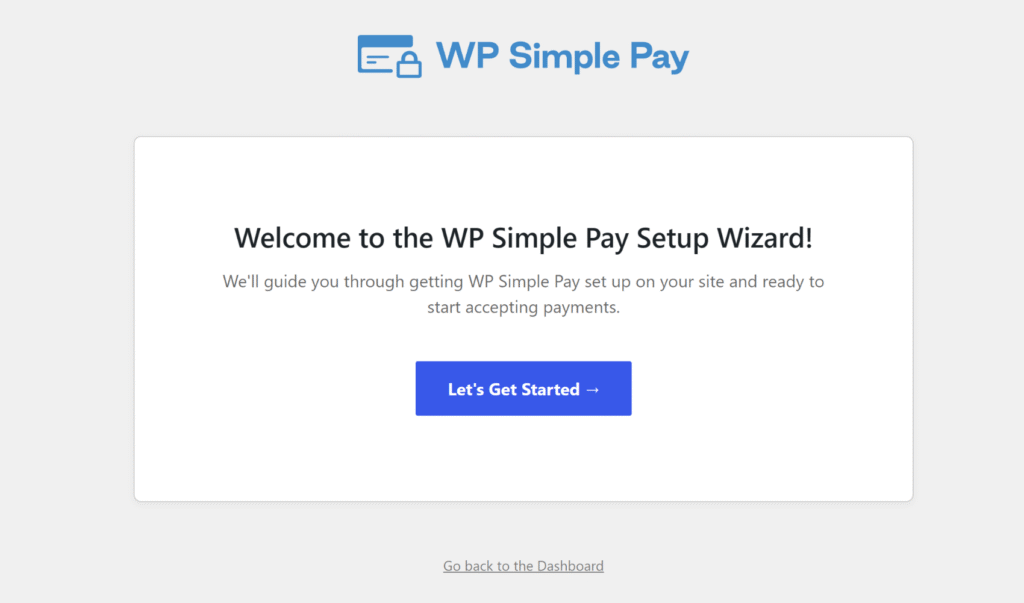
If you don’t see the wizard pop up on its own, you can head to WP Simple Pay » Settings » General » Advanced and click the Launch Setup Wizard button instead.
Step 2: Connect WordPress to Stripe
From the setup wizard, you can click Connect with Stripe to link the WordPress site to a Stripe account.
If it’s a new account, you can create one right from that same screen, and if not, existing users can sign in with the one they already have.
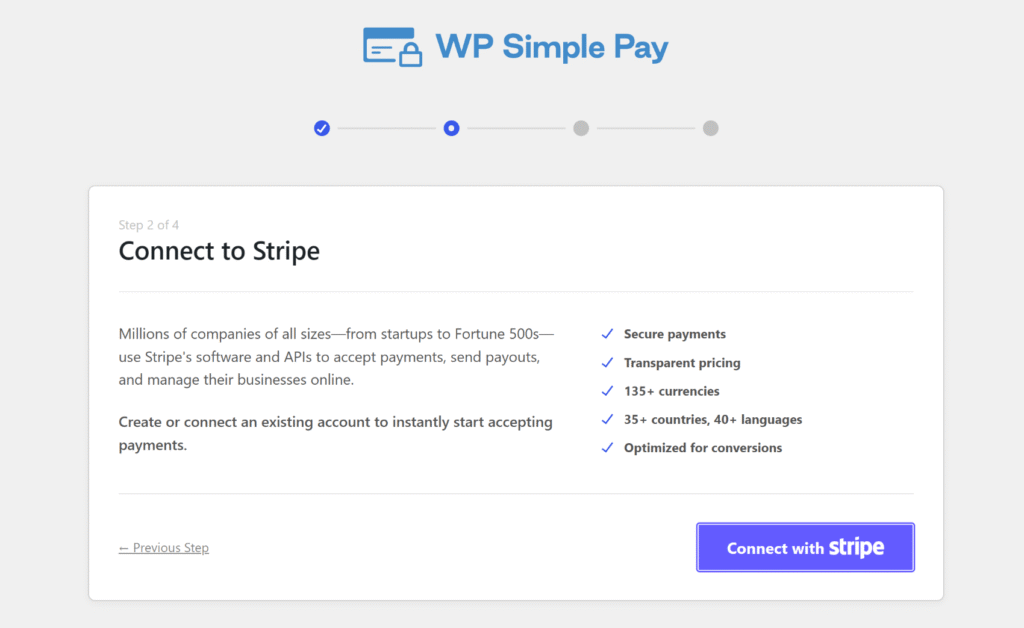
Once you get there, Stripe asks for some basic business details, since it needs that information to process AUD payments to an Australian bank account.
After that handshake finishes, you’ll see a Setup Complete message confirming the connection worked.
Step 3: Enable BECS Direct Debit on a Payment Form
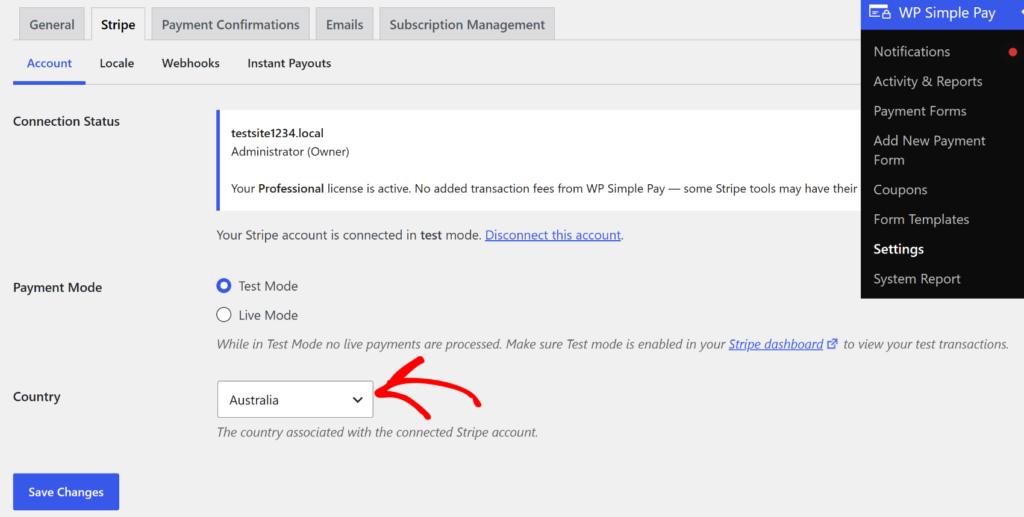
Before creating a new form and adding the BECS Direct Debit payment option, you’ll need to ensure that the default country in WP Simple Pay is Australia.
To do that, you can head to WP Simple Pay » Settings from the WordPress dashboard. Then go to the ‘Stripe’ tab and, under Account, change the default Country.
Next, you can go to WP Simple Pay » Payment Forms to start a new payment form or open an existing one to update it.
If it helps to see the whole process laid out first, our guide on designing the perfect payment form walks through picking a template and a display type.
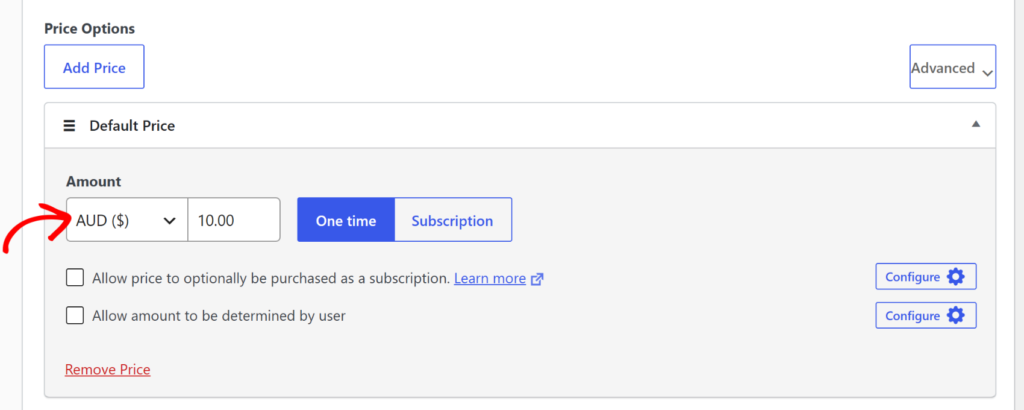
On the Payment tab, you can open the price option’s Amount row. Once it’s open, use the currency dropdown next to it to select Australian Dollar (AUD), since BECS Direct Debit only works with AUD-denominated payments.
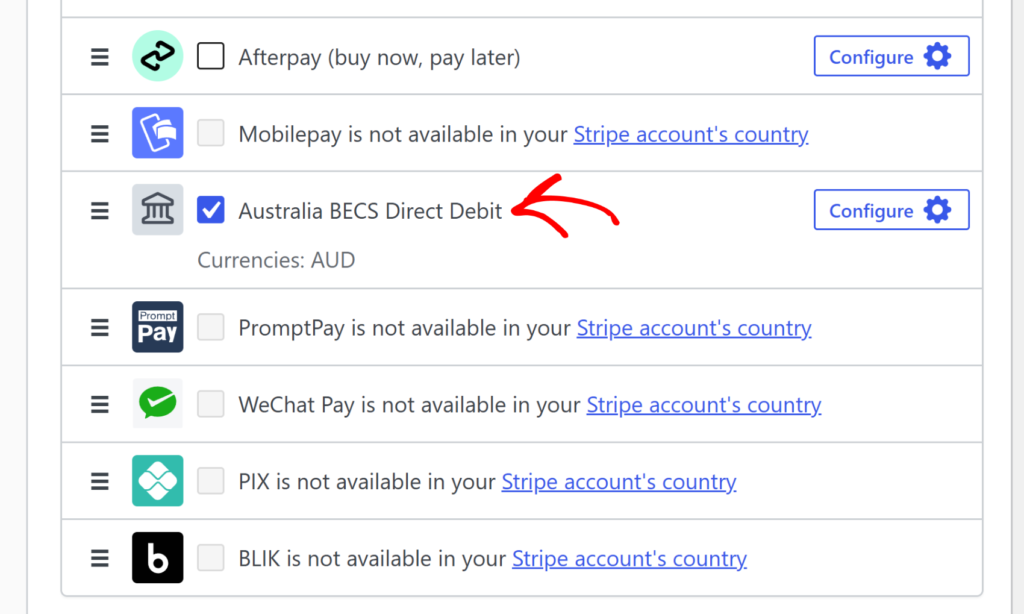
From there, scroll down to Payment Methods and switch the filter from Popular to All.
You’ll then see Australia BECS Direct Debit in the list, so go ahead and check the box next to it (labeled with “BECS Direct Debit” as its short name throughout the rest of this guide).
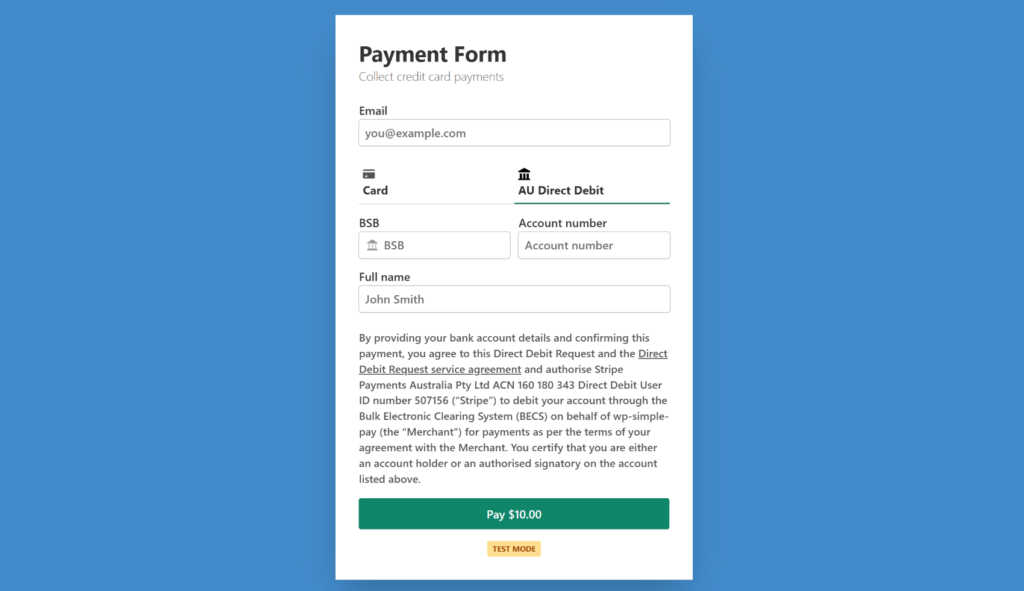
Stripe automatically shows the required mandate text to the customer at checkout, so you don’t need to write any extra legal copy yourself.
The customer enters their bank account holder name, BSB number, and account number, then agrees to Stripe’s Direct Debit Service Agreement before the form is submitted.
If you’ve set the form up for recurring billing, go ahead and save the price option settings. It’s also worth checking our guide on handling failed recurring payments, since that covers what happens if a renewal debit doesn’t go through.
Step 4: Test a BECS Direct Debit Payment
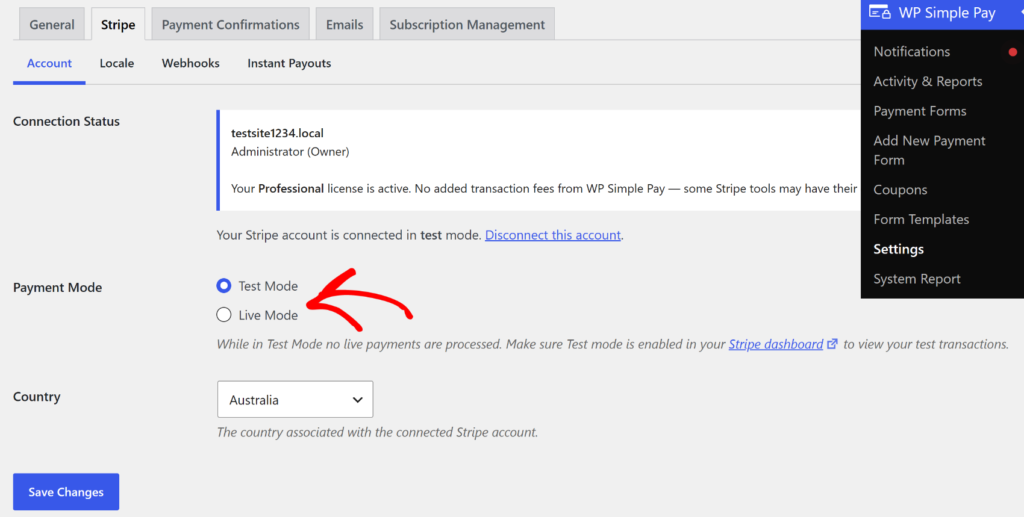
Before going live, you’ll want to switch WP Simple Pay to Test mode under WP Simple Pay » Settings » Stripe » Account, then open the published form on the front end.
From there, you can use one of Stripe’s test bank accounts to submit a successful mandate without touching a real Australian bank account.
Once that’s done, run the test a second time using a test account set up to simulate a failed debit, and confirm WP Simple Pay handles it the same way it would handle a real declined payment.
Test payments typically resolve right away, since Stripe simulates the outcome instead of waiting on a real bank.
Once the successful test payment goes through, you can check the Activity & Reports page from your dashboard for the transaction, then confirm the matching payment shows up in the Stripe dashboard too. Seeing it in both places tells you the form, Stripe, and the customer’s bank account are all connected correctly.
Once the form goes live, plan for a short delay on real payments. It can take up to three business days for a live BECS Direct Debit payment to come back as succeeded or failed, so it’s worth setting that expectation with a client upfront.
Bonus: Pass the Stripe Processing Fee to Customers
Once BECS Direct Debit is live, it’s worth turning on Fee Recovery so the Stripe processing fee doesn’t come out of the payment itself. Fee Recovery for a non-card method like BECS Direct Debit unlocks starting at the Plus plan, which the Professional plan already requires for BECS Direct Debit coverage, so there’s nothing extra to buy.
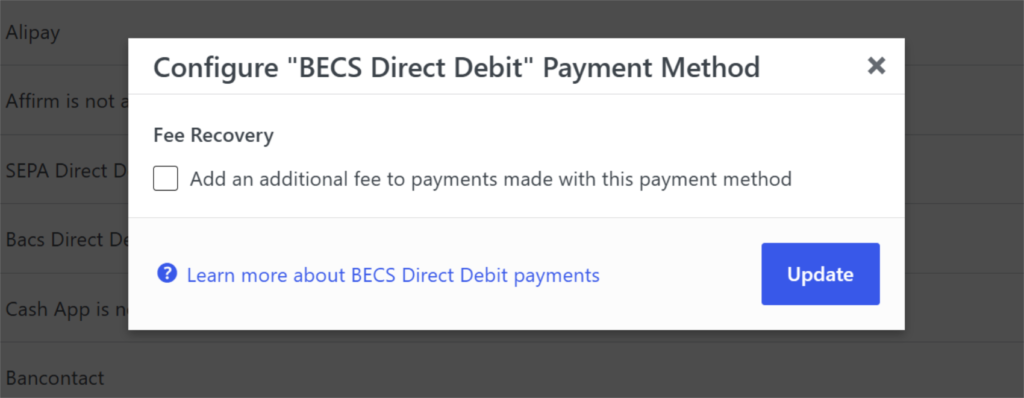
To turn it on, you can open the payment form and go to the Payment tab. Find BECS Direct Debit in the Payment Methods list, then click Configure.
Once that dialog opens, you can enable Fee Recovery to pass Stripe’s processing fee on to the customer for that payment method.
Frequently Asked Questions
1. What is BECS Direct Debit?
BECS Direct Debit is Australia’s bank-to-bank direct debit network, run through the Bulk Electronic Clearing System. Instead of entering card details, a customer authorizes a mandate once, and future payments are debited straight from their Australian bank account.
2. Which WP Simple Pay plan do I need to accept BECS Direct Debit payments?
BECS Direct Debit requires the Professional plan or higher, since Personal and Plus don’t include it. Fee Recovery for BECS Direct Debit unlocks starting at the Plus plan, so the Professional plan already needed for BECS Direct Debit covers it too, with no separate purchase needed to pass on the processing fee.
3. How long does a BECS Direct Debit payment take to confirm?
A BECS Direct Debit payment can take up to three business days before WP Simple Pay knows whether it succeeded or failed. That’s normal for this payment method, since Australian banks process the debit in batches rather than instantly.
4. Can I use BECS Direct Debit for subscriptions?
Yes, BECS Direct Debit supports recurring billing, so it works for subscriptions and retainer payments. The customer authorizes the mandate once, and Stripe charges each renewal automatically on the schedule set on the form.
Adding BECS Direct Debit to a WordPress payment form gives Australian customers the direct debit option they already expect. WP Simple Pay handles the setup, the mandate, and the recurring billing without any custom development.
You may also want to see our guides on how to accept recurring payments through a WordPress site and how to accept Cash App payments in WordPress.
What are you waiting for? Get started with WP Simple Pay today!
To read more articles like this, follow us on X.
Disclosure: Our content is reader-supported. This means if you click on some of our links, then we may earn a commission. We only recommend products that we believe will add value to our readers.

Leave a Reply