
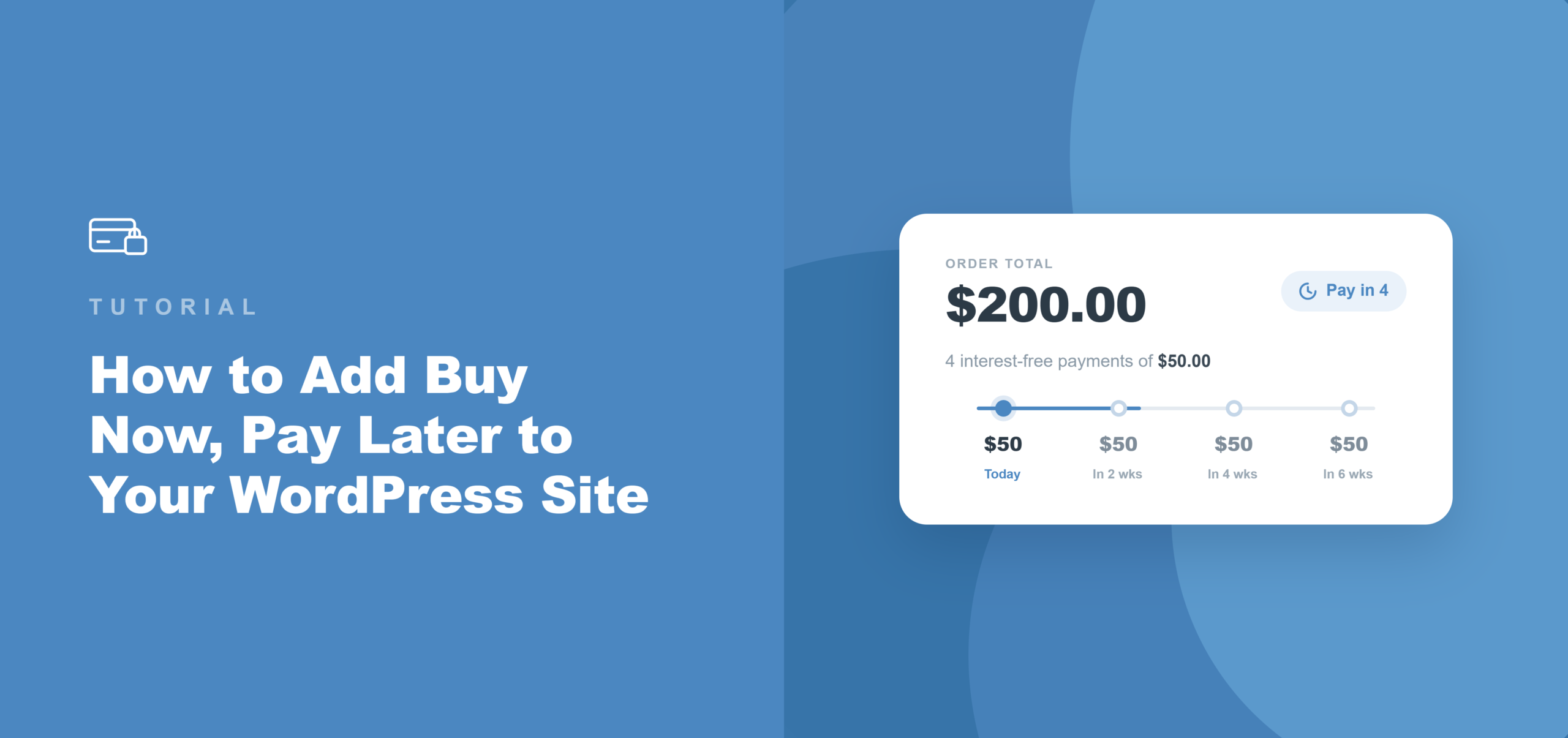
WordPress Sitenize Şimdi Al, Sonra Öde Nasıl Eklenir
Son güncelleme tarihi

Beğendiğiniz bir şeyi, daha küçük taksitlerle daha sonra ödeyebilmeyi dilediğiniz bir durumla hiç karşılaştınız mı?
İşte WordPress siteniz için şimdi al, sonra öde seçeneğine ihtiyacınız olan yer burasıdır.
Ne yazık ki, çoğu WordPress ödeme kurulumu yalnızca kullanıcıların tam tutarı peşin ödemesine izin verir. Ancak koçluk programları, etkinlik biletleri veya kar amacı gütmeyen üyelikler gibi pahalı ürünler satın alan alıcıların büyüyen bir kesimi artık ödeme sırasında bir satın alma işlemini daha küçük ödemelere bölmeyi bekliyor.
Bu seçenek mevcut olmadığında, bir ödeme planı isteyen bir e-posta göndermezler. Giderler.
Bunun hızlı ve kolay bir çözümü, WP Simple Pay'i kullanmak ve Şimdi Al, Sonra Öde (BNPL) seçeneği eklemektir. Müşterilerinizin ödemelerini daha küçük parçalara ayırmalarına olanak tanıyan popüler ödeme sağlayıcılarını destekler. En iyi yanı, kod düzenlemenize gerek olmamasıdır.
Bu makalede, WordPress sitenize şimdi al, sonra öde seçeneğini nasıl ekleyeceğinizi göstereceğiz.
WordPress Sitesine Şimdi Al, Sonra Öde Neden Eklenir
Şimdi Al, Sonra Öde, alıcıların bir satın alma işlemini, tamamını tek seferde ödemek yerine, kısa bir süre içinde ödenen iki ila dört taksite bölmelerine olanak tanıyan bir ödeme seçeneğidir.
Alıcı parça parça öder; satıcı, Stripe gibi ödeme ağ geçitlerinden işlemin tam tutarını peşin olarak alır.
Deneyimlerimize göre, çoğu site sahibi eksik bir ödeme seçeneğinin kendilerine ne kadara mal olduğunu hafife alıyor. İşte BNPL'nin aslında neleri değiştirdiği.
- İndirim olmadan fiyat engelleri ortadan kalkar. 400 dolarda duraklayan bir alıcı, aynı tutar dört adet 100 dolarlık ödemeye bölündüğünde genellikle bir satın alma işlemini tamamlar. Site sahiplerinin, yalnızca bu seçeneği ekleyerek daha yüksek fiyatlı tekliflerde tamamlanan ödemeleri artırdığını gördük: aynı gelir, daha az sürtünme, fiyat indirimi gerekmez.
- Satıcı sıfır tahsilat riski taşır. Manuel bir ödeme planının aksine, BNPL sağlayıcısı alıcıdan taksit tahsilatını doğrudan yönetir. Stripe, alıcının her taksiti zamanında ödeyip ödemediğine bakılmaksızın, işlemin tam tutarını satıcıya anında yatırır.
- Genç alıcılar bunu bekliyor. Milenyum kuşağı alışveriş yapanların dörtte birinden fazlasının yakın zamanda bir satın alma işlemi için şimdi al, sonra öde seçeneğini tercih ettiğini biliyor muydunuz? BNPL ödeme sırasında mevcut olmadığında, bu kesim eksik bir ödeme deneyimi yaşar ve alternatif bir kart yerine geri düğmesine basar.
- Ayrı bir satıcı başvurusu gerekmez. Çoğu platform aracılığıyla Klarna veya Afterpay eklemek, bir satıcı programına başvurmayı ve onay beklemeyi gerektirir. WP Simple Pay ve Stripe aracılığıyla, her iki yöntem de alıcının bölgesine ve para birimine göre otomatik olarak etkinleştirilir. Satıcı tarafında gereken tek işlem, form oluşturucudaki bir kutuyu işaretlemektir.
Bununla birlikte, WordPress web sitenize şimdi al, sonra öde seçeneğini nasıl ekleyebileceğinize bir göz atalım.
BNPL'yi WordPress'e Eklemenin En İyi Yolu Nedir
WordPress'te alışveriş sepeti kurmadan, 'şimdi al, sonra öde' ödemelerini kabul etmenin en kolay yolu olarak WP Simple Pay'i öneririz.
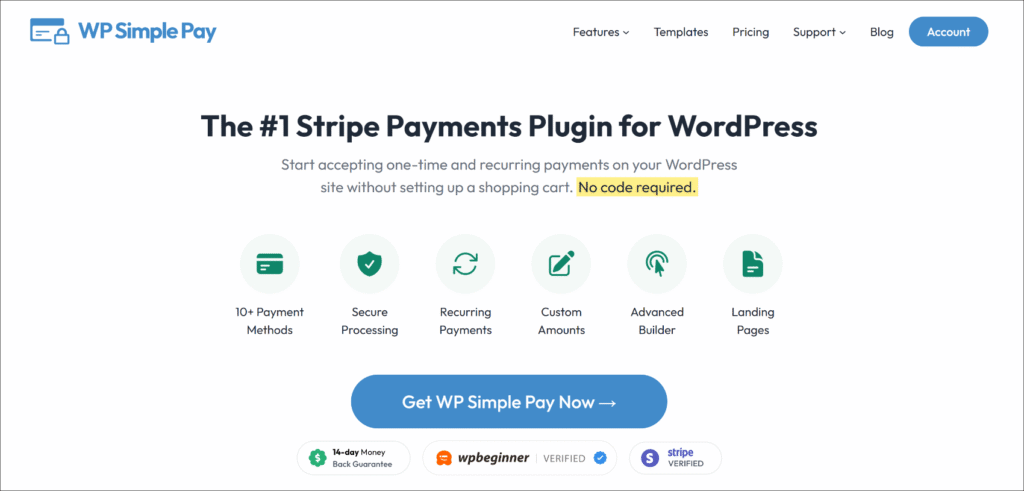
WP Simple Pay, WordPress için 1 numaralı Stripe ödeme eklentisidir. Site sahiplerinin kod gerektirmeden, sürükle ve bırak form oluşturucu ile tek seferlik ve yinelenen ödemeleri kabul etmelerini sağlar.
Özellikle BNPL için, Profesyonel ve Elite planlarda Stripe aracılığıyla Klarna, Afterpay ve Affirm'e bağlanır ve tüm işlem tutarı satıcıya önceden yatırılır.
Bunu bu eğitim için doğru araç yapan şey şudur:
- Yerleşik Klarna, Afterpay ve Affirm. Üç BNPL sağlayıcısı da Profesyonel ve Elite planlarda mevcuttur. Ayrı bir eklentiye, satıcı başvurusuna veya Stripe'ın standart işlem ücretine ek olarak ek bir ücrete gerek yoktur.
- Stripe Checkout entegrasyonu. WP Simple Pay'in Stripe Checkout form türü, alıcıları Stripe'ın barındırılan ödeme sayfasına yönlendirir; burada BNPL seçenekleri, alıcının bölgesine ve satın alma tutarına göre otomatik olarak görünür.
- Tüm tutar önceden yatırılır. Stripe satıcıya hemen ödeme yapar. BNPL sağlayıcısı, alıcıdan taksit toplama işlemini kendi programına göre halleder.
- 10'dan fazla ödeme yöntemi, tek form. Aynı form kartları, Apple Pay, Google Pay, ACH Doğrudan Borç ve BNPL'yi kabul edebilir. Her yöntem için ayrı bir forma gerek yoktur.
Şimdi, WP Simple Pay ile WordPress'e 'şimdi al, sonra öde' özelliğini nasıl ekleyeceğimize bakalım.
Adım 1: WP Simple Pay'i Yükleyin ve Etkinleştirin
BNPL, WP Simple Pay'in Profesyonel planında ve üst sürümlerinde mevcuttur. Başlamak için WP Simple Pay web sitesini ziyaret edin ve yeni bir hesap için kaydolun.
Satın alma işlemini tamamladıktan sonra, eklenti .zip dosyasını onay e-postasından veya WP Simple Pay hesap alanındaki İndirilenler sekmesinden indirebilirsiniz.
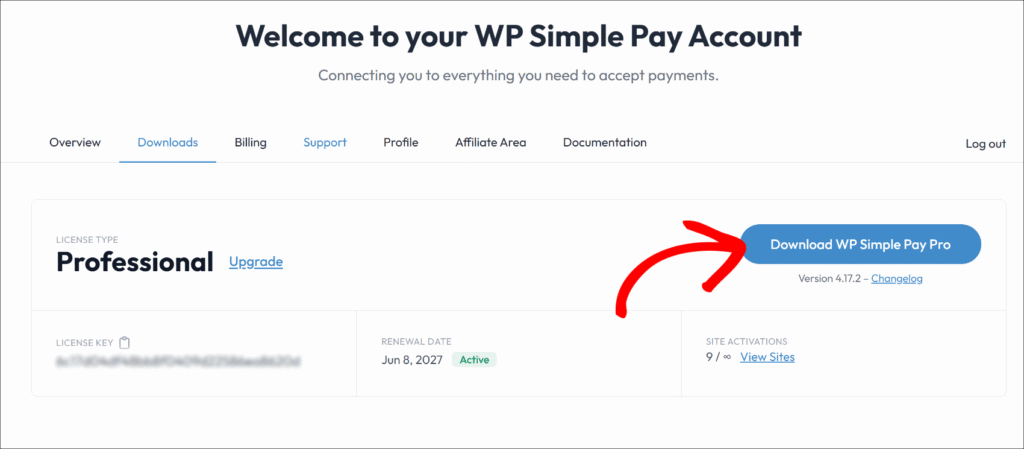
Ardından, eklenti dosyalarını web sitenize yükleyebilir ve ardından eklentiyi etkinleştirip kurabilirsiniz.
Not: WordPress eklentilerini kurmaya yeni başlıyorsanız, lütfen bu WordPress eklentilerini kurma kılavuzuna bakın; bu kılavuz süreci ayrıntılı olarak açıklar.
Eklenti etkinleştirildikten sonra, kurulum sihirbazı otomatik olarak başlatılır. İlk yapılandırmada ilerlemek için Başlayalım'a tıklayın.
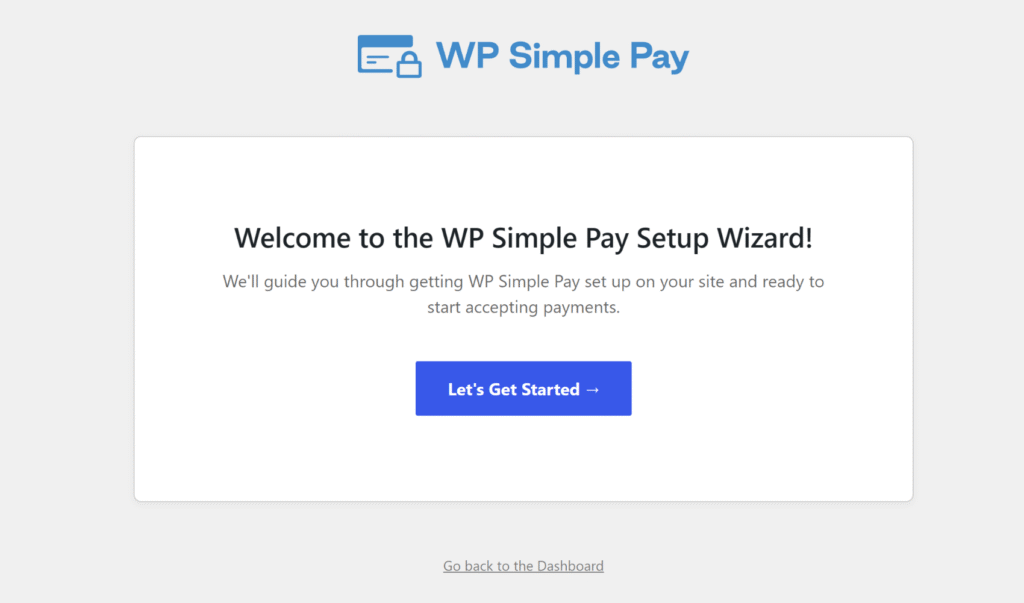
Alternatif olarak, sihirbaz görünmezse WP Simple Pay » Ayarlar » Genel » Gelişmiş bölümüne gidin ve Kurulum Sihirbazını Başlat düğmesine tıklayın.
WP Simple Pay artık etkin. Stripe'a bağlanmaya hazırsınız.
Adım 2: WordPress Sitenizi Stripe'a Bağlayın
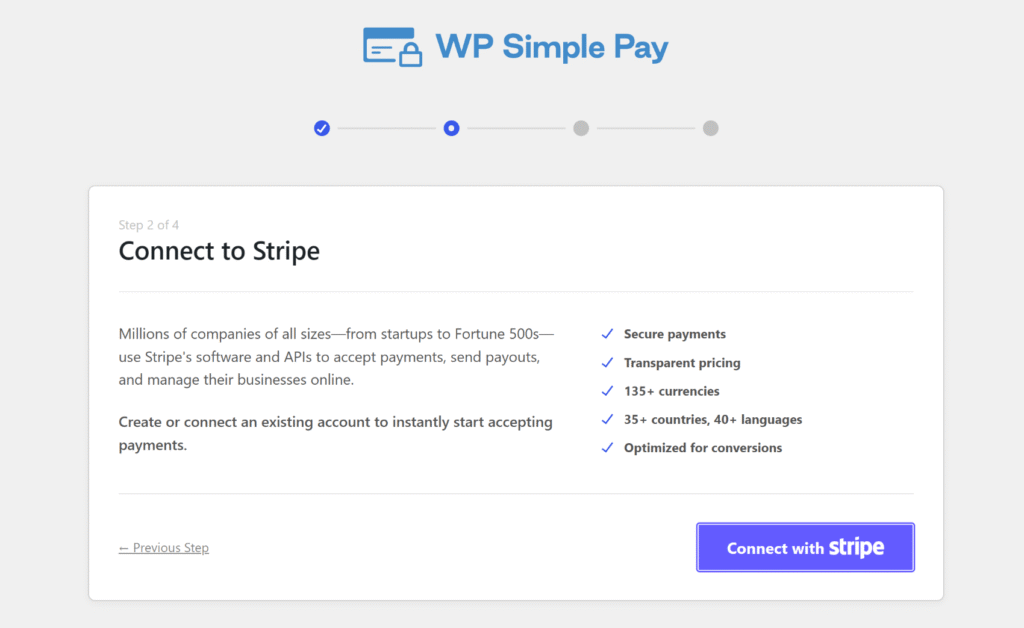
Kurulum sihirbazında, Stripe ile Bağlan'a tıklayabilirsiniz. Stripe hesabınızın e-posta adresini girin ve OAuth yetkilendirmesini tamamlayın. Henüz bir Stripe hesabınız yoksa, WordPress'ten ayrılmadan aynı ekrandan bir tane oluşturabilirsiniz.
Bağlantıyı yetkilendirdikten sonra Stripe, WordPress'e geri yönlendirir ve "Kurulum Tamamlandı" onayını görüntüler.
Buradan WP Simple Pay, Stripe hesabınıza bağlanır ve ödemeleri işlemeye hazırdır.
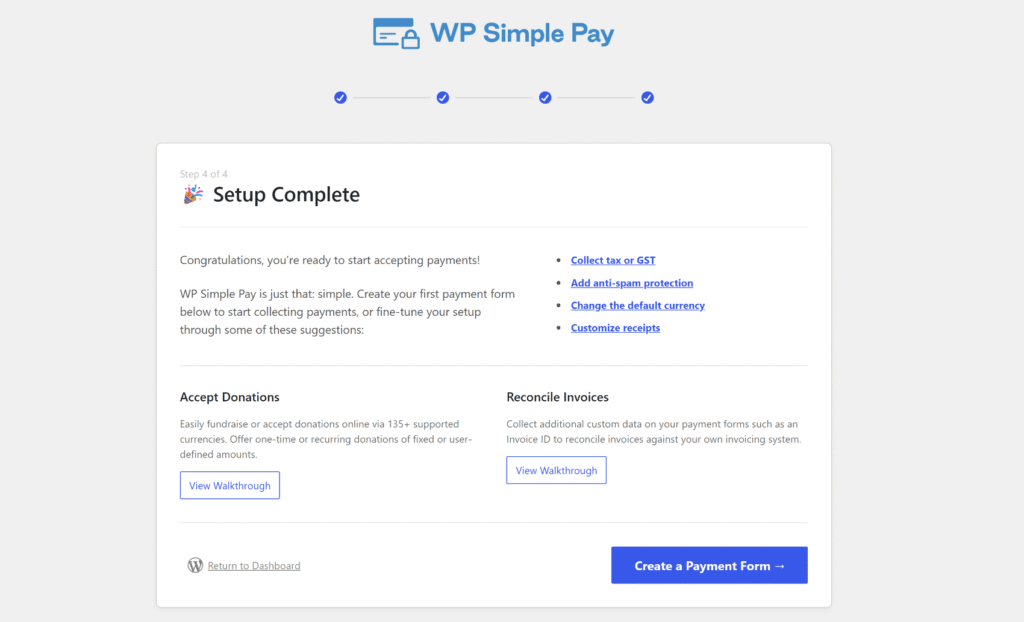
Not: Stripe, BNPL uygunluğunu alıcının konumuna ve ödeme para birimine göre otomatik olarak belirler. Klarna, Afterpay veya Affirm için Stripe Kontrol Paneli'nde ayrı bir aktivasyon adımı gerekmez.
Adım 3: BNPL Etkinleştirilmiş Bir Stripe Checkout Ödeme Formu Oluşturun
Ardından, web sitenizde BNPL ödemeleri kabul etmek için yeni bir ödeme formu oluşturabilirsiniz.
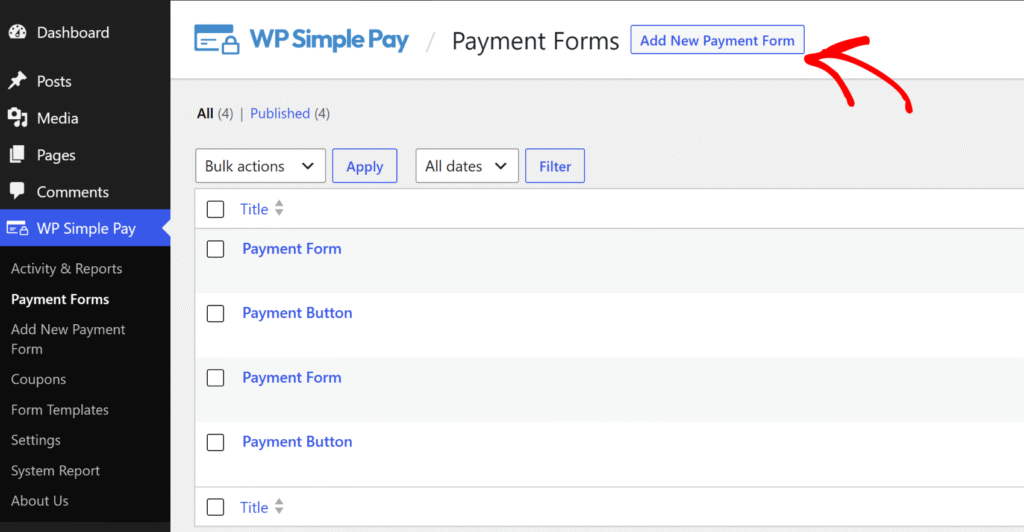
Başlamak için WordPress yönetici menüsünden WP Simple Pay » Ödeme Formları'na gidin ve ‘Yeni Ödeme Formu Ekle’ düğmesine tıklayın.
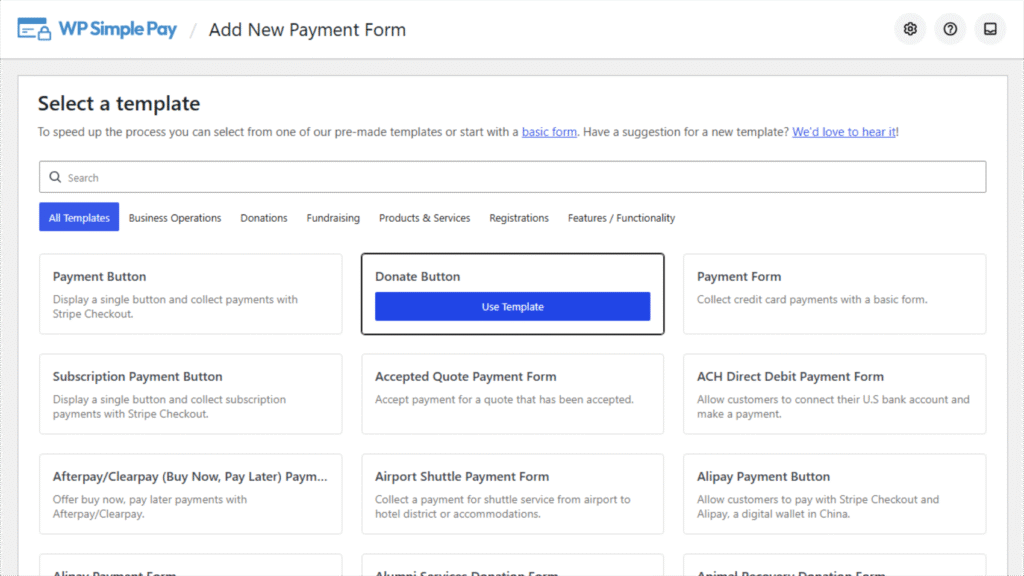
WP Simple Pay, önceden oluşturulmuş ödeme formu şablonlarından oluşan bir kitaplık görüntüler.
Genel amaçlı bir ödeme için bir Ödeme Formu seçebilir, etkinlik kayıtları için Bağış Düğmesi veya Abonelik Ödeme Düğmesi gibi bir kullanım senaryosu şablonu veya Koşu Kayıt Formu seçebilir veya formun amacına bağlı olarak başka bir şablon seçebilirsiniz.
Bu eğitim için, şimdi al, sonra öde ödeme formu kurmak üzere Bağış Düğmesi'ni kullanacağız.
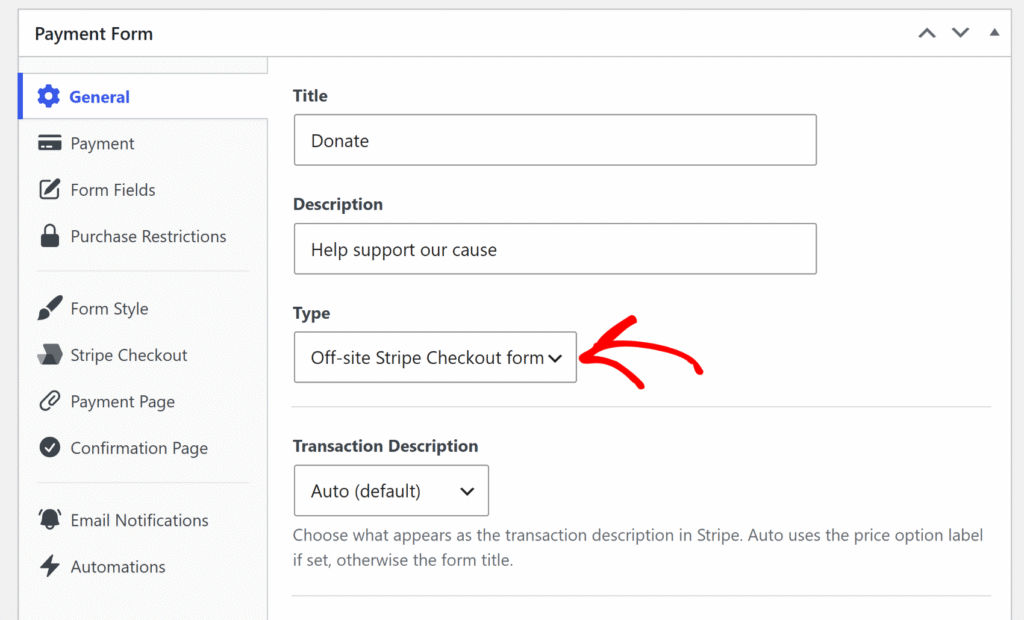
Form oluşturucu açıldığında, Genel sekmesine tıklayabilirsiniz.
Buradan Tür alanını bulun ve açılır menüden Site Dışı Stripe Checkout formu'nu seçin.
Bu adım gereklidir çünkü BNPL ödeme yöntemleri yalnızca Stripe Checkout formlarında kullanılabilir ve bu seçenek seçilmediği sürece Ödeme sekmesinde görünmez.
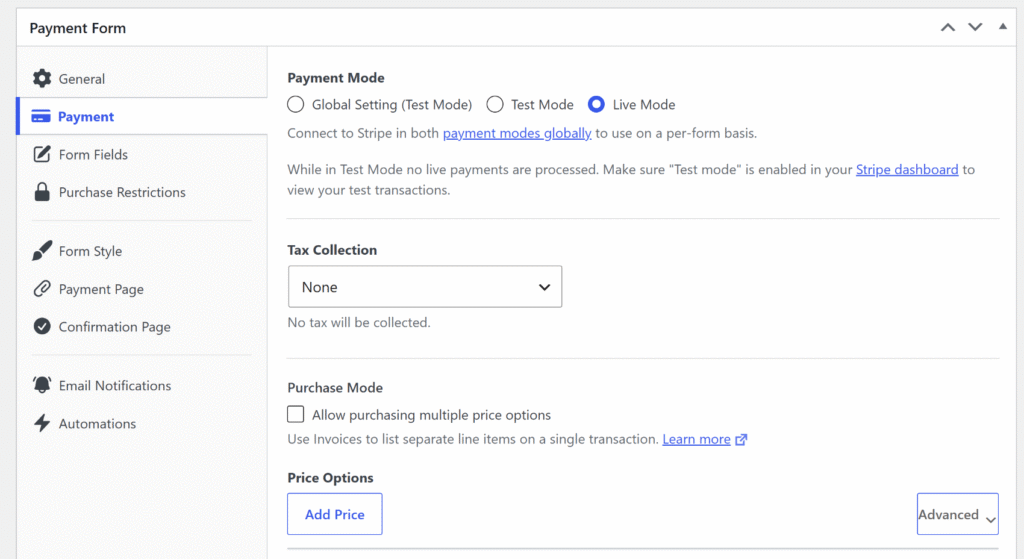
Ardından, Ödeme sekmesine tıklayabilir ve ürününüz için ödeme ayrıntılarını girebilirsiniz.
Bu, vergi toplama yöntemi ve fiyat seçeneklerini (para birimi, fiyat ve tek seferlik veya abonelik ödemesi) içerir.
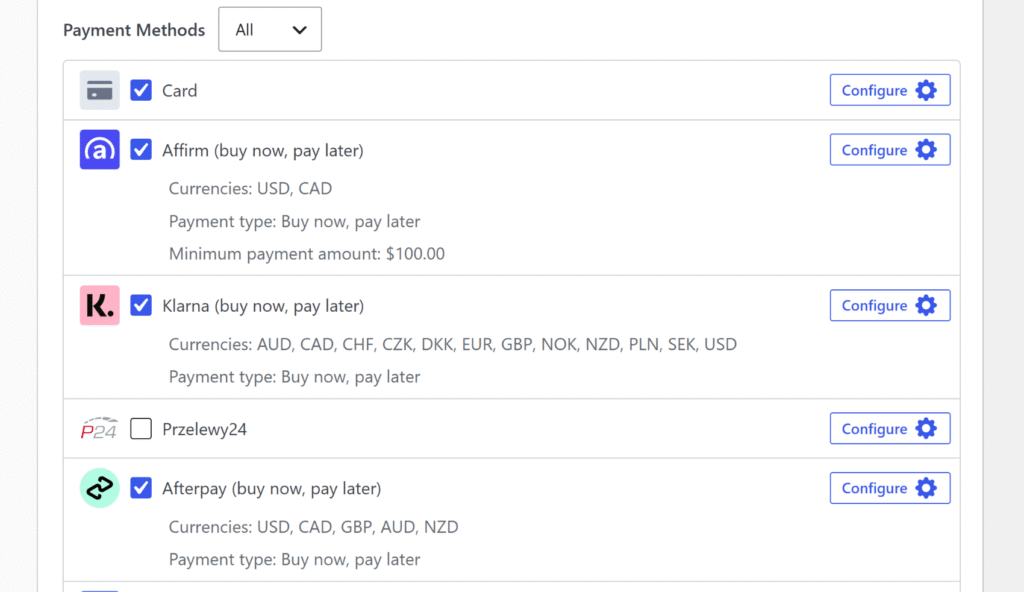
Bundan sonra, ödeme yöntemleri listesine aşağı kaydırabilirsiniz.
Şu kutuları işaretleyin: Klarna (şimdi al, sonra öde), Afterpay (şimdi al, sonra öde) (Birleşik Krallık merkezli Stripe hesapları için Clearpay (şimdi al, sonra öde) olarak gösterilir) ve Affirm (şimdi al, sonra öde).
Her üçü de birlikte etkinleştirilebilir, çünkü Stripe ödeme sırasında yalnızca alıcının bölgesine uygun yöntemleri görüntüler.
Formu yapılandırırken aklınızda bulundurmanız gereken birkaç şey:
- Affirm minimum 100 ABD doları gerektirir. Affirm, 100 ABD doları (veya eşdeğeri CAD) altındaki satın alma tutarları için ödeme sırasında görünmez. Formun fiyatı bu eşiğin altındaysa, Klarna ve Afterpay'i etkinleştirin ancak Affirm'i işaretli bırakmayın.
- Afterpay, Birleşik Krallık satıcıları için Clearpay olarak görünür. Bağlı Stripe hesabı Birleşik Krallık'ta bulunuyorsa, WP Simple Pay yöntemi form oluşturucuda Clearpay olarak etiketler. Diğer tüm hesap ülkeleri için Afterpay olarak görünür. Stripe Checkout'ta Stripe, konumlarına göre her alıcıya doğru markayı bağımsız olarak gösterir. Her iki durumda da ek kurulum gerekmez.
- Para birimi kullanılabilirliği etkiler. Affirm yalnızca USD ve CAD'yi destekler. Afterpay, USD, CAD, GBP, AUD ve NZD'yi destekler. Klarna, 25'ten fazla ülkede 12 para birimini destekler. Formun para birimini hizmet verilen ana pazara uyacak şekilde ayarlayın.
BNPL yöntemlerini etkinleştirdikten sonra Yayınla'ya tıklayabilirsiniz.
Adım 4: BNPL Ödeme Formunu Gömme ve Test Etme
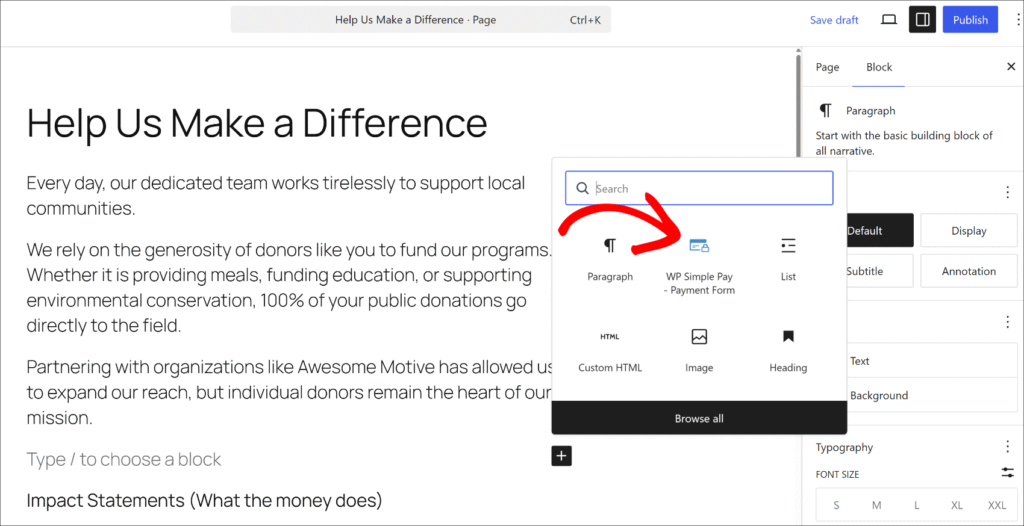
Artık yayınlanan formu, WordPress içerik düzenleyicisindeki WP Simple Pay – Ödeme Formu bloğunu kullanarak bir WordPress sayfasına veya gönderisine ekleyebilir veya kısa kodu yapıştırabilirsiniz.
Öncelikle, şimdi al, sonra öde ödeme seçeneğini göstermek istediğiniz sayfayı düzenleyin veya yeni bir tane oluşturun. Ardından + düğmesine tıklayın ve 'WP Simple Pay – Ödeme Formu' bloğunu ekleyin.
Ardından, oluşturduğunuz formu bloktaki açılır menüden seçebilirsiniz.
İşlem tamamlandıktan sonra sayfayı Yayınla.
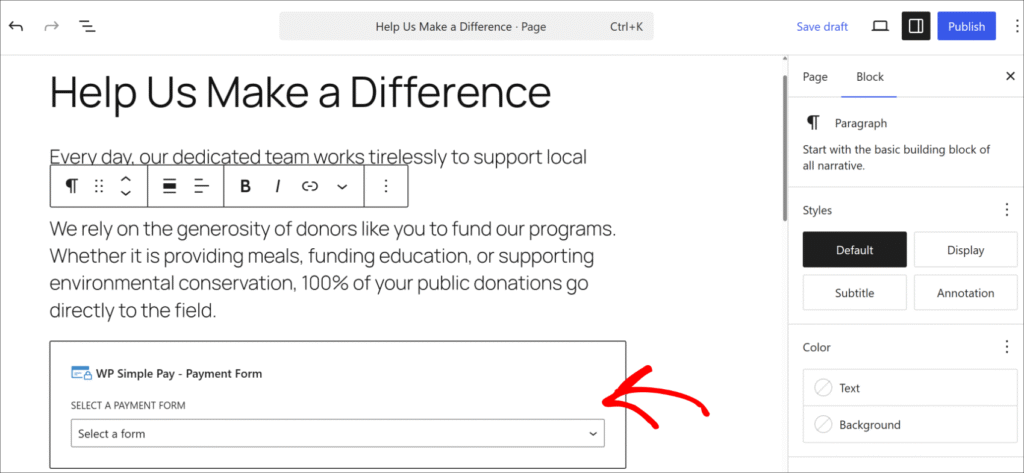
Ardından, formun göründüğünü doğrulamak için yeni bir tarayıcı penceresinde açın.
Stripe hala test modundayken, yayınlanan sayfadaki ödeme düğmesine tıklayın. Stripe Checkout penceresi açılır ve standart kart alanının yanında mevcut BNPL seçeneklerini görüntüler. Bir BNPL yöntemini test etmek için, ödeme seçeneklerinden Klarna'yı (veya Afterpay'i) seçin ve simüle edilmiş BNPL akışını tamamlayın. Gerçek bir ödeme alınmaz.

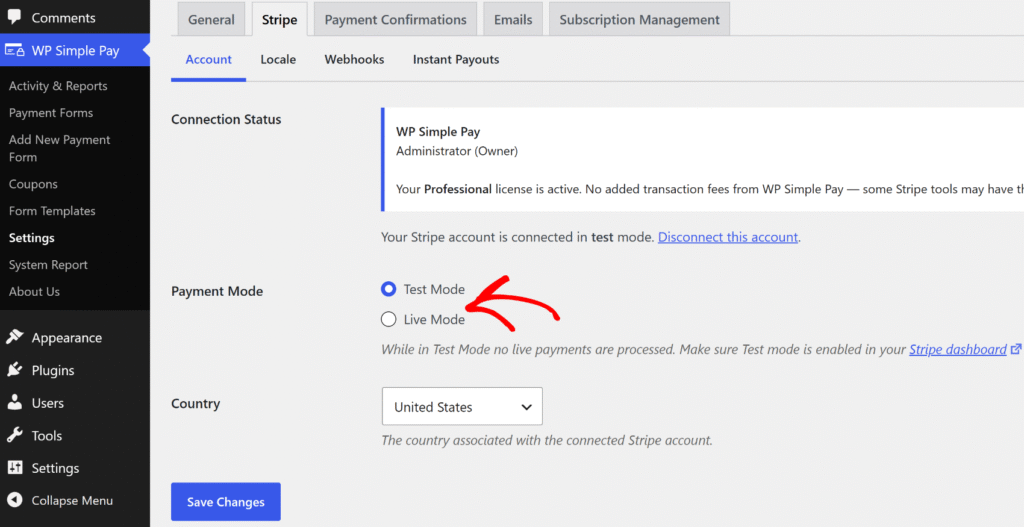
Test ödemesini tamamladıktan sonra, Test Modundan Canlı Mode'a geçirebilirsiniz.
Gerçek ödemeleri kabul etmeye başlamak için WP Simple Pay » Ayarlar » Stripe'a geri dönün ve Test Modu'ndan Canlı Mod'a geçin.
Bonus: Yüksek Fiyatlı Teklifler İçin Taksit Planları Ekleyin
BNPL, alıcıların bir satın alma işlemini Klarna veya Afterpay'in taksit planı aracılığıyla bölmelerine olanak tanır. Belirli tutarlar, belirli aralıklar ve tanımlanmış sayıda işlem gibi taksit yapısı üzerinde tam kontrole sahip olmak isteyen site sahipleri için WP Simple Pay'in taksit planı özelliği doğru araçtır.
Taksit planlarıyla, ödeme sayısını, aralığı ve işlem başına tutarı belirlersiniz. Stripe, plan tamamlanana kadar her otomatik işlemi yönetir.
Alıcı, yapıyı ödeme sırasında açıkça görür (örneğin, “4 ödeme, her biri 250 $”), ve faturalandırma, iptal edilecek bir abonelik olmadan son işlemden sonra otomatik olarak durur.
Şimdi Al, Sonra Öde Hakkında SSS
1. WP Simple Pay hangi şimdi al, sonra öde sağlayıcılarını destekliyor?
WP Simple Pay, Stripe aracılığıyla Klarna, Afterpay (Birleşik Krallık'ta Clearpay olarak adlandırılır) ve Affirm'i destekler. Her üçü de Professional+ planlarında mevcuttur ve alıcının bölgesine ve para birimine göre Stripe Checkout formlarında otomatik olarak görünür. Bunlardan herhangi biri için ayrı bir satıcı başvurusu gerekmez.
2. Şimdi al, sonra öde, WP Simple Pay'de yinelenen ödemelerle çalışıyor mu?
Hayır — BNPL yalnızca tek seferlik ödeme formlarında kullanılabilir. Abonelik ve yinelenen formlar Klarna, Afterpay veya Affirm'i desteklemez. Otomatik taksitli ödemelerle esnek yüksek fiyatlı fiyatlandırma için WP Simple Pay'in taksit planı özelliği bu kullanım durumu için tasarlanmıştır.
3. Alıcıların Klarna veya Afterpay kullanmak için bir hesaba veya uygulamaya ihtiyacı var mı?
Alıcıların ödeme sırasında BNPL kullanmak için ayrı bir uygulamaya veya hesaba ihtiyacı yoktur. Klarna ve Afterpay, Stripe Checkout akışının hemen içinde, satın alma anında kendi kısa kayıt işlemlerini halleder. Süreç birkaç saniye ekler, tam bir kayıt engeli oluşturmaz.
4. WP Simple Pay'de BNPL için minimum satın alma tutarı var mı?
Affirm, minimum 100 ABD doları tutarında bir satın alma tutarı gerektirir ve bu eşiğin altındaki tutarlar için ödeme sırasında görünmez. Klarna ve Afterpay'in WP Simple Pay'de eklenti düzeyinde bir minimumu yoktur, ancak Stripe ve bireysel BNPL sağlayıcıları bölgeye ve tutara göre kendi uygunluk kurallarını uygulayabilir.
5. WP Simple Pay'de hangi ülkeler şimdi al, sonra öde'yi destekliyor?
Klarna, ABD, İngiltere, Avustralya, Kanada ve Avrupa'nın çoğu dahil olmak üzere 25'ten fazla ülkede mevcuttur. Afterpay (Clearpay) AU, CA, FR, IE, IT, NZ, ES, ABD ve GB'yi destekler. Affirm yalnızca ABD ve Kanada'yı destekler. Stripe, yalnızca her alıcının konumuna göre kullanılabilen yöntemleri görüntüler, bu nedenle ülke başına manuel yapılandırma gerekmez.
WordPress'te BNPL Ödeme Formları ile Başlayın
WP Simple Pay ile Klarna, Afterpay ve Affirm'i bir WordPress ödeme formuna eklemek 10 dakikadan az sürer.
Ayrı bir satıcı sözleşmesi, kod veya alışveriş sepeti gerekmez. Alıcılar, ödeme sırasında kendi bölgelerine uyan BNPL seçeneklerini görür ve tam ödeme tutarı hemen Stripe hesabına ulaşır.
Umarız bu makale, WordPress web sitenize şimdi al, sonra öde eklemeyi öğrenmenize yardımcı olmuştur. Ayrıca WordPress'te Google Pay ve Apple Pay'in nasıl kabul edileceğine ve gömülü, yer paylaşımı ve Stripe Checkout formları arasındaki farklara ilişkin kılavuzlarımızı da görmek isteyebilirsiniz.
Şimdi al, sonra öde ödemelerini kabul etmeye hazır mısınız? Bugün WP Simple Pay ile başlayın.
Bunun gibi daha fazla makale okumak için bizi X'te takip edin.
Açıklama: İçeriğimiz okuyucu desteklidir. Bu, bazı bağlantılarımıza tıklarsanız, bir komisyon kazanabileceğimiz anlamına gelir. Yalnızca okuyucularımıza değer katacağına inandığımız ürünleri öneririz.

Yanıt Bırakın