
How to Accept BLIK (Poland) Payments on Your WordPress Site
Last updated on

 Cristian Rossi
Imagine a consultant based in Warsaw, Poland, builds her retainer payment form and publishes it on her site. Her first Polish client opens it looking for the payment button he actually uses online, but it isn’t there.
She sees a card field instead, closes the tab, and messages her asking if there’s another way to pay. That other way is BLIK, and learning how to accept BLIK payments in WordPress solves exactly that problem.
BLIK is how most people in Poland pay for things online, but WordPress and Stripe don’t automatically show it as a payment option. It takes a specific currency setting and Stripe account configuration that most site owners never discover on their own.
That’s exactly where WP Simple Pay comes in. It makes it possible to accept BLIK payments in WordPress without directly touching Stripe’s API.
In this article, we’ll show you how to accept BLIK payments on a WordPress site.
What Is BLIK?
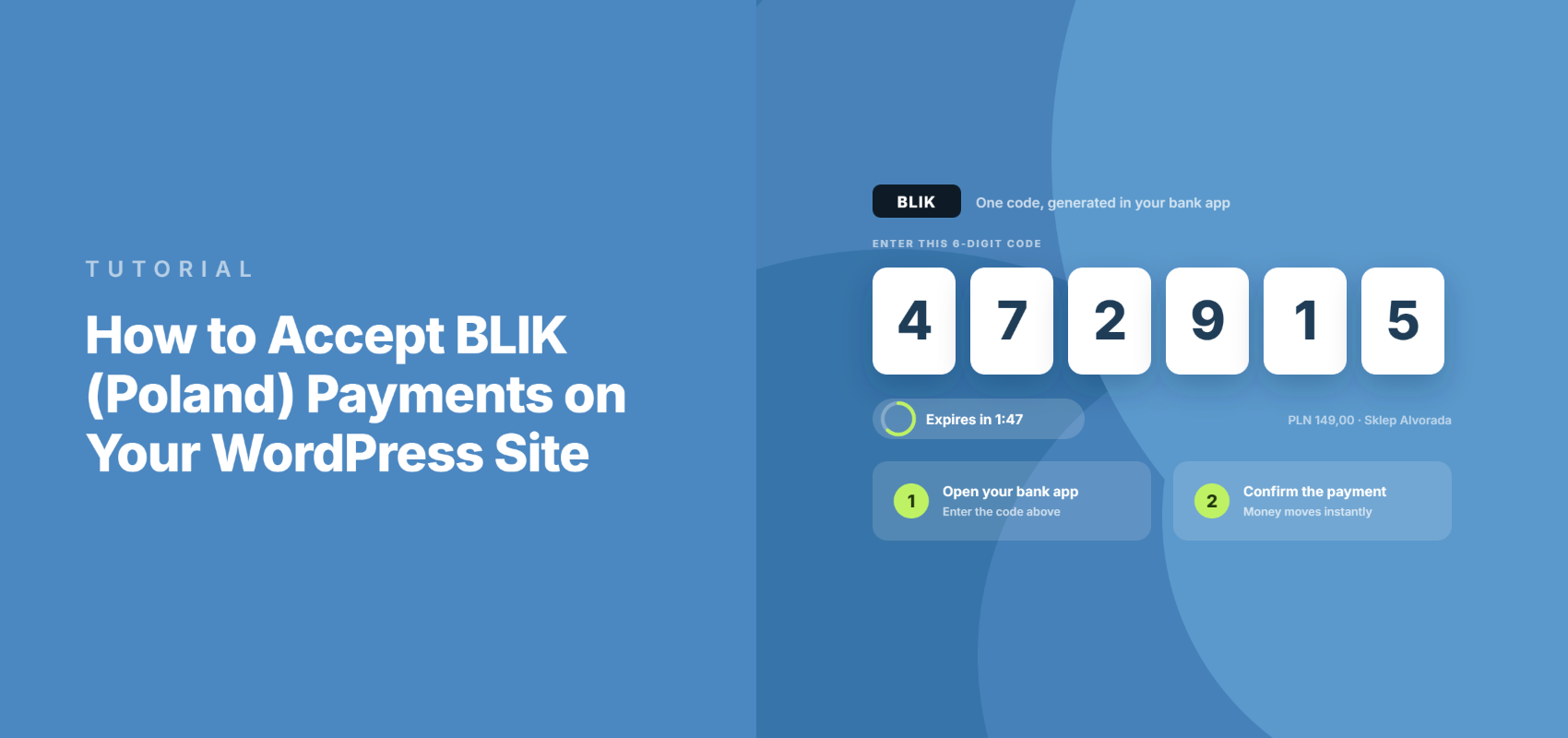
BLIK is Poland’s dominant mobile banking payment method. Here’s how it works: your customer generates a six-digit code inside their bank’s mobile app, types that code into your checkout, then approves a push notification from the same app to confirm the payment.
In other words, there’s no card number involved at any point, which is exactly why it feels so familiar to Polish shoppers.
A couple of things worth knowing upfront. BLIK only works for one-time payments, so you can’t attach it to a subscription price, and it only shows up once your form is priced in Polish Złoty (PLN) with a connected Stripe account based in Poland.
Once you turn it on, your Polish customers get the exact payment flow they already use everywhere else, instead of a cards-only checkout that feels unfamiliar to them.
Why Accepting BLIK Payments Matters
Skipping BLIK doesn’t just cost you one sale like the consultant’s; it adds up in a few concrete ways. Here’s why it’s important to offer BLIK payments in WordPress:
- You’re invisible to the payment method most Polish shoppers actually use. BLIK, not cards, is how the majority of people in Poland pay online, so a cards-only form is asking them to use a method they don’t default to.
- Cart abandonment happens at the worst possible moment. If a customer doesn’t want to type a card number into an unfamiliar form, they’ll usually just leave rather than switch payment habits mid-checkout.
- Donations and retainer payments from Polish supporters go elsewhere. If you run a nonprofit with Polish donors, or work with Polish clients as a freelancer, that revenue goes to whatever tool does offer BLIK as an option.
- Building this yourself means real Stripe API work. You’d be wiring up a redirect-based local payment method by hand, webhooks and all, and getting it wrong can mean payments that never confirm.
We’ve seen this firsthand with site owners who serve international clients: the payment methods on your checkout page decide who finishes the purchase, not just the price.
Now, let’s see how WP Simple Pay makes BLIK part of that checkout page with ease.
Add BLIK Payments With WP Simple Pay
WP Simple Pay lets you accept BLIK payments on a WordPress site without writing a line of Stripe integration code yourself.
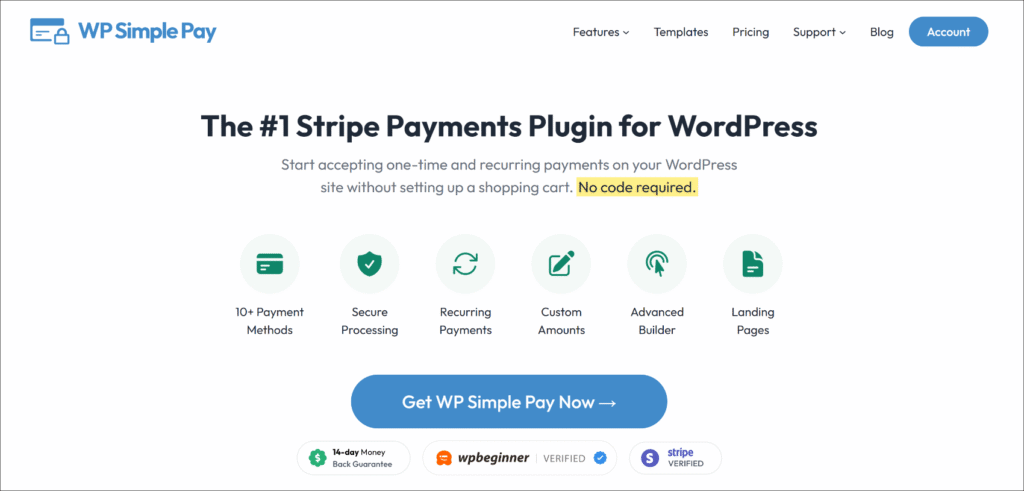
WP Simple Pay is the #1 Stripe payments plugin for WordPress, trusted by over 14,000 paying customers who accept one-time and recurring payments without setting up a full shopping cart. BLIK ships in the plugin’s core payment method list, so there’s no separate extension to buy or install for it.
Here are a few features that matter most for this tutorial:
- BLIK and other payment methods. Beyond BLIK, WP Simple Pay supports over 10 different payment methods such as Przelewy24, iDEAL, and Bancontact, which help international customers pay the way they already do.
- Drag-and-drop form builder. Build a branded payment form with pre-built templates for services, donations, or subscriptions, all without touching code.
- One-time and recurring payments. Run one-time BLIK payments alongside subscription pricing on other payment methods, from the same plugin.
- Stripe Connect setup wizard. Link your WordPress site to your Stripe account through a guided flow, instead of copying and pasting API keys.
With that, let’s see how you can use WP Simple Pay to accept BLIK payments.
Step 1: Install and Activate WP Simple Pay
Start by visiting the WP Simple Pay pricing page and choosing the plan that fits your business. BLIK requires WP Simple Pay Pro on the Personal plan or higher.
Remove the additional 3% fee!
Most Stripe plugins charge an additional 3% fee for EVERY transaction
…not WP Simple Pay Pro!
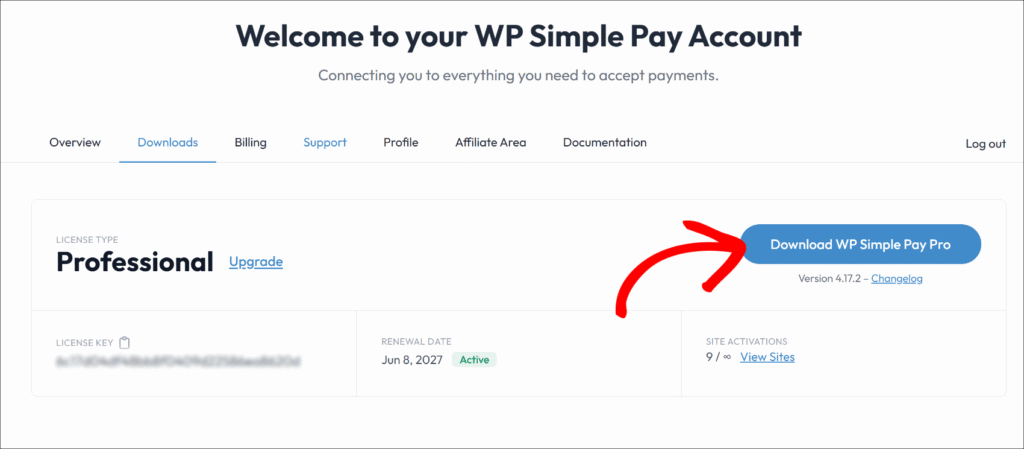
After checkout, you can head to your account dashboard and go to the ‘Downloads’ tab.
Then simply click the Download WP Simple Pay Pro button and save the .zip plugin files to your computer.
From your WordPress dashboard, go to Plugins » Add New » Upload Plugin and choose that .zip file.
If you’ve never installed a plugin from a .zip file before, then please see this WordPress plugin installation guide.
Next, the setup wizard should launch automatically right after activation. Go ahead and click Let’s Get Started → to begin connecting your Stripe account.
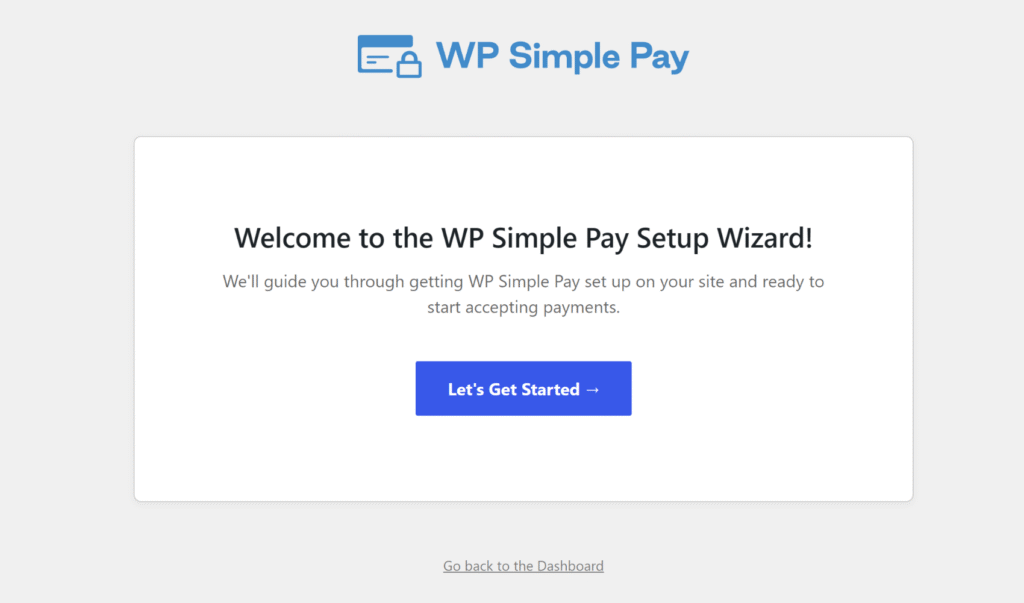
Note: If the wizard doesn’t appear, head to WP Simple Pay » Settings » General » Advanced and click the Launch Setup Wizard button there.
WP Simple Pay is installed and ready to go. Now it’s time to connect it to Stripe.
Step 2: Connect Your WordPress Site to Stripe
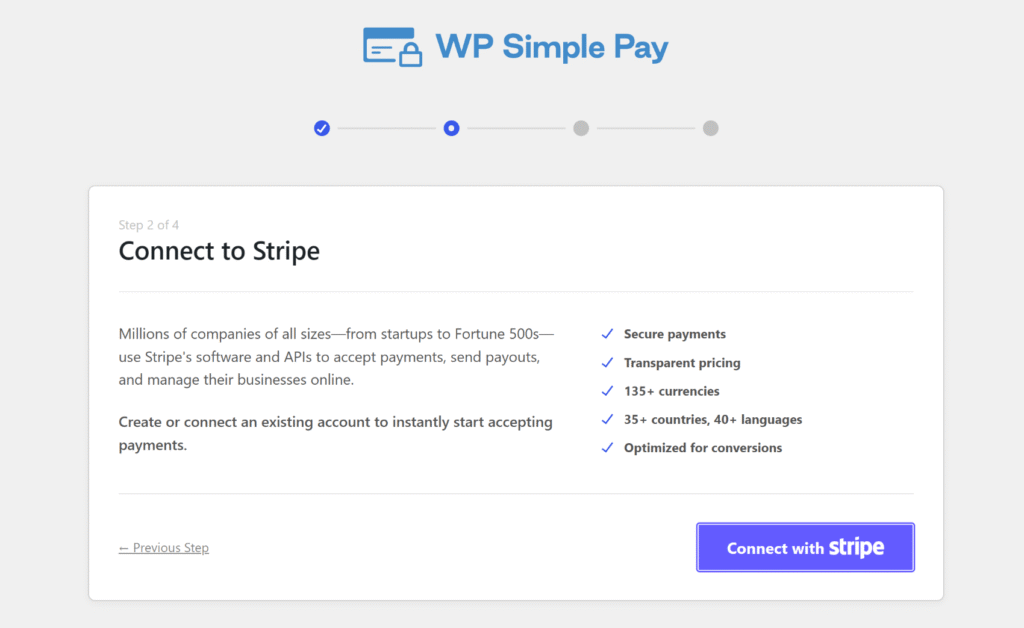
From the setup wizard, click the Connect with Stripe button to start linking your WordPress site to your Stripe account.
You’ll be walked through Stripe’s own authentication screen, where you can log into an existing Stripe account or create a new one.
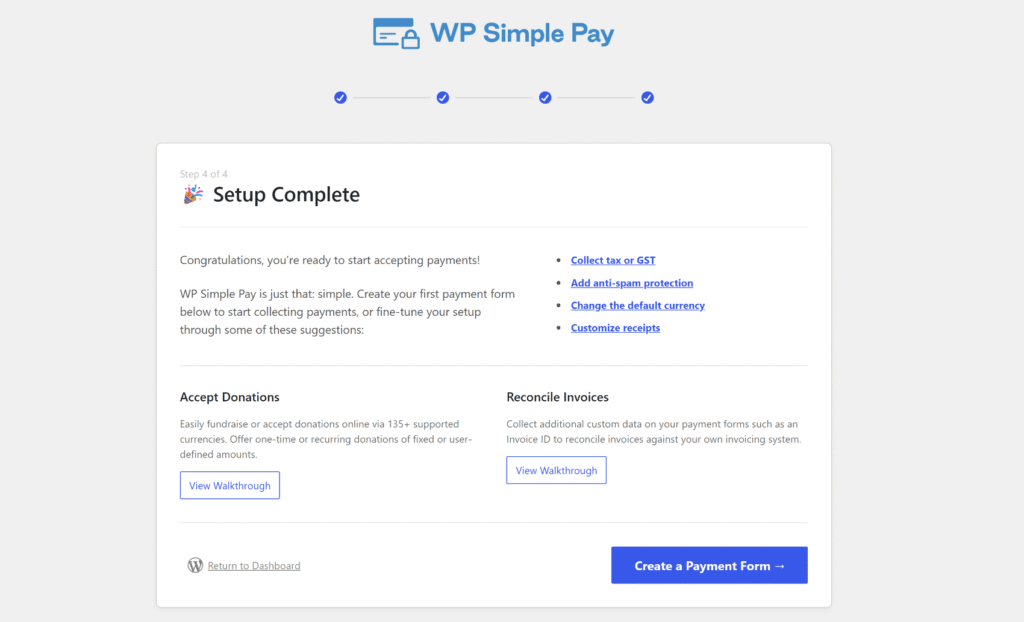
Once the handshake finishes, you’ll land back on a 🎉 Setup Complete confirmation screen inside WordPress.
This step matters more than it looks for BLIK specifically. WP Simple Pay reads your Stripe account’s country directly from Stripe and stores it under WP Simple Pay » Settings » Stripe, in the Account subsection, and BLIK only becomes available once that country is Poland.
If your Stripe account isn’t based in Poland, you can still follow the rest of this tutorial, but the BLIK toggle will stay grayed out until that changes.
Step 3: Set Your Form’s Currency to PLN and Turn On BLIK
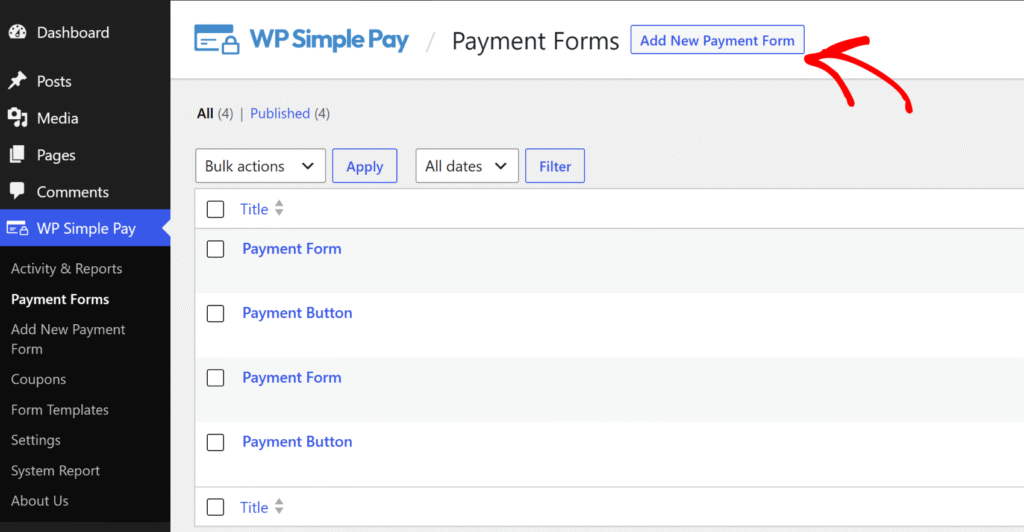
With Stripe connected, you can go to WP Simple Pay » Payment Forms and then click Add New Payment Forms.
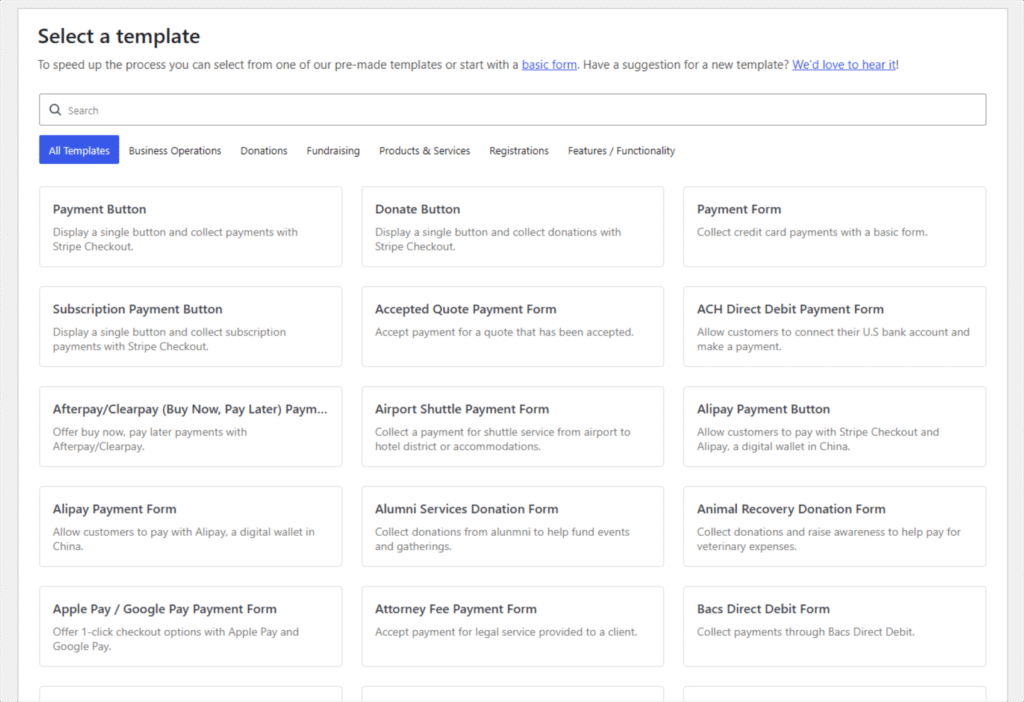
After that, pick a template to start a new payment form, like Payment Button for a one-time consulting fee.
Next, you will see the form builder, where you can customize your selected template.
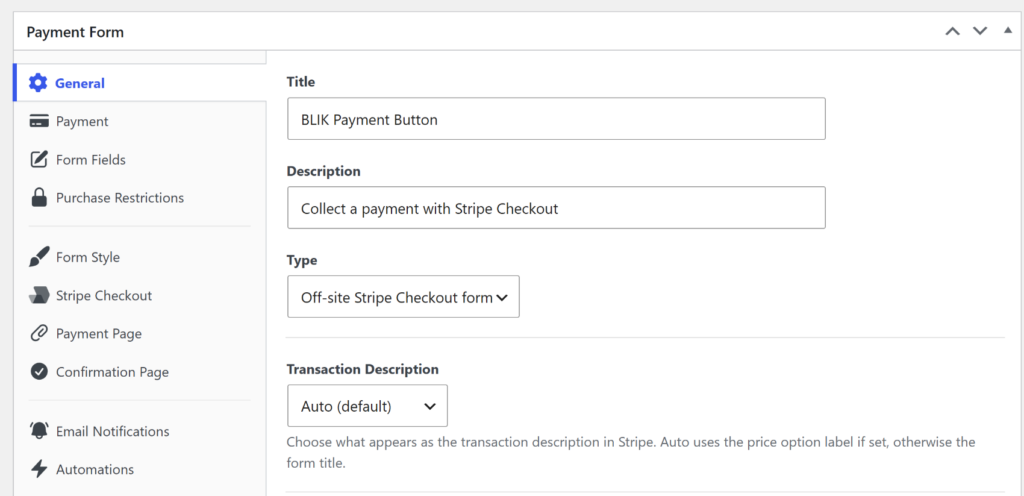
Under the General tab, you can give a name to your payment form, add a description, and more.
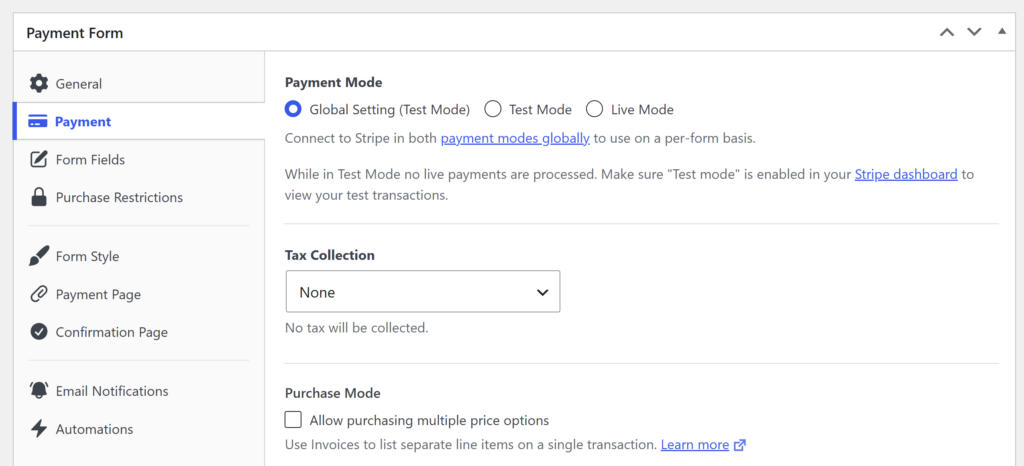
From there, open the Payment tab to edit the pricing details and select the BLIK payment method.
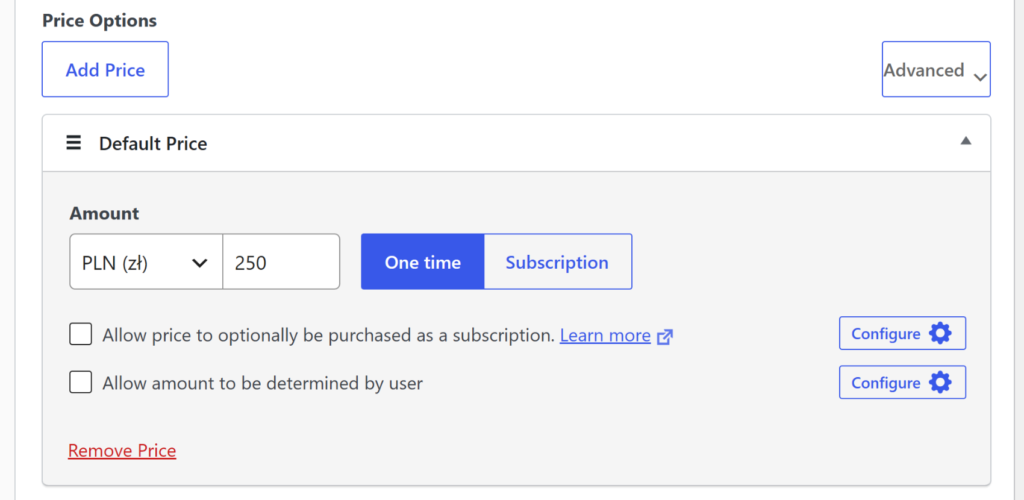
Next, you can head to the Price Options section, click the currency dropdown under Amount, and change it to Polish Złoty (PLN).
Then enter your price, for example 250 PLN for a one-time consulting session.
For more on how currency settings work across your whole site, see our guide on changing the currency in Stripe with WordPress.
Next, scroll down to the Payment Methods field on the same tab. BLIK doesn’t show up under the default Popular filter, so click that dropdown and switch it to All first.
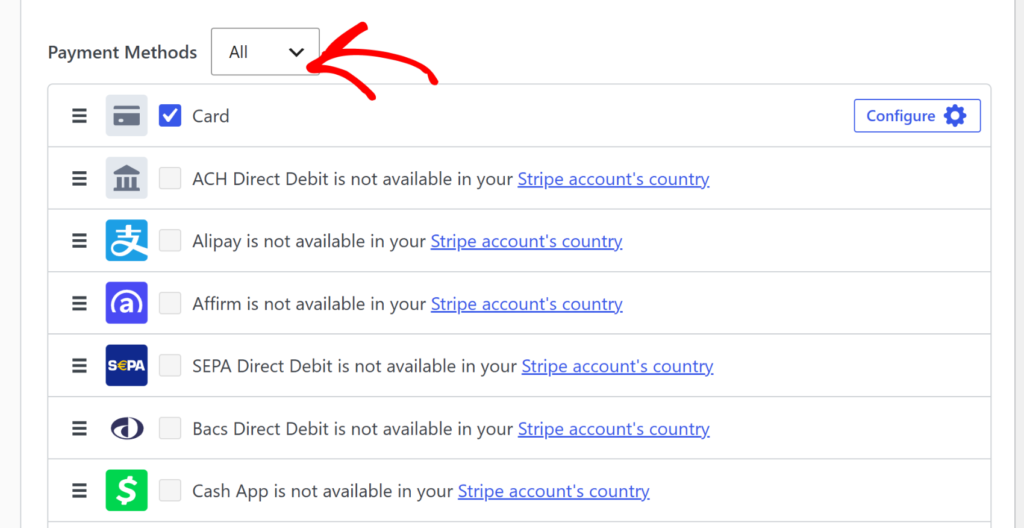
Once you’ve done that, find BLIK in the full list and check its box to turn it on.
Once your Stripe account’s country is Poland, the checkbox becomes clickable, and checking it reveals a small note that reads “Currencies: PLN” and “Payment type: One time,” confirming the price restriction.
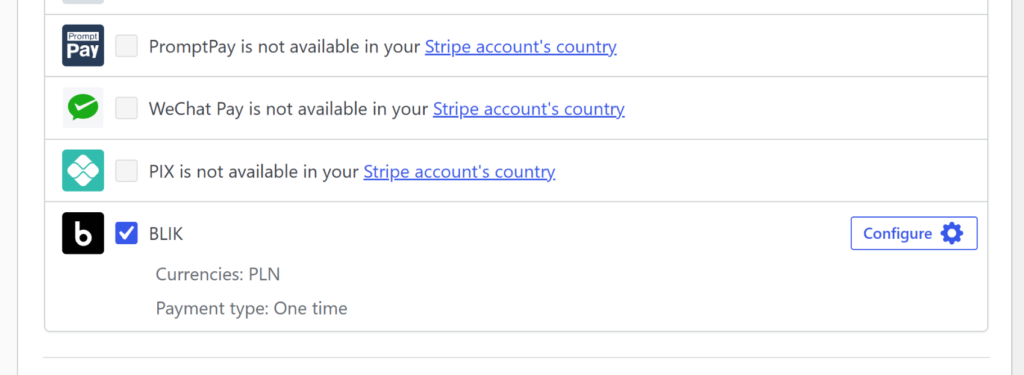
Note: If BLIK’s checkbox stays grayed out with a message that it’s “not available in your Stripe account’s country,” your connected Stripe account isn’t based in Poland.
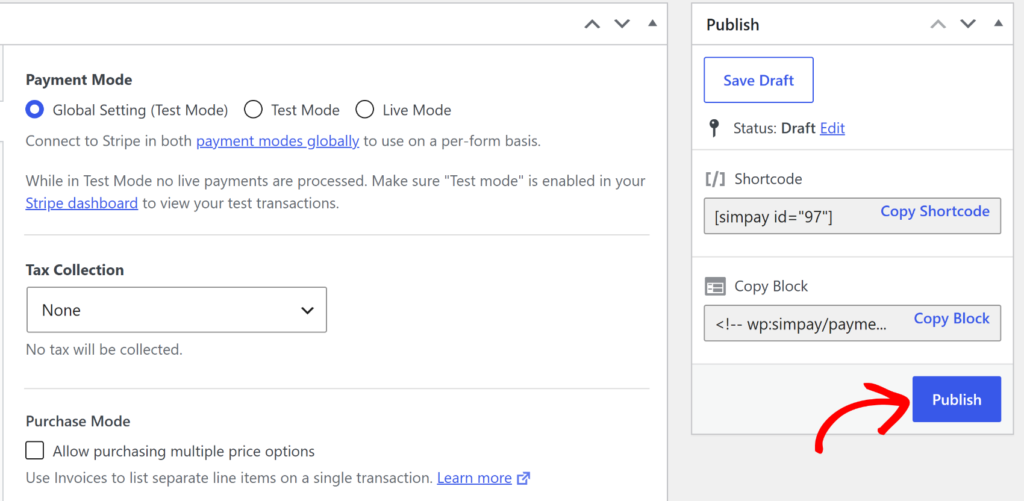
Once BLIK is checked and your price option is set, go ahead and click Publish.
Step 4: Test Your BLIK Payment Form
To get your form live, add it to a page or post using the WP Simple Pay block.
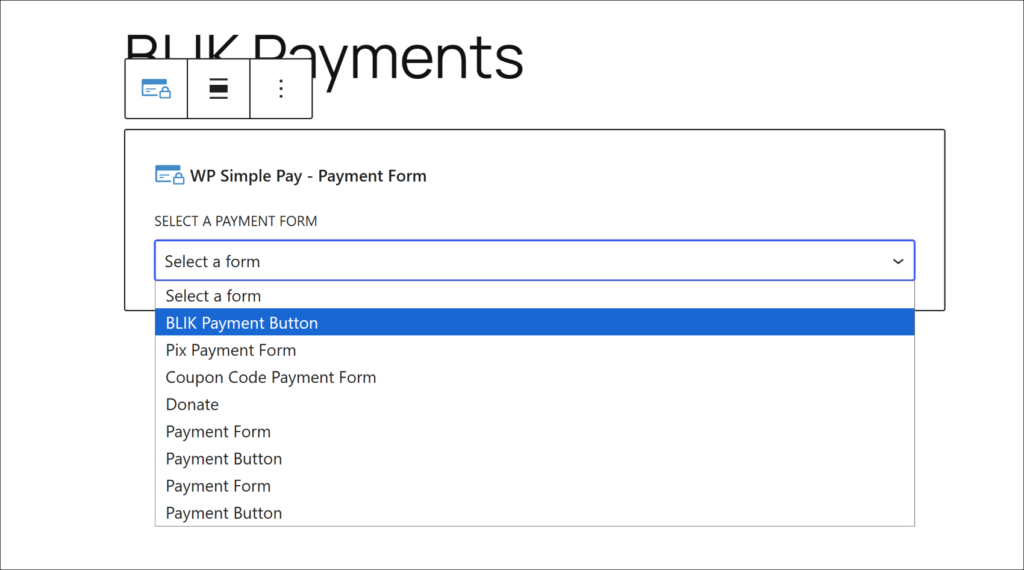
You can learn more by following our guide on how to add a payment form to WordPress (6 embed locations).
Then view that page on your site to confirm BLIK shows up as a payment option next to any other methods you’ve enabled.
Before taking real payments, switch to Stripe test mode so you can run through the flow without moving real money.
From there, run test cases to confirm everything actually works, not just that the button appears. If you see all outcomes land the way you’d expect, then it means BLIK setup is actually ready for real customers.
Bonus: Pair BLIK With Przelewy24 for Broader Polish Coverage
Not every Polish customer uses BLIK, and some still prefer a traditional bank transfer instead. Przelewy24 (P24) is Poland’s other major local payment method, and WP Simple Pay supports it on every paid plan, just like BLIK.
Enabling both on the same form gives your Polish customers two familiar ways to pay, instead of one.
Our guide on collecting Przelewy24 payments in WordPress walks through enabling it step by step, and the Przelewy24 documentation covers its currency and country requirements in more detail.
Frequently Asked Questions
1. What is BLIK and why do Polish customers use it?
BLIK is Poland’s dominant mobile banking payment method. Customers generate a six-digit code in their bank’s app, enter it at checkout, then approve a push notification to confirm, all without typing a card number.
2. Can I accept BLIK payments for subscriptions or recurring billing?
No, BLIK only supports one-time payments. For recurring payments from Polish customers, pair BLIK with cards or Przelewy24 on the same form as a fallback.
3. Do I need a Stripe account based in Poland to accept BLIK payments?
Yes. WP Simple Pay reads your Stripe account’s country directly from Stripe, and BLIK only becomes available as a payment method option when that country is Poland.
4. Why isn’t BLIK showing up as a payment method option on my form?
BLIK is hidden by default because the Payment Methods field’s filter starts on “Popular,” so switch that filter to “All” first. If it’s still grayed out after that, your Stripe account isn’t based in Poland, and even once it’s checked, BLIK won’t actually appear to customers at checkout unless your form’s price is set to PLN.
5. Is BLIK available on WP Simple Pay Lite?
No, BLIK requires WP Simple Pay Pro, available starting on the Personal plan.
We hope this article helped you learn how to accept BLIK payments on your WordPress site. You may also want to see our guide on accepting payments in WordPress without WooCommerce and our comparison of embedded, overlay, and Stripe Checkout forms.
What are you waiting for? Get started with WP Simple Pay today!
To read more articles like this, follow us on X.
Disclosure: Our content is reader-supported. This means if you click on some of our links, then we may earn a commission. We only recommend products that we believe will add value to our readers.

Leave a Reply