
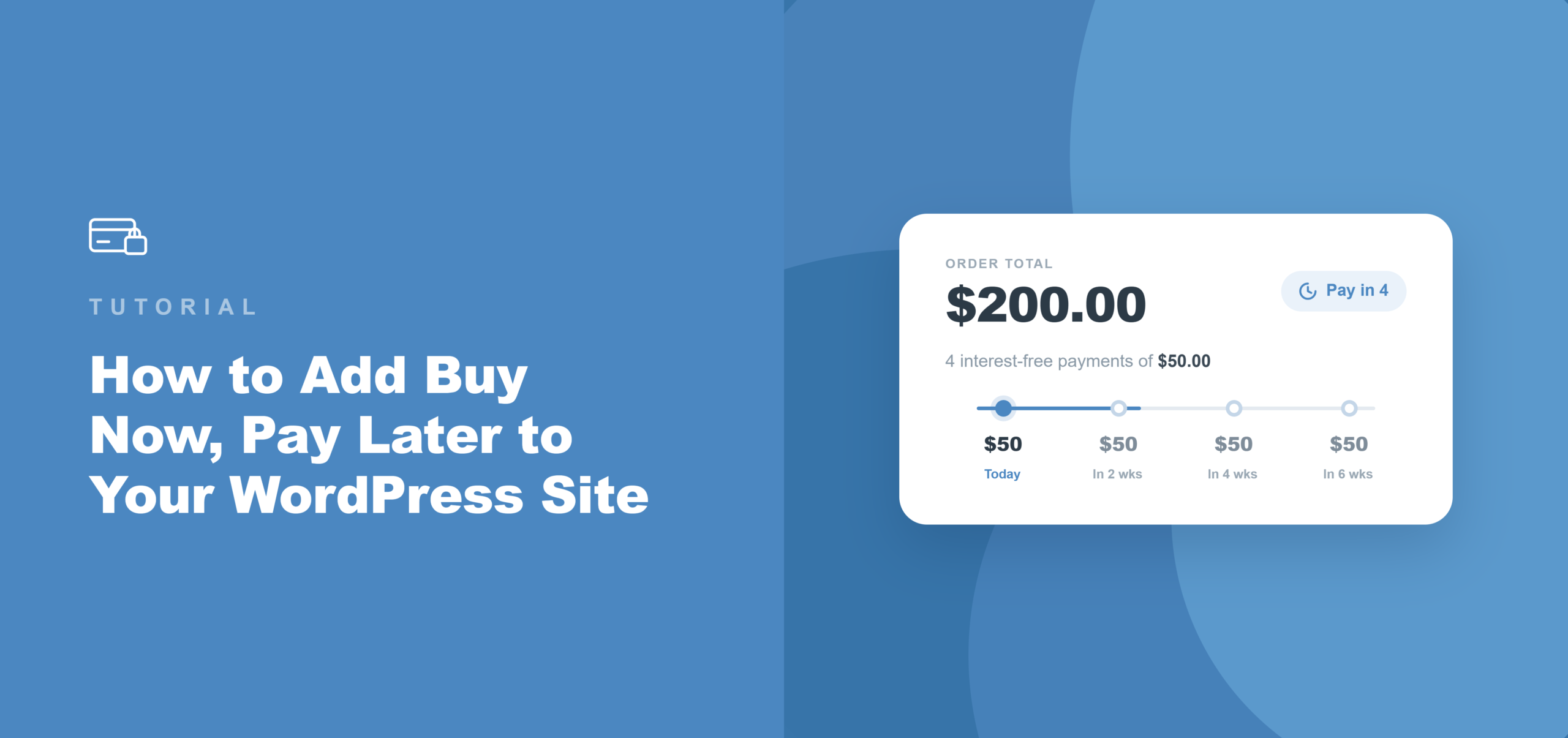
Jak dodać opcję Kup teraz, zapłać później do swojej witryny WordPress
Ostatnia aktualizacja:

Czy zdarzyło Ci się kiedyś, że chciałeś kupić coś, co Ci się podoba, ale wolałbyś zapłacić za to później mniejszymi ratami?
Właśnie dlatego potrzebujesz opcji „kup teraz, zapłać później” dla swojej witryny WordPress.
Niestety, większość konfiguracji płatności w WordPress pozwala użytkownikom płacić tylko pełną kwotę z góry. Jednak rosnąca grupa kupujących, którzy nabywają drogie produkty, takie jak programy coachingowe, bilety na wydarzenia czy członkostwa w organizacjach non-profit, oczekuje teraz możliwości podziału zakupu na mniejsze płatności przy kasie.
Gdy taka opcja nie jest dostępna, nie wysyłają e-maila z prośbą o plan płatności. Odchodzą.
Szybkim i łatwym rozwiązaniem jest użycie WP Simple Pay i dodanie opcji „Kup teraz, zapłać później” (BNPL). Obsługuje ona popularnych dostawców płatności, którzy pozwalają klientom rozłożyć płatności na mniejsze części. Najlepsze jest to, że nie musisz edytować kodu.
W tym artykule pokażemy Ci, jak dodać opcję „kup teraz, zapłać później” do Twojej witryny WordPress.
Dlaczego warto dodać „Kup teraz, zapłać później” do witryny WordPress
„Kup teraz, zapłać później” to opcja płatności przy kasie, która pozwala kupującym podzielić zakup na dwie do czterech rat, płatnych w krótkim okresie, zamiast płacić pełną kwotę od razu.
Kupujący płaci w ratach; sprzedawca otrzymuje pełną kwotę transakcji z góry od bramek płatniczych, takich jak Stripe.
Z naszego doświadczenia wynika, że większość właścicieli witryn nie docenia, ile kosztuje ich brakująca opcja płatności. Oto, co faktycznie zmienia BNPL.
- Bariery cenowe znikają bez zniżki. Kupujący, który waha się przy 400 USD, często dokończy zakup, gdy ta sama kwota zostanie podzielona na cztery raty po 100 USD. Widzieliśmy, jak właściciele witryn zwiększali zakończone transakcje przy droższych ofertach, po prostu dodając tę opcję: ten sam przychód, mniejsze tarcia, brak konieczności obniżania ceny.
- Sprzedawca nie ponosi żadnego ryzyka związanego z windykacją. W przeciwieństwie do ręcznego planu płatności, dostawca BNPL bezpośrednio zarządza pobieraniem rat od kupującego. Stripe natychmiast wpłaca pełną kwotę transakcji do sprzedawcy, niezależnie od tego, czy kupujący spłaca każdą ratę na czas.
- Młodsi kupujący tego oczekują. Czy wiesz, że ponad jedna czwarta kupujących z pokolenia Millenialsów wybrała opcję „kup teraz, zapłać później” przy ostatnim zakupie? Gdy BNPL brakuje przy kasie, ten segment doświadcza niepełnego procesu płatności – i sięga po przycisk wstecz, a nie alternatywną kartę.
- Nie jest wymagana oddzielna aplikacja dla sprzedawcy. Dodanie Klarny lub Afterpay przez większość platform wymaga złożenia wniosku do programu dla sprzedawców i oczekiwania na zatwierdzenie. Za pośrednictwem WP Simple Pay i Stripe obie metody aktywują się automatycznie w zależności od regionu i waluty kupującego. Jedyną czynnością wymaganą po stronie sprzedawcy jest zaznaczenie pola w kreatorze formularzy.
Mając to na uwadze, przyjrzyjmy się, jak możesz dodać opcję „kup teraz, zapłać później” do swojej witryny WordPress.
Jaki jest najlepszy sposób na dodanie BNPL do WordPressa
Polecamy WP Simple Pay jako najłatwiejszy sposób akceptowania płatności „kup teraz, zapłać później” w WordPress, bez konieczności konfiguracji koszyka zakupowego.
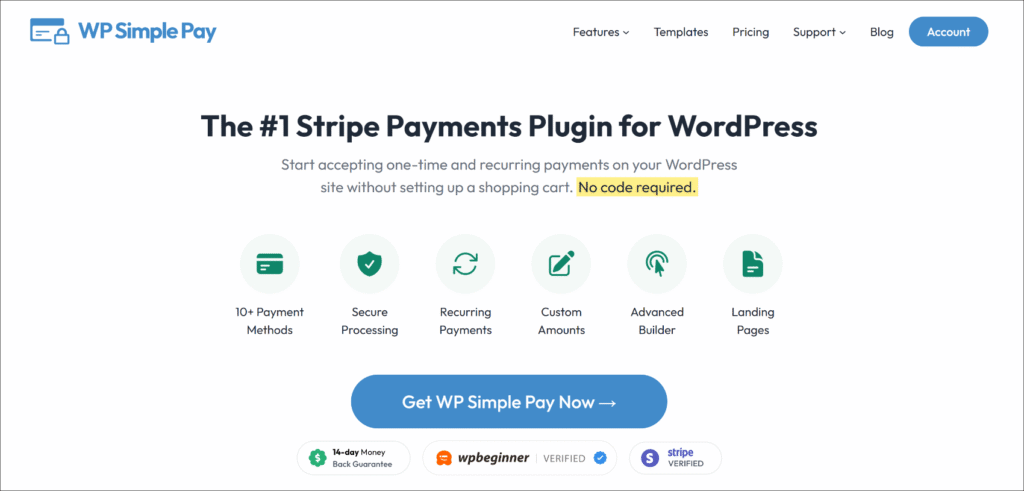
WP Simple Pay to najlepsza wtyczka płatności Stripe dla WordPress. Pozwala właścicielom witryn akceptować jednorazowe i cykliczne płatności za pomocą kreatora formularzy metodą przeciągnij i upuść, bez potrzeby kodowania.
Specjalnie dla BNPL, łączy się z Klarną, Afterpay i Affirm za pośrednictwem Stripe w planach Professional i Elite, z pełną kwotą transakcji wpłacaną sprzedawcy z góry.
Oto, co czyni ją odpowiednim narzędziem do tego tutoriala:
- Wbudowane Klarna, Afterpay i Affirm. Wszyscy trzej dostawcy BNPL są dostępni w planach Professional i Elite. Nie potrzebujesz osobnej wtyczki, żadnego wniosku handlowego ani dodatkowej opłaty ponad standardową stawkę przetwarzania Stripe.
- Integracja Stripe Checkout. Typ formularza Stripe Checkout w WP Simple Pay kieruje kupujących przez płatności hostowane przez Stripe, gdzie opcje BNPL pojawiają się automatycznie w zależności od regionu kupującego i kwoty zakupu.
- Pełna kwota wpłacana z góry. Stripe płaci sprzedawcy natychmiast. Dostawca BNPL zajmuje się pobieraniem rat od kupującego według własnego harmonogramu.
- Ponad 10 metod płatności, jeden formularz. Ten sam formularz może akceptować karty, Apple Pay, Google Pay, ACH Direct Debit i BNPL. Nie ma potrzeby tworzenia osobnego formularza dla każdej metody.
Zobaczmy teraz, jak dodać opcję „kup teraz, zapłać później” do WordPressa za pomocą WP Simple Pay.
Krok 1: Zainstaluj i aktywuj WP Simple Pay
BNPL jest dostępne w planie Professional WP Simple Pay i wyższych. Aby rozpocząć, odwiedź stronę internetową WP Simple Pay i zarejestruj nowe konto.
Po dokonaniu zakupu możesz pobrać plik .zip wtyczki z e-maila z potwierdzeniem lub z zakładki Pobrane w obszarze konta WP Simple Pay.
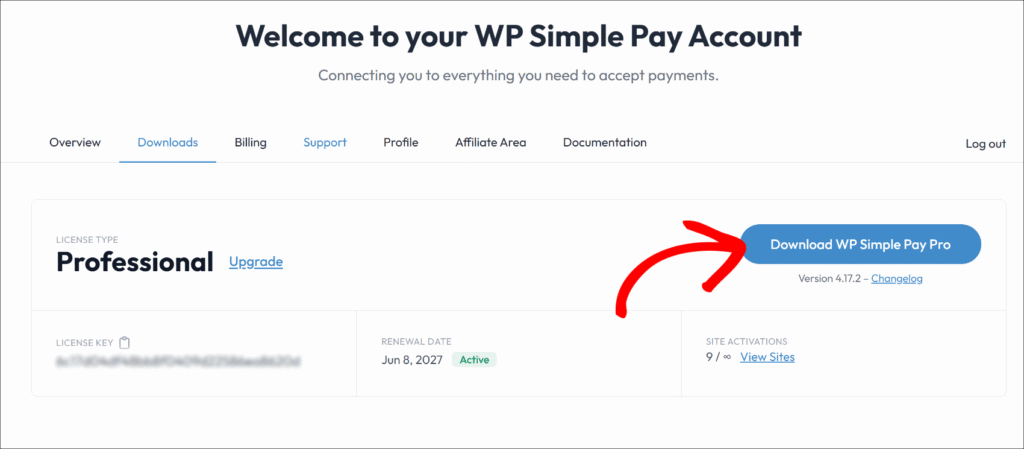
Następnie możesz przesłać pliki wtyczki na swoją witrynę, a następnie aktywować i zainstalować wtyczkę.
Uwaga: Jeśli dopiero zaczynasz instalować wtyczki WordPress, zapoznaj się z tym przewodnikiem po instalacji wtyczek WordPress, który szczegółowo opisuje ten proces.
Gdy wtyczka zostanie aktywowana, kreator konfiguracji uruchomi się automatycznie. Kliknij Rozpocznij, aby przejść przez początkową konfigurację.
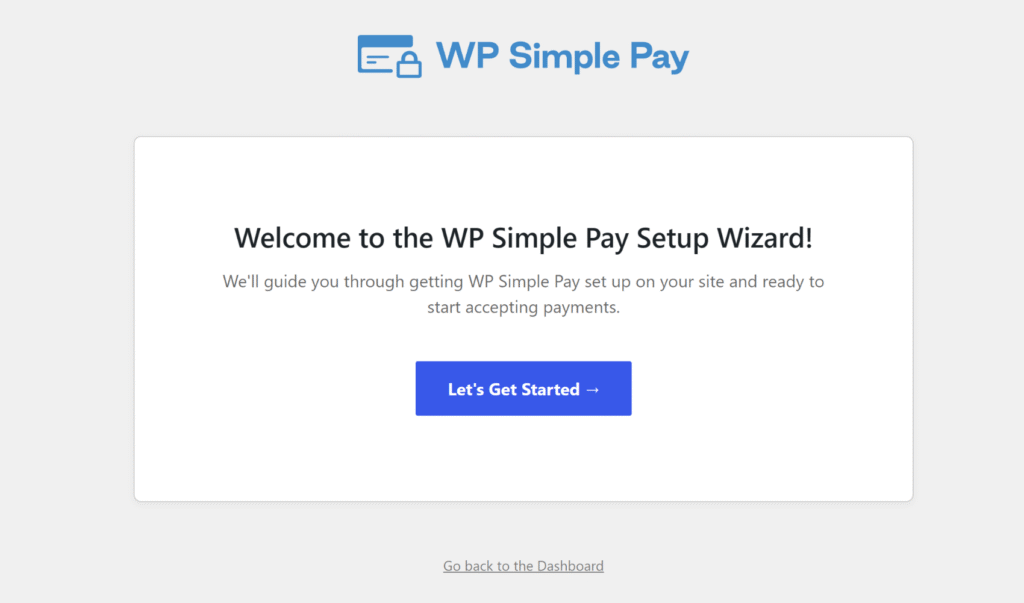
Alternatywnie, jeśli kreator się nie pojawi, przejdź do WP Simple Pay » Ustawienia » Ogólne » Zaawansowane i kliknij przycisk Uruchom kreator konfiguracji.
WP Simple Pay jest teraz aktywne. Jesteś gotowy, aby połączyć je ze Stripe.
Krok 2: Połącz swoją witrynę WordPress ze Stripe
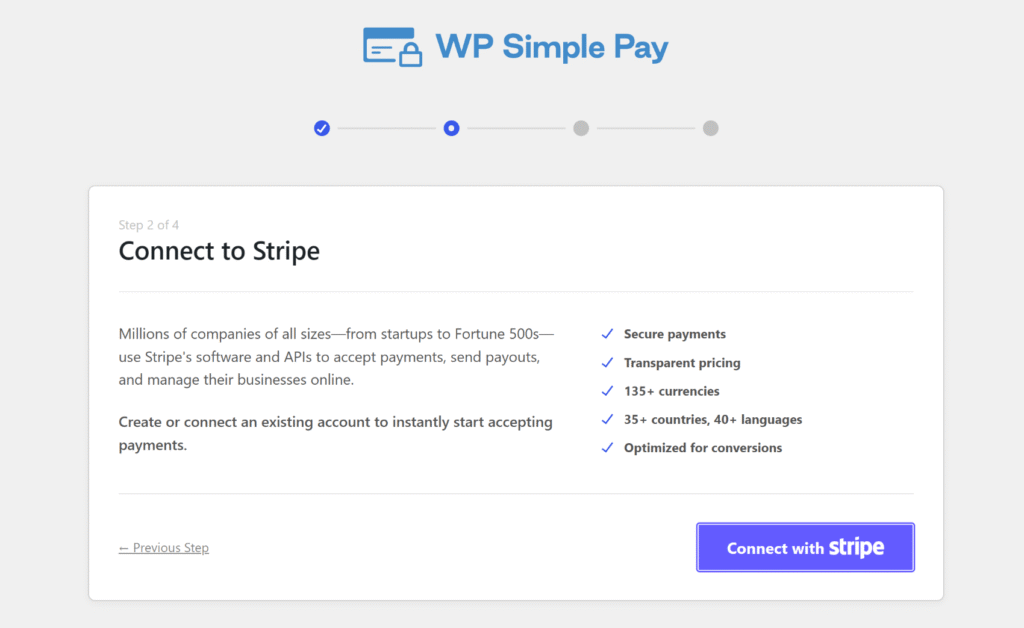
W kreatorze konfiguracji możesz kliknąć Połącz ze Stripe. Wprowadź adres e-mail swojego konta Stripe i ukończ autoryzację OAuth. Jeśli jeszcze nie masz konta Stripe, możesz je utworzyć z tego samego ekranu, nie opuszczając WordPressa.
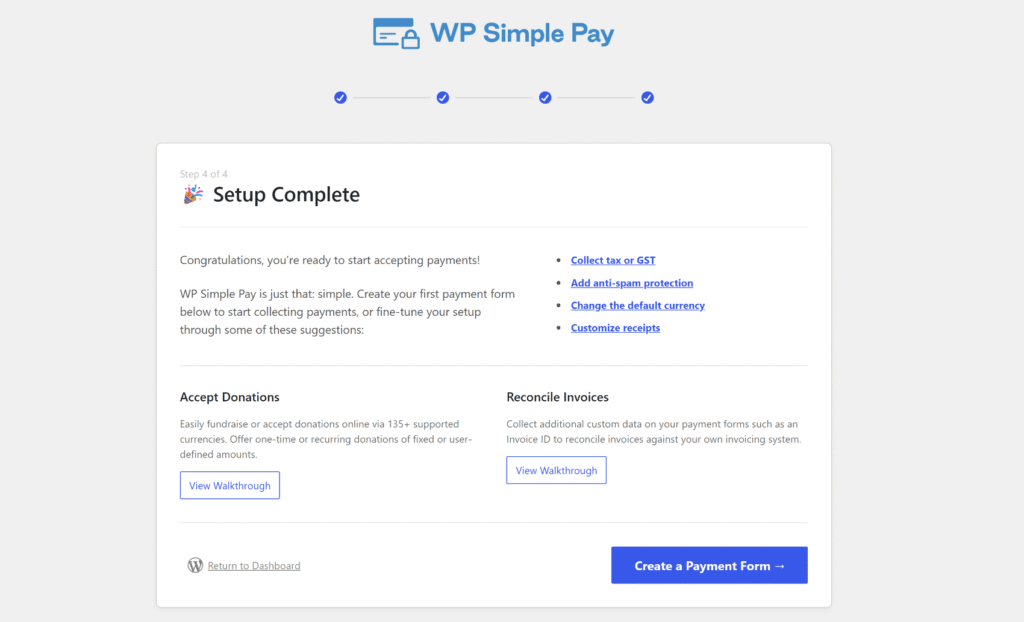
Po autoryzacji połączenia Stripe przekierowuje z powrotem do WordPressa i wyświetla potwierdzenie „Konfiguracja zakończona”.
Stąd WP Simple Pay jest połączone z Twoim kontem Stripe i gotowe do przetwarzania płatności.
Uwaga: Stripe automatycznie określa kwalifikowalność BNPL na podstawie lokalizacji kupującego i waluty płatności. Nie jest wymagane żadne oddzielne działanie aktywacyjne w panelu Stripe dla Klarna, Afterpay ani Affirm.
Krok 3: Utwórz formularz płatności Stripe Checkout z włączonym BNPL
Następnie możesz utworzyć nowy formularz płatności, aby akceptować płatności BNPL na swojej stronie internetowej.
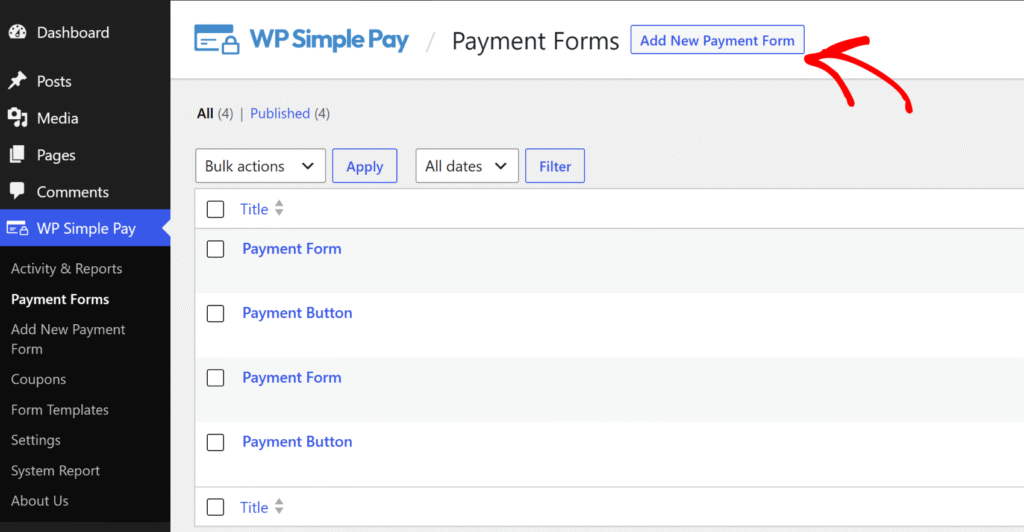
Aby rozpocząć, przejdź do WP Simple Pay » Formularze Płatności z menu administracyjnego WordPress i kliknij przycisk „Dodaj nowy formularz płatności”.
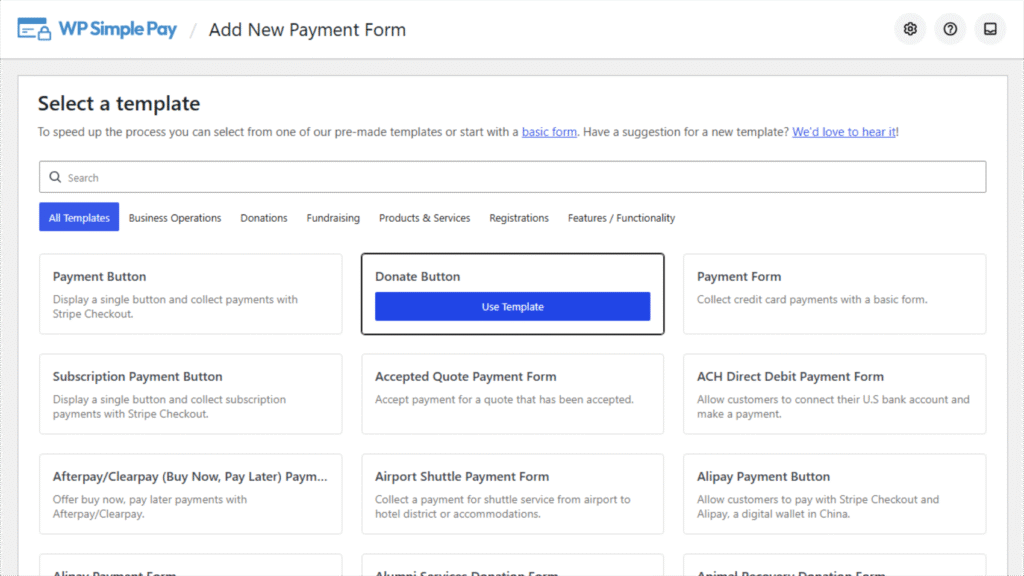
WP Simple Pay wyświetla bibliotekę gotowych szablonów formularzy płatności.
Możesz wybrać Formularz Płatności do ogólnego celu, lub wybrać szablon zastosowania, taki jak Przycisk Darowizny lub Przycisk Płatności Subskrypcji, lub Formularz Rejestracji Biegu Charytatywnego dla rejestracji wydarzeń, w zależności od przeznaczenia formularza.
W tym samouczku użyjemy przycisku Darowizny do skonfigurowania formularza płatności typu „kup teraz, zapłać później”.
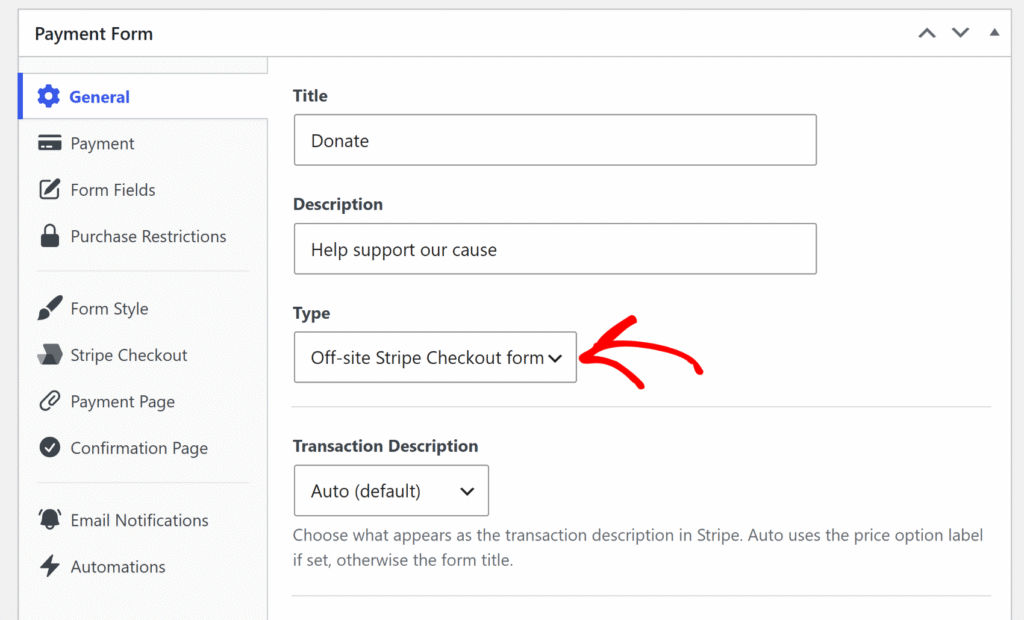
Gdy otworzy się kreator formularzy, możesz kliknąć zakładkę Ogólne.
Tutaj znajdź pole Typ i wybierz z listy rozwijanej Formularz Stripe Checkout poza witryną.
Ten krok jest wymagany, ponieważ metody płatności BNPL są dostępne tylko w formularzach Stripe Checkout i nie pojawią się w zakładce Płatności, chyba że ta opcja zostanie wybrana.
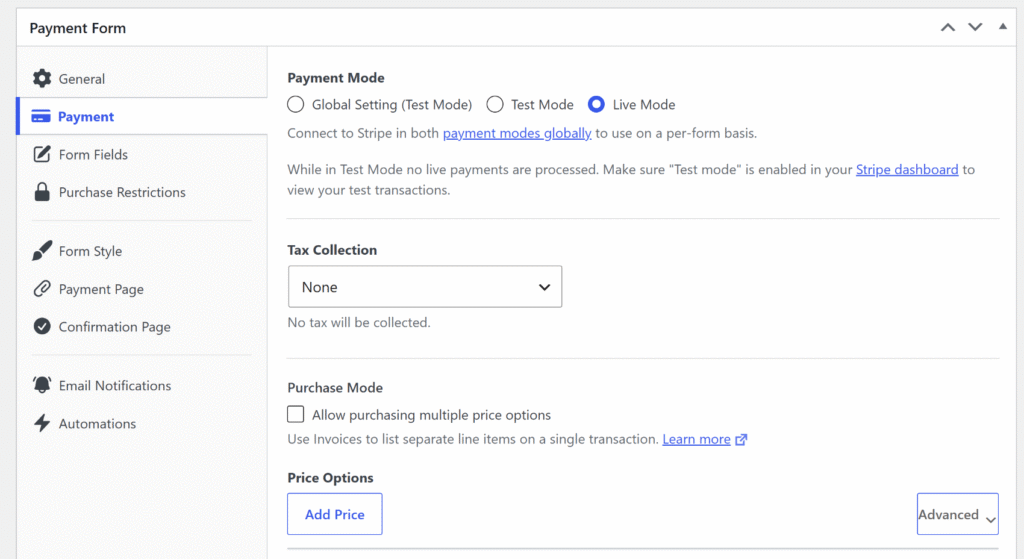
Następnie możesz kliknąć zakładkę Płatność i wprowadzić szczegóły płatności dla swojego produktu.
Obejmuje to metodę naliczania podatku i opcje cenowe (waluta, cena oraz płatność jednorazowa lub subskrypcja).
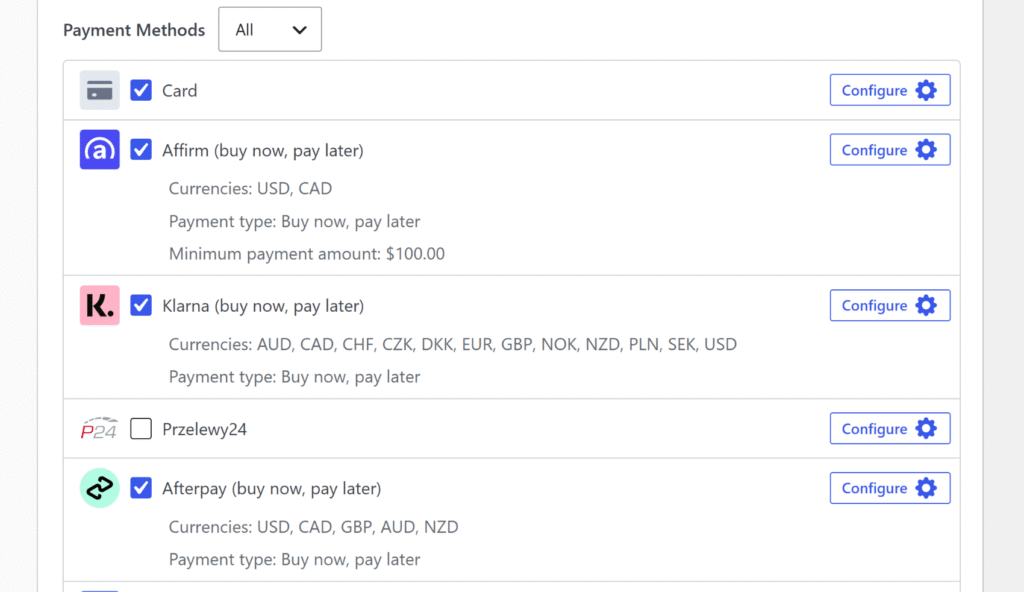
Następnie możesz przewinąć w dół do listy metod płatności.
Zaznacz pola dla Klarna (kup teraz, zapłać później), Afterpay (kup teraz, zapłać później) (wyświetlane jako Clearpay (kup teraz, zapłać później) dla kont Stripe z siedzibą w Wielkiej Brytanii) i Affirm (kup teraz, zapłać później).
Wszystkie trzy można włączyć razem, ponieważ Stripe wyświetla tylko metody dostępne dla regionu kupującego podczas realizacji zakupu.
Kilka rzeczy do zapamiętania podczas konfigurowania formularza:
- Affirm wymaga minimum 100 USD. Affirm nie pojawi się przy kasie dla kwot zakupu poniżej 100 USD (lub równowartości w CAD). Jeśli cena formularza jest poniżej tego progu, włącz Klarna i Afterpay, ale pozostaw Affirm odznaczone.
- Afterpay wyświetla się jako Clearpay dla sprzedawców z Wielkiej Brytanii. Jeśli podłączone konto Stripe ma siedzibę w Wielkiej Brytanii, WP Simple Pay oznacza tę metodę jako Clearpay w kreatorze formularzy. Dla wszystkich innych krajów konta metoda pojawia się jako Afterpay. W Stripe Checkout, Stripe niezależnie pokazuje właściwą markę każdemu kupującemu na podstawie jego lokalizacji. W żadnym wypadku nie jest wymagana dodatkowa konfiguracja.
- Waluta wpływa na dostępność. Affirm obsługuje tylko USD i CAD. Afterpay obsługuje USD, CAD, GBP, AUD i NZD. Klarna obsługuje 12 walut w ponad 25 krajach. Ustaw walutę formularza tak, aby odpowiadała głównemu rynkowi, któremu służysz.
Po włączeniu metod BNPL możesz kliknąć Opublikuj.
Krok 4: Osadź i przetestuj formularz płatności BNPL
Teraz możesz dodać opublikowany formularz do strony lub wpisu WordPress, używając bloku WP Simple Pay – Formularz płatności w edytorze treści WordPress lub wklejając skrócony kod.
Najpierw edytuj stronę lub utwórz nową, na której chcesz wyświetlić opcję płatności „kup teraz, zapłać później”. Następnie kliknij przycisk + i dodaj blok „WP Simple Pay – Formularz płatności”.
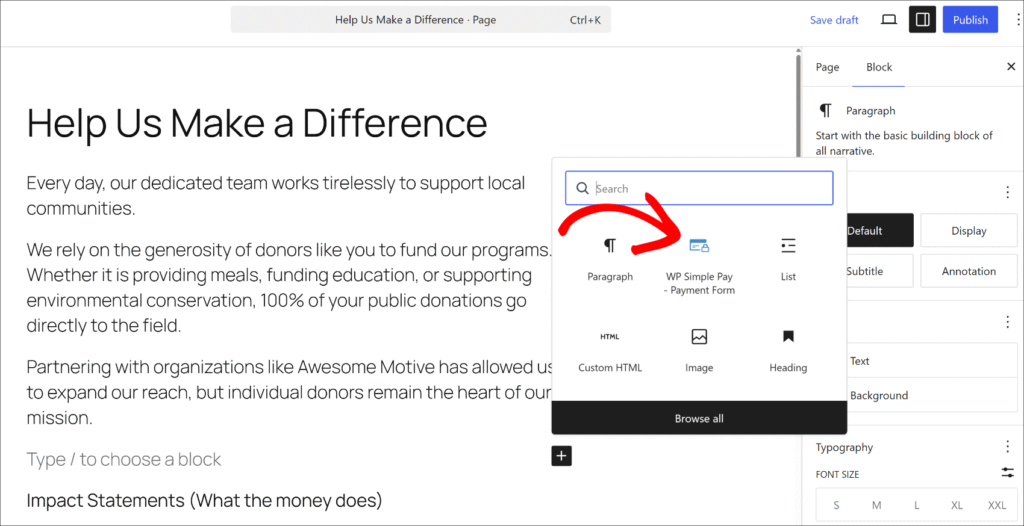
Następnie możesz wybrać formularz, który właśnie utworzyłeś, z menu rozwijanego w bloku.
Gdy to zrobisz, Opublikuj stronę.
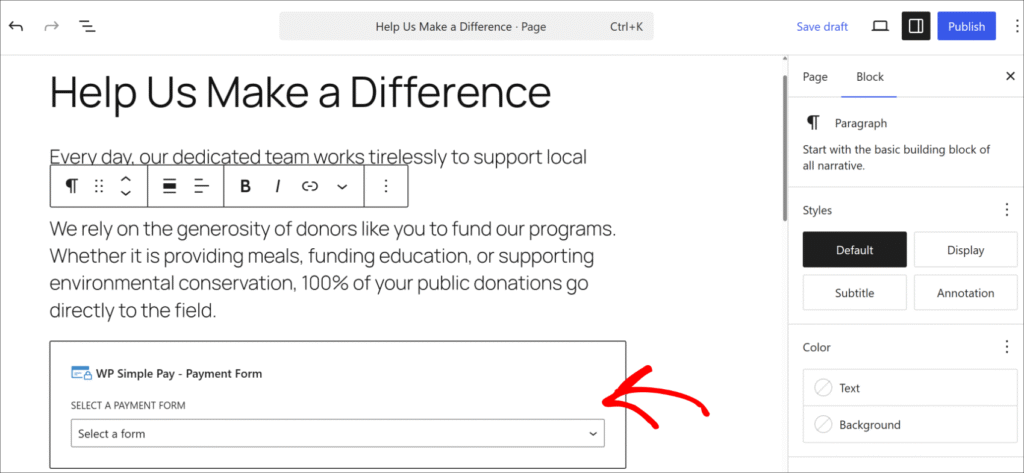
Następnie otwórz ją w nowym oknie przeglądarki, aby potwierdzić, że formularz się wyświetla.
Gdy Stripe jest nadal w trybie testowym, kliknij przycisk płatności na opublikowanej stronie. Otworzy się okno Stripe Checkout, wyświetlające dostępne opcje BNPL obok standardowego pola karty. Aby przetestować metodę BNPL, wybierz Klarna (lub Afterpay) z opcji płatności i zakończ symulowany przepływ BNPL. Nie zostanie naliczona żadna rzeczywista płatność.

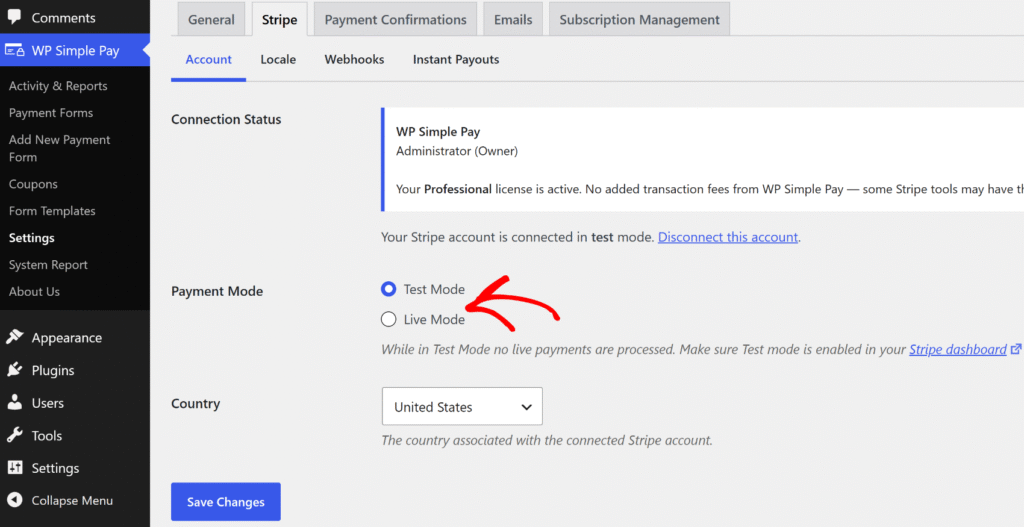
Po zakończeniu płatności testowej możesz zmienić tryb z Testowego na Produkcyjny.
Po prostu wróć do WP Simple Pay » Ustawienia » Stripe i przełącz się z Trybu testowego na Tryb produkcyjny, aby zacząć akceptować rzeczywiste płatności.
Bonus: Dodaj plany ratalne dla ofert o wyższej wartości
BNPL pozwala kupującym rozłożyć zakup na raty zgodnie z harmonogramem Klarny lub Afterpay. Dla właścicieli witryn, którzy chcą mieć pełną kontrolę nad strukturą płatności ratalnych, taką jak konkretne kwoty, konkretne interwały i zdefiniowana liczba obciążeń, funkcja planu ratalnego WP Simple Pay jest odpowiednim narzędziem.
Dzięki planom ratalnym określasz liczbę płatności, interwał i kwotę za obciążenie. Stripe obsługuje każde automatyczne obciążenie do momentu zakończenia planu.
Kupujący widzi strukturę jasno przy kasie (na przykład „4 płatności po 250 USD”), a rozliczenie automatycznie zatrzymuje się po ostatnim obciążeniu bez subskrypcji do anulowania.
Często zadawane pytania dotyczące „Kup teraz, zapłać później”
1. Których dostawców „kup teraz, zapłać później” obsługuje WP Simple Pay?
WP Simple Pay obsługuje Klarnę, Afterpay (w Wielkiej Brytanii nazywaną Clearpay) i Affirm za pośrednictwem Stripe. Wszystkie trzy są dostępne w planach Professional+ i pojawiają się automatycznie w formularzach Stripe Checkout w zależności od regionu i waluty kupującego. Nie jest wymagana żadna osobna aplikacja handlowa dla żadnego z nich.
2. Czy opcja „kup teraz, zapłać później” działa z płatnościami cyklicznymi w WP Simple Pay?
Nie — BNPL jest dostępne tylko w formularzach płatności jednorazowych. Formularze subskrypcji i cykliczne nie obsługują Klarny, Afterpay ani Affirm. W przypadku elastycznego cennika dla drogich produktów z automatycznymi obciążeniami ratalnymi, funkcja planu ratalnego WP Simple Pay jest przeznaczona do tego celu.
3. Czy kupujący potrzebują konta lub aplikacji, aby korzystać z Klarny lub Afterpay?
Kupujący nie potrzebują osobnej aplikacji ani konta, aby korzystać z BNPL (kup teraz, zapłać później) podczas finalizacji zakupu. Klarna i Afterpay przeprowadzają własny krótki proces onboardingu w momencie zakupu, bezpośrednio w przepływie Stripe Checkout. Proces ten dodaje kilka sekund, a nie barierę pełnej rejestracji.
4. Czy istnieje minimalna kwota zakupu dla BNPL w WP Simple Pay?
Affirm wymaga minimalnej kwoty zakupu w wysokości 100 USD i nie pojawi się podczas finalizacji zakupu dla kwot poniżej tego progu. Klarna i Afterpay nie mają minimalnej kwoty na poziomie wtyczki w WP Simple Pay, chociaż Stripe i poszczególni dostawcy BNPL mogą stosować własne zasady kwalifikowalności w zależności od regionu i kwoty.
5. Które kraje obsługują opcję „kup teraz, zapłać później” w WP Simple Pay?
Klarna jest dostępna w ponad 25 krajach, w tym w USA, Wielkiej Brytanii, Australii, Kanadzie i większości Europy. Afterpay (Clearpay) obsługuje AU, CA, FR, IE, IT, NZ, ES, USA i GB. Affirm obsługuje tylko USA i Kanadę. Stripe wyświetla tylko metody dostępne dla lokalizacji każdego kupującego, więc nie jest potrzebna ręczna konfiguracja dla każdego kraju.
Rozpocznij Płatności BNPL Formularze w WordPress
Dzięki WP Simple Pay dodanie Klarny, Afterpay i Affirm do formularza płatności WordPress zajmuje mniej niż 10 minut.
Brak osobnej umowy handlowej, kodu i koszyka. Kupujący widzą opcje BNPL pasujące do ich regionu podczas finalizacji zakupu, a pełna kwota płatności trafia natychmiast na konto Stripe.
Mamy nadzieję, że ten artykuł pomógł Ci dowiedzieć się, jak dodać opcję „kup teraz, zapłać później” do Twojej strony WordPress. Możesz również zapoznać się z naszymi poradnikami na temat akceptowania Google Pay i Apple Pay w WordPress oraz różnic między formularzami osadzonymi, nakładkowymi i Stripe Checkout.
Gotowy do rozpoczęcia przyjmowania płatności „kup teraz, zapłać później”? Rozpocznij już dziś z WP Simple Pay.
Aby przeczytać więcej podobnych artykułów, śledź nas na X.
Ujawnienie: Nasze treści są wspierane przez czytelników. Oznacza to, że jeśli klikniesz w niektóre z naszych linków, możemy otrzymać prowizję. Polecamy tylko produkty, które naszym zdaniem dodadzą wartości naszym czytelnikom.
Dodaj odpowiedź