
How to Complete Stripe’s Brazil Verification Requirements
Last updated on

Are you wondering what the new Stripe verification requirements are for users from Brazil?
Imagine a Brazilian WordPress site owner opens their dashboard one morning and finds every WP Simple Pay payment form on the site declining transactions. From our experience, this is often the first sign that Stripe has restricted the account over a missing verification step.
These are Stripe’s Brazil verification requirements in effect. The Know Your Customer (KYC) rule that took effect on April 27, 2026, requires all Brazilian Stripe account holders to submit a CPF or CNPJ, complete a liveness check, and confirm income details. Stripe restricts payment processing on any connected account that hasn’t completed these steps.
In this article, we’ll show you how to complete Stripe’s Brazil verification requirements step by step so your payment forms start processing again as quickly as possible.
What Is Stripe’s Brazil Verification Requirement?
Stripe now requires all Brazilian connected account holders to verify their identity before continuing to process payments online. The requirement covers three steps: submitting a CPF (for individuals) or CNPJ (for registered businesses), completing a liveness check, and providing a monthly revenue estimate.
CPF stands for Cadastro de Pessoas Físicas, the 11-digit individual tax ID issued by Brazil’s Receita Federal. CNPJ stands for Cadastro Nacional da Pessoa Jurídica, the 14-digit business registration number used by legal entities.
The liveness check is a short, browser-based identity confirmation that takes about two minutes on any device with a camera, with no app download required. The income estimate is a range selection that Stripe uses for compliance reporting, not for pricing.
This requirement applies to any Stripe account registered in Brazil, regardless of which payment-acceptance plugin is used. Because WP Simple Pay connects WordPress sites directly to Stripe through Stripe Connect, any Brazilian account that hasn’t completed the verification will have its payment processing restricted until it does.
For the full technical requirements, see Stripe’s Brazil requirements documentation.
Why Completing Stripe’s Brazil Verification Matters
We’ve seen accounts go weeks without processing because the Stripe notification went unnoticed before the site owner spotted it. Here’s the impact these new verification requirements have on Brazilian users.
- Payments stop at the checkout. When Stripe restricts a connected account, every payment form on the site declines transactions at checkout, regardless of the payment method or form type. Customers see an error with no explanation, and the sale is lost.
- Recurring subscriptions break. Active Stripe subscriptions tied to a restricted account fail to renew, and customers may receive failed payment notifications from Stripe. Recurring revenue that took time to build disappears without warning.
- No workaround exists at the plugin level. Since the restriction sits on the Stripe account itself, no setting inside WP Simple Pay can override it. Switching form types, updating payment methods, or reinstalling the plugin won’t help, so the fix happens in Stripe, not in WordPress.
- Every day of delay costs revenue you can’t recover. Failed transactions during the restriction window can’t be recovered after the fact. The longer the account stays unverified, the more payments are permanently lost.
That said, the verification process itself takes 10–20 minutes in the Stripe Dashboard. Here’s what you’ll need to do.
Complete Stripe’s Brazil Verification in Your Stripe Dashboard
To complete the verification, you can log in to your Stripe account and go to Account details to open the verification flow.
Once it is open, you will need to provide the following documents and information for verification:
- Submit your CPF or CNPJ. Individual account holders need to submit their CPF, the 11-digit Brazilian individual tax ID issued by Receita Federal. On the other hand, Business accounts registered as legal entities submit their CNPJ, the 14-digit business registration number. Stripe may also ask for the CPF of principal business owners as part of its KYC process.
- Submit Tax ID. For verification purposes, Stripe may also require you to submit your tax ID.
- Complete the liveness verification. After submitting your tax ID, Stripe launches a browser-based identity check, a short camera confirmation that takes about two minutes on any device with a camera. No app download is needed, and the check runs entirely in the browser.
- Confirm your monthly revenue estimates. Stripe asks for a range estimate of your monthly payment processing volume. Select the range that best fits your business, as this information is used for regulatory compliance reporting and does not affect your Stripe fees.
Once you submit all three steps, Stripe begins its review. Most accounts are approved within 24 hours, and payments resume as soon as the review is complete.
To learn more about the complete list of documents and information needed, please see this guide on required verification information on Stripe.
Now, let’s look at a simple way to accept Stripe payments in WordPress without setting up a shopping cart.
How to Accept Stripe Payments in WordPress
The easiest way to get Stripe payments running on a WordPress site without a shopping cart is WP Simple Pay.
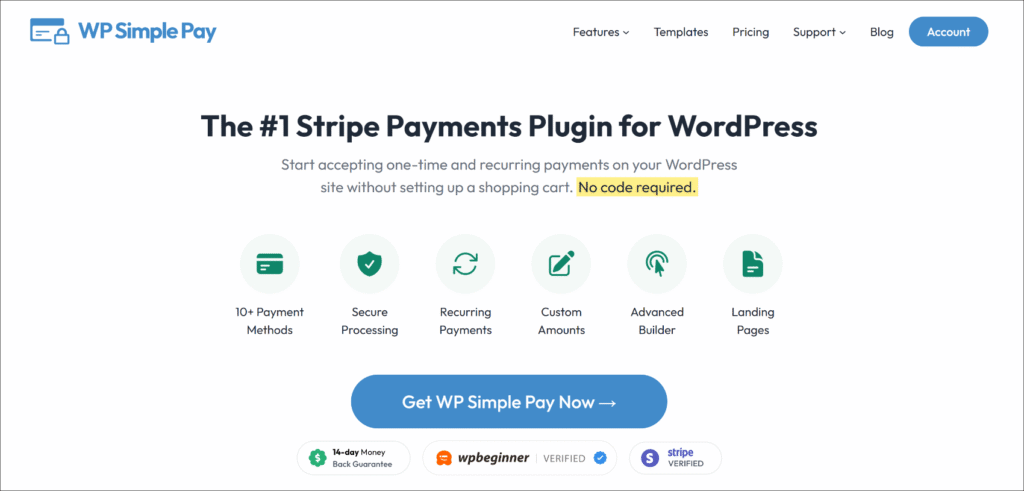
WP Simple Pay is the #1 Stripe payments plugin for WordPress. It lets freelancers, small businesses, nonprofits, and course creators accept one-time and recurring payments directly on their site in minutes.
The best part is that it does this without setting up a shopping cart, without writing any code, and without paying an additional 3% plugin fee on top of Stripe’s standard processing costs.
Here are some amazing features offered by WP Simple Pay:
- Guided Stripe connection — WP Simple Pay’s setup wizard connects your WordPress site to Stripe directly inside the dashboard, taking you through the full Stripe Connect authentication flow.
- One-time and recurring payments — build payment forms for services, subscriptions, donations, and registrations from the same drag-and-drop form builder, with no separate tools required.
- 10+ payment methods — accept cards, Apple Pay, Google Pay, digital wallets, and more, all managed from the same form without additional configuration.
- No additional 3% plugin fee — WP Simple Pay Pro removes the extra transaction fee that many other Stripe plugins charge on top of Stripe’s standard processing costs.
To get started, you can visit the WP Simple Pay website and sign up for the plan that fits your site.
Start Accepting Payments Today
Start accepting one-time and recurring payments or donations on your WordPress website.
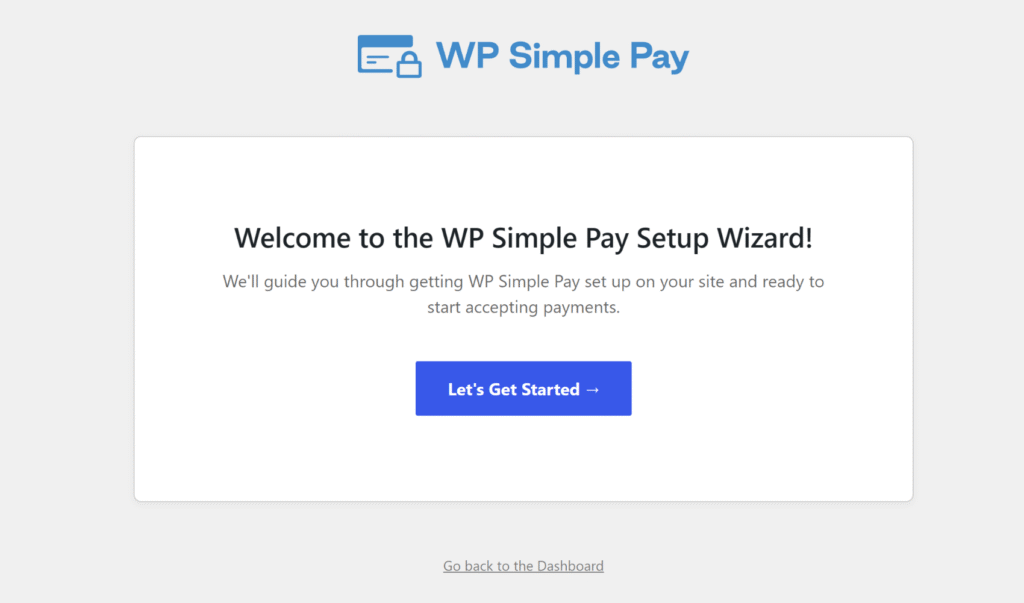
Once that’s done, you can quickly set it up on your site using the setup wizard.
Just follow the on-screen instructions to connect Stripe to your website.
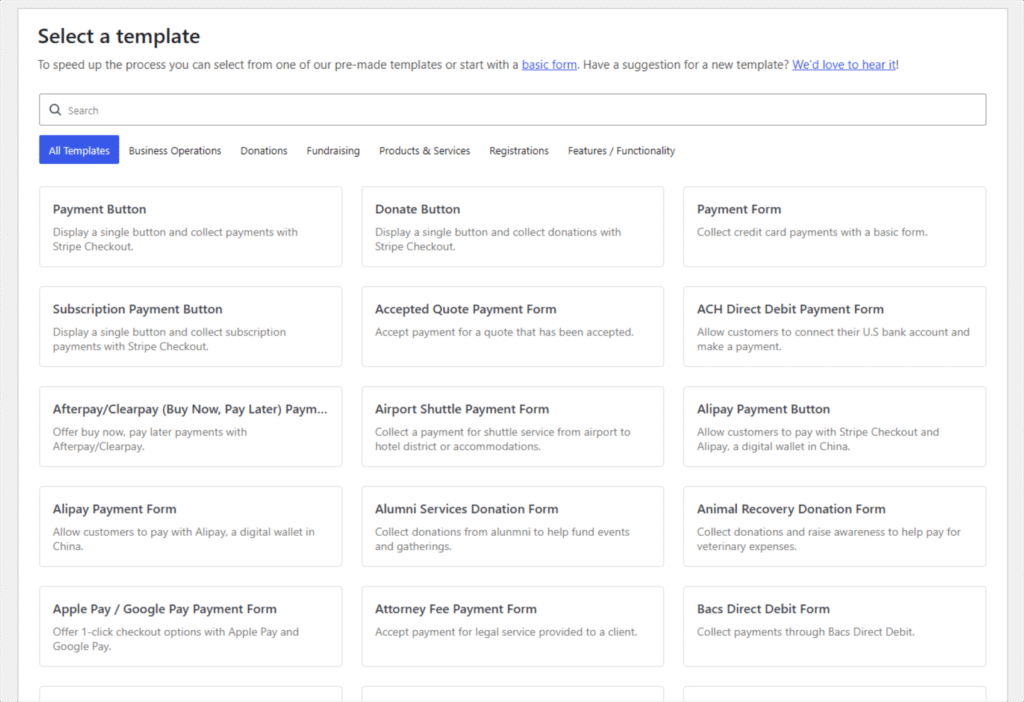
With WP Simple Pay, you can add different payment forms to your site.
It offers pre-built templates that allow you to quickly choose a payment form and edit it according to your requirements.
Next, you get lots of customization options in the drag & drop form builder.
For instance, WP Simple Pay lets you add different form fields and rearrange them.
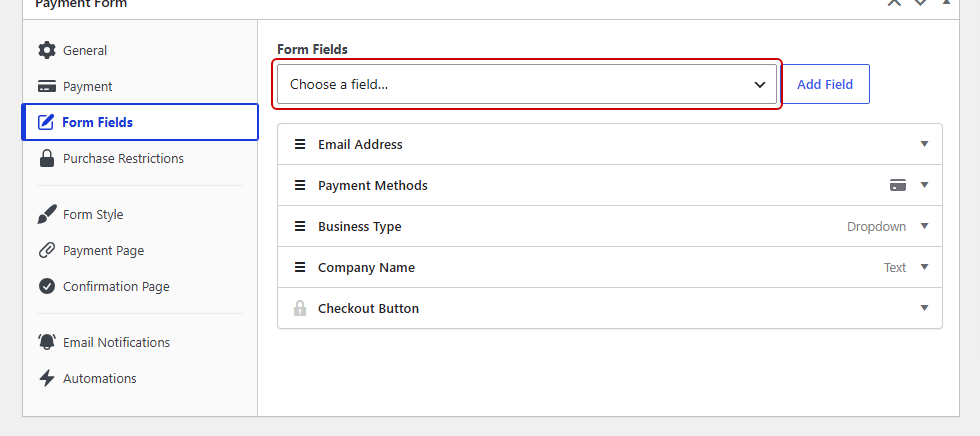
Once the payment form is ready, you can embed the form anywhere on your website.
The plugin offers blocks that you can place in a post or page, or use shortcodes to display the form.
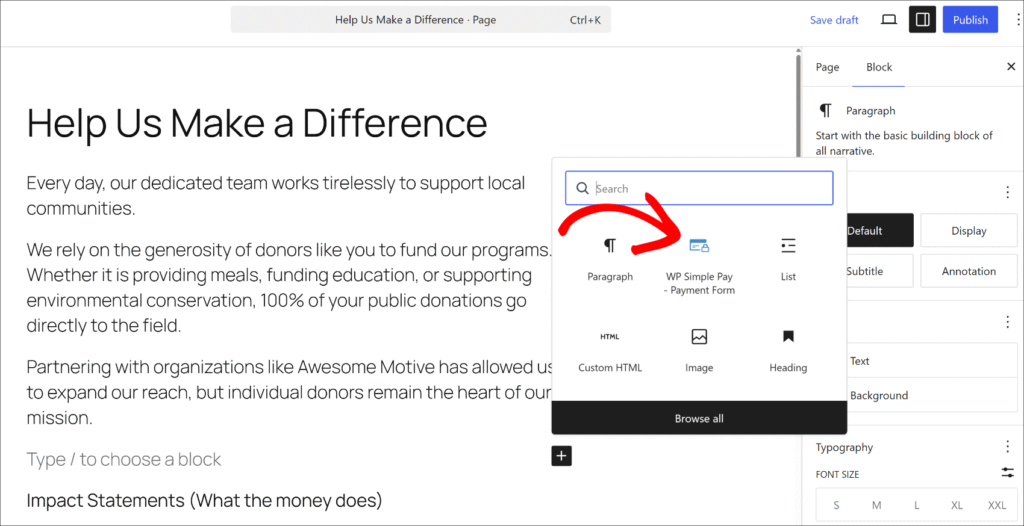
To learn more, please see our guide on how to accept Stripe payments on WordPress.
Test Your WP Simple Pay Payment Forms
Once Stripe approves the verification, your existing live forms resume automatically.
To confirm everything is working, run a small live transaction or use Test Mode with Stripe’s test card 4242 4242 4242 4242, then check WP Simple Pay » Activity & Reports.
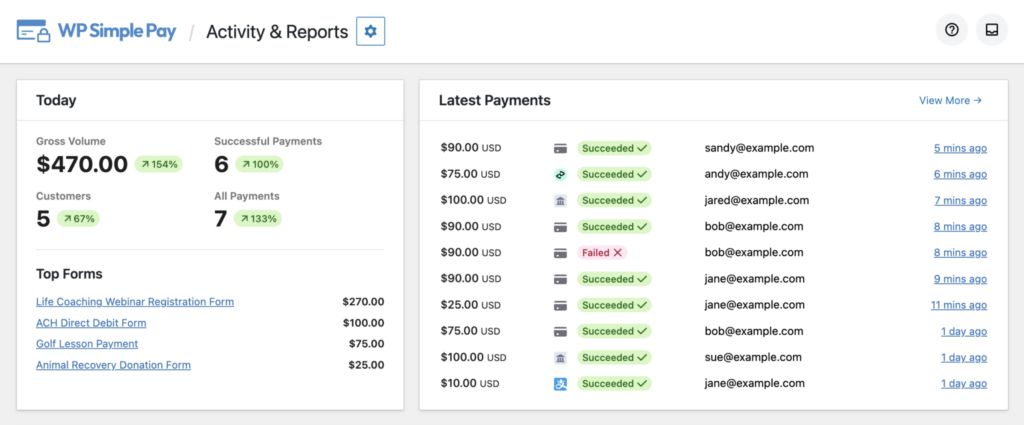
If the payment goes through, then it means the verification was successful and your payment forms are now working perfectly.
FAQs for Stripe Brazil Verification Requirements
1. What happens if I don’t complete Stripe’s Brazil verification?
Stripe restricts the connected account from processing payments until verification is complete. This means all WP Simple Pay payment forms on the site will decline transactions, and active subscriptions will fail to renew.
There is no partial restriction. The account either passes verification and resumes processing, or it stays paused until the steps are done.
2. Does Stripe’s Brazil verification affect all WP Simple Pay users?
Only users whose Stripe account is registered in Brazil are required to complete this verification. If the Stripe account is based outside of Brazil, this requirement does not apply.
The trigger is the country of the Stripe account registration, not the location of the WordPress site or the WP Simple Pay installation.
3. How long does Stripe’s Brazil verification take to complete?
The verification process typically takes 10–20 minutes in the Stripe Dashboard. CPF or CNPJ submission is instant once the ID number is ready, and the liveness verification takes about two minutes on a device with a camera.
After submission, Stripe’s review typically completes within 24 hours, and payments resume as soon as it’s approved.
4. What should I do if Stripe’s Brazil verification fails?
Stripe sends an error notification with the specific reason, which may include an inactive CPF status, a name mismatch between the Stripe account and the tax ID record, or a failed liveness check. Log in to the Stripe Dashboard and follow the on-screen instructions to resubmit.
For persistent errors, contact Stripe support directly through the help widget in the Dashboard.
Once Stripe’s Brazil verification is complete, your WP Simple Pay payment forms will process transactions again without interruption, a one-time step that Stripe now requires for all Brazilian connected accounts to stay compliant.
We hope this article helped you learn how to complete Stripe’s Brazil verification requirements. You may also want to see our guides on how to handle failed recurring payments and designing the perfect payment form in 9 steps.
Ready to start accepting Stripe payments on your WordPress site? Get started with WP Simple Pay today.
To read more articles like this, follow us on X.
Disclosure: Our content is reader-supported. This means if you click on some of our links, then we may earn a commission. We only recommend products that we believe will add value to our readers.

Leave a Reply