
How to Add Conditional Logic to WordPress Payment Forms
Last updated on

Imagine a freelance consultant sets up a payment form for new client projects. Every visitor who lands on the page sees the same fields: “Company Name,” “Tax ID,” and “Invoice Reference,” even individual buyers paying a simple deposit.
The form looks like it was built for someone else. Some visitors close the tab before completing the payment.
That’s the cost of WordPress payment forms without conditional logic: the form asks the same questions of every visitor, regardless of context.
Site owners who want to handle multiple buyer types either clutter the form with fields that don’t apply to everyone or build a separate form for each scenario, doubling the maintenance work whenever a price changes.
This is where you need conditional logic in your payment forms. Conditional logic allows you to show or hide fields based on what a visitor selects or enters.
In this article, we will show you how to add conditional logic to WordPress payment forms.
Why Conditional Logic Matters for Payment Forms
We’ve worked with many site owners who built polished payment pages only to see checkout completion suffer because the form felt generic. Conditional logic addresses a handful of friction points that show up repeatedly:
- Long forms drive checkout abandonment: Every field that doesn’t apply to a visitor is a reason to pause before paying. Conditional logic keeps the visible form length short and relevant for each person filling it out.
- Irrelevant fields create confusion before checkout: A solo buyer who sees a “Tax ID” field wonders if they landed on the right form. That moment of doubt at checkout is often enough to make them leave.
- Multiple forms multiply maintenance work: Without conditional logic, many site owners build a separate payment form for every buyer type or pricing scenario. When a price or confirmation message changes, every form needs to be updated separately.
- Bad data ends up in Stripe: When optional fields are always visible, visitors fill them with placeholder text or leave them blank. Conditional logic ensures a field only appears when it applies, so the customer data flowing into Stripe stays accurate and useful.
That said, let’s see how you can easily set up in WordPress.
Set Up Conditional Logic in Payment Forms
You add conditional logic to your payment forms using WP Simple Pay. It seamlessly connects directly to Stripe without WooCommerce or a full shopping cart, and it comes with a conditional logic feature.
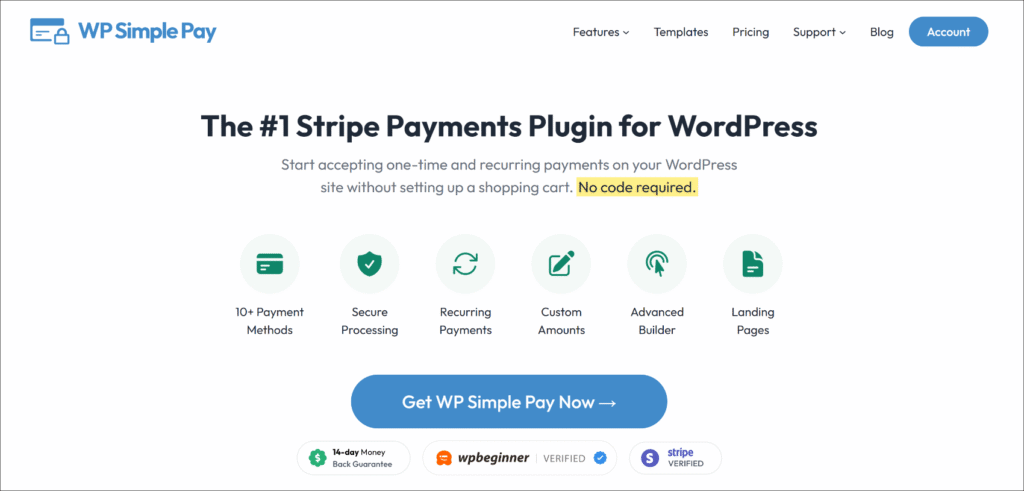
WP Simple Pay is the #1 Stripe payments plugin for WordPress, built for freelancers, non-profits, event organizers, and small businesses who want to accept one-time and recurring payments without a full eCommerce setup.
Unlike general-purpose form builders that bolt Stripe on as an add-on, WP Simple Pay is built exclusively for Stripe payments: conditional logic, custom fields, and payment processing are all part of the same plugin.
Its visual form builder includes a conditional logic option, letting you build payment forms that adapt to each visitor.
Here are some of the features offered by WP Simple Pay:
- Conditional Form Fields: Show or hide any custom field based on what a visitor selects or enters. No code, no separate forms, and no workaround required.
- 21 Custom Field Types: Choose from dropdowns, radio buttons, checkboxes, text inputs, date pickers, and more. Each field carries its own independent conditional rules.
- Real-Time Field Visibility: Conditions evaluate instantly in the visitor’s browser as they interact with the form. No page reload needed.
- 10+ Payment Methods: Cards, Apple Pay, Google Pay, ACH Direct Debit, Klarna, and more. Conditional logic works alongside every payment method WP Simple Pay supports.
With that, let’s see how you can use WP Simple Pay to add conditional logic to WordPress payment forms.
Step 1: Install and Activate WP Simple Pay
To start, you can visit the WP Simple Pay website and choose a plan. Do note that the conditional logic feature is available to WP Simple Pay Pro or higher plans users.
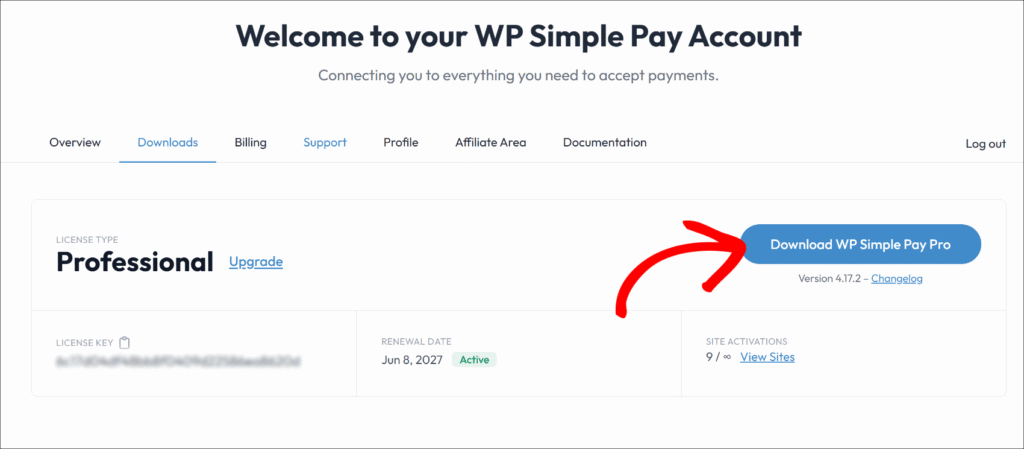
Next, you can download the .zip file from the WP Simple Pay account dashboard by clicking the Download WP Simple Pay Pro button.
From there, navigate to your WordPress dashboard, upload the plugin files, and then install and activate the plugin. If you haven’t installed a WordPress plugin before, this step-by-step guide to installing WordPress plugins walks through the full process.
Once the plugin is active, the WP Simple Pay setup wizard launches automatically. Go ahead and click Let’s Get Started to begin the onboarding flow.
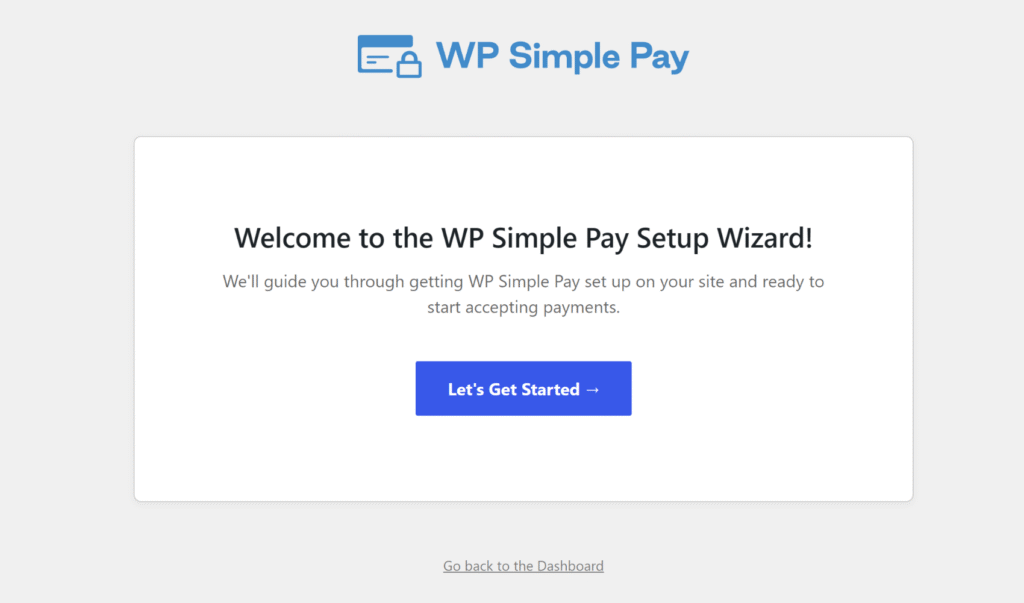
If the wizard doesn’t appear, navigate to WP Simple Pay » Settings » General » Advanced and click Launch Setup Wizard.
WP Simple Pay should now be installed and ready. Next, we’ll connect it to Stripe.
Step 2: Connect WordPress to Stripe
In the setup wizard, you can then click the Connect with Stripe button and enter the email address for the Stripe account.
New users can create a free Stripe account from the same screen without leaving WordPress.
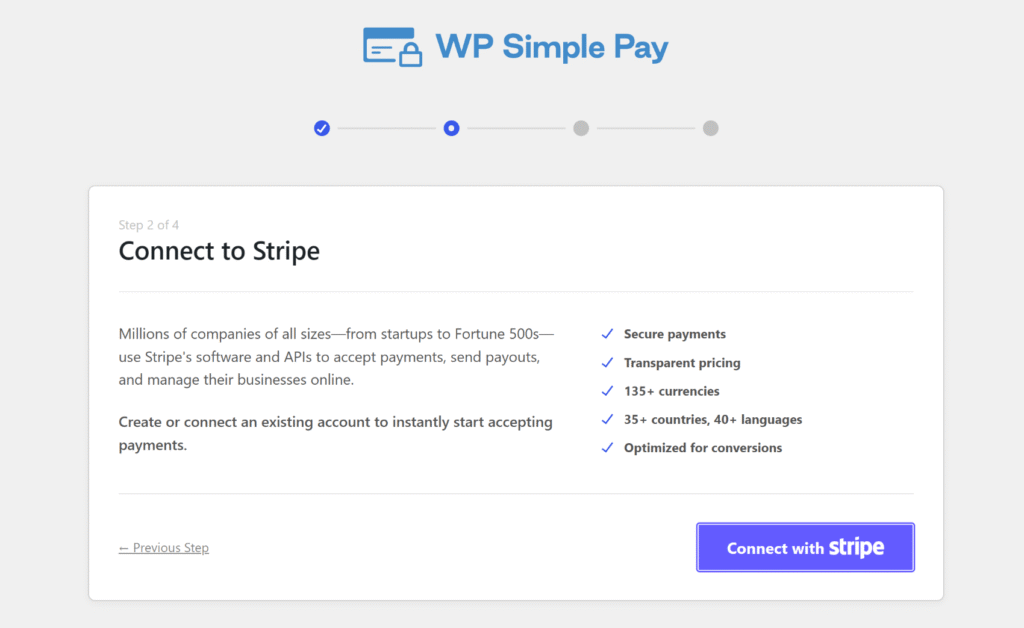
After completing the authentication, the wizard advances automatically.
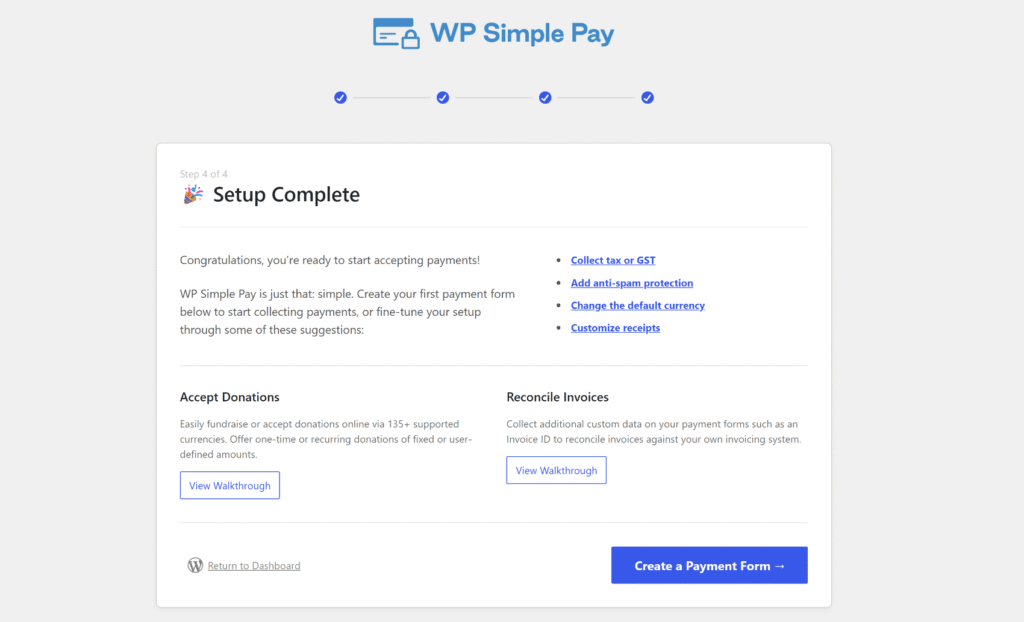
Confirm the Setup Complete screen to finish the setup. Your site is now linked to Stripe and ready to process payments.
Step 3: Create a Payment Form and Add Custom Fields
Next, you can click the ‘Create a Payment Form’ button in the setup wizard.
Or you can navigate to WP Simple Pay » Payment Form and click the ‘Add New Payment Form’ button to add a new form.
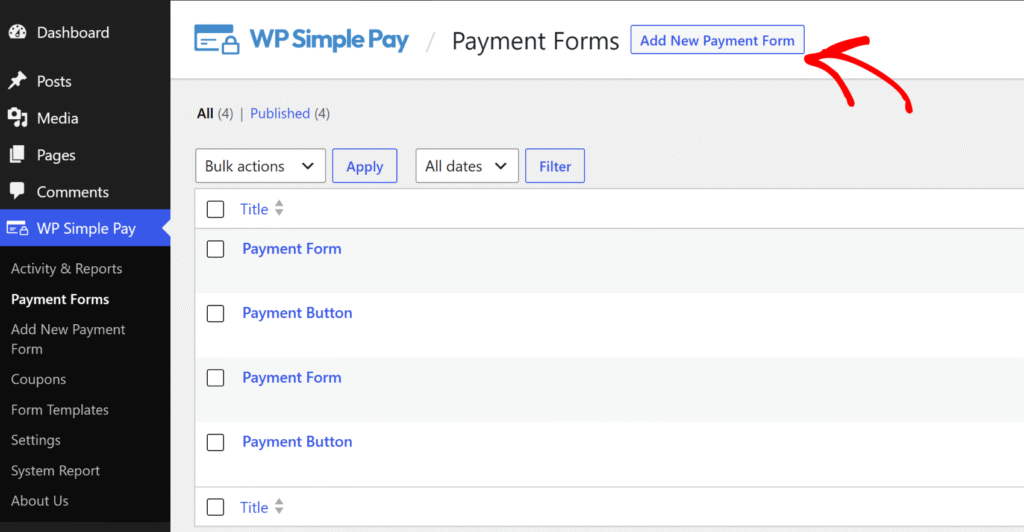
From here, you will see multiple built-in form templates.
Go ahead and select a form template.
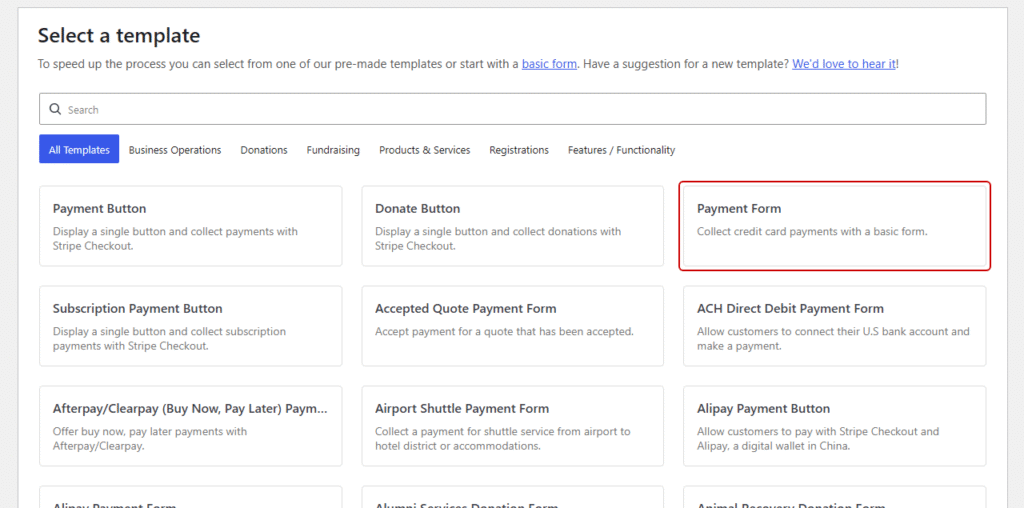
Payment Form works for most use cases, though a Subscription Payment Form or a use-case template like Fun Run Registration Form works equally well, depending on your goal.
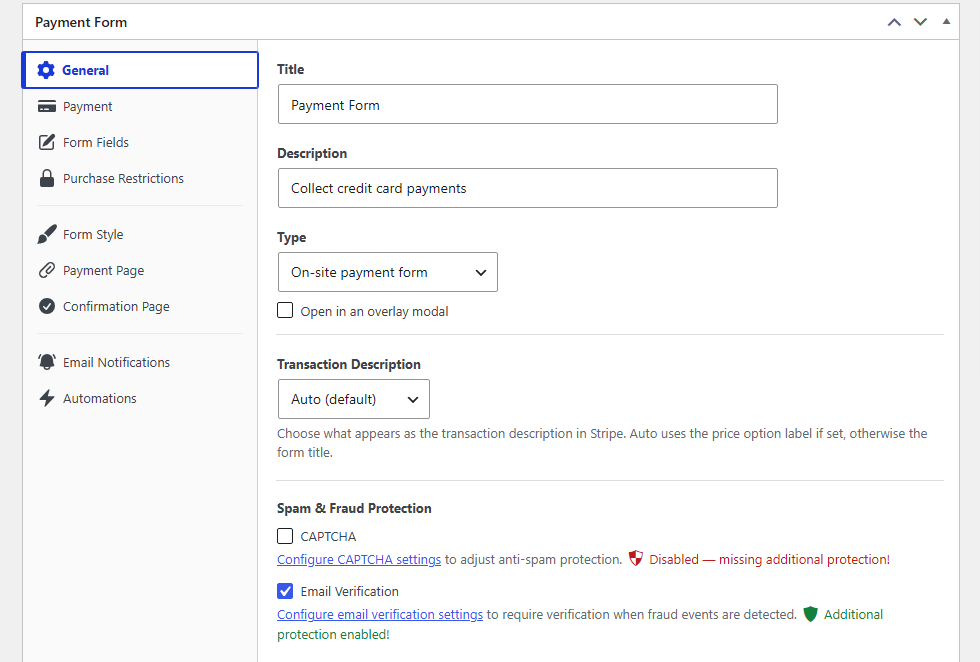
After selecting a form template, you can head to the General tab, give the form a title, and choose a display type.
The On-site payment form type works for most use cases. You can also check the Open in an overlay modal option to show the form as a popup.
On the other hand, you can also select Off-site Stripe Checkout form from the Type dropdown to redirect visitors to Stripe’s hosted checkout page.
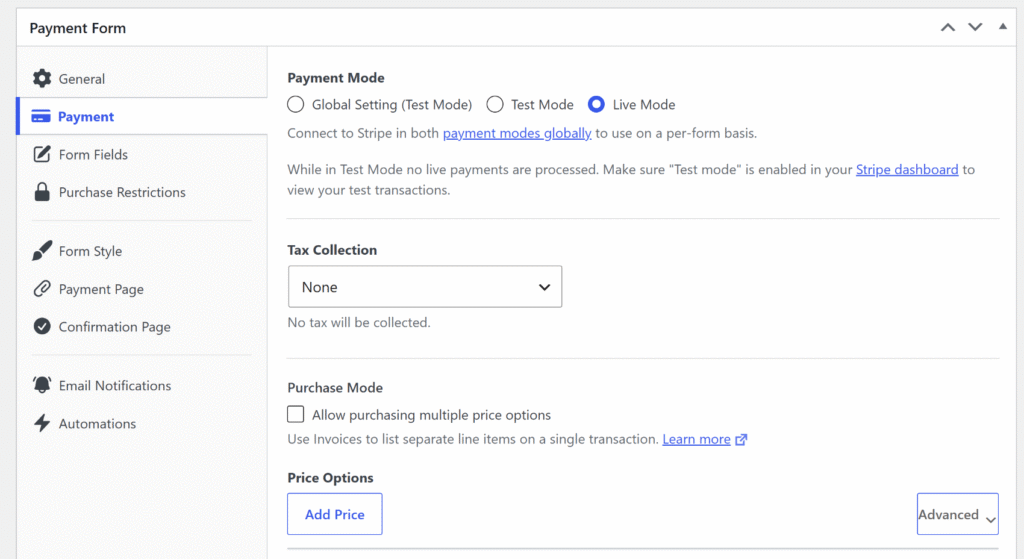
Next, open the Payment tab and configure the currency, amount, and whether the payment is one-time or recurring.
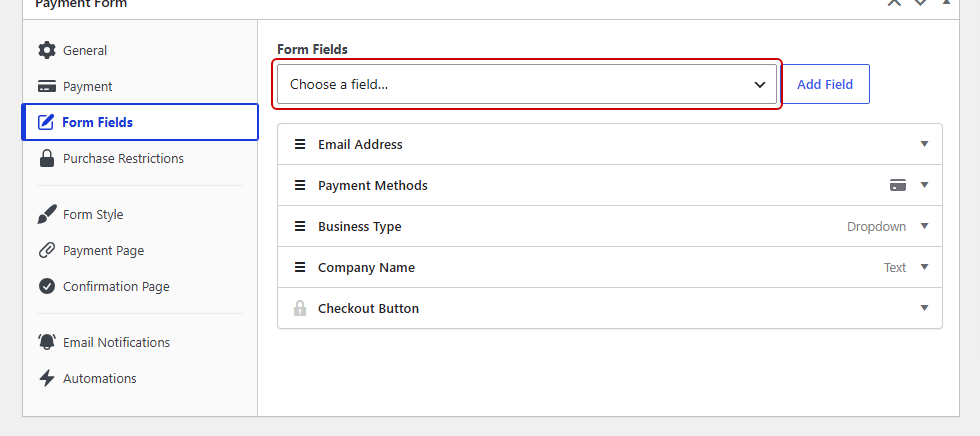
From there, you’ll need to open the Form Fields tab. Use the field type dropdown to add the fields that will act as triggers and targets for the conditional rules.
For this example, let’s add a Dropdown field labelled “Customer Type” with options “Individual” and “Business,” then add a Text field labelled “Company Name.”
Step 4: Add Conditional Logic to Your Form Fields
With both fields in place, expand the Company Name field in the list and scroll down to the Conditional Logic section.
Go ahead and check the ‘Yes’ checkbox under the Enable Conditional Logic label.
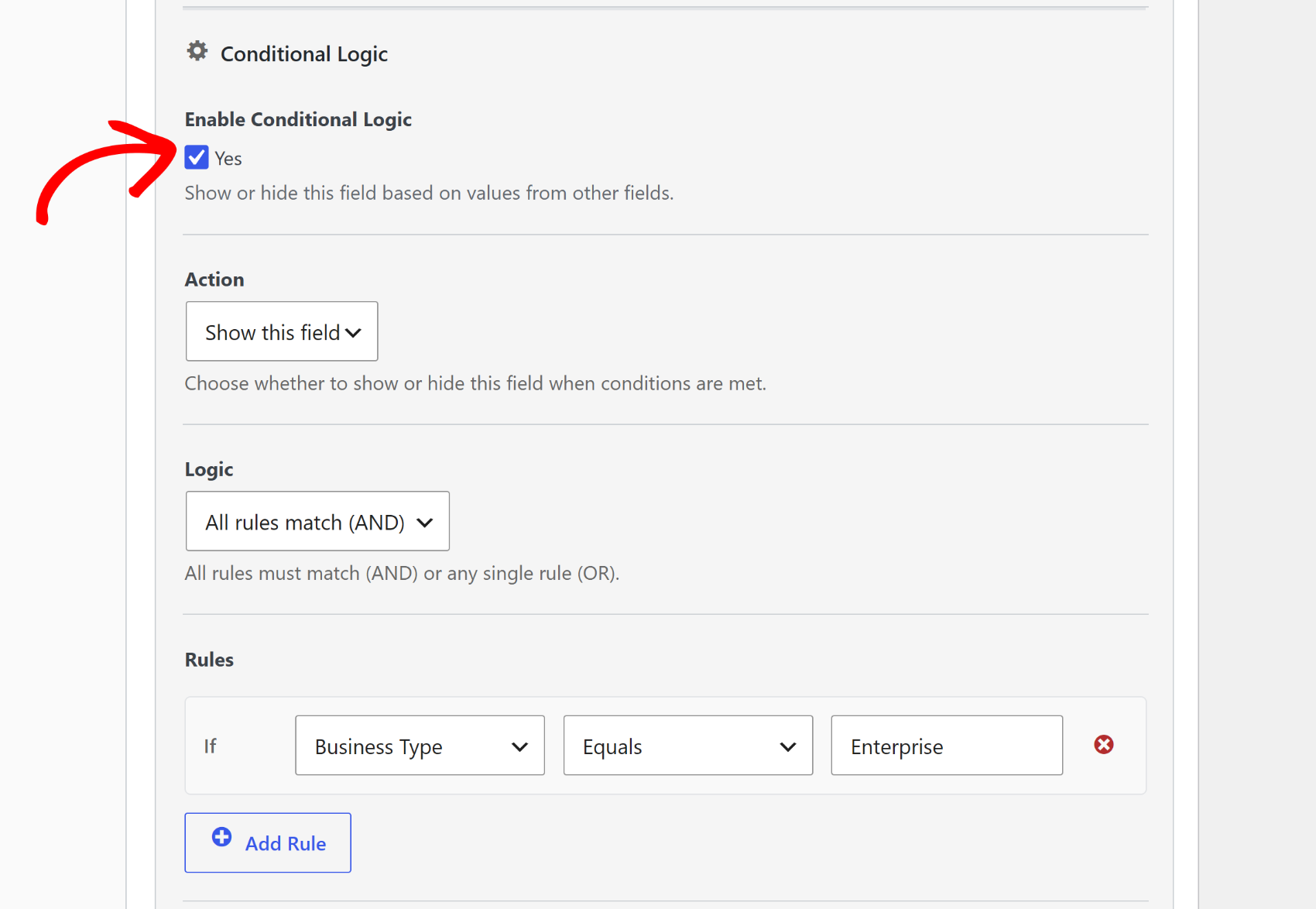
WP Simple Pay shows two settings: the action for the field (Show this field or Hide this field) and the rule logic (All rules match (AND) or Any rule matches (OR)).
Set the action to Show this field and leave the logic set to All rules match (AND).
Next, add a rule by setting the source field to Business Type, the operator to Equals, and the value to what you want to set (in our case, it will be Enterprise). From this point, the Company Name field stays hidden until a visitor selects “Enterprise” from the dropdown.
Pro Tip: WP Simple Pay doesn’t just visually hide fields; it disables them completely. A required field like “Company Name” won’t block submission if it’s hidden for a visitor who selected “Individual.” Other form builders hide the field visually but leave the required validation active, which causes phantom checkout errors for visitors who never saw the field.
Plus, you can use Any rule matches (OR) when a field should appear for more than one selection. For example, show a “Shipping Address” field when a visitor picks either “Physical Product” or “Event Kit” from a product type dropdown.
Repeat the process for any other fields that need conditional rules. Each field manages its own rules independently, so adding more conditions to a form is straightforward.
Step 5: Publish and Test Your Conditional Logic Form
When you’re done, simply click Publish to save the form.
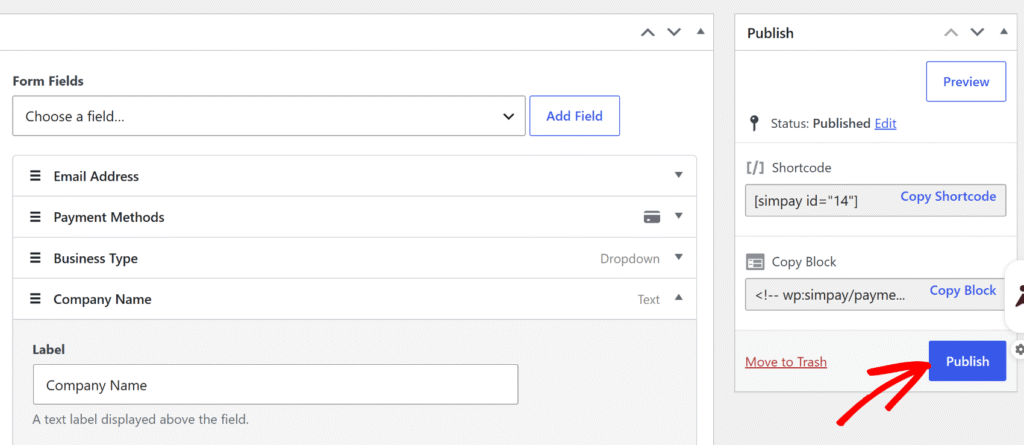
Next, you can add it to any page or post by inserting the WP Simple Pay – Payment Form block from the WordPress content editor, or by pasting the shortcode.
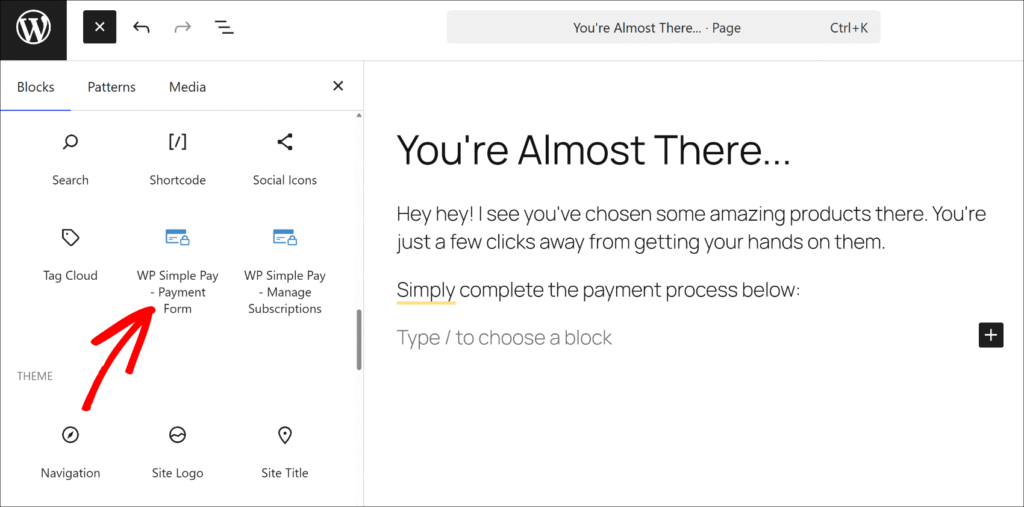
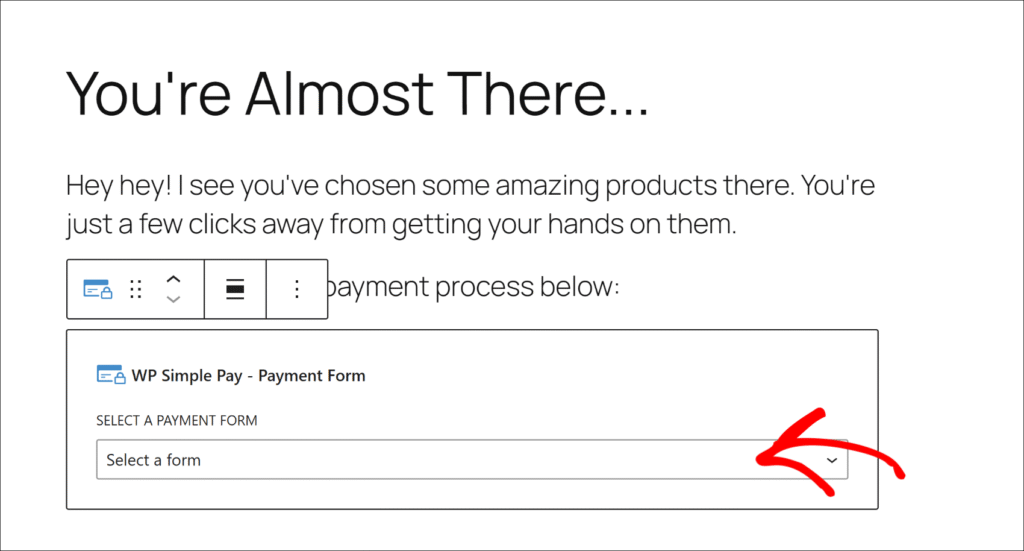
Once you’ve added the block, simply select your form from the dropdown menu.
Now, you can visit the published page and test your payment form with conditional logic.
For example, when we change the Business Type to “Enterprise,” the new field appears where users can enter their company name.

Bonus: Use Conditional Logic with Price Options
WP Simple Pay’s Payment tab supports multiple price options, and the conditional logic system can trigger off which price option a visitor selects.
For example, a registration form with “Standard” and “VIP” tiers, a “T-shirt Size” dropdown can appear only for VIP buyers, keeping the standard checkout clean.
If the form has multiple price options configured in the Payment tab, the price selector appears automatically as a trigger option in the conditional logic rule builder. Simply set the operator to Equals and choose the specific price option that should reveal the field.
See our guide on using payment form templates in WordPress to boost sales for more ideas on building smarter checkout flows.
FAQs about Payment Form Conditional Logic
1. What is conditional logic in a payment form?
Conditional logic lets a payment form show or hide fields based on what a visitor has already selected or entered. A “Company Name” field can stay hidden until a visitor picks “Business” from a customer type dropdown. It keeps forms short and ensures visitors only see the fields that apply to their situation.
2. Does WP Simple Pay support conditional logic?
Yes. WP Simple Pay includes conditional logic in its visual form builder for all Pro plans. Site owners can enable it on any custom field from the Form Fields tab without any code. Conditional logic is not available in WP Simple Pay Lite.
3. Can I show different fields based on which price option a visitor selects?
Yes. The conditional logic system includes a Price equals operator that triggers off the price option a visitor selects. This means a field like “T-shirt Size” can appear only when a visitor picks a specific pricing tier or package on the form.
4. How do I show or hide a field based on a dropdown selection?
In the Form Fields tab, expand the target field and check Enable Conditional Logic. Set the source field to the dropdown, choose equals as the operator, and enter the option value that should trigger the rule. The form updates in real time in the visitor’s browser as they make their selection.
5. Can I add multiple conditions to one field?
Yes. Each field supports multiple rules, and you can choose whether All rules match (AND) or Any rule matches (OR) applies. This handles scenarios like showing a field only when both a specific product type and a minimum purchase amount are selected.
Start Using Conditional Logic for Payment Forms
Adding conditional logic to WordPress payment forms makes every checkout more relevant. Visitors see only the fields that apply to their situation, the data flowing into Stripe stays clean, and site owners manage one form instead of many.
We hope this article helped you learn how to add conditional logic to WordPress payment forms. You may also want to see our guides on adding custom fields to your Stripe payment form and creating per-form email confirmation messages in WordPress.
Ready to start accepting payments? Get started with WP Simple Pay today.
To read more articles like this, follow us on X.
Disclosure: Our content is reader-supported. This means if you click on some of our links, then we may earn a commission. We only recommend products that we believe will add value to our readers.

Leave a Reply