
Introducing WP Simple Pay 4.17.6: Never Miss a Failed Payment Again
Last updated on

A customer fills out your payment form, enters their card, and clicks pay. The card is declined. Or a subscriber’s monthly renewal fails because their card expired last week. Until now, you only found out if you went looking in Stripe, and your customer often didn’t find out at all.
That silence costs you money. With WP Simple Pay 4.17.6, you and your customers hear about failed payments right away, so a declined card turns into a second try instead of a lost sale.
Know the Moment a Payment Fails
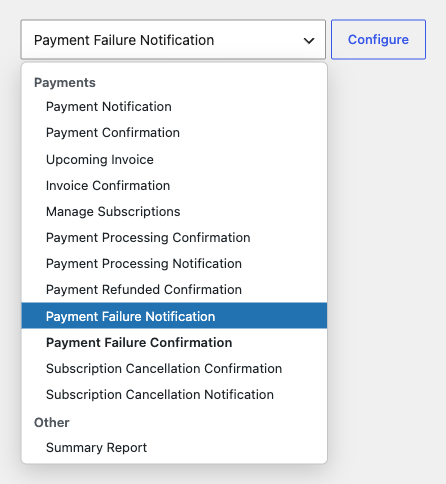
WP Simple Pay already emails you and your customers when a payment succeeds, is processing, or is refunded. This release adds two new emails for when a payment doesn’t go through.
- Payment Failure Notification goes to you, the site owner. It’s turned on automatically, so you start hearing about failed payments as soon as you update.
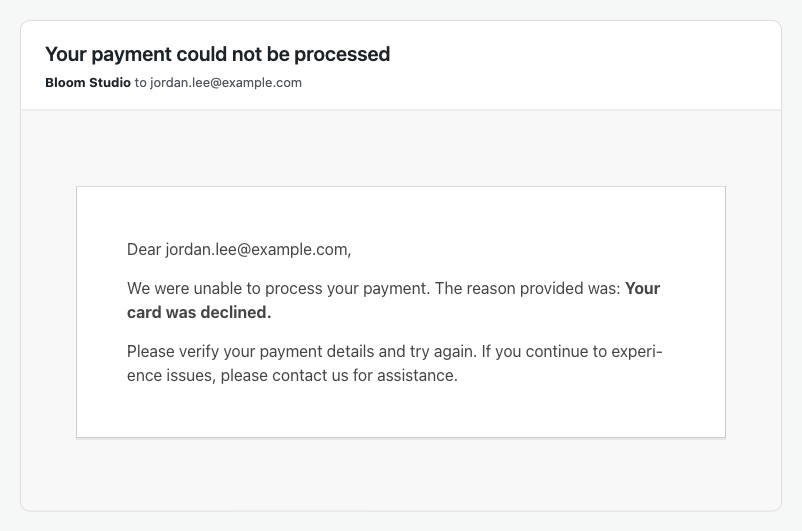
- Payment Failure Confirmation goes to your customer. It lets them know the payment could not be processed, explains why, and asks them to check their details and try again. This one is off until you turn it on, so you decide whether customers receive it.
Both emails work for one-time payments and for subscription renewals. That second part matters: a failed renewal is one of the easiest ways to lose a subscriber without either of you noticing. Now you get the heads-up while there’s still time to reach out.
Tell Customers Exactly What Went Wrong
“Your payment failed” on its own isn’t very helpful. Two new smart tags fill in the details:
- {failure-reason} shows a plain-language explanation, such as “Your card was declined.”
- {failure-code} shows the short code for the failure, handy for your own records.
Like every other WP Simple Pay email, you can edit the subject line and message to match your voice. Internal notes meant only for you are never shown in the customer’s email.
Set It Up in a Minute
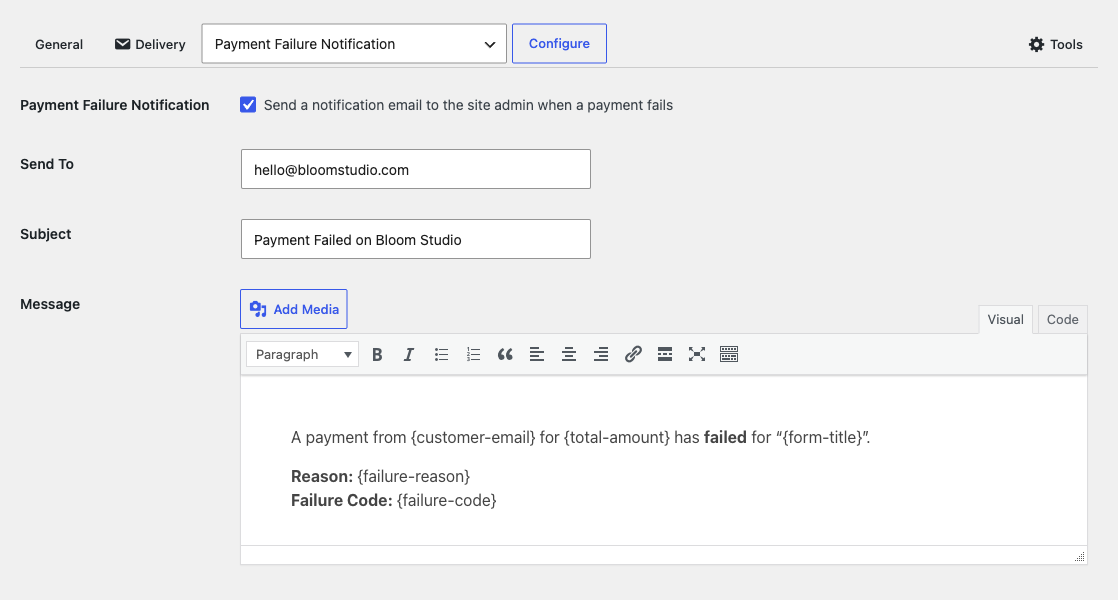
- Go to WP Simple Pay → Settings → Emails.
- Choose Payment Failure Notification or Payment Failure Confirmation from the list and click Configure.
- Turn the email on, adjust the subject and message if you like, and save.
There’s also built-in protection against floods of failed payments. Each email is limited to 10 per form per hour, so if someone runs a batch of stolen cards through your form, your inbox stays usable and your site isn’t used to email strangers.
Fewer surprises in your Stripe account, and more customers who get the chance to finish their purchase. Learn more about every email WP Simple Pay sends in our email types reference.
Give Customers More Ways to Pay Over Time
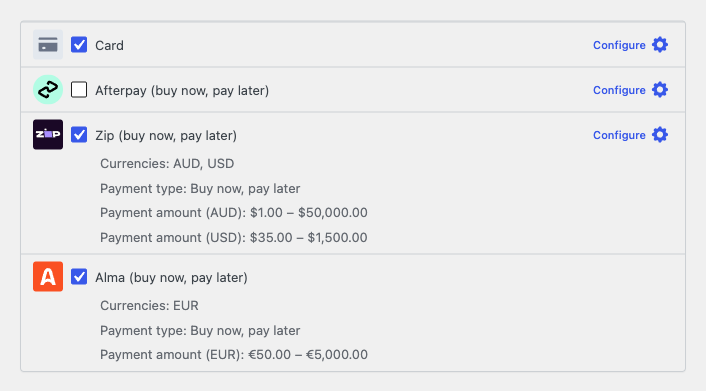
Two new buy now, pay later options let customers spread out larger purchases:
- Zip for customers in Australia and the United States.
- Alma for customers in France, Belgium, Spain, Italy, Luxembourg, and the Netherlands, who can pay in 2, 3, or 4 installments.
Turn them on in the form editor under Payment → Payment Methods. They work on both on-site and Stripe Checkout forms for one-time payments.
Every buy now, pay later provider has a minimum and maximum order size, so the form builder now shows each method’s accepted range right under its name. Zip, Alma, and Afterpay/Clearpay all show theirs, so you can tell at a glance which ones fit your prices. On your form, they only appear when the total qualifies.
Get started with our guides to accepting Zip payments and accepting Alma payments, or see every payment method WP Simple Pay supports.
Reassure Customers Right at the Pay Button
The moment before someone clicks pay is when doubt creeps in. Is this site safe? Where is my card going?
Every payment form now shows a small “Secure payment via Stripe” line with a lock icon right below the submit button. It appears on embedded, overlay, and Stripe Checkout forms, with nothing to set up.
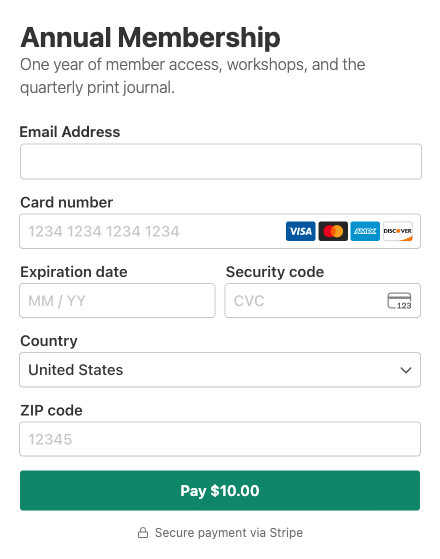
Prefer a cleaner look on a particular form? Go to the form’s General tab, find Form Display Options, and choose Hide trust badge.
Let Stripe Pick the Best Payment Methods
Picking payment methods for every form takes guesswork, especially when your customers come from all over the world. A new Optimized Checkout setting lets Stripe decide which payment methods to show on your Stripe Checkout forms, and in what order, based on each customer’s location, device, and what they’re most likely to use.
You’ll find it under WP Simple Pay → Settings → Stripe → Account. It’s off by default, so your forms keep the methods you’ve chosen until you turn it on. Just make sure the payment methods you want are also turned on in your Stripe Dashboard. See our Stripe Checkout display options guide for more.

A CAPTCHA That Matches Your Site
If you use Cloudflare Turnstile to block spam, you can now choose how it looks. Pick a Theme (Auto, Light, or Dark) so it blends into dark-themed sites, and a Size (Normal, Flexible, or Compact) so it fits narrow sidebars or stretches across a full-width form.
Both settings live under WP Simple Pay → Settings → General → CAPTCHA. Your existing forms look exactly the same until you change them. More in our anti-spam reference.

More Improvements in This Release
- One-click checkout with Link. When Link is turned on in your Email field, returning Link customers can now check out with their saved details on on-site card forms.
- Cleaner admin notification emails without the WP Simple Pay logo at the top, so they look like your store’s own emails.
- Forms keep loading with optimization plugins that remove or delay scripts, so you’ll see fewer “payment form could not be loaded” messages.
- Payments are recorded again on sites where an earlier database update didn’t finish.
- Unchecking the fee recovery checkbox now works. Customers who uncheck a Fee Recovery Toggle that starts checked are no longer charged the fee.
- No more “Invalid CAPTCHA” on Manage Subscriptions pages that use reCAPTCHA v3.
- Smoother settings screens when opened from the WP Simple Pay menu, with the email Configure button working and the Save Changes button no longer covered.
- Safer form duplication, with extra checks that you’re allowed to edit the form you’re copying.
For the full list of changes, see the changelog.
Start Catching Every Payment Today
This release makes sure no failed payment slips by unnoticed, gives your customers more ways to pay, and adds a little extra reassurance right where they decide to buy.
Update from your WordPress dashboard under Plugins to get everything above. If you have any questions, our support team is happy to help.
We’d love to hear what you’d like to see next. Let us know in the comments or reach out anytime.
Disclosure: Our content is reader-supported. This means if you click on some of our links, then we may earn a commission. We only recommend products that we believe will add value to our readers.

Leave a Reply