
Anti-Spam Reference
In This Document
- 1 Overview
- 2 Prerequisites
- 3 CAPTCHA
- 4 Email Verification
- 5 How CAPTCHA and Email Verification Interact
- 6 Anti-Spam in the Form Builder
- 7 Frequently Asked Questions
- 7.1 Will customers see the CAPTCHA on every form?
- 7.2 Why do I see “🛡️ Anti-Spam” instead of “reCAPTCHA”?
- 7.3 Are CAPTCHA settings respected on Stripe Checkout (off-site) forms?
- 7.4 Do I need a CAPTCHA if I have Email Verification?
- 7.5 What happens to verification codes after the timeframe ends?
- 7.6 Can I exempt specific forms from Anti-Spam?
- 8 What’s Next?
Reading time: 7 minutes | Difficulty: Beginner
Overview
Card-testing is the most common form of automated abuse against WordPress payment forms — bots submit thousands of stolen card numbers per hour to find which ones still work. WP Simple Pay’s Anti-Spam settings give you two complementary defences:
- CAPTCHA — Stops automated submissions before they even reach Stripe. Choose between Google reCAPTCHA v3, hCaptcha, or Cloudflare Turnstile.
- Email Verification — A reactive layer that requires customers to confirm their email address after a configurable number of fraud declines have occurred within a configurable timeframe.
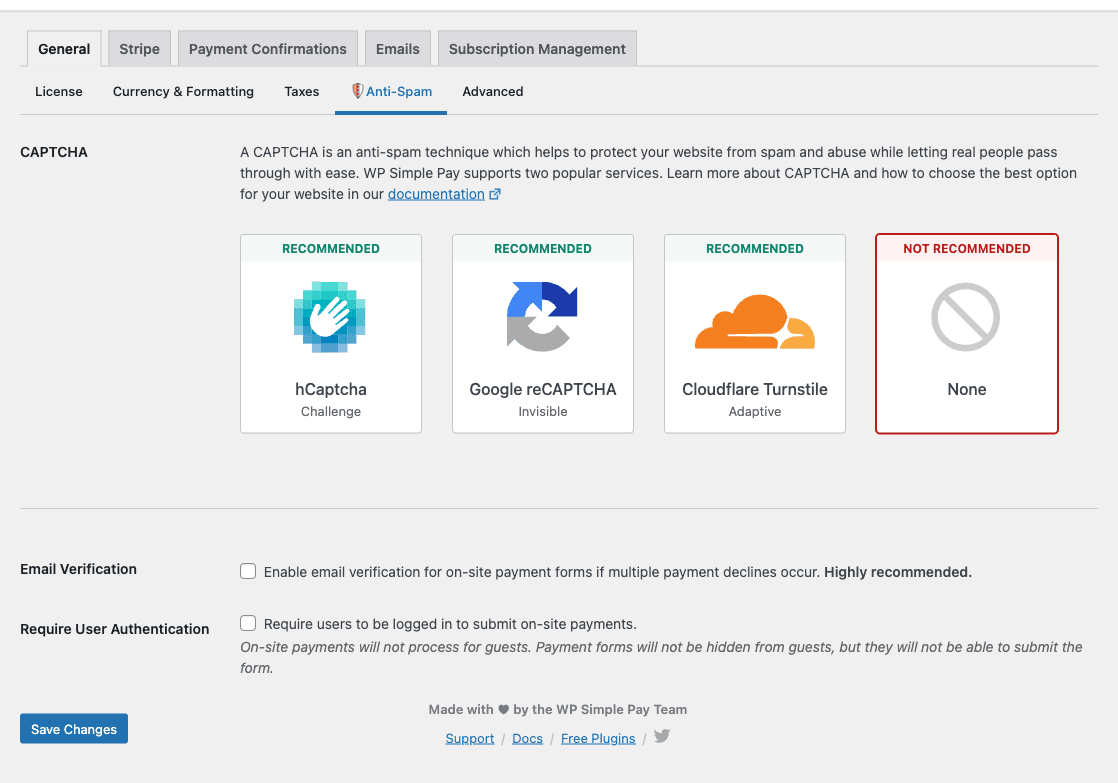
Both layers are configured under WP Simple Pay > Settings > General > 🛡️ Anti-Spam.
Prerequisites
- WP Simple Pay (CAPTCHA is available in the free version)
- WP Simple Pay Pro for Email Verification
CAPTCHA
The CAPTCHA setting at the top of the Anti-Spam tab lets you choose one provider — None, Google reCAPTCHA v3, hCaptcha, or Cloudflare Turnstile. After picking a provider, the matching credential fields appear below.
Google reCAPTCHA v3
Score-based, invisible CAPTCHA from Google. No customer interaction required — Google scores each request 0.0 (likely bot) to 1.0 (likely human) and WP Simple Pay blocks submissions below the threshold.
- Site Key — Public credential from your reCAPTCHA admin console.
- Secret Key — Private credential from your reCAPTCHA admin console.
Setup: Sign up at google.com/recaptcha/admin, choose reCAPTCHA v3 (not v2), add your domain, and paste the resulting keys.
hCaptcha
Privacy-friendly Google reCAPTCHA alternative. Visible challenge widget that customers solve once. Same data shape as reCAPTCHA — site key + secret key.
- Site Key — From your hCaptcha dashboard.
- Secret Key — From your hCaptcha dashboard.
Setup: Sign up at hcaptcha.com, retrieve credentials, and paste them in.
Cloudflare Turnstile
Cloudflare’s free, privacy-respecting CAPTCHA. Often invisible, occasionally interactive. Same configuration shape — site key + secret key.
- Site Key — From your Cloudflare Turnstile dashboard.
- Secret Key — From your Cloudflare Turnstile dashboard.
Setup: Sign up at cloudflare.com/products/turnstile, create a Turnstile widget, and paste the keys.
Choosing a Provider
| Provider | Cost | Customer friction | Privacy | Notes |
|---|---|---|---|---|
| reCAPTCHA v3 | Free | None (invisible) | Sends data to Google | Best default if you already use Google services |
| hCaptcha | Free / Paid tiers | Low (occasional click) | Privacy-respecting | Good GDPR alternative to reCAPTCHA |
| Cloudflare Turnstile | Free | Mostly none | Privacy-respecting | Best choice if you already use Cloudflare |
You can only enable one provider at a time. To switch providers, change the CAPTCHA selection at the top of the tab — the previous credentials remain saved but inactive until you switch back.
Email Verification
Email Verification is a reactive defence that activates only after WP Simple Pay detects a pattern of fraudulent payment attempts. It’s designed to be invisible to legitimate customers in normal traffic and only kick in during an attack.
How It Works
- WP Simple Pay listens for
charge.failedwebhooks from Stripe with afraudulentoutcome. - When the count of fraud declines crosses your configured threshold within the configured timeframe, every subsequent on-site payment form requires email verification before submission.
- Customers receive a verification code at the email address they entered. They must enter the code to complete payment.
- Once the timeframe elapses with no further fraud events, verification is automatically disabled.
Settings
- Email Verification (Enable/Disable) — Master toggle. Highly recommended to leave on.
- Threshold — Number of fraud declines required before verification activates. Default: 3.
- Timeframe — Window (in hours) during which the threshold is measured. Default: 6 hours.
Tuning the Threshold and Timeframe
The defaults (3 declines in 6 hours) are deliberately conservative — they catch obvious card-testing without hassling customers during normal traffic spikes.
- Lower the threshold if you’ve been targeted before and want a faster reaction (e.g.,
2declines). - Lower the timeframe if your site has high transaction volume and 6 hours of history would mask a fresh attack.
- Raise the threshold if you have very high traffic and the default is triggering on normal noise.
How CAPTCHA and Email Verification Interact
The two layers are complementary, not redundant:
- CAPTCHA runs on every submission and blocks bots before they reach Stripe.
- Email Verification runs after the fact, only when CAPTCHA has been bypassed (e.g., by a human-driven attack) and fraud declines have already accumulated.
For best results, enable both. CAPTCHA handles 99% of automated abuse cheaply; Email Verification catches the 1% that gets through.
Anti-Spam in the Form Builder
In addition to the global settings, individual forms can opt into Email Verification under the form editor’s General tab. This is useful when you have a high-risk form (e.g., a small donation form) that you always want verified, regardless of whether the global threshold has been reached.
Frequently Asked Questions
Will customers see the CAPTCHA on every form?
reCAPTCHA v3 and Cloudflare Turnstile are usually invisible — most customers never see a challenge. hCaptcha shows a small widget that requires one click. None of them block legitimate customers under normal conditions.
Why do I see “🛡️ Anti-Spam” instead of “reCAPTCHA”?
The tab was renamed from reCAPTCHA to Anti-Spam when hCaptcha and Cloudflare Turnstile support was added. The reCAPTCHA name lingers in some older documentation; the underlying settings are the same.
Are CAPTCHA settings respected on Stripe Checkout (off-site) forms?
CAPTCHA is enforced on the WordPress side before the redirect to Stripe Checkout. Stripe’s hosted page also has its own bot protections. For on-site forms (Embedded/Overlay), CAPTCHA validates each submission before the payment is created.
Do I need a CAPTCHA if I have Email Verification?
Both serve different purposes. CAPTCHA blocks bots. Email Verification blocks human-driven card testing where the attacker can solve the CAPTCHA but doesn’t have access to many real email inboxes. Use both if your site processes meaningful payment volume.
What happens to verification codes after the timeframe ends?
Expired codes are cleaned up by a scheduled task (simpay_cleanup_email_verification_codes). They’re invalidated automatically and can’t be reused.
Can I exempt specific forms from Anti-Spam?
Yes — see the per-form General tab settings. You can override the global behavior on a per-form basis when needed.
What’s Next?
- How to Configure a Payment Form’s General Settings – Per-form anti-spam overrides
- How to Enable Email Verification Before Payments Are Processed – Walkthrough with screenshots
Still have questions? We're here to help!
Last Modified: