
How to Accept MobilePay Payments on WordPress
Last updated on
 Reviewed By:
 Cristian Rossi
Are you running a WordPress website and looking to expand your payment options for Scandinavian customers? Integrating MobilePay on WordPress can significantly boost conversions in Denmark, Finland, and Norway.
This popular mobile payment solution has become the preferred payment method for millions of users across these regions, making it essential for businesses targeting Nordic markets. For those seeking a streamlined approach to accept MobilePay on WordPress, solutions like WP Simple Pay offer unparalleled ease.
Understanding how to accept MobilePay on WordPress doesn’t have to be complicated. Whether you’re selling products, accepting donations, or offering services, this guide will walk you through everything you need to know.
In this Guide
- What is MobilePay?
- Before Accepting MobilePay Payments on WordPress
- Why Choose Stripe As Your Payment Processor?
- Comparison: Stripe vs. Traditional Payment Processors
- Choosing Your Payment Gateway Integration Method: Why WP Simple Pay is Your Best Bet
- Why WP Simple Pay Fits Best for Your MobilePay Integration on WordPress
- Step-by-Step: Accepting MobilePay in WordPress
- Optimizing the Checkout Experience for MobilePay Users
- Empower Your WordPress Site with MobilePay
What is MobilePay?
MobilePay is a leading mobile payment application that allows users to make instant transfers and payments using their smartphones. Owned by Danske Bank, it has become the dominant payment method in Denmark with over 4.5 million users, equating to approximately 76% of the population .
The platform has also expanded successfully into Finland and Norway, where it continues to gain market share among consumers who value convenience and security. The Denmark mobile payments market alone is forecast to reach USD 945.21 million by 2030 .
For WordPress website owners, accepting MobilePay opens doors to a massive customer base that prefers mobile-first payment solutions. Many Scandinavian consumers will abandon their shopping carts if their preferred payment method isn’t available.
By offering MobilePay alongside traditional options, you demonstrate cultural awareness and commitment to customer convenience, which can translate directly into increased sales and improved customer loyalty.
| Supported Countries | Supported Presentment Currencies | Relevant Payer Geography |
|---|---|---|
| Austria, Belgium, Bulgaria, Croatia, Cyprus, Czech Republic, Denmark, Estonia, Finland, France, Germany, Greece, Hungary, Ireland, Italy, Latvia, Liechtenstein, Lithuania, Luxembourg, Malta, Netherlands, Norway, Poland, Portugal, Romania, Slovakia, Slovenia, Spain, Sweden | DKK, EUR, NOK, SEK | Denmark and Finland |
Before Accepting MobilePay Payments on WordPress
Before you begin the integration process to accept MobilePay on WordPress, you’ll need to ensure you have a couple necessary components in place.
First, you’ll need a WordPress website. While WooCommerce is a common eCommerce platform, for simpler payment needs like donations, single product sales, or service payments, a dedicated WordPress Stripe plugin like WP Simple Pay offers a more streamlined solution without the overhead of a full shopping cart system.
Next, you’ll need to establish a merchant account with a payment service provider that supports MobilePay integration.
Stripe is the most popular option that offers MobilePay support alongside numerous other payment methods. I recommend signing up for a new account if you don’t already have one.
Why Choose Stripe As Your Payment Processor?
Integrating MobilePay through Stripe offers several distinct advantages for WordPress users. The primary benefit lies in the unified ecosystem, which eliminates the need for multiple merchant accounts and complex technical configurations.
- Simplified Onboarding and Compliance: Unlike traditional Nordic payment gateways, such as Nets or Quickpay, Stripe does not typically require a separate “MobilePay Online” agreement. Merchants can activate MobilePay directly within the Stripe Dashboard with a single toggle, significantly reducing administrative overhead and time-to-market.
- Seamless WordPress Integration: Stripe utilizes the Stripe Payment Element, which dynamically displays MobilePay to customers in Denmark and Finland without requiring any code changes. This ensures that your checkout remains modern and conversion-optimized as Stripe releases updates.
- Consolidated Financial Management: All transactions, refunds, and disputes are managed through a single interface. This centralization simplifies bookkeeping, as MobilePay payouts follow the same schedule as standard card payments, providing a consistent cash flow model.
- Enhanced Conversion Rates: Stripe is renowned for its highly optimized checkout flows. For mobile users, the transition from your WordPress site to the MobilePay app is seamless, reducing friction and abandonment during the critical final steps of the purchase process.
Comparison: Stripe vs. Traditional Payment Processors
The following table outlines the differences between Stripe and traditional processors commonly used for MobilePay.
| Feature | Stripe (Recommended) | Traditional Processors |
|---|---|---|
| Setup Process | Instant activation via Dashboard | Often requires a separate MobilePay contract |
| Integration Method | No-code dynamic UI (Payment Element) | Manual plugin configuration or API work |
| Dashboard | Unified (Cards + Wallets + Local) | Often split between gateway and acquirer |
| Maintenance | Automatically updated by Stripe | May require manual plugin updates for new features |
| Geographic Focus | Global scale with local optimization | Strong local presence but less global flexibility |
By choosing Stripe, WordPress business owners benefit from a future-proof infrastructure that scales globally while providing the local payment methods essential for entering new markets.
Choosing Your Payment Gateway Integration Method: Why WP Simple Pay is Your Best Bet
Using Stripe for MobilePay Integration
Stripe is the most reliable and developer-friendly payment processors that supports MobilePay alongside other payment methods. The platform offers comprehensive documentation and excellent customer support, making it an ideal choice for WordPress users at any technical level.
And, the best part? With Stripe, you can accept MobilePay payments on your WordPress site without a single line of code using WP Simple Pay.
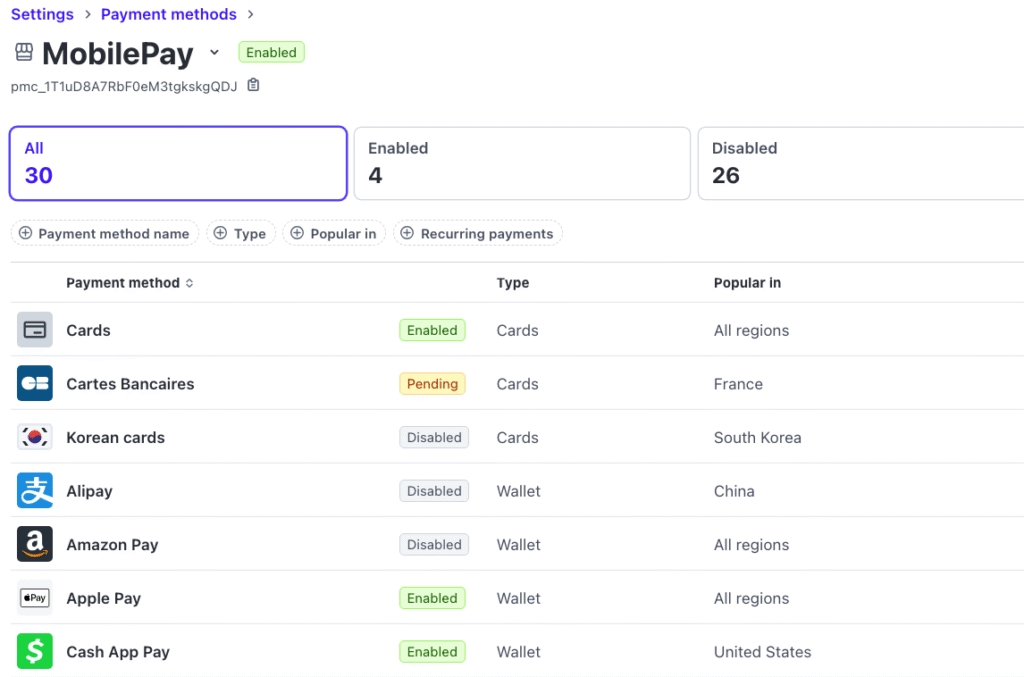
When it’s time to get started, all you have to do is Log in to your Stripe Dashboard, go to Settings → Payment Methods, and toggle MobilePay on. You’ll know it’s ready for payments when it’s marked Enabled.
Why WP Simple Pay Fits Best for Your MobilePay Integration on WordPress
While direct Stripe integration is technically possible, WP Simple Pay provides the easiest and most efficient way to integrate the payment processor, including MobilePay, into your WordPress site. The powerful WordPress Stripe plugin is particularly beneficial for businesses looking to accept payments in Denmark and Finland without the complexity of a full eCommerce store or shopping cart system.
Unlike full eCommerce solutions like WooCommerce, WP Simple Pay focuses on creating custom forms for one-time or subscription payments, making it ideal for:
💚 Donation Forms: Easily accept one-time or recurring donations, perfect for MobilePay for donations.
🔃 Service & Membership Payments: Collect payments for consulting, subscriptions, or memberships.
💳 Single Product Sales: Sell digital or physical products without a complex shopping cart.
The plugin also offers a powerful drag-and-drop form builder that allows you to create highly customized payment forms without any coding . It directly integrates with Stripe, handling all the technical complexities and ensuring a seamless checkout experience for your customers.
This approach gives you access to Stripe’s powerful dashboard for managing transactions, refunds, and financial reporting, all while simplifying the setup process for MobilePay and other local payment methods WordPress users need.
The plugin also recently enhanced its capabilities for region-specific payment methods, including broadened EEA coverage for MobilePay and automatic detection of available payment options based on customer location and currency (EUR, DKK, SEK, NOK).
Step-by-Step: Accepting MobilePay in WordPress
Here’s exactly how to integrate MobilePay on your WordPress site and begin accepting MobilePay payments in minutes.
Step 1: Downloading WP Simple Pay Pro
To begin accepting MobilePay payments with WP Simple Pay on WordPress, the first step is to download the plugin. This is done after purchasing a license from the pricing page.
Once your purchase is complete, you will receive an email receipt that contains a download link for the plugin. Alternatively, you can access the plugin file directly from your WP Simple Pay account area.
- Access Your Account or Email: Navigate to your WP Simple Pay account on the website or locate the purchase email receipt you received after your purchase.
- Download the Plugin .Zip File: Within your account dashboard, look for a “Downloads” section, or click the download link provided in your email receipt. This will initiate the download of the WP Simple Pay Pro plugin as a .zip file to your computer.
Step 2: Installing WP Simple Pay Pro on Your WordPress Site
Once you have the .zip file, there are two primary methods to install WP Simple Pay Pro on your WordPress website: direct upload via the WordPress admin or manual upload via FTP.
Method A: Direct Upload (Recommended)
This is the easiest and most common method for installing WordPress plugins.
- Activate Plugin: Once the installation is complete, you will see an Activate Plugin button. Click this to activate WP Simple Pay Pro on your site.
- Log in to WordPress: Access your WordPress admin dashboard.
- Navigate to Plugins: In the WordPress admin menu, go to Plugins > Add New.
- Upload Plugin: At the top of the “Add Plugins” page, click the Upload Plugin button.
- Choose File: Click Choose File, then select the .zip file you downloaded earlier from your computer.
- Install Now: Click Install Now. WordPress will upload and install the plugin.
Method B: Upload via FTP (Advanced)
This method is suitable if you encounter issues with the direct upload or prefer to install plugins manually.
- Download and .Zip File: Download the .zip file as described in Step 1. Then, unzip the file on your computer. This will create a folder named wp-simple-pay-pro.
- Connect via FTP/SFTP: Use an FTP (File Transfer Protocol) or SFTP client (e.g., FileZilla, Cyberduck, Transmit) to connect to your WordPress site’s server.
- Navigate to Plugins Folder: Browse to the wp-content/plugins on your server.
- Upload Plugin Folder: Upload the entire wp-simple-pay-pro folder (from step 1) into the wp-content/plugins on your server.
- Activate in WordPress: Log in to your WordPress admin dashboard. Go to Plugins > Installed Plugins. Locate “WP Simple Pay Pro” in the list and click the Activate link.
After activation, you will need to activate your WP Simple Pay Pro license key to ensure you receive plugin updates and access to support.
Step 3: Connecting Your Stripe Account to WP Simple Pay
After activating WP Simple Pay, you’ll need to connect it to your Stripe account. The setup wizard should automatically appear, where you can easily connect your Stripe account or even create a new one.
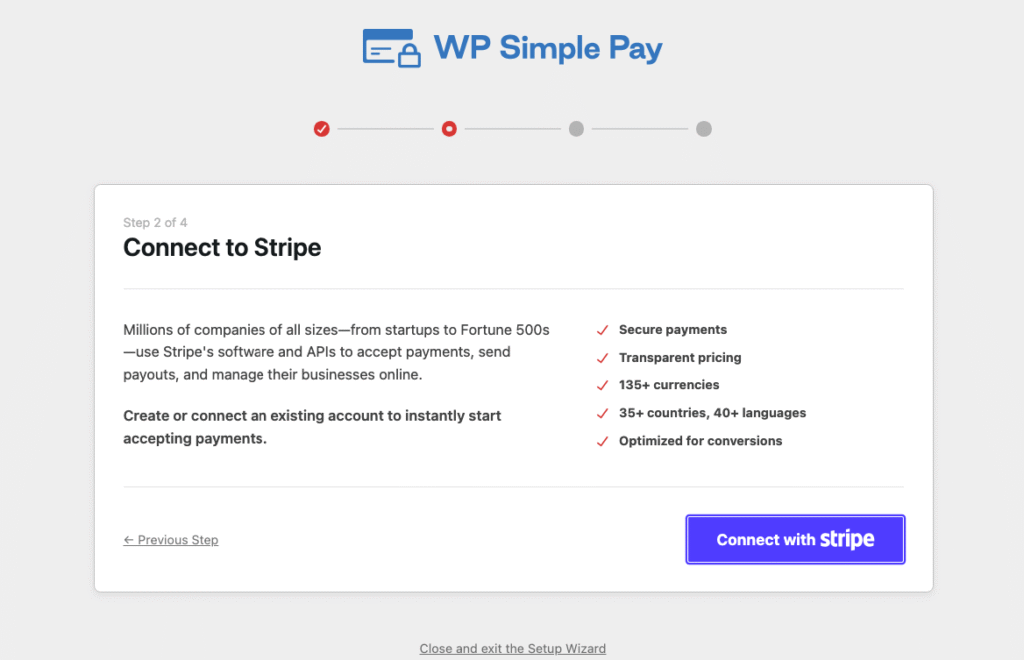
Alternatively, you can navigate to WP Simple Pay > Settings > Stripe in your WordPress admin and click the “Connect with Stripe” button and follow the prompts to authorize the connection.
Step 4: Create a New MobilePay Payment Form
Now that you’ve installed and activated WP Simple Pay on your WordPress site and you’ve successfully connected your Stripe account, it’s time to create a payment form that will allow customers to pay using MobilePay.
First, go to WP Simple Pay > Payment Add New Payment Form. You can choose from various pre-built templates or start from scratch with the drag-and-drop form builder. For MobilePay, ensure your form includes the necessary fields for customer information and payment details. WP Simple Pay’s intuitive builder makes it easy to customize the form to match your brand and specific needs.
Step 5: Enable MobilePay as a Payment Method
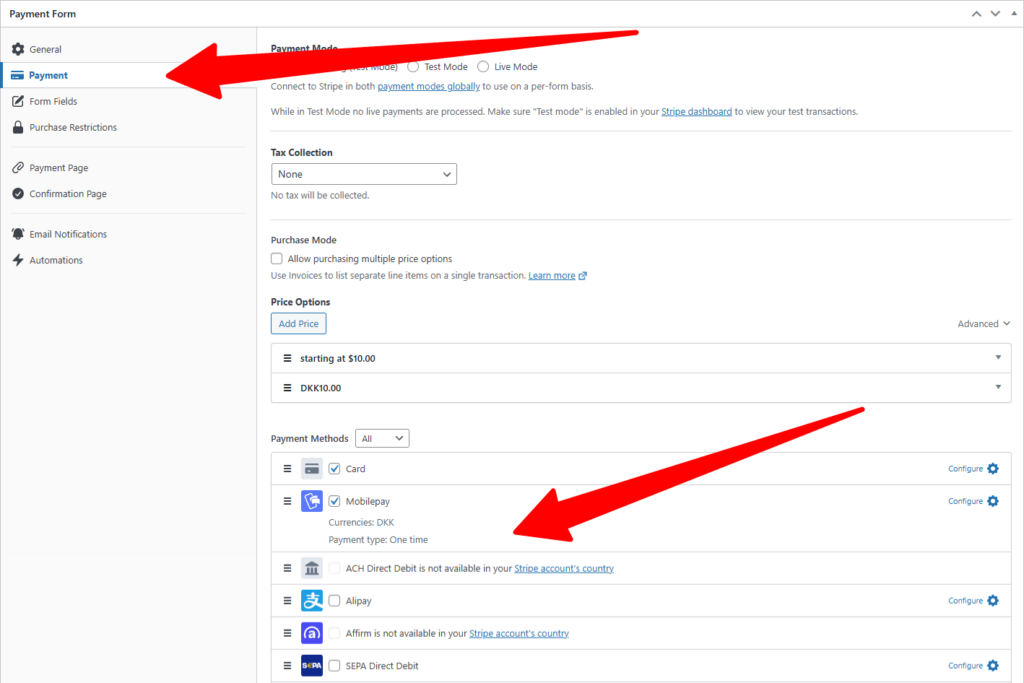
To enable MobilePay on your site, simply navigate to the Payment Tab in the payment form builder. Here, you will find options to enable various payment methods. Ensure that MobilePay is checked and enabled.
WP Simple Pay leverages Stripe’s capabilities to automatically present relevant payment methods to your customers based on their location and currency, including MobilePay for users in Denmark and Finland.
Once you’ve enabled MobilePay on your WP Simple Pay payment form, save your form.
Optimizing the Checkout Experience for MobilePay Users
Once your MobilePay on WordPress integration is live, focus on optimizing your checkout page for maximum conversions and user satisfaction. Display payment method logos prominently on your website so customers immediately recognize that MobilePay is available, reducing any hesitation during the purchase process. You’ll want to consider implementing a one-page checkout to minimize friction and abandoned carts.
Empower Your WordPress Site with MobilePay
Accepting MobilePay on WordPress opens significant opportunities for reaching customers who prefer this convenient mobile payment solution. By leveraging the power of WP Simple Pay with Stripe, you can implement MobilePay integration smoothly and professionally without the need for complex coding or a full eCommerce setup. The investment in time and setup will pay dividends through increased conversions and customer satisfaction in Nordic markets.
Remember that payment integration is just one piece of running a successful online business on WordPress. Continue optimizing your website’s performance, user experience, and marketing strategies to maximize the benefits of offering diverse payment options.
With MobilePay now available at checkout, you’re well-positioned to capture a larger share of the growing Scandinavian eCommerce market, thanks to this robust local payment method WordPress integration.
If you liked this article, you might want to check out our guide on 7 Reasons Why You Should Accept Digital Wallet Payments on your WordPress site.
What are you waiting for? Get started with WP Simple Pay today!
To read more articles like this, follow us on X.
Disclosure: Our content is reader-supported. This means if you click on some of our links, then we may earn a commission. We only recommend products that we believe will add value to our readers.

Leave a Reply