
Introducing WP Simple Pay 4.17.4: Every Payment at a Glance, Refunds in One Click
Last updated on

A customer emails you on a Tuesday morning. They paid for something last week, they are not sure it went through, and they would like their money back.
Until now, answering that took three or four hops. Open the Stripe Dashboard in another tab, search for the charge, match it back to the form it came from, issue the refund there, then come back to WordPress to reply. With WP Simple Pay 4.17.4, all of it happens on one screen in your own dashboard.
See Every Payment Without Opening Stripe
There is a new Transactions page under Payment Forms. It lists every one-time payment your site has taken, newest first, with the date, the customer, which form they used, the amount, and the status.
Across the top you get a row of filters with live counts: Succeeded, Processing, Incomplete, Failed, Refunded, Partially Refunded, Disputed, and Canceled. One click shows you only the payments that failed last week, or only the ones still waiting to clear. You can also narrow the list to a single payment form, flip between live and test payments, search by customer email, and export whatever you are looking at to a spreadsheet.
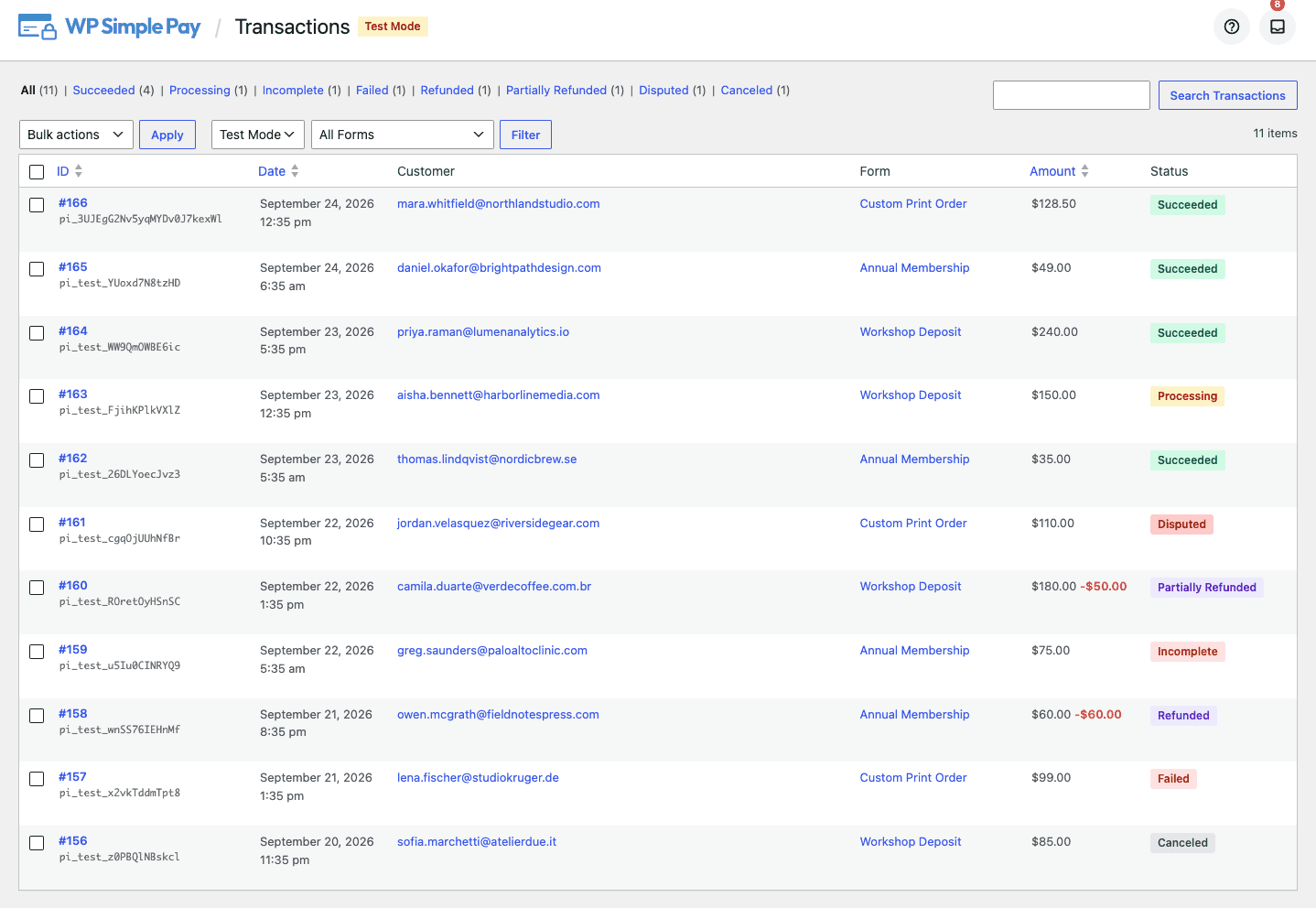
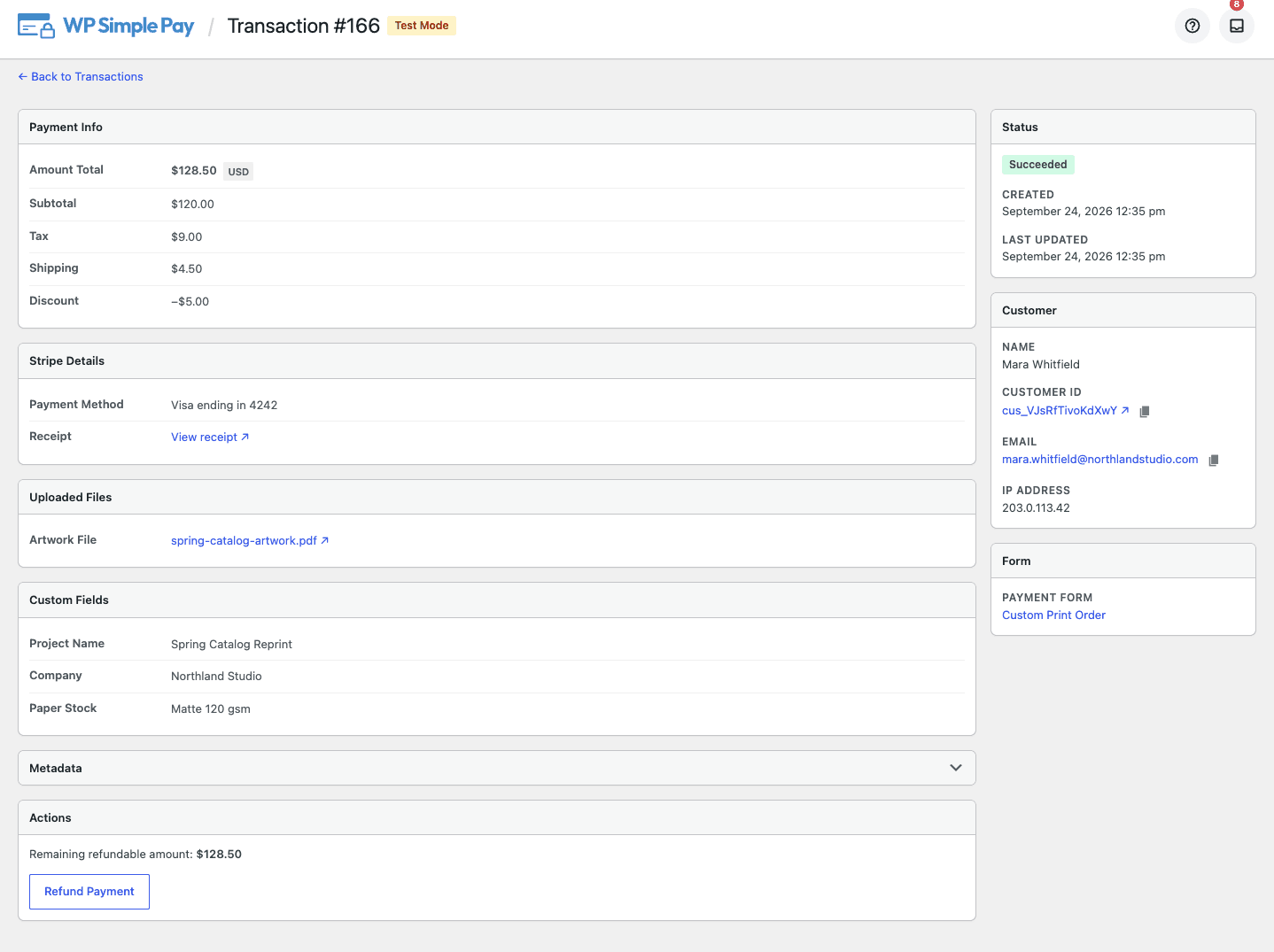
Click any row and you get the whole story of that payment. The full amount breakdown including tax, shipping, and discounts. The payment method used. A link to the receipt. The customer and their location. The form they filled out, along with everything they typed into it.
Refunds Take About Five Seconds
Back to that Tuesday morning email. Here is the whole process now:
- Open the Transactions page and search the customer’s email address.
- Click their payment.
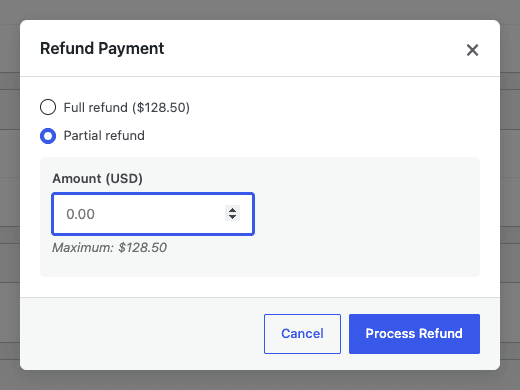
- Click Refund Payment.
- Refund the full amount, or type a smaller one for a partial refund.
The page tells you exactly how much is still refundable, so you cannot accidentally send back more than the customer paid. Partial refunds are tracked properly too, so a payment you half-refunded shows up as Partially Refunded rather than disappearing into a generic status. If you have been following our guide to requesting refunds, this is the shortcut you have been waiting for.
Keep Track of Every Subscription
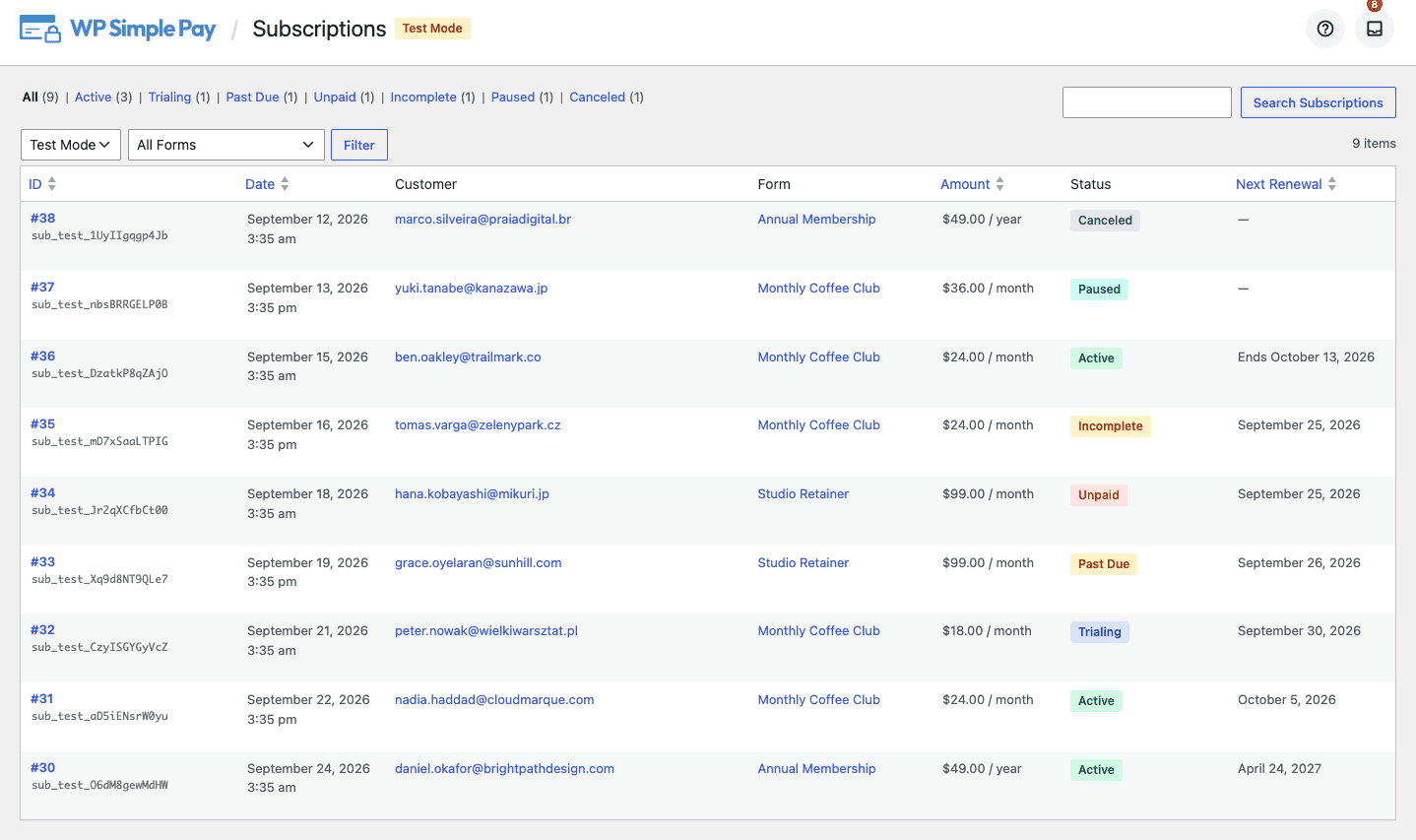
Recurring payments get their own page. Subscriptions lists every active, trialing, past due, paused, and canceled subscription on your site, with the same search, filters, and status counts as the Transactions page.
The column worth calling out is Next Renewal. It tells you when each subscription bills again, and it is honest about the cases where it will not. A subscription set to cancel at the end of the period shows when it ends rather than pretending it will renew. A paused one shows nothing at all, because a date there would be a promise it cannot keep.
If you have been running subscriptions for years, you do not have to wait for the next renewal cycle to see them. Your existing subscriptions get imported from Stripe in the background, so the page fills itself in shortly after you update. For the details Stripe holds on each one, our notes on subscription details in Stripe are still the place to look.
Collect Files Along With Payments
Some payments need something attached. A print shop needs the artwork. A designer needs the brief. A club needs proof someone qualifies for the member rate. Until now that meant a follow-up email and a lot of chasing.
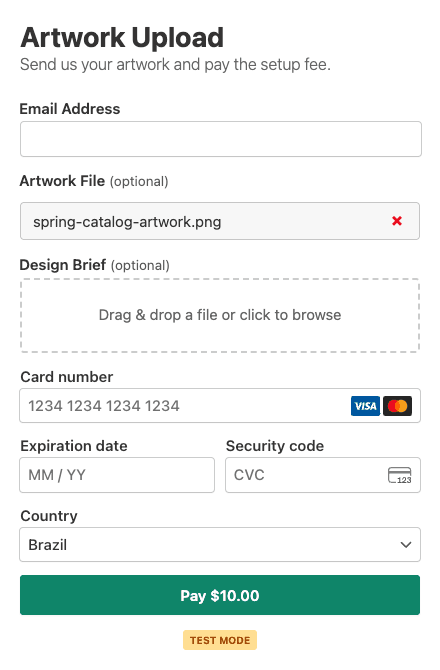
4.17.4 adds a File Upload field to the form builder. Your customer drags a file in or clicks to browse, watches a progress bar, and pays. The file arrives attached to the payment, and it is linked right there on the transaction detail view when you need it.
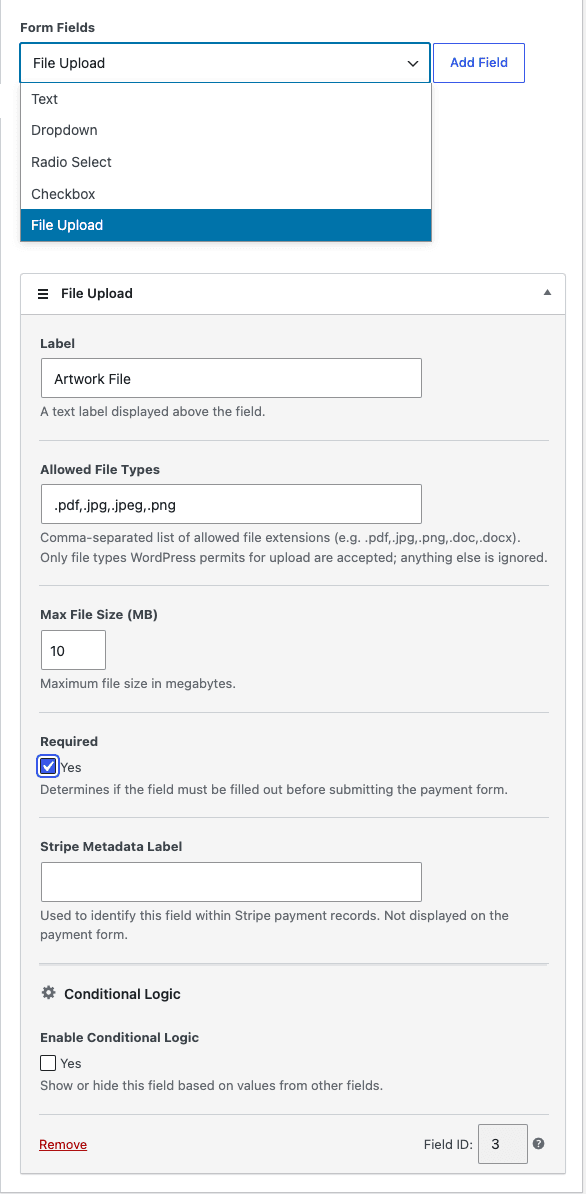
You decide what is allowed. Set which file types you accept, cap the file size, and mark the field required so nobody can pay without attaching something. Uploads are checked on arrival, so a file renamed to look like a PDF will not get through, and they are stored separately from your Media Library rather than sitting in your image gallery. You can see how it fits alongside the other field types in our custom field types reference, and our notes on custom field values in Stripe cover where the submitted values land.
Know the Moment a Chargeback Lands
Chargebacks used to be invisible in WordPress. Someone disputed a payment, Stripe emailed you, and your site carried on showing that payment as a clean success.
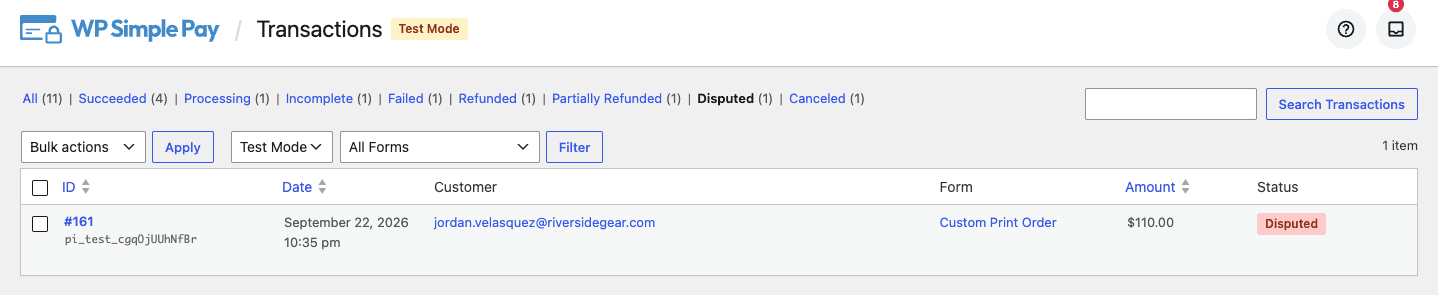
Now a disputed payment is marked as such, with its own filter on the Transactions page, so you can see everything under dispute in one click. If the dispute resolves in your favour, the payment goes back to the status it had before, including staying partially refunded if that is what it was. No manual cleanup on your end.
More Improvements in This Release
- Payments no longer go missing. If the connection between your site and Stripe hiccups at the wrong moment, a completed payment could end up stuck and never appear. Your site now checks in with Stripe every hour and sorts those out on its own, including refunds you issued directly from the Stripe Dashboard.
- The form editor stays open. Removing a price option while per-price stock limits were switched on could leave a form you were no longer able to edit. Fixed, and affected forms repair themselves the next time you save.
- Security hardening. Improvements to how your site connects to Stripe, how it handles incoming payment updates, how the receipt resend tool displays customer details, and how plugin installs are verified.
The full changelog has everything, as always.
Update Today
4.17.4 pulls the two things you check most often, your payments and your subscriptions, into the dashboard you are already in, and lets you act on them there. Update from Plugins in your WordPress admin, or download the latest version from your account.
If anything looks off after updating, our support team is here and happy to help. And if there is something you keep wishing this plugin did, tell us. A good chunk of what shipped in this release started as a customer asking for it.
Cristian
Disclosure: Our content is reader-supported. This means if you click on some of our links, then we may earn a commission. We only recommend products that we believe will add value to our readers.

Leave a Reply