
How to View Custom Field Values in Stripe
The values a customer submitted are also listed on the payment’s detail view inside WordPress, under Payment Forms > Transactions. See How to Use the Transactions Page. This article covers reading and editing them in the Stripe Dashboard.
All data gathered from custom fields added to the On-Page Form Display Options are saved in your Stripe payment records as Metadata. Stripe remains the system of record for this data, which keeps WP Simple Pay Pro lightweight.
For each custom field you add to a form you can add a value for the Stripe Metadata Label. For each completed payment transaction using these forms, in your Stripe dashboard, you should see the data the customer filled out along with their payment information. One-Time payment metadata values are stored in the Metadata section under Payment details. Subscription payment metadata values are stored in the Metadata section under Subscription details.
If you’re not sure how to get to the sections mentioned above, see Viewing Payment Details in Stripe and Viewing Subscription Details in Stripe, respectively.
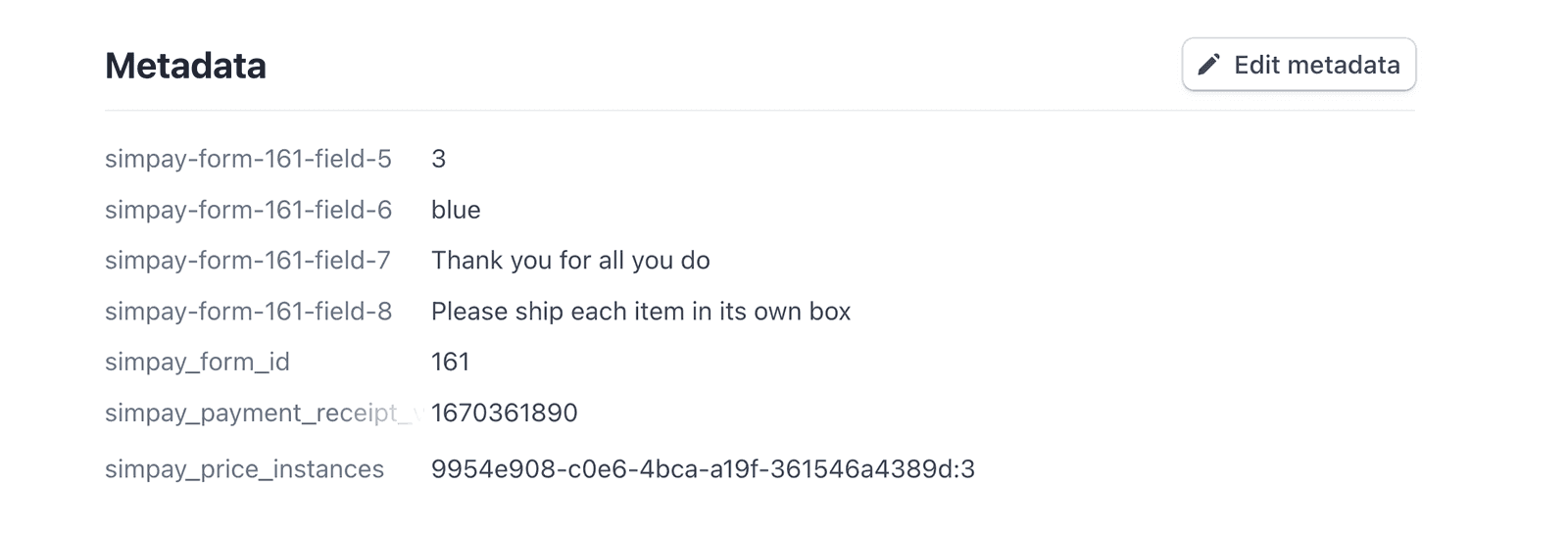
We recommend entering a value for each Stripe metadata label, otherwise, the labels will be generated by the plugin and may not be as clear.
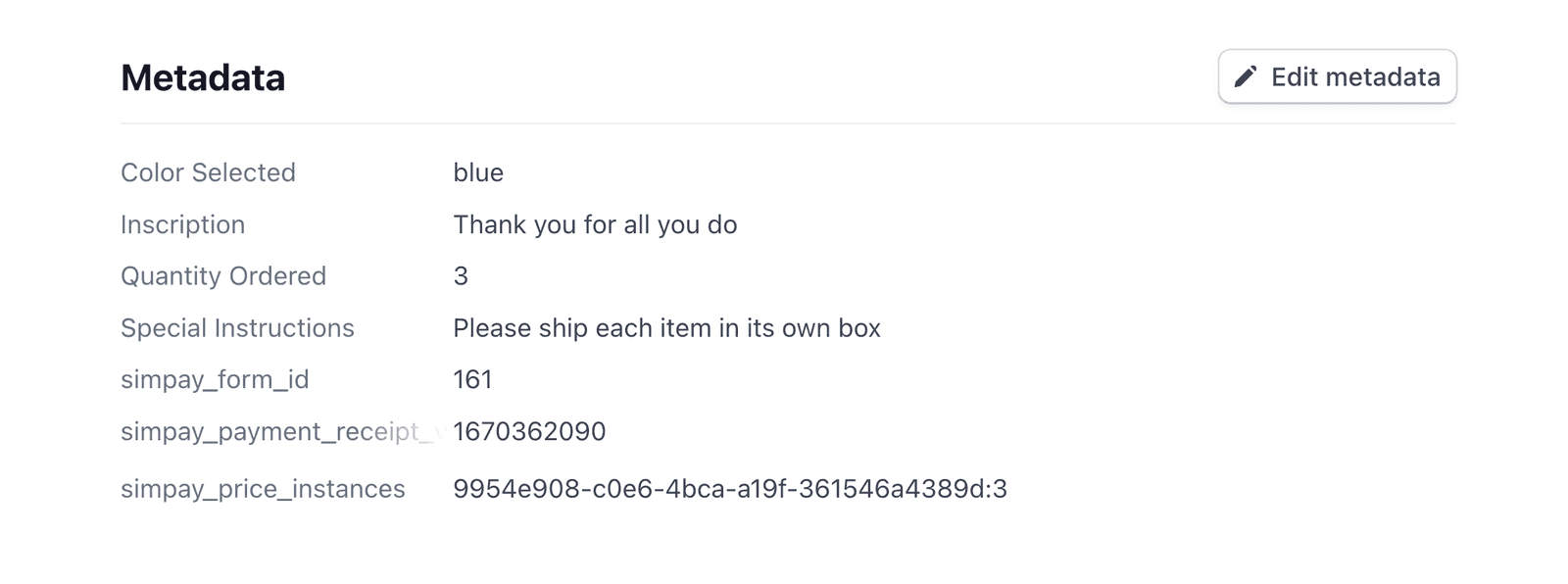
At any time for Stripe payment records, you can edit labels and values for the metadata for each payment by clicking the Edit metadata icon in the top right of the section.
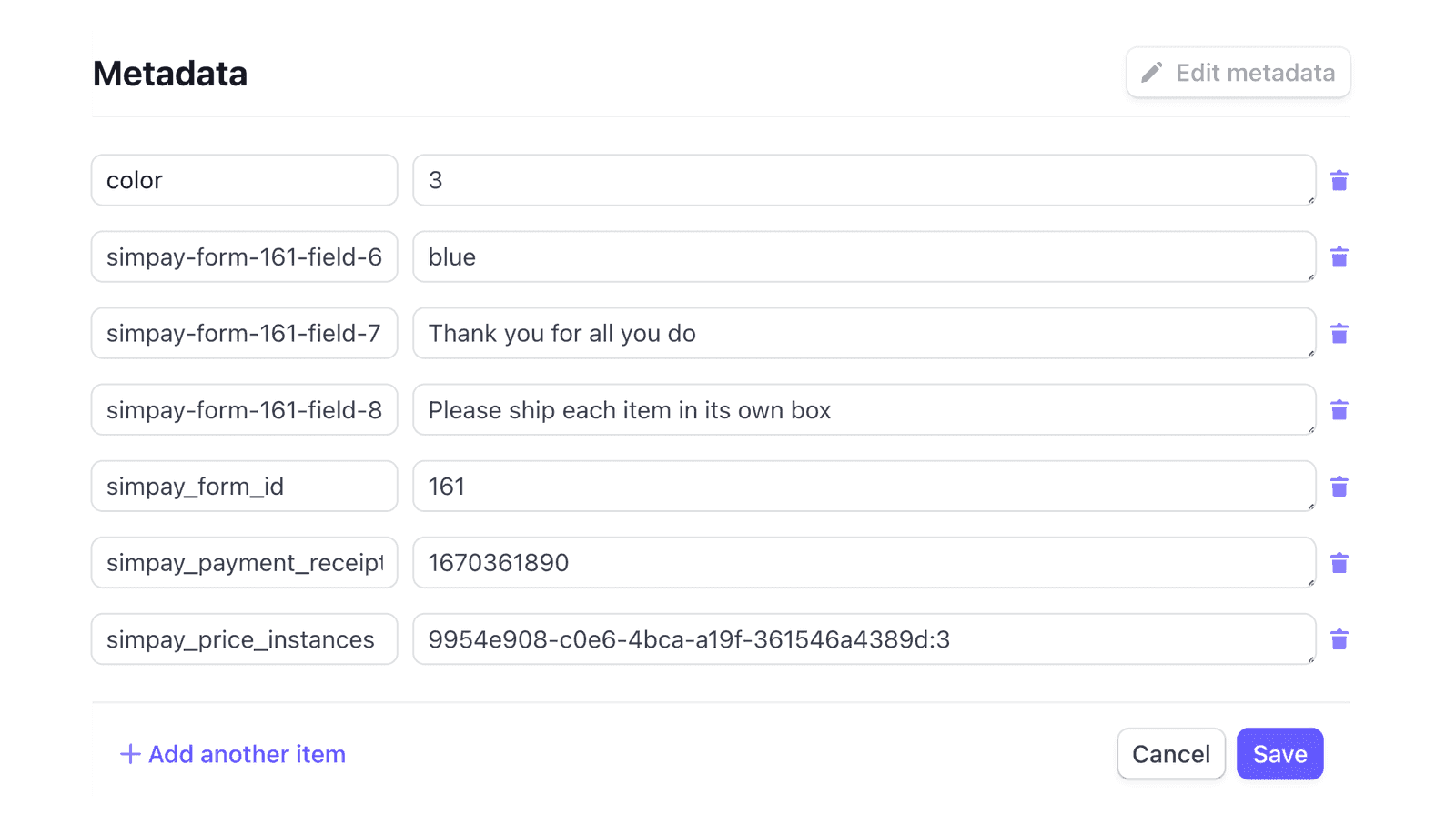
For each Stripe transaction, you can have up to 50 metadata entries, with labels up to 40 characters long and values up to 500 characters long (source). Longer values will be truncated.
Still have questions? We're here to help!
Last Modified: