
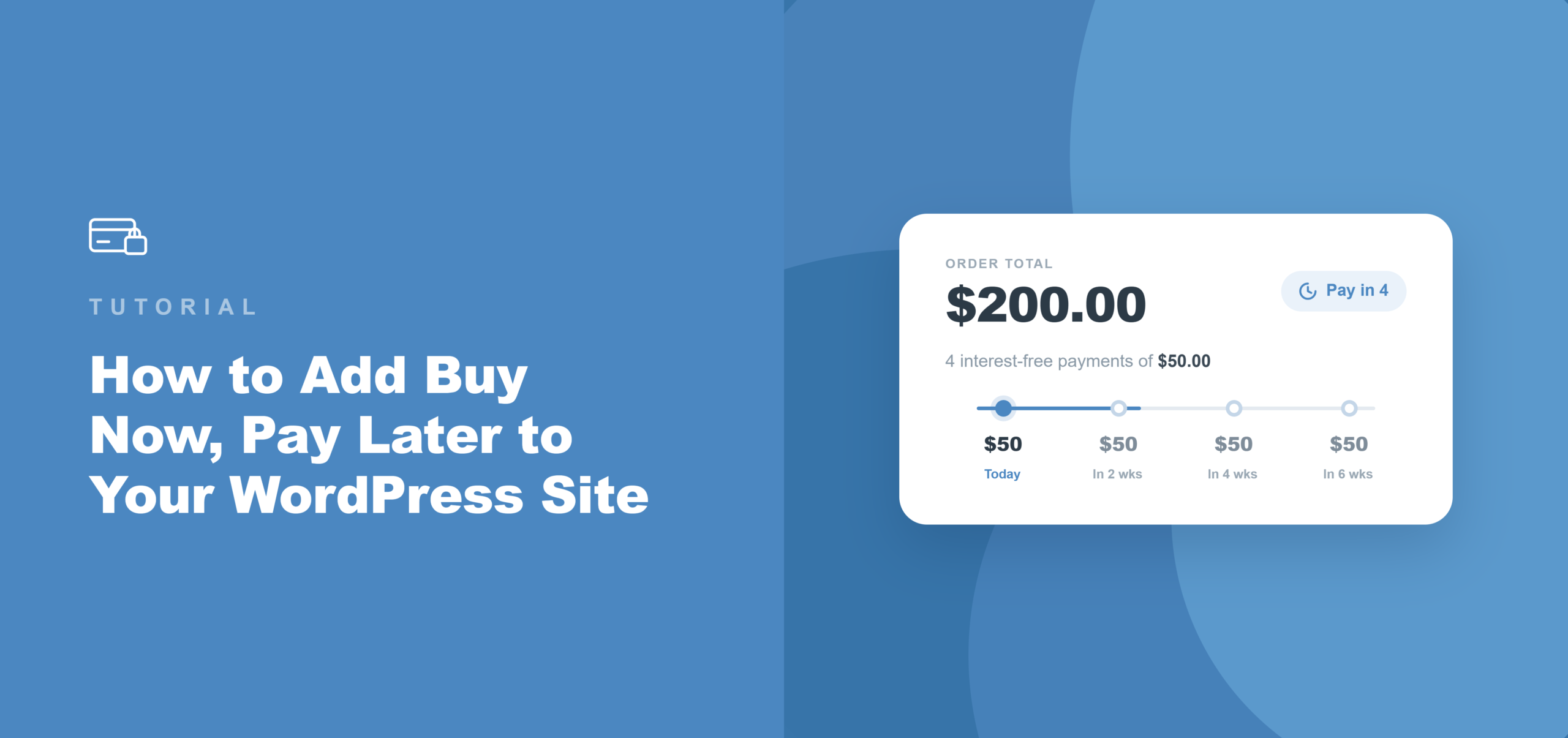
Como Adicionar Compre Agora, Pague Depois ao Seu Site WordPress
Última atualização em

Você já se deparou com uma situação em que gostaria de comprar algo que deseja, mas gostaria de poder pagar mais tarde em pequenas quantias?
É aqui que você precisa de uma opção de "compre agora, pague depois" para o seu site WordPress.
Infelizmente, a maioria das configurações de pagamento do WordPress permite apenas que os usuários paguem o valor total antecipadamente. Mas um segmento crescente de compradores que adquirem produtos caros, como programas de coaching, ingressos para eventos ou associações sem fins lucrativos, agora esperam dividir uma compra em pagamentos menores no checkout.
Quando essa opção não está disponível, eles não enviam um e-mail pedindo um plano de pagamento. Eles vão embora.
Uma solução rápida e fácil para isso é usar o WP Simple Pay e adicionar uma opção "Compre Agora, Pague Depois" (BNPL). Ele suporta provedores de pagamento populares que permitem que seus clientes dividam seus pagamentos em parcelas menores. A melhor parte é que você não precisa editar o código.
Neste artigo, mostraremos como adicionar "compre agora, pague depois" ao seu site WordPress.
Por que adicionar "Compre Agora, Pague Depois" a um site WordPress
"Compre Agora, Pague Depois" é uma opção de pagamento no checkout que permite aos compradores dividir uma compra em duas a quatro parcelas, pagas em um curto período, em vez de pagar o valor total de uma vez.
O comprador paga em partes; o comerciante recebe o valor total da transação antecipadamente de gateways de pagamento como o Stripe.
Pela nossa experiência, a maioria dos proprietários de sites subestima o custo de uma opção de pagamento ausente. Veja o que o BNPL realmente muda.
- Barreiras de preço desaparecem sem desconto. Um comprador que hesita em R$ 400,00 geralmente conclui uma compra quando o mesmo valor é dividido em quatro pagamentos de R$ 100,00. Vimos proprietários de sites aumentarem checkouts concluídos em ofertas de maior valor simplesmente adicionando essa opção: mesma receita, menor atrito, sem necessidade de redução de preço.
- O vendedor não corre risco de cobrança. Ao contrário de um plano de pagamento manual, o provedor BNPL gerencia a cobrança das parcelas diretamente do comprador. O Stripe deposita o valor total da transação para o comerciante imediatamente, independentemente de o comprador fazer todos os pagamentos em dia.
- Compradores mais jovens esperam isso. Você sabia que mais de um quarto dos compradores millennials escolheram "compre agora, pague depois" para uma compra recente? Quando o BNPL está ausente no checkout, esse segmento vê uma experiência de pagamento incompleta - e busca o botão de voltar, não um cartão alternativo.
- Nenhuma aplicação de comerciante separada é necessária. Adicionar Klarna ou Afterpay através da maioria das plataformas requer a inscrição em um programa de comerciante e a espera pela aprovação. Através do WP Simple Pay e Stripe, ambos os métodos são ativados automaticamente com base na região e moeda do comprador. A única ação exigida do lado do vendedor é marcar uma caixa no construtor de formulários.
Dito isso, vamos ver como você pode adicionar "compre agora, pague depois" ao seu site WordPress.
Qual é a melhor maneira de adicionar BNPL ao WordPress
Recomendamos o WP Simple Pay como a maneira mais fácil de aceitar pagamentos "compre agora, pague depois" no WordPress, sem configurar um carrinho de compras.
WP Simple Pay é o plugin de pagamentos Stripe para WordPress número 1. Ele permite que os proprietários de sites aceitem pagamentos únicos e recorrentes de um construtor de formulários de arrastar e soltar, sem necessidade de código.
Especificamente para BNPL, ele se conecta a Klarna, Afterpay e Affirm através do Stripe nos planos Professional e Elite, com o valor total da transação depositado para o comerciante antecipadamente.
Veja o que o torna a ferramenta certa para este tutorial:
- Klarna, Afterpay e Affirm integrados. Todos os três provedores de BNPL estão disponíveis nos planos Professional e Elite. Você não precisa de um plugin separado, nem de solicitação de comerciante, e nenhuma taxa extra além da taxa de processamento padrão do Stripe.
- Integração com Stripe Checkout. O tipo de formulário Stripe Checkout do WP Simple Pay direciona os compradores através do checkout hospedado do Stripe, onde as opções de BNPL aparecem automaticamente com base na região e no valor da compra do comprador.
- Valor total depositado antecipadamente. O Stripe paga o comerciante imediatamente. O provedor de BNPL cuida da coleta das parcelas do comprador em sua própria programação.
- Mais de 10 métodos de pagamento, um formulário. O mesmo formulário pode aceitar cartões, Apple Pay, Google Pay, débito direto ACH e BNPL. Nenhum formulário separado é necessário para cada método.
Agora, vamos ver como adicionar "compre agora, pague depois" ao WordPress com o WP Simple Pay.
Etapa 1: Instalar e Ativar o WP Simple Pay
BNPL está disponível no plano Professional do WP Simple Pay e acima. Para começar, visite o site do WP Simple Pay e crie uma nova conta.
Após concluir a compra, você pode baixar o arquivo .zip do plugin do e-mail de confirmação ou da aba Downloads na área de conta do WP Simple Pay.
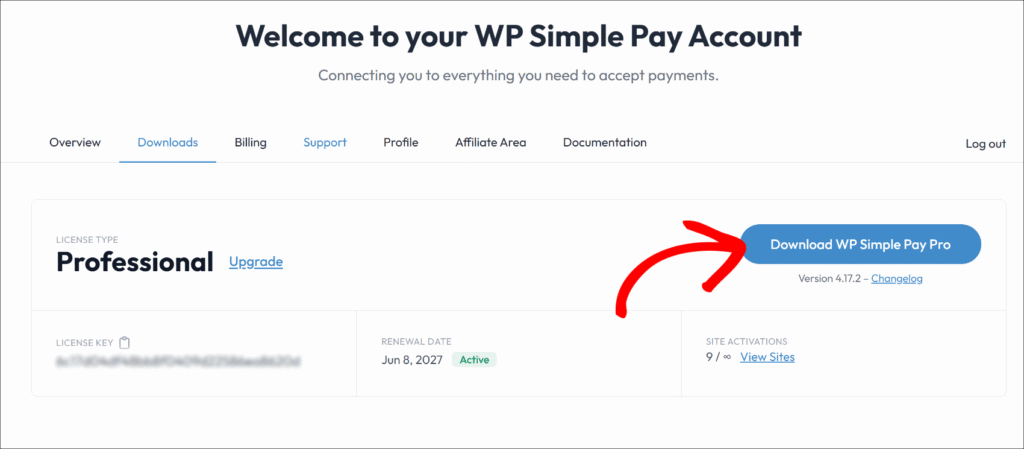
Em seguida, você pode carregar os arquivos do plugin para o seu site e, em seguida, ativar e instalar o plugin.
Observação: Se você é novo na instalação de plugins do WordPress, consulte este guia para instalar plugins do WordPress, que detalha o processo.
Assim que o plugin estiver ativo, o assistente de configuração será iniciado automaticamente. Clique em Vamos Começar para avançar na configuração inicial.
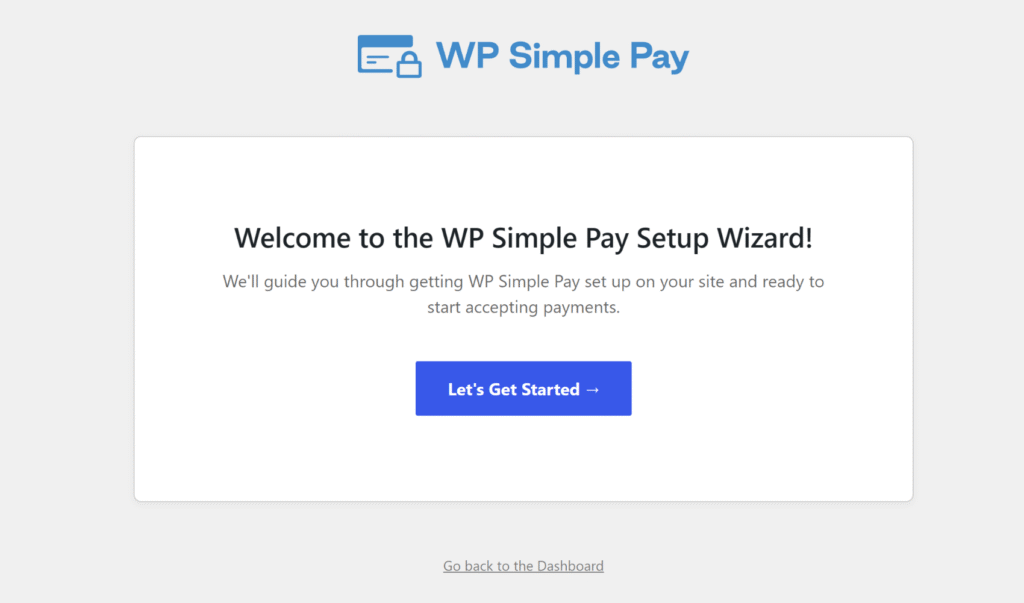
Alternativamente, se o assistente não aparecer, navegue até WP Simple Pay » Configurações » Geral » Avançado e clique no botão Iniciar Assistente de Configuração.
O WP Simple Pay agora está ativo. Você está pronto para conectá-lo ao Stripe.
Etapa 2: Conecte seu site WordPress ao Stripe
No assistente de configuração, você pode clicar em Conectar com Stripe. Insira o endereço de e-mail da sua conta Stripe e conclua a autorização OAuth. Se você ainda não tem uma conta Stripe, pode criar uma na mesma tela sem sair do WordPress.
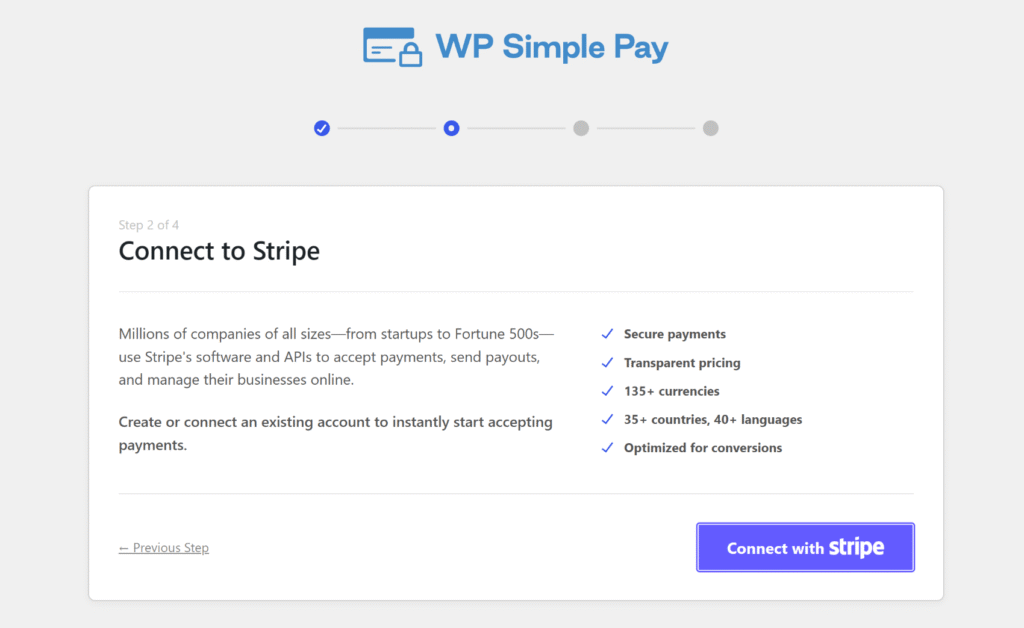
Após autorizar a conexão, o Stripe redireciona de volta para o WordPress e exibe uma confirmação de "Configuração Concluída".
A partir daqui, o WP Simple Pay está vinculado à sua conta Stripe e pronto para processar pagamentos.
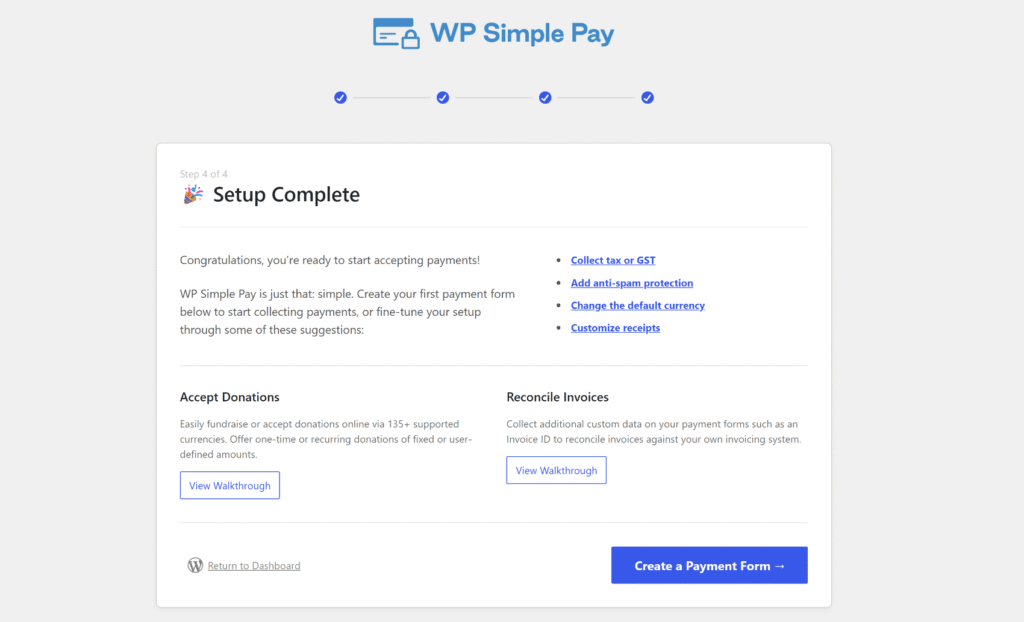
Observação: O Stripe determina automaticamente a elegibilidade do BNPL com base na localização do comprador e na moeda do pagamento. Nenhuma etapa de ativação separada é necessária no Painel do Stripe para Klarna, Afterpay ou Affirm.
Etapa 3: Crie um Formulário de Pagamento Stripe Checkout com BNPL Ativado
Em seguida, você pode criar um novo formulário de pagamento para aceitar pagamentos BNPL em seu site.
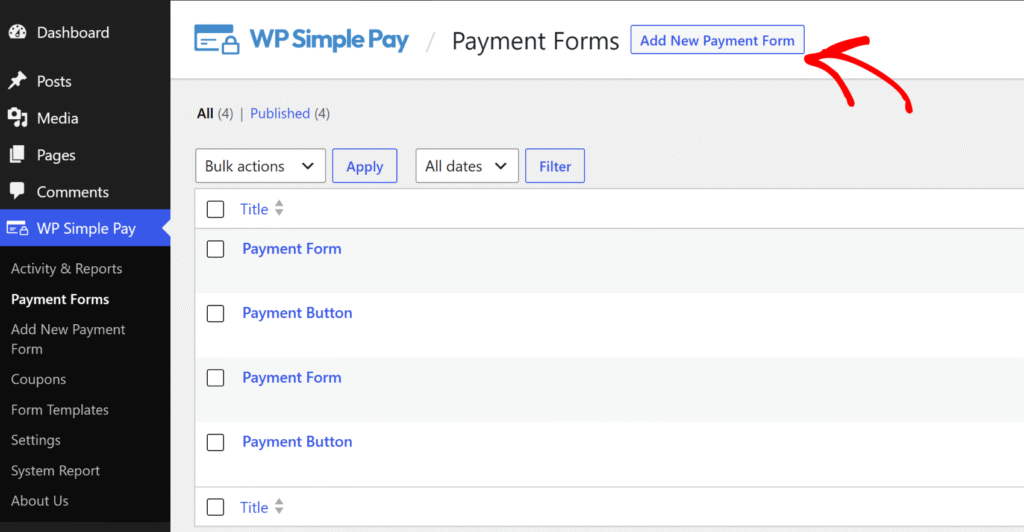
Para começar, navegue até WP Simple Pay » Formulários de Pagamento no menu de administração do WordPress e clique no botão ‘Adicionar Novo Formulário de Pagamento’.
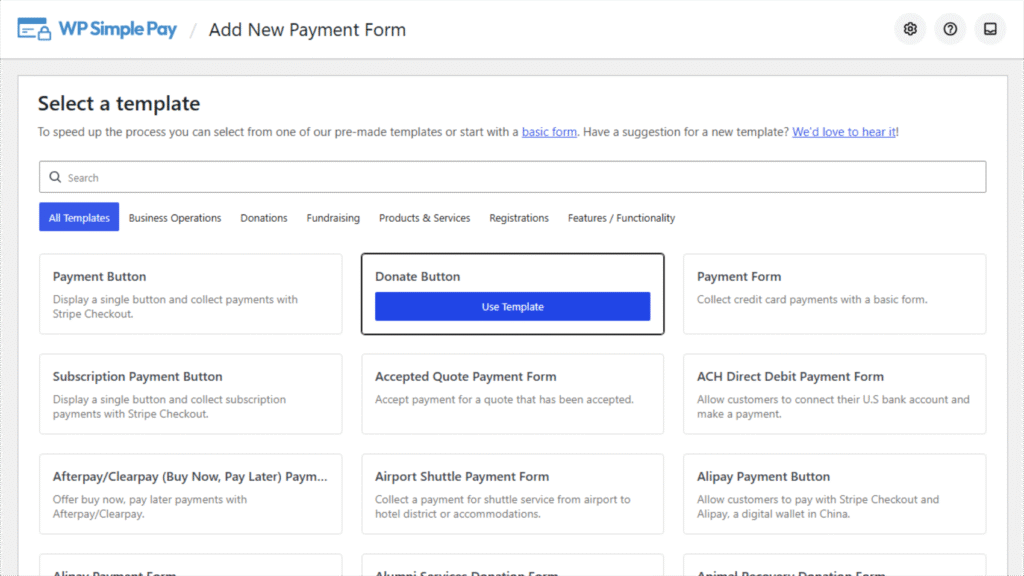
O WP Simple Pay exibe uma biblioteca de modelos de formulários de pagamento pré-construídos.
Você pode escolher um Formulário de Pagamento para um checkout de uso geral, ou selecionar um modelo de caso de uso como Botão de Doação ou Botão de Pagamento de Assinatura, ou Formulário de Inscrição para Corrida Divertida para inscrições em eventos, dependendo do propósito do formulário.
Para este tutorial, usaremos o Botão de Doação para configurar um formulário de pagamento compre agora, pague depois.
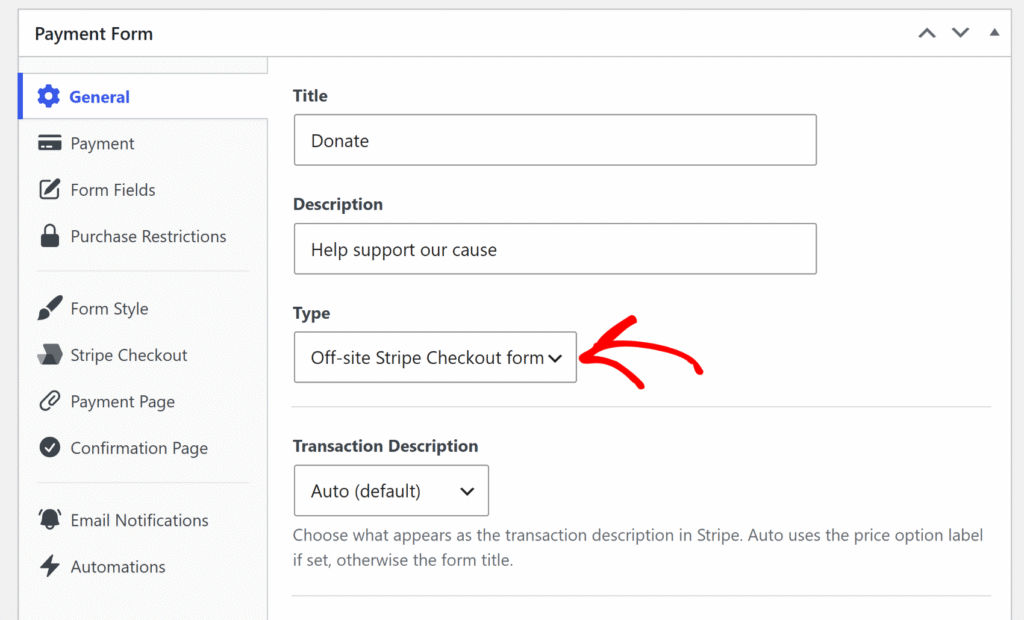
Assim que o construtor de formulários abrir, você pode clicar na guia Geral.
A partir daqui, encontre o campo Tipo e selecione Formulário de Stripe Checkout externo no menu suspenso.
Esta etapa é necessária, pois os métodos de pagamento BNPL estão disponíveis apenas em formulários de Stripe Checkout e não aparecerão na guia Pagamento, a menos que esta opção seja selecionada.
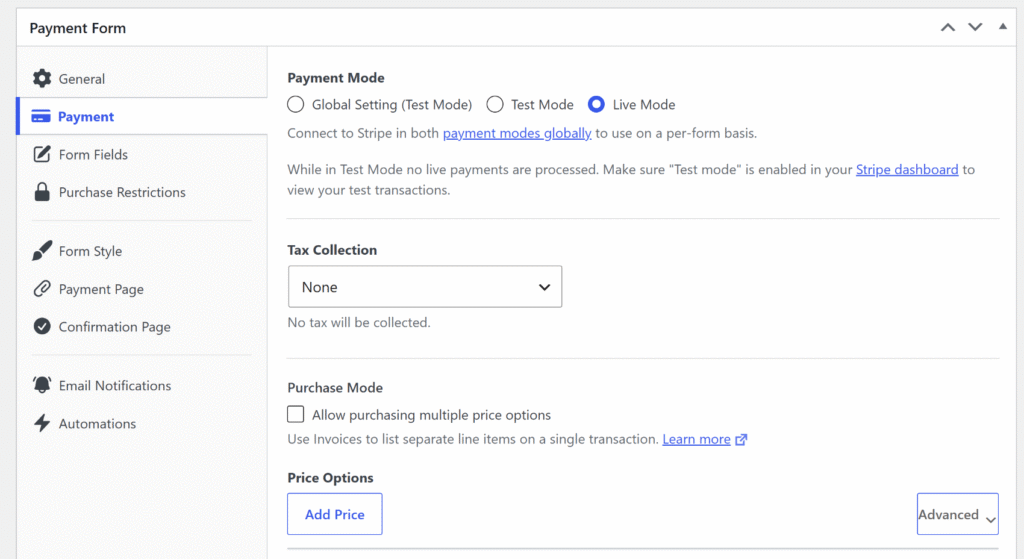
Em seguida, você pode clicar na guia Pagamento e inserir os detalhes de pagamento do seu produto.
Isso inclui o método de cobrança de impostos e opções de preço (moeda, preço e pagamento único ou recorrente).
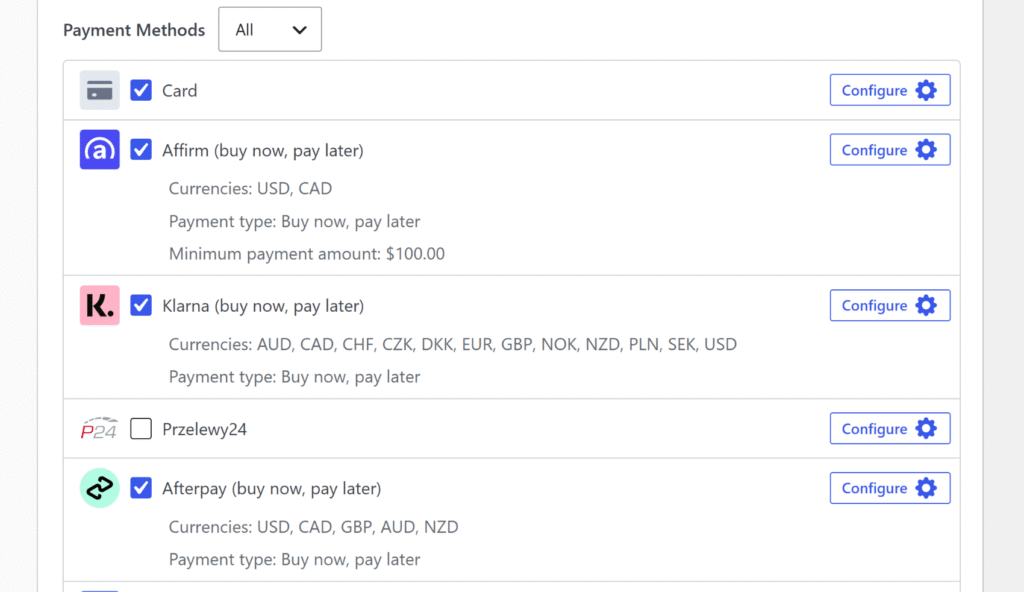
Depois disso, você pode rolar para baixo até a lista de métodos de pagamento.
Marque as caixas para Klarna (compre agora, pague depois), Afterpay (compre agora, pague depois) (exibido como Clearpay (compre agora, pague depois) para contas Stripe baseadas no Reino Unido) e Affirm (compre agora, pague depois).
Todos os três podem ser habilitados juntos, pois o Stripe exibe apenas os métodos disponíveis para a região do comprador no checkout.
Algumas coisas a serem lembradas ao configurar o formulário:
- Affirm exige um mínimo de US$ 100. A Affirm não aparecerá no checkout para valores de compra abaixo de US$ 100 (ou equivalente em CAD). Se o preço do formulário estiver abaixo desse limite, habilite Klarna e Afterpay, mas deixe Affirm desmarcado.
- Afterpay é exibido como Clearpay para comerciantes do Reino Unido. Se a conta Stripe conectada for baseada no Reino Unido, o WP Simple Pay rotula o método como Clearpay no construtor de formulários. Para todos os outros países de conta, ele aparece como Afterpay. No Stripe Checkout, o Stripe exibe independentemente a marca correta para cada comprador com base em sua localização. Nenhuma configuração adicional é necessária de qualquer forma.
- A moeda afeta a disponibilidade. A Affirm suporta apenas USD e CAD. Afterpay suporta USD, CAD, GBP, AUD e NZD. Klarna suporta 12 moedas em mais de 25 países. Defina a moeda do formulário para corresponder ao mercado principal atendido.
Após habilitar os métodos BNPL, você pode clicar em Publicar.
Etapa 4: Incorporar e Testar Formulário de Pagamento BNPL
Agora você pode adicionar o formulário publicado a uma página ou post do WordPress usando o bloco WP Simple Pay – Formulário de Pagamento no editor de conteúdo do WordPress, ou colar o shortcode.
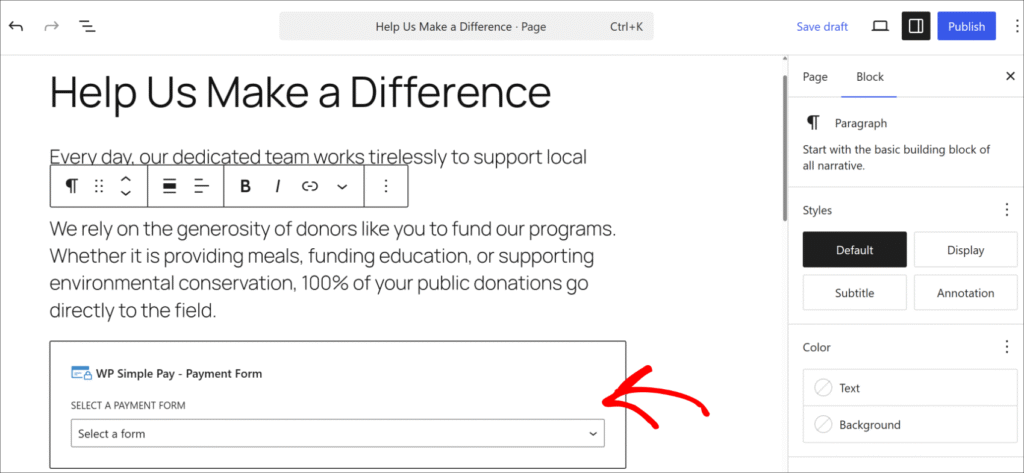
Primeiro, edite a página ou crie uma nova onde você gostaria de mostrar a opção de pagamento compre agora, pague depois. Em seguida, clique no botão + e adicione o bloco ‘WP Simple Pay – Formulário de Pagamento’.
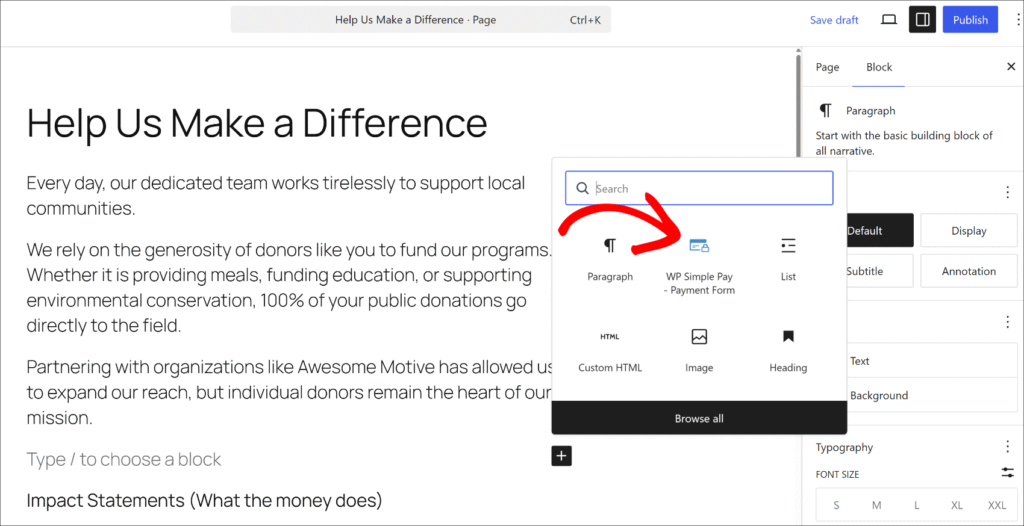
Em seguida, você pode selecionar o formulário que acabou de criar no menu suspenso no bloco.
Assim que isso for feito, Publique a página.
Em seguida, abra-o em uma nova janela do navegador para confirmar que o formulário aparece.
Com o Stripe ainda em modo de teste, clique no botão de pagamento na página publicada. A janela do Stripe Checkout abre e exibe as opções BNPL disponíveis ao lado do campo de cartão padrão. Para testar um método BNPL, selecione Klarna (ou Afterpay) nas opções de pagamento e conclua o fluxo simulado de BNPL. Nenhum pagamento real é cobrado.

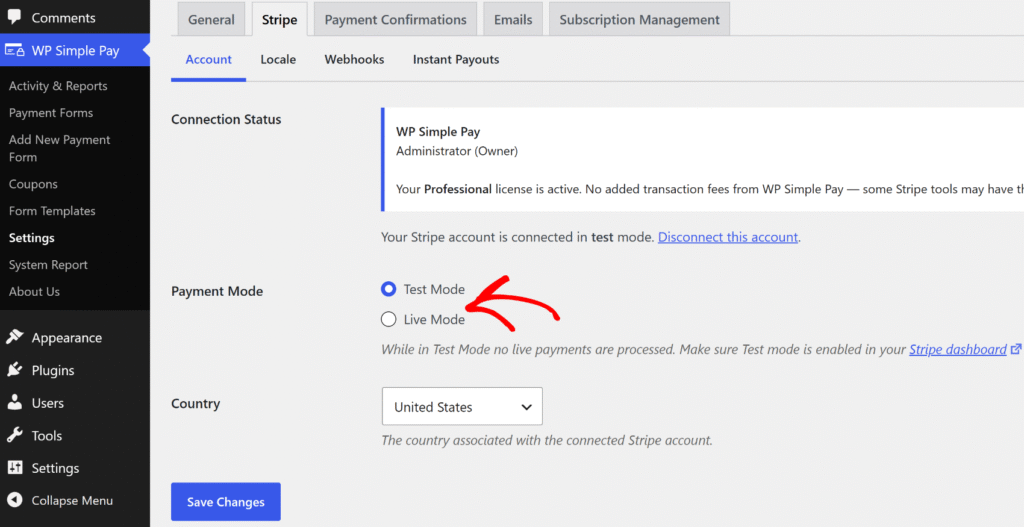
Após concluir o teste de pagamento, você pode alterá-lo de Modo de Teste para Modo Ativo.
Simplesmente retorne a WP Simple Pay » Configurações » Stripe e alterne de Modo de Teste para Modo Ativo para começar a aceitar pagamentos reais.
Bônus: Adicione Planos de Parcelamento para Ofertas de Maior Valor
BNPL permite que os compradores dividam uma compra através do cronograma de parcelamento da Klarna ou Afterpay. Para proprietários de sites que desejam controle total sobre a estrutura de parcelamento, como valores específicos, intervalos específicos e um número definido de cobranças, o recurso de plano de parcelamento do WP Simple Pay é a ferramenta certa.
Com os planos de parcelamento, você define o número de pagamentos, o intervalo e o valor por cobrança. O Stripe cuida de cada cobrança automática até que o plano seja concluído.
O comprador vê a estrutura claramente no checkout (por exemplo, “4 pagamentos de R$ 250”), e a cobrança para automaticamente após a cobrança final, sem assinatura para cancelar.
Perguntas Frequentes sobre Compre Agora, Pague Depois
1. Quais provedores de compre agora, pague depois o WP Simple Pay suporta?
O WP Simple Pay suporta Klarna, Afterpay (chamado Clearpay no Reino Unido) e Affirm através do Stripe. Todos os três estão disponíveis nos planos Professional+ e aparecem automaticamente nos formulários do Stripe Checkout com base na região e moeda do comprador. Nenhuma aplicação de comerciante separada é necessária para nenhum deles.
2. O compre agora, pague depois funciona com pagamentos recorrentes no WP Simple Pay?
Não — BNPL está disponível apenas em formulários de pagamento único. Formulários de assinatura e recorrentes não suportam Klarna, Afterpay ou Affirm. Para preços flexíveis de alto valor com cobranças automáticas de parcelamento, o recurso de plano de parcelamento do WP Simple Pay foi projetado para esse caso de uso.
3. Os compradores precisam de uma conta ou aplicativo para usar Klarna ou Afterpay?
Os compradores não precisam de um aplicativo ou conta separada para usar o BNPL no checkout. Klarna e Afterpay cuidam de seu próprio breve onboarding no momento da compra, diretamente no fluxo do Stripe Checkout. O processo adiciona alguns segundos, não uma barreira completa de cadastro.
4. Existe um valor mínimo de compra para BNPL no WP Simple Pay?
A Affirm exige um valor mínimo de compra de US$ 100 e não aparecerá no checkout para valores abaixo desse limite. Klarna e Afterpay não têm um mínimo no nível do plugin no WP Simple Pay, embora Stripe e os provedores individuais de BNPL possam aplicar suas próprias regras de elegibilidade com base na região e no valor.
5. Quais países oferecem suporte a "compre agora, pague depois" no WP Simple Pay?
Klarna está disponível em mais de 25 países, incluindo EUA, Reino Unido, Austrália, Canadá e a maior parte da Europa. Afterpay (Clearpay) suporta AU, CA, FR, IE, IT, NZ, ES, EUA e GB. Affirm suporta apenas EUA e Canadá. Stripe exibe apenas os métodos disponíveis para a localização de cada comprador, portanto, nenhuma configuração manual é necessária por país.
Comece a usar Pagamentos BNPL em Formulários no WordPress
Com o WP Simple Pay, adicionar Klarna, Afterpay e Affirm a um formulário de pagamento do WordPress leva menos de 10 minutos.
Sem contrato de comerciante separado, sem código e sem carrinho de compras necessário. Os compradores veem as opções BNPL que correspondem à sua região no checkout, e o valor total do pagamento cai na conta Stripe imediatamente.
Esperamos que este artigo tenha ajudado você a aprender como adicionar "compre agora, pague depois" ao seu site WordPress. Você também pode consultar nossos guias sobre como aceitar Google Pay e Apple Pay no WordPress e as diferenças entre formulários incorporados, overlay e Stripe Checkout.
Pronto para começar a aceitar pagamentos "compre agora, pague depois"? Comece com o WP Simple Pay hoje mesmo.
Para ler mais artigos como este, siga-nos no X.
Divulgação: Nosso conteúdo é apoiado pelo leitor. Isso significa que, se você clicar em alguns de nossos links, poderemos ganhar uma comissão. Recomendamos apenas produtos que acreditamos que agregarão valor aos nossos leitores.
Deixe um Comentário