
Jak akceptować płatności w WordPress bez WooCommerce
Ostatnia aktualizacja:

Większość właścicieli witryn WordPress, którzy chcą akceptować płatności w WordPress bez WooCommerce, ostatecznie i tak go instaluje. A to niewłaściwe narzędzie dla każdego, kto potrzebuje formularza płatności, a nie sklepu.
WooCommerce to pełna platforma e-commerce zbudowana wokół produktów, zapasów, koszyka na zakupy i zarządzania zamówieniami. Jeśli jesteś freelancerem, organizacją non-profit lub twórcą kursów, nic z tego nie dotyczy Twojej sytuacji.
Widzieliśmy to na własne oczy. Konfiguracja sklepu w celu pobrania opłaty za usługę lub przetworzenia darowizny oznacza konfigurowanie zasad podatkowych i wysyłkowych, których nigdy nie użyjesz, oraz kierowanie każdego klienta przez koszyk, zanim będzie mógł zapłacić.
To jest tarcie dodane do kasy, która powinna zająć sekundy, a każdy niepotrzebny krok to szansa na to, że ktoś porzuci proces. Tutaj przydaje się WP Simple Pay. Umożliwia uruchomienie formularza płatności na dowolnej stronie w ciągu kilku minut, bez koszyka na zakupy.
W tym artykule pokażemy Ci, jak akceptować płatności w WordPress bez WooCommerce.
Dlaczego nie potrzebujesz WooCommerce do płatności
Akceptowanie płatności i prowadzenie sklepu internetowego to dwie różne rzeczy, a WooCommerce je łączy.
Dedykowany wtyczka płatnicza obsługuje stronę płatności bez mechanizmów sklepu. Otrzymujesz więc formularz, który zbiera pieniądze, bez katalogu produktów, koszyka ani zarządzania zamówieniami, które w przeciwnym razie musiałbyś skonfigurować.
Wtyczka tylko do płatności łączy Twoją witrynę WordPress bezpośrednio z procesorem płatności, a dla WP Simple Pay tym procesorem jest Stripe. Tworzysz formularz, ustawiasz cenę, wybierasz typ płatności (jednorazowa lub cykliczna) i publikujesz.
Z naszego doświadczenia wynika, że takie rozwiązanie obejmuje większość właścicieli witryn WordPress: freelancerów pobierających zaliczki, organizacje non-profit prowadzące zbiórki darowizn, twórców kursów pobierających opłaty za zapisy oraz organizatorów wydarzeń, którzy potrzebują formularza, a nie pełnego sklepu.
Rezultatem jest formularz płatności Stripe na dowolnej stronie, bez koszyka stojącego między klientem a przyciskiem płatności.
Teraz zobaczmy, dlaczego używanie WooCommerce jest przesadą dla Twojej witryny WordPress.
Dlaczego WooCommerce jest przesadą do płatności
Współpracowaliśmy z wieloma właścicielami witryn, którzy zainstalowali WooCommerce, aby pobrać pojedynczą płatność i spędzili więcej czasu na konfiguracji, niż kiedykolwiek się spodziewali.
Oto gdzie zwykle pojawia się problem:
- Jest stworzony dla sklepów, nie formularzy: WooCommerce jest zaprojektowany wokół produktów, zapasów i koszyków na zakupy, więc uruchomienie samodzielnego formularza płatności oznacza utworzenie „produktu”, skonfigurowanie strony płatności i wyłączenie funkcji, których nigdy nie użyjesz.
- Konfiguracja trwa znacznie dłużej niż powinna: Świeża instalacja WooCommerce wymaga przejścia przez ustawienia bramki płatności, podatków i wysyłki, zanim cokolwiek będzie działać, nawet jeśli pobierasz tylko stałą opłatę za usługę.
- Każda płatność przechodzi przez koszyk: WooCommerce kieruje klientów przez przepływ „Dodaj do koszyka” przed kasą, co jest właściwym UX dla sklepu z wieloma produktami. Ale niepotrzebna bariera w przypadku opłaty za usługę, darowizny lub płatności abonamentowej.
- Ciągłe utrzymanie generuje koszty: WooCommerce i jego rozszerzenia wymagają regularnych aktualizacji, sprawdzania kompatybilności i okresowej uwagi, podczas gdy wtyczka służąca wyłącznie do płatności stanowi znacznie mniejszy obszar do utrzymania.
WP Simple Pay eliminuje wszystkie te narzuty i daje właścicielom witryn WordPress dokładnie to, czego potrzebują: formularz płatności Stripe działający na dowolnej stronie w ciągu kilku minut. Aby bezpośrednio porównać wtyczkę płatności z pełnym sklepem, zapoznaj się z naszym porównaniem WooCommerce i WP Simple Pay.
Mając to na uwadze, zobaczmy, jak można skonfigurować WP Simple Pay w WordPress i utworzyć prosty formularz płatności.
Jak akceptować płatności bez WooCommerce
Do akceptowania płatności Stripe w WordPress bez koszyka na zakupy, WP Simple Pay jest najlepszym rozwiązaniem na rynku.
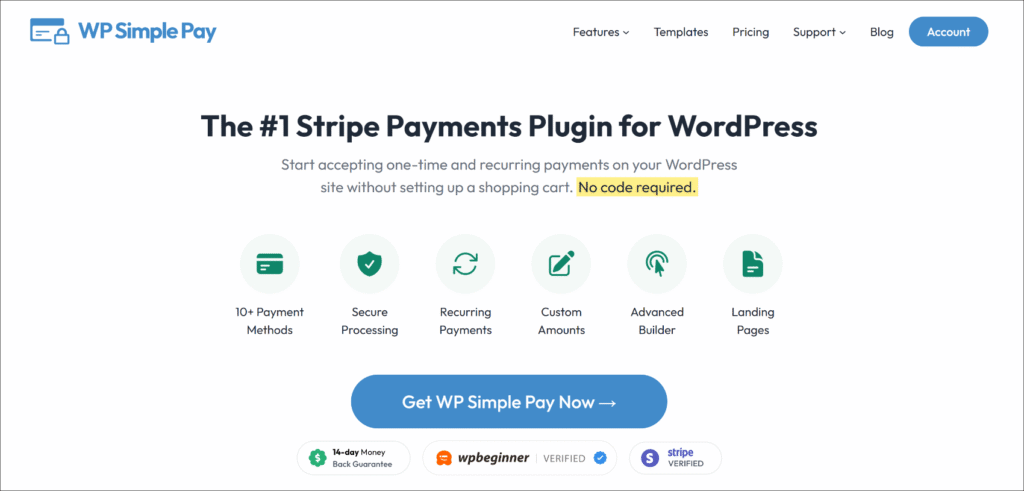
WP Simple Pay to wtyczka płatności Stripe nr 1 dla WordPress. Pozwala na pobieranie jednorazowych i cyklicznych płatności z jednego formularza typu „przeciągnij i upuść”, obsługując ponad 10 usług płatniczych, takich jak Apple Pay, Google Pay, ACH Direct Debit, Klarna, Afterpay, Affirm i inne za pośrednictwem Stripe, bez konieczności konfigurowania koszyka ani pisania linijki kodu.
Oto, co czyni ją właściwym wyborem do tego tutorialu:
- Ponad 10 metod płatności — Akceptuj karty, Apple Pay, Google Pay, ACH Direct Debit, Klarna, Afterpay, Affirm, Cash App Pay i inne za pośrednictwem Stripe, wszystko z tego samego formularza, bez konieczności konfiguracji dla każdej metody.
- Gotowe szablony płatności — Wybieraj spośród gotowych szablonów dla płatności jednorazowych, subskrypcji, darowizn, rejestracji na wydarzenia i innych, dzięki czemu zaczniesz od działającej podstawy, a nie od pustej strony.
- Brak dodatkowej opłaty transakcyjnej w wysokości 3% — WP Simple Pay Pro usuwa dodatkową opłatę w wysokości 3% pobieraną przez większość wtyczek Stripe oprócz standardowej opłaty za przetwarzanie Stripe.
- Płatności jednorazowe i cykliczne — Akceptuj oba rodzaje płatności z tego samego kreatora formularzy, bez potrzeby posiadania oddzielnej wtyczki do subskrypcji.
Mając to na uwadze, zobaczmy, jak można użyć WP Simple Pay do akceptowania płatności w WordPress bez WooCommerce.
Krok 1: Zainstaluj i aktywuj WP Simple Pay
Aby rozpocząć, możesz odwiedzić stronę internetową WP Simple Pay i wybrać plan, który odpowiada Twoim potrzebom.
Po zakończeniu zakupu pobierz plik ZIP wtyczki z panelu konta WP Simple Pay.
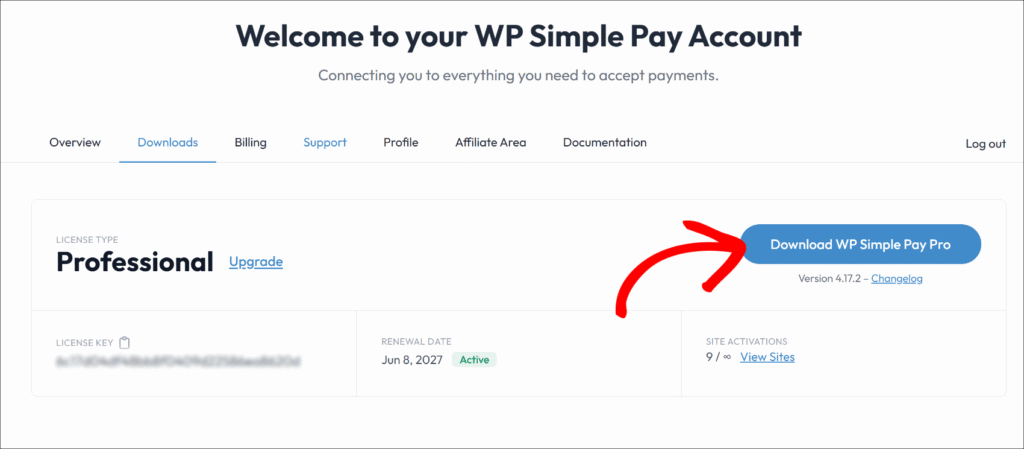
Następnie możesz przesłać pliki wtyczki z panelu administracyjnego WordPress oraz zainstalować i aktywować wtyczkę.
Po aktywacji kreator konfiguracji WP Simple Pay uruchamia się automatycznie. Kliknij Rozpocznij, aby zacząć łączyć swoje konto Stripe.
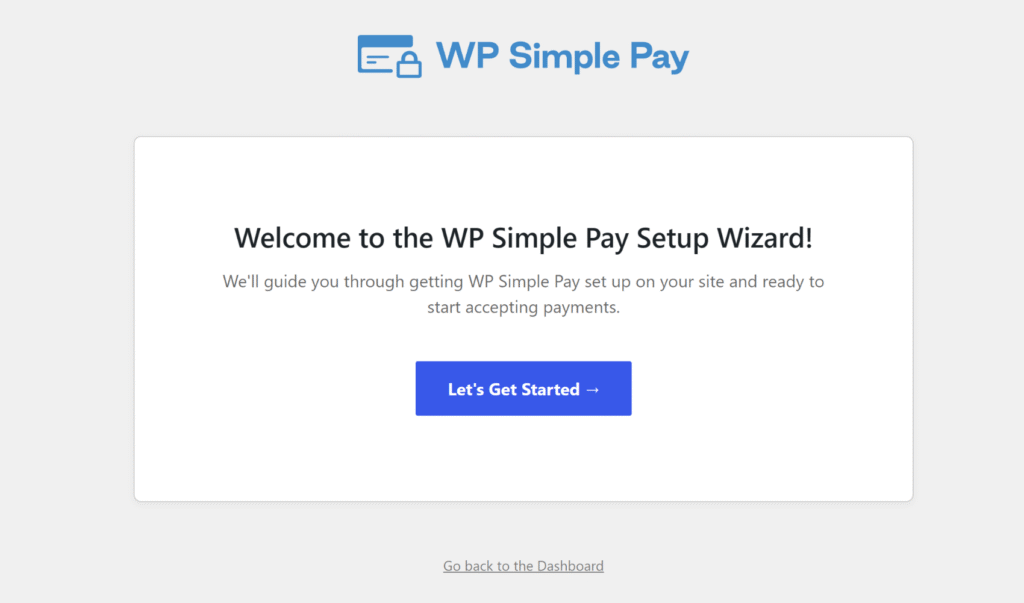
Uwaga: Jeśli kreator się nie pojawi, przejdź do WP Simple Pay » Ustawienia » Ogólne » Zaawansowane i kliknij przycisk Uruchom kreator konfiguracji. Aby uzyskać pomoc w instalacji wtyczek, zapoznaj się z przewodnikiem WPBeginner dotyczącym instalacji wtyczki WordPress.
WP Simple Pay jest zainstalowany i gotowy. Następnie połączysz go ze swoim kontem Stripe.
Krok 2: Połącz WordPress ze Stripe
Z kreatora konfiguracji kliknij Połącz z Stripe i wprowadź adres e-mail powiązany z Twoim kontem Stripe.
Autoryzacja łączy Twoją witrynę WordPress ze Stripe, a nowi użytkownicy mogą utworzyć konto Stripe z tego samego ekranu bez oddzielnej rejestracji.
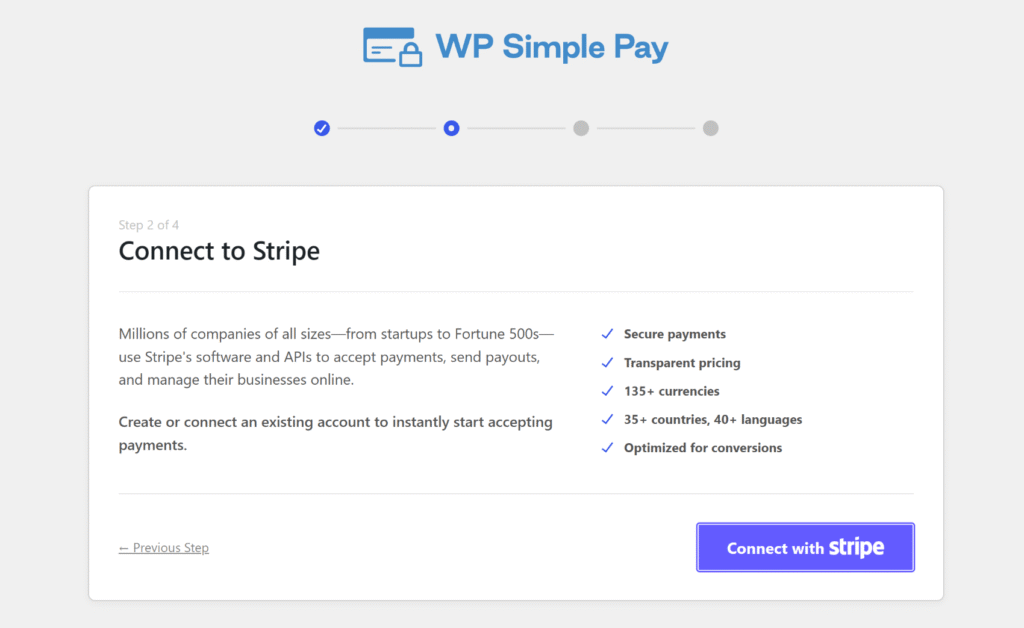
Po zakończeniu połączenia kreator przeprowadzi Cię przez kilka dodatkowych kroków konfiguracji, aż do ekranu 🎉 Konfiguracja zakończona, po czym WP Simple Pay będzie gotowy do tworzenia formularzy płatności.
Więcej szczegółów na temat połączenia ze Stripe znajdziesz w dokumentacji konfiguracji Stripe dla WP Simple Pay.
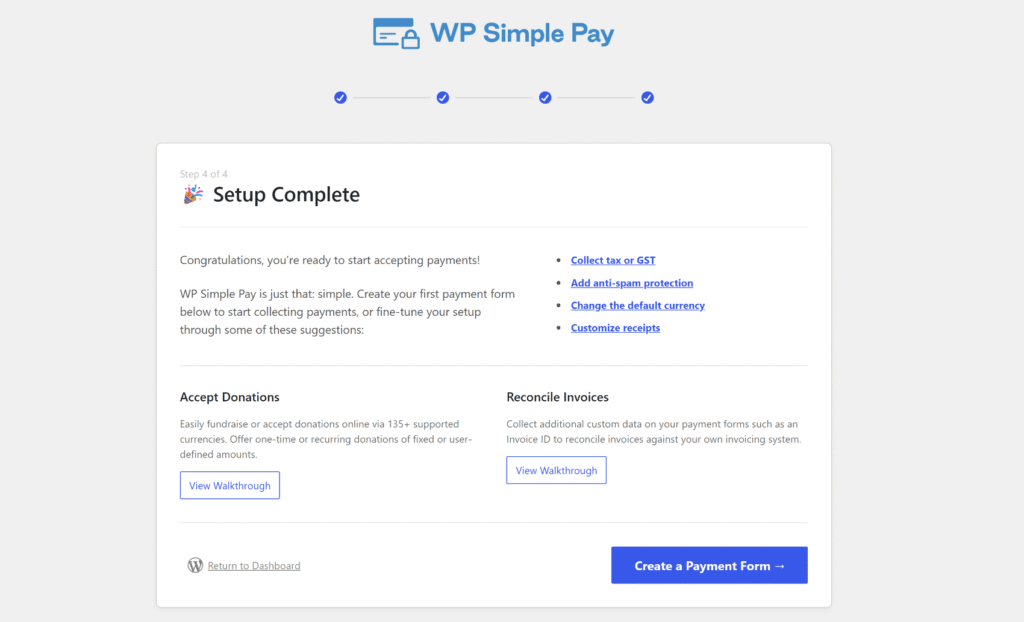
Uwaga: WP Simple Pay domyślnie łączy się w trybie testowym. Tryb testowy pozwala na przeprowadzanie płatności przy użyciu kart testowych Stripe przed uruchomieniem, dzięki czemu możesz potwierdzić, że wszystko działa, zanim zaangażowane zostaną prawdziwe pieniądze.
Krok 3: Utwórz formularz płatności
Następnie możesz utworzyć nowy formularz płatności dla swojej witryny. Aby rozpocząć, po prostu kliknij przycisk Utwórz formularz płatności w kreatorze konfiguracji.
Lub, z panelu administracyjnego WordPress, przejdź do WP Simple Pay » Formularze płatności a następnie kliknij Dodaj nowy formularz płatności.
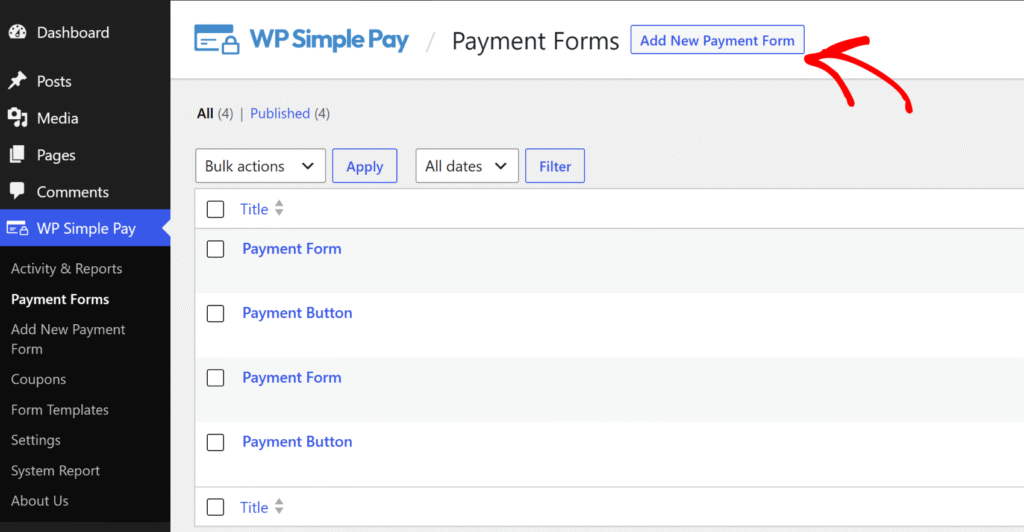
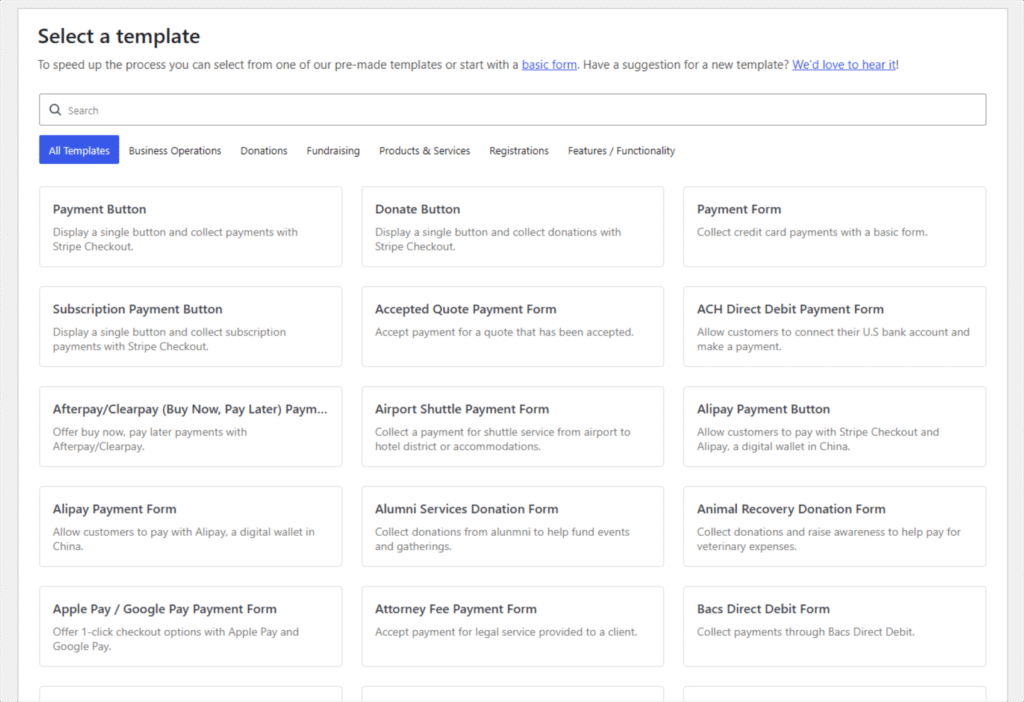
WP Simple Pay otworzy następnie selektor szablonów, gdzie wybierzesz punkt wyjścia dla swojego formularza.
Dla ogólnej płatności jednorazowej wybierz szablon Formularz płatności; dla strony zbiórki pieniędzy wybierz Przycisk darowizny; dla płatności cyklicznych wybierz Formularz płatności subskrypcyjnych. Każdy szablon jest w pełni konfigurowalny, a wskazówki, jak uzyskać z nich więcej, znajdziesz w naszym przewodniku jak używać szablonów formularzy płatności w WordPress, aby zwiększyć sprzedaż.
Każdy szablon jest w pełni konfigurowalny, a wskazówki, jak uzyskać z nich więcej, znajdziesz w naszym przewodniku jak używać szablonów formularzy płatności w WordPress, aby zwiększyć sprzedaż.
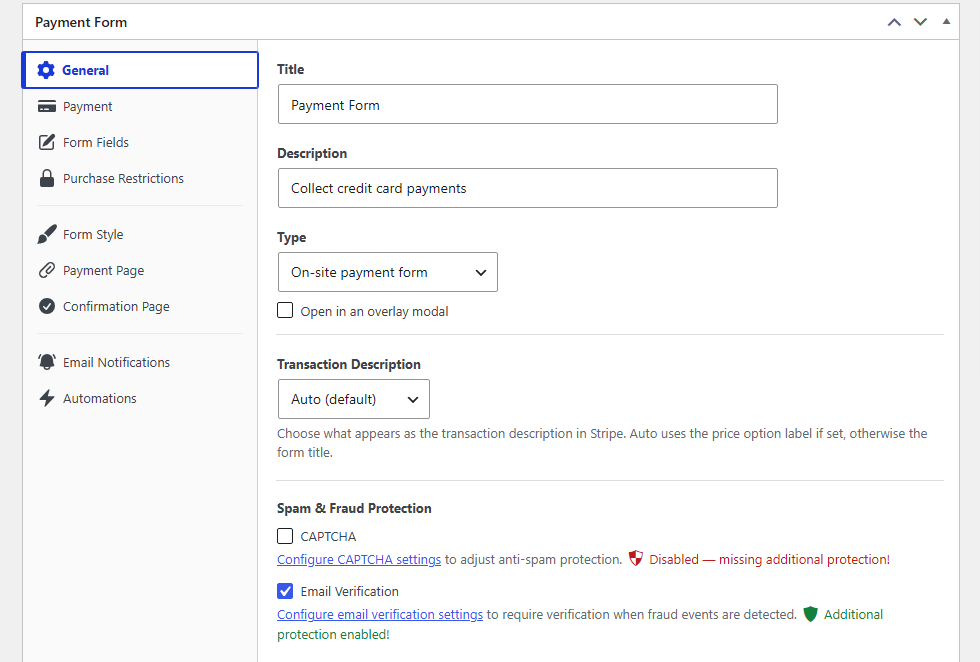
W zakładce Ogólne nadaj swojemu formularzowi tytuł i opis. Następnie możesz wybrać typ wyświetlania, klikając menu rozwijane Typ. Tutaj powinieneś zobaczyć 2 opcje:
- Formularz płatności na stronie osadza formularz bezpośrednio na stronie.
- Formularz płatności Stripe poza stroną przekierowuje klientów na stronę płatności hostowaną przez Stripe.
A poniżej menu rozwijanego Typ zobaczysz pole wyboru Otwórz w oknie modalnym, które uruchamia go jako wyskakujące okienko.
Aby uzyskać pomoc w wyborze między tymi opcjami, zapoznaj się z naszym przewodnikiem formularze płatności osadzone vs okno modalne vs Stripe Checkout.
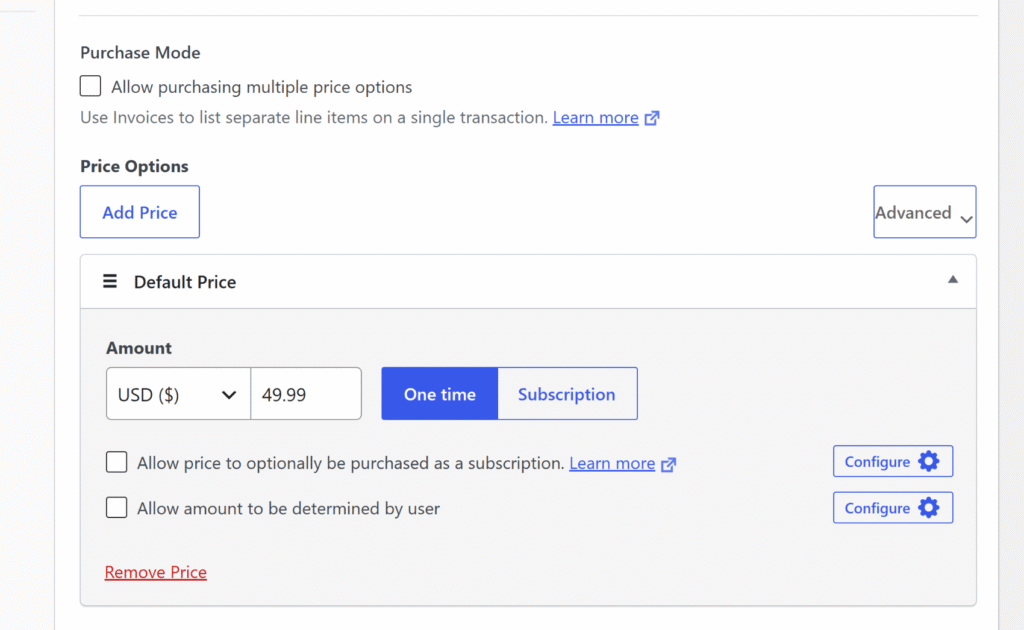
Następnie możesz kliknąć zakładkę Płatność i ustawić walutę, kwotę płatności oraz typ rozliczenia (jednorazowe lub subskrypcja).
Aby dać klientom wybór między wieloma cenami, kliknij Dodaj cenę, aby dodać dodatkowe wiersze cenowe, lub zapoznaj się z dokumentacją opcji płatności WP Simple Pay, aby uzyskać więcej informacji.
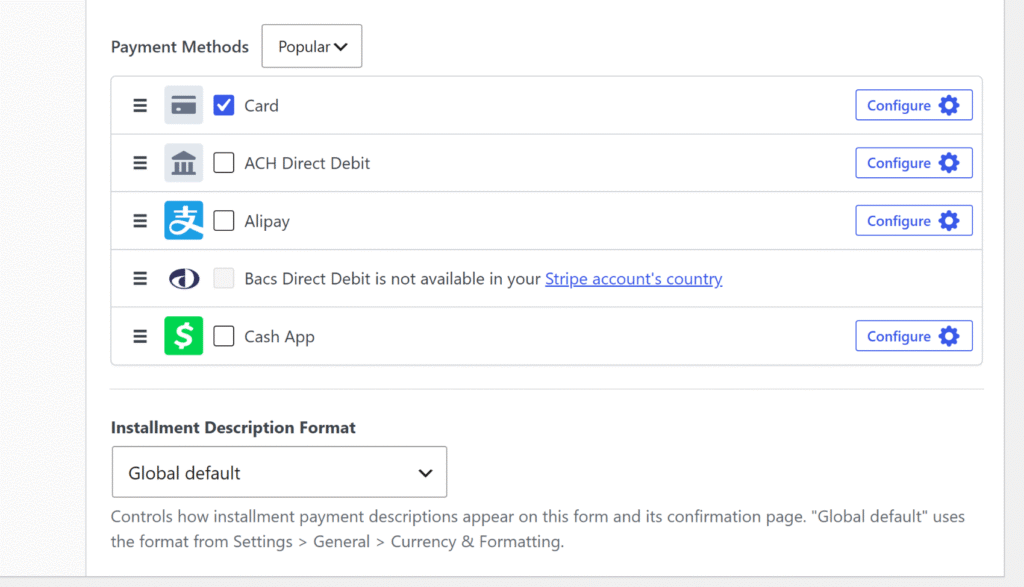
Następnie możesz przewinąć w dół i wybrać metody płatności, które chcesz zaoferować swoim klientom.
WP Simple Pay oferuje ponad 10 opcji płatności, ułatwiając użytkownikom wybór wygodnej dla nich opcji.
Gdy to zrobisz, możesz dostosować swój formularz płatności.
Na karcie Pola formularza zobaczysz domyślne pola, które formularz wyświetla klientom: pole adresu e-mail, selektor ceny i pole wprowadzania danych karty.
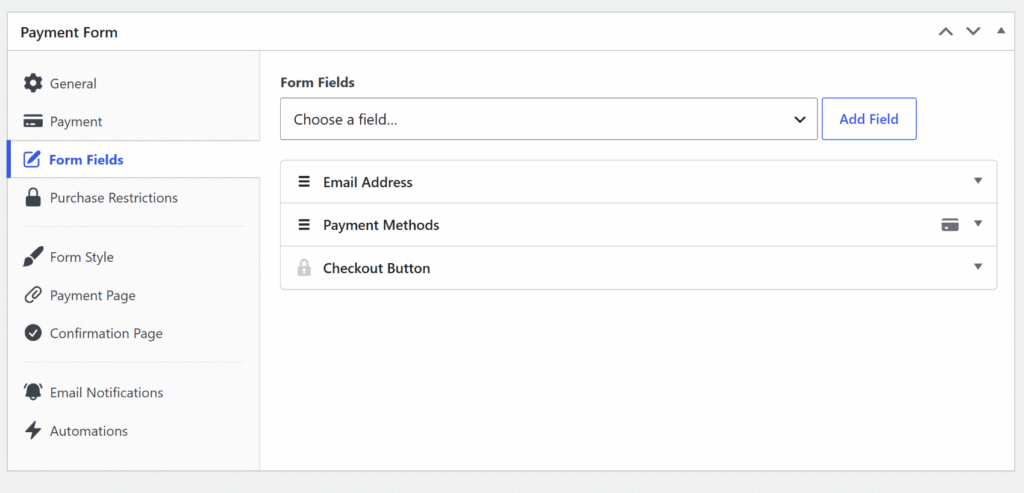
Wybierz typ pola z listy rozwijanej Wybierz pole i kliknij Dodaj pole, aby je wstawić.
Może to być numer telefonu, pole tekstowe lub pole wyboru.
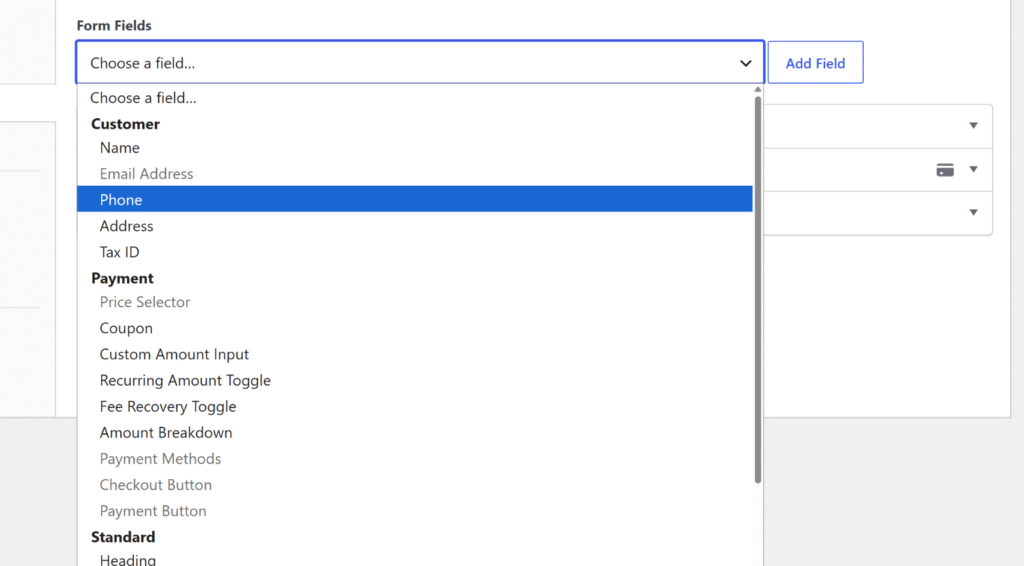
Następnie możesz rozwinąć każde pole formularza i dodać więcej szczegółów.
Po skonfigurowaniu formularza kliknij Opublikuj.
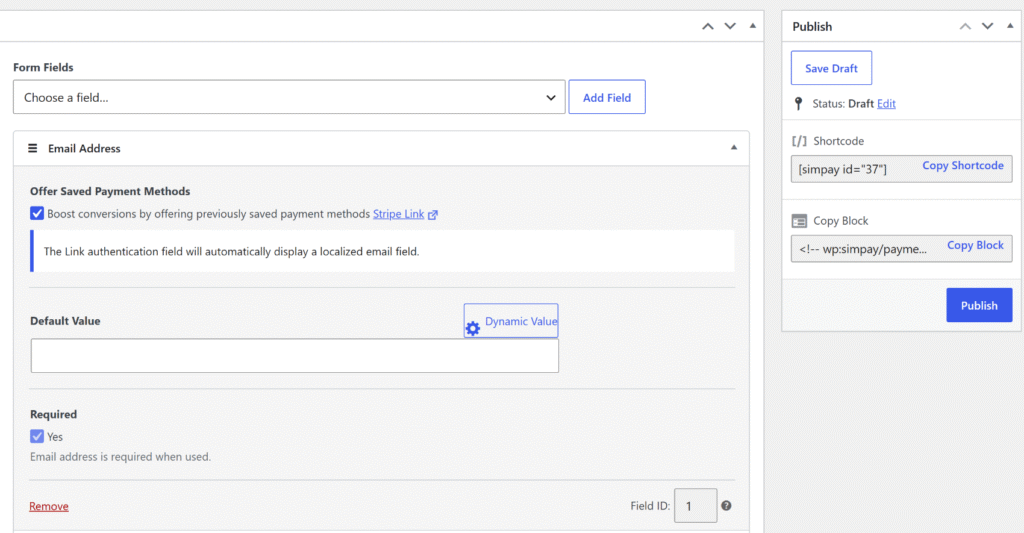
Krok 4: Dodaj formularz do strony i przeprowadź płatność testową
Teraz, gdy formularz jest gotowy, możesz go po prostu umieścić w dowolnym miejscu na swojej stronie, aby zbierać płatności.
Aby rozpocząć, utwórz nową stronę WordPress lub otwórz istniejącą, a następnie dodaj blok WP Simple Pay – Formularz płatności z edytora treści WordPress.
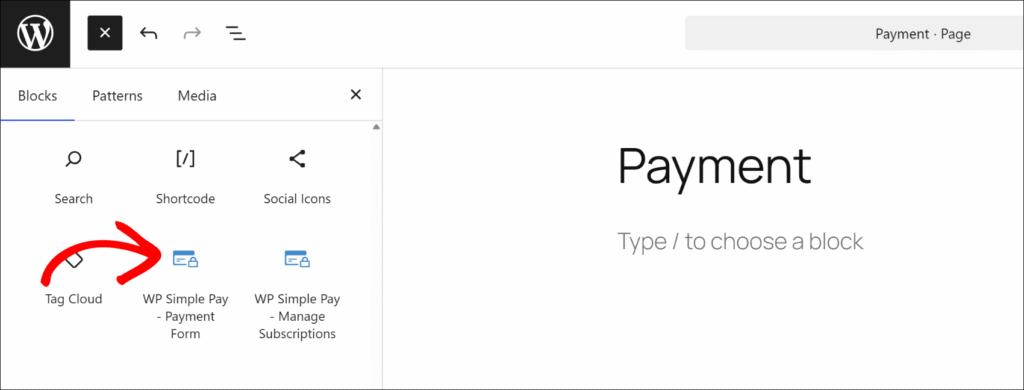
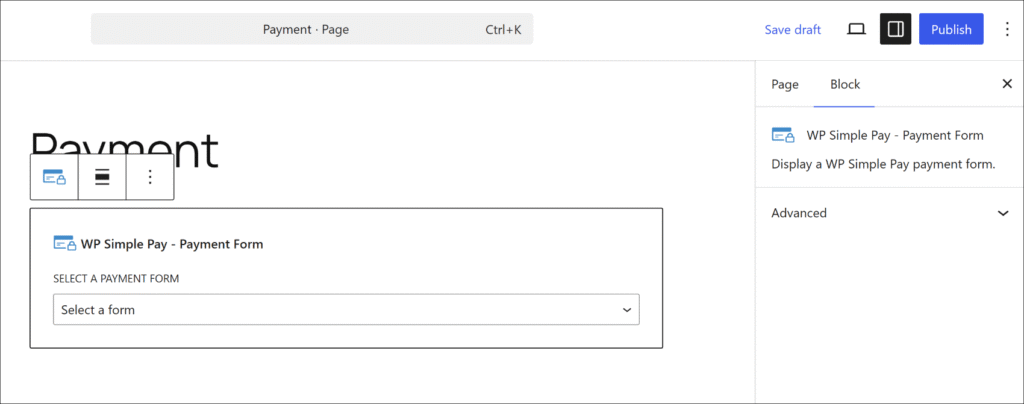
Po dodaniu bloku wybierz opublikowany formularz z listy rozwijanej.
Teraz możesz kliknąć Zaktualizuj lub Opublikuj, aby strona stała się aktywna.
Możesz również skopiować skrócony kod z edytora formularza i wkleić go do dowolnego obszaru tekstowego lub bloku skróconego kodu na stronie.
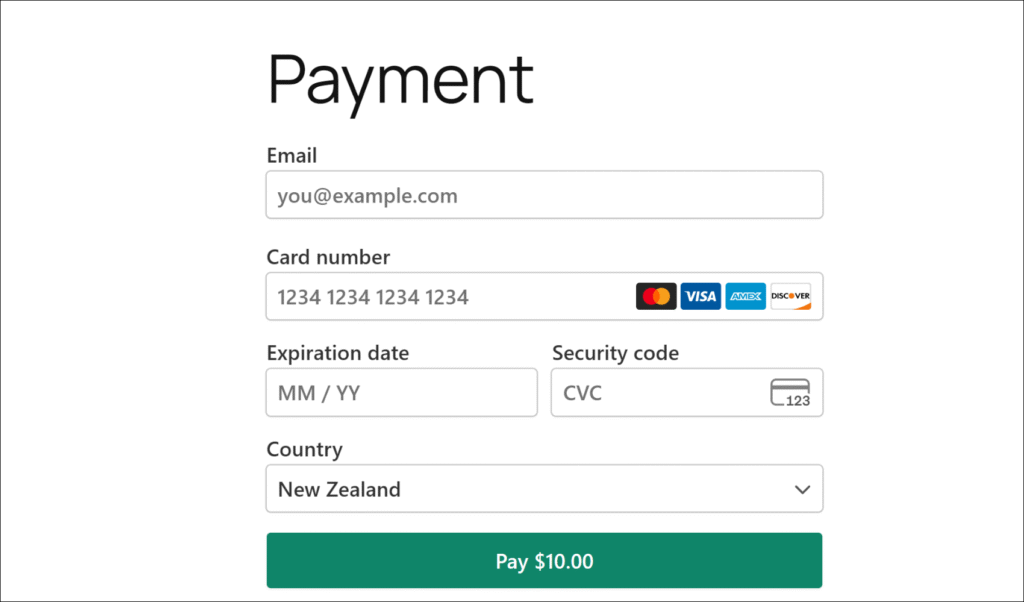
Gdy formularz będzie aktywny w trybie testowym, wprowadź numer karty testowej Stripe 4242 4242 4242 4242, dowolną przyszłą datę wygaśnięcia i dowolny 3-cyfrowy kod CVC, a następnie wyślij. Pojawi się komunikat potwierdzający, a pełną listę kart testowych dla różnych scenariuszy płatności znajdziesz w dokumentacji testowej Stripe.
Stamtąd możesz przejść do WP Simple Pay » Aktywność i raporty , aby potwierdzić, że płatność testowa pojawiła się w kanale ostatnich aktywności.
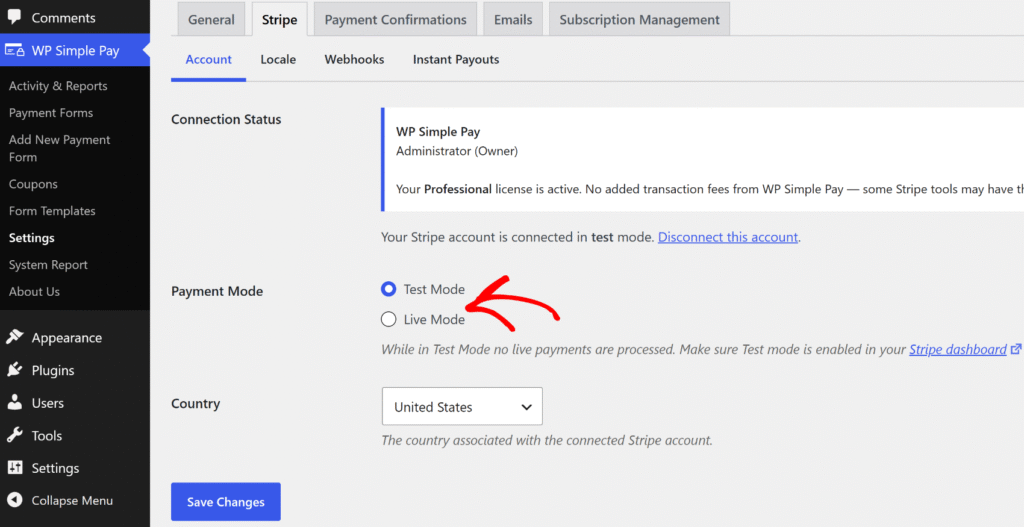
Po potwierdzeniu, że płatność testowa działa, przejdź do WP Simple Pay » Ustawienia » Stripe » Konto i przełącz przycisk radiowy Tryb płatności z Trybu testowego na Tryb na żywo.
Twój formularz jest teraz gotowy do przyjmowania rzeczywistych płatności.
Dodatek: Akceptuj płatności cykliczne w WordPress
Jeśli potrzebujesz obciążać klientów według harmonogramu, WP Simple Pay obsługuje płatności cykliczne z tego samego kreatora formularzy bez potrzeby instalowania dodatkowego wtyczki.
Na karcie Płatność zmień typ płatności na Subskrypcja i ustaw interwał rozliczeniowy: dzienny, tygodniowy, miesięczny lub roczny.
Możesz również dodać opłatę instalacyjną, okres próbny za darmo lub określoną liczbę obciążeń dla płatności ratalnych — te zaawansowane opcje subskrypcji wymagają planu WP Simple Pay Pro Professional lub wyższego. Podstawowe płatności cykliczne są dostępne w każdym planie WP Simple Pay Pro, zaczynając od Personal.
Aby zapoznać się z pełnym przewodnikiem, zobacz nasz poradnik na temat akceptowania płatności cyklicznych za pośrednictwem Twojej witryny WordPress.
Często zadawane pytania dotyczące formularzy płatności bez WooCommerce
1. Czy mogę akceptować płatności w WordPress bez WooCommerce?
Tak. Dedykowana wtyczka płatnicza, taka jak WP Simple Pay, łączy WordPress bezpośrednio ze Stripe bez WooCommerce. Tworzysz spersonalizowany formularz płatności, publikujesz go na dowolnej stronie WordPress i zaczynasz zbierać płatności w ciągu kilku minut. Nie jest wymagany katalog produktów, koszyk ani konfiguracja sklepu.
2. Jaka jest najlepsza wtyczka płatności WordPress bez WooCommerce?
WP Simple Pay to wtyczka płatności Stripe nr 1 dla WordPress, używana przez ponad 14 000 właścicieli witryn, którzy potrzebują pobierać płatności bez pełnego sklepu eCommerce. Obsługuje płatności jednorazowe i cykliczne, ponad 10 metod płatności oraz gotowe szablony dla darowizn, subskrypcji i rejestracji na wydarzenia. Konfiguracja zajmuje minuty, bez potrzeby angażowania programisty lub systemu koszyka.
3. Czy potrzebuję konta Stripe, aby korzystać z WP Simple Pay?
Tak. WP Simple Pay jest zasilany przez Stripe, który obsługuje wszystkie przetwarzanie płatności i jest przeznaczony dla firm świadczących usługi cyfrowe, a nie detalicznych. Kreator konfiguracji zawiera przycisk Połącz ze Stripe, który przeprowadza przez pełne połączenie bez żadnych kluczy API. Nowi użytkownicy mogą utworzyć konto Stripe bezpośrednio z kreatora podczas konfiguracji, a Stripe obsługuje ponad 135 walut w ponad 45 krajach.
4. Jak dodać formularz płatności do WordPress bez WooCommerce?
Zainstaluj WP Simple Pay, połącz go ze Stripe za pomocą kreatora konfiguracji, a następnie przejdź do WP Simple Pay » Formularze Płatności, kliknij Dodaj nowy formularz płatności, a następnie wybierz szablon. Ustaw kwotę, typ płatności i wszelkie niestandardowe pola w odpowiednich zakładkach, a następnie kliknij Opublikuj. Dodaj formularz do dowolnej strony WordPress za pomocą bloku WP Simple Pay – Formularz Płatności lub krótkiego kodu.
5. Czy WP Simple Pay pobiera dodatkowe opłaty poza opłatami Stripe?
WP Simple Pay Pro nie dodaje dodatkowej opłaty transakcyjnej poza standardową opłatą za przetwarzanie Stripe. Własna opłata za przetwarzanie Stripe dotyczy wszystkich transakcji niezależnie od wtyczki. WP Simple Pay Lite zawiera dodatkową opłatę w wysokości 3% za transakcję, która jest usuwana we wszystkich planach Pro. Odwiedź stronę z cennikiem WP Simple Pay, aby zapoznać się z pełnym podziałem poziomów.
Teraz wiesz, jak akceptować płatności w WordPress bez WooCommerce: zainstaluj WP Simple Pay, połącz go ze Stripe, stwórz formularz płatności w kilka minut i opublikuj go na dowolnej stronie.
Mamy nadzieję, że ten artykuł pomógł Ci dowiedzieć się, jak akceptować płatności w WordPress bez WooCommerce. Możesz również zapoznać się z naszymi poradnikami na temat akceptowania płatności cyklicznych za pośrednictwem Twojej witryny WordPress oraz na temat projektowania idealnego formularza płatności w 9 krokach.
Gotowy do przyjmowania płatności? Rozpocznij już dziś z WP Simple Pay.
Aby przeczytać więcej podobnych artykułów, śledź nas na X.
Ujawnienie: Nasze treści są wspierane przez czytelników. Oznacza to, że jeśli klikniesz w niektóre z naszych linków, możemy otrzymać prowizję. Polecamy tylko produkty, które naszym zdaniem dodadzą wartości naszym czytelnikom.

Dodaj odpowiedź