
Come configurare la visualizzazione della conferma di pagamento
In Questo Documento
Per configurare ciò che i tuoi utenti vedono dopo un pagamento andato a buon fine, vai su WP Simple Pay → Impostazioni → Conferma pagamento.
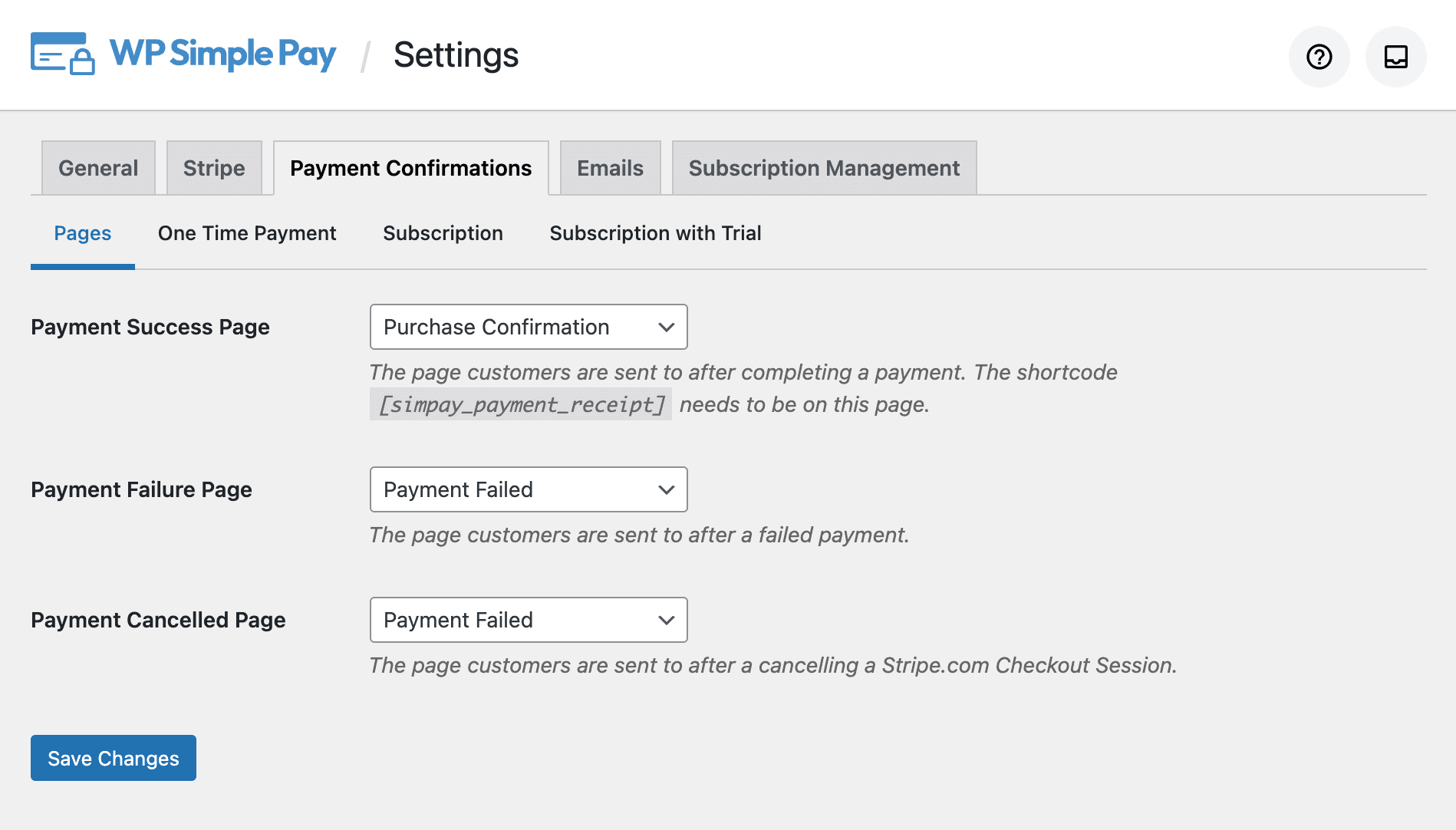
Oltre a questi messaggi globali di conferma del pagamento, puoi personalizzare ulteriormente i tuoi flussi di pagamento aggiungendo messaggi di conferma personalizzati da visualizzare quando un pagamento è stato completato utilizzando uno specifico modulo di pagamento. Maggiori informazioni sono disponibili qui.
Pagine
Pagina di successo del pagamento
La pagina a cui i clienti vengono indirizzati dopo un pagamento riuscito. Questa pagina dovrebbe contenere lo shortcode [simpay_payment_receipt].
Pagina di fallimento del pagamento
La pagina a cui i clienti vengono inviati dopo un pagamento fallito.
Pagina di annullamento del pagamento
La pagina a cui i clienti vengono inviati dopo aver annullato un pagamento fuori sito con Stripe Checkout.
Messaggi di conferma
Un messaggio di conferma è ciò che viene mostrato dopo che un pagamento è andato a buon fine, spesso una ricevuta. Puoi usare i Tag intelligenti per visualizzare informazioni dinamiche relative al pagamento, al cliente o a dati personalizzati.
Pagamento singolo
Il messaggio viene mostrato dopo un pagamento singolo andato a buon fine.
Abbonamento annullato
Il messaggio viene mostrato dopo che un utente ha annullato il proprio abbonamento.
Abbonamento
Il messaggio viene mostrato dopo il pagamento iniziale dell'abbonamento.
Abbonamento con prova gratuita
Il messaggio mostrato dopo l'inizio di un abbonamento con prova gratuita.
Riferimento ai tag intelligenti integrati
I seguenti Smart Tag sono integrati in WP Simple Pay per aiutarti a personalizzare le tue conferme di pagamento.
**{form-title}
**Il valore del Titolo dell'elemento del modulo.
**{form-description}
**Il valore della Descrizione dell'elemento del modulo.
**{total-amount}
**Il prezzo totale del pagamento.
**{charge-date}
**La data di addebito restituita da Stripe.
**{customer-name}
**Il nome dal campo del modulo Nome
**{charge-id}
**L'ID di addebito univoco restituito da Stripe.
**{tax-amount}
**L'importo delle tasse calcolato in base al totale e all'impostazione della percentuale delle tasse
**{card-brand}
**Il marchio della carta utilizzata. Visa, Amex, ecc.
**{card-last4}
**Le ultime quattro cifre della carta utilizzata
**{recurring-amount}
**L'importo ricorrente da addebitare ogni periodo dell'abbonamento. Si applica solo agli abbonamenti senza prove gratuite.
**{max-charges}
**Il numero massimo di addebiti fino alla scadenza dell'abbonamento se sono impostati piani rateali. Si applica solo agli abbonamenti senza prove gratuite.
**{trial-end-date}
**Il giorno in cui termina la prova gratuita del piano. Si applica solo agli abbonamenti con prove gratuite.
Smart Tag Personalizzati
Per visualizzare informazioni aggiuntive relative a pagamenti o abbonamenti, utilizzare i tag smart **{payment:*key*}** e **{customer:*key*}** per accedere ai dati dell'oggetto Stripe.
Ad esempio:
{[payment](https://docs.stripe.com/api/payment_intents/object):currency}{[subscription](https://docs.stripe.com/api/subscriptions/object):[latest_invoice](https://docs.stripe.com/api/invoices/object):number}{[customer](https://docs.stripe.com/api/customers/object):name}{`[customer](https://docs.stripe.com/api/customers/object)`:address:city}
Utilizzando questi smart tag personalizzati, puoi creare pagine di conferma dei pagamenti più personali e flessibili, come:
Grazie. Il tuo pagamento di {total-amount} è stato ricevuto. Controlla la tua email per ulteriori informazioni.
{customer:address:line1} {customer:address:line2}
{customer:address:city}, {customer:address:state}
{customer:address:postal_code}, {customer:address:country}
Puoi anche creare smart tag utilizzando dati di campi modulo personalizzati. Scopri come.
Hai ancora domande? Siamo qui per aiutarti!
Ultima modifica: