
How to Refund a Payment
In This Document
Reading time: 4 minutes | Difficulty: Beginner
Overview
When you need to give a customer their money back, you can do it from inside WordPress. Open the payment on the Transactions page and the Actions panel offers a refund, either the full remaining amount or a partial amount you type in.
That saves the round trip to the Stripe Dashboard, where you would otherwise have to find the right charge and match it back to the form it came from. Issuing a refund from this page requires a Professional license or higher — on lower tiers the Actions panel appears with an upgrade prompt instead of a working refund control.
Looking for a refund of your own WP Simple Pay purchase? This article is for site owners refunding a payment their customer made. If you want a refund of a WP Simple Pay license you bought, see How to Request a Refund instead.
Prerequisites
- WP Simple Pay 4.17.4 or later.
- A Professional, or higher, license. The Transactions page itself is available on every tier, including the free Lite plugin — only the refund action is gated.
- An administrator account (the page requires the ability to manage options).
- A connected Stripe account, with the secret key for the payment’s mode (live or test) saved in your settings.
- A payment that can still be refunded. See What can be refunded below.
Step 1: Open the Payment
Go to Payment Forms > Transactions and click the payment you want to refund. That opens its detail view.
Scroll to the Actions panel. It shows the remaining refundable amount and a Refund Payment button.

If the panel is not there, the payment cannot be refunded at all. If it shows an Upgrade to Professional link instead of a button, the payment can be refunded but your license does not include the action.
Step 2: Choose Full or Partial
Click Refund Payment to open the refund window. Full refund is selected by default, with the exact amount it will return shown next to it.
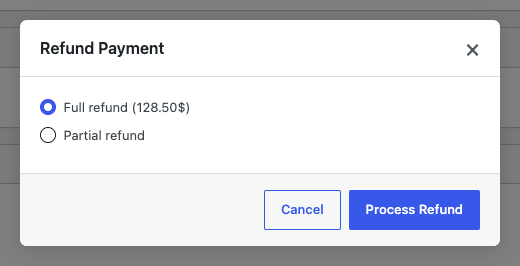
To refund only part of the payment, choose Partial refund and type the amount into the box. The window shows the Maximum you can refund, and the amount you type is checked against it — a larger amount is rejected before anything is sent to Stripe.
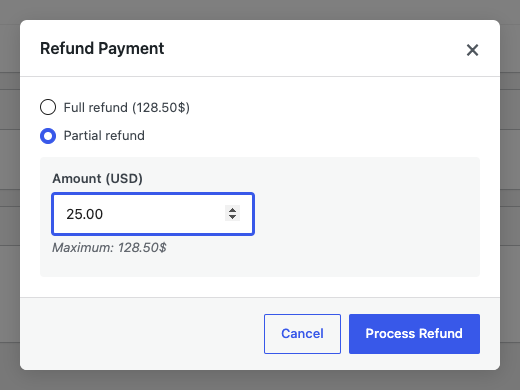
Amounts are entered in the payment’s own currency. Currencies that have no decimal places, such as JPY, are handled correctly — you enter whole units, not cents.
Step 3: Process the Refund
Click Process Refund. You are asked to confirm, because a refund cannot be undone.
On success the page reloads and you will see:
- The payment’s status updated to Refunded or Partially Refunded.
- A Refunded line in the amount breakdown, showing the total returned so far.
- A smaller remaining refundable amount in the Actions panel, if any is left.
Back on the Transactions page, the payment now appears under the Refunded status view if the whole amount was returned, or under Partially Refunded if some of it still stands.
What Can Be Refunded
A payment is refundable when all of the following are true:
- It is a one-time payment that was charged (rows that only set up a payment method, for example, cannot be refunded).
- Its status is Succeeded, or it is already Partially Refunded.
- Some of the amount has not been refunded yet.
You can only ever refund up to the amount that has not been refunded yet. A failed, canceled, incomplete or processing payment cannot be refunded, and neither can one that has already been refunded in full.
Refunds Issued in Stripe
You are not locked into refunding in one place. If you or a colleague issues a refund directly in the Stripe Dashboard, WP Simple Pay picks it up on its own: an hourly background check asks Stripe about payments whose refund state could still have changed, and updates the local record to match.
So the two stay in sync either way. A refund made in Stripe shows up on the Transactions page within the hour, with the right status and refunded total.
What the Customer Sees
The refund goes back to the original payment method — the same card or bank account the customer paid with. Neither WP Simple Pay nor Stripe can send it somewhere else.
How long that takes is up to Stripe and the customer’s bank, and it varies by payment method and country. It is not instant. For current expectations, see Stripe’s refund documentation.
If you have the Payment Refunded Confirmation email enabled under WP Simple Pay > Settings > Emails, the customer is emailed about the refund as well. See How to Configure Email Settings for how to turn it on.
Frequently Asked Questions
Can a refund be reversed or undone?
No. Once a refund is sent to Stripe it cannot be canceled or pulled back, which is why WP Simple Pay asks you to confirm first. If you refunded the wrong amount, the only remedy is to ask the customer to pay again.
What happens if the refund fails at Stripe?
The refund window shows the error Stripe returned and nothing is changed locally: the payment keeps its status and its refunded total, and you can try again. The most common causes are a missing secret key for the payment’s mode and a payment that Stripe no longer considers refundable.
Can I refund the same payment more than once?
Yes. You can issue several partial refunds against one payment, and each one adds to the refunded total. The remaining refundable amount shrinks each time, and once it reaches zero the payment is fully refunded and the Actions panel stops offering a refund.
Why is the refund control missing, or showing an upgrade prompt?
If there is no Actions panel at all, the payment is not refundable — check its status and whether it has already been refunded in full against What can be refunded above. If the panel is there but offers Upgrade to Professional, the payment is refundable and your license is the only thing in the way: refunds from this page need a Professional license or higher.
Does refunding here also cancel the subscription?
No. A refund only returns money for that one payment. It does not cancel, pause or otherwise change a subscription, and future renewals will still be charged. To stop a subscription, cancel it on the Subscriptions page or in the Stripe Dashboard, as a separate step.
Can I refund a recurring payment?
The Transactions page lists one-time payments. Recurring payments live on the Subscriptions page, and are refunded from the Stripe Dashboard. A refund made there is reconciled back to the site on the hourly check like any other.
Do I get my Stripe processing fees back?
That is Stripe’s policy, not the plugin’s, and it depends on your account and the payment method. Check Stripe’s refund documentation for what is returned to you.
What’s Next?
- How to Use the Transactions Page — browse, search, filter and export your payments, and read a payment’s full detail view.
- How to View Payment Details in Stripe — the same payment as Stripe shows it.
- How to Configure Email Settings — enable the Payment Refunded Confirmation email.
Still have questions? We're here to help!
Last Modified: