
How to Add and Configure Coupons
In This Document
Reading time: 4 minutes | Difficulty: Beginner
Overview
Coupons let your customers take a percentage or fixed amount off a payment. You create and manage them in WP Simple Pay → Coupons, where your existing coupons are also listed. WP Simple Pay creates a matching coupon in Stripe for each one and keeps the two in sync.
Prerequisites
- WP Simple Pay Pro
- A payment form to add the Coupon field to
Step 1: Create a Coupon
Go to WP Simple Pay → Coupons and click the Add New button at the top of the screen.
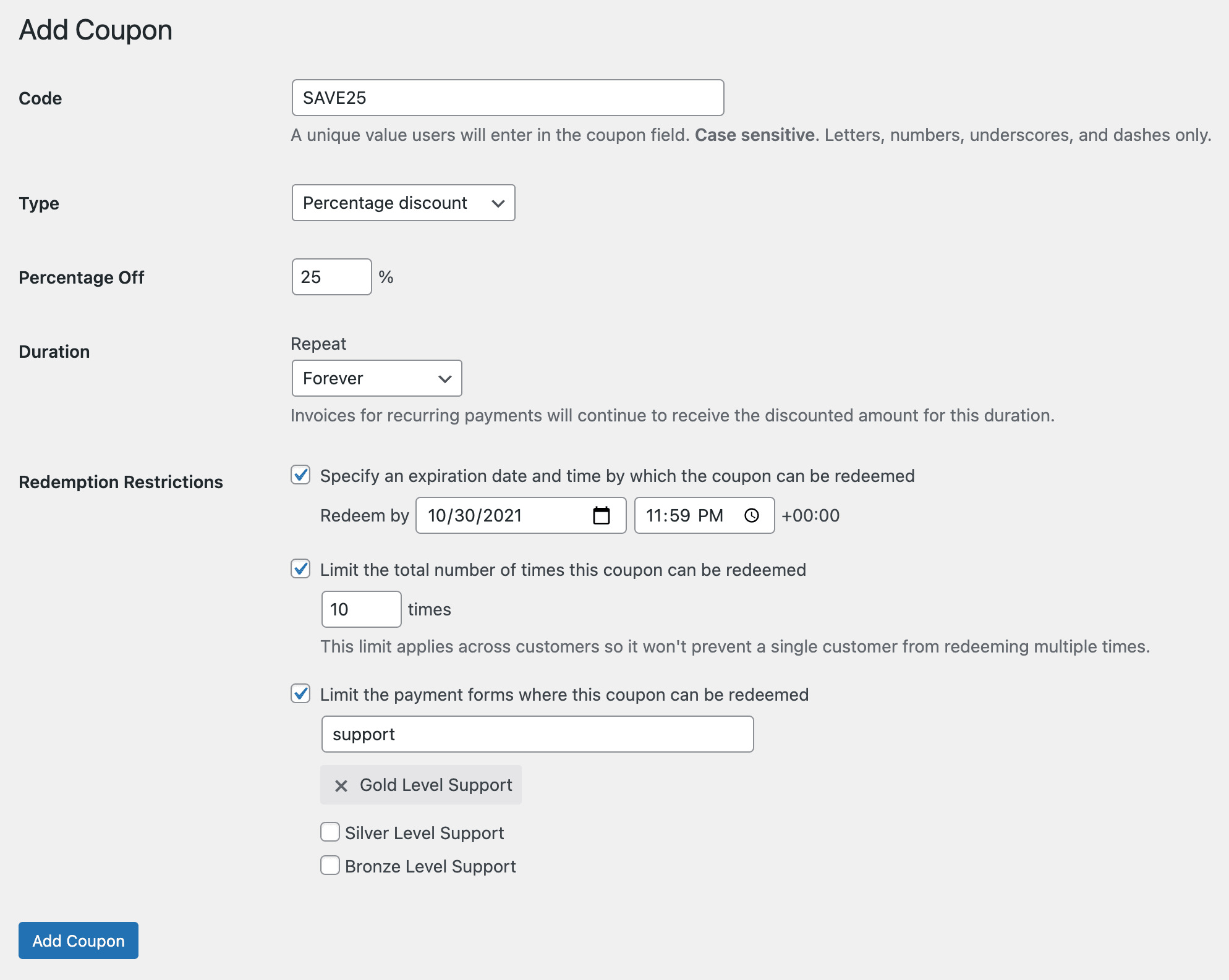
| Code | A unique value users will enter in the coupon field. Letters and numbers only. Codes are not case-sensitive (see below). |
| Type | Choose whether your coupon is a percentage discount or a fixed amount discount. |
| Percentage / Amount Off | Enter the percentage off or the currency and discount amount for your coupon. For one-time payments, the amount off cannot bring the total value down to < 0.50. For recurring payments we do allow 100% off coupons. |
| Duration | Set the duration of your coupon to Forever, Once, or Multiple Months. Invoices for recurring payments will continue to receive the discounted amount for this duration. |
| Redemption Restrictions | Optionally set the following: – Specify an expiration date and time by which the coupon can be redeemed. – Limit the total number of times this coupon can be redeemed – Limit the payment forms where this coupon can be redeemed |
Coupon Codes Are Not Case-Sensitive
Customers can type a coupon code in any capitalization. A coupon saved as SAVE10 is accepted whether the customer enters SAVE10, save10, or Save10, and it is always the coupon you created that is redeemed in Stripe.
You only need one coupon per code. If you try to add a code that differs from an existing one only by capitalization, WP Simple Pay shows a notice explaining that the existing coupon already matches it, and doesn’t create a duplicate.
Step 2: Add the Coupon Field
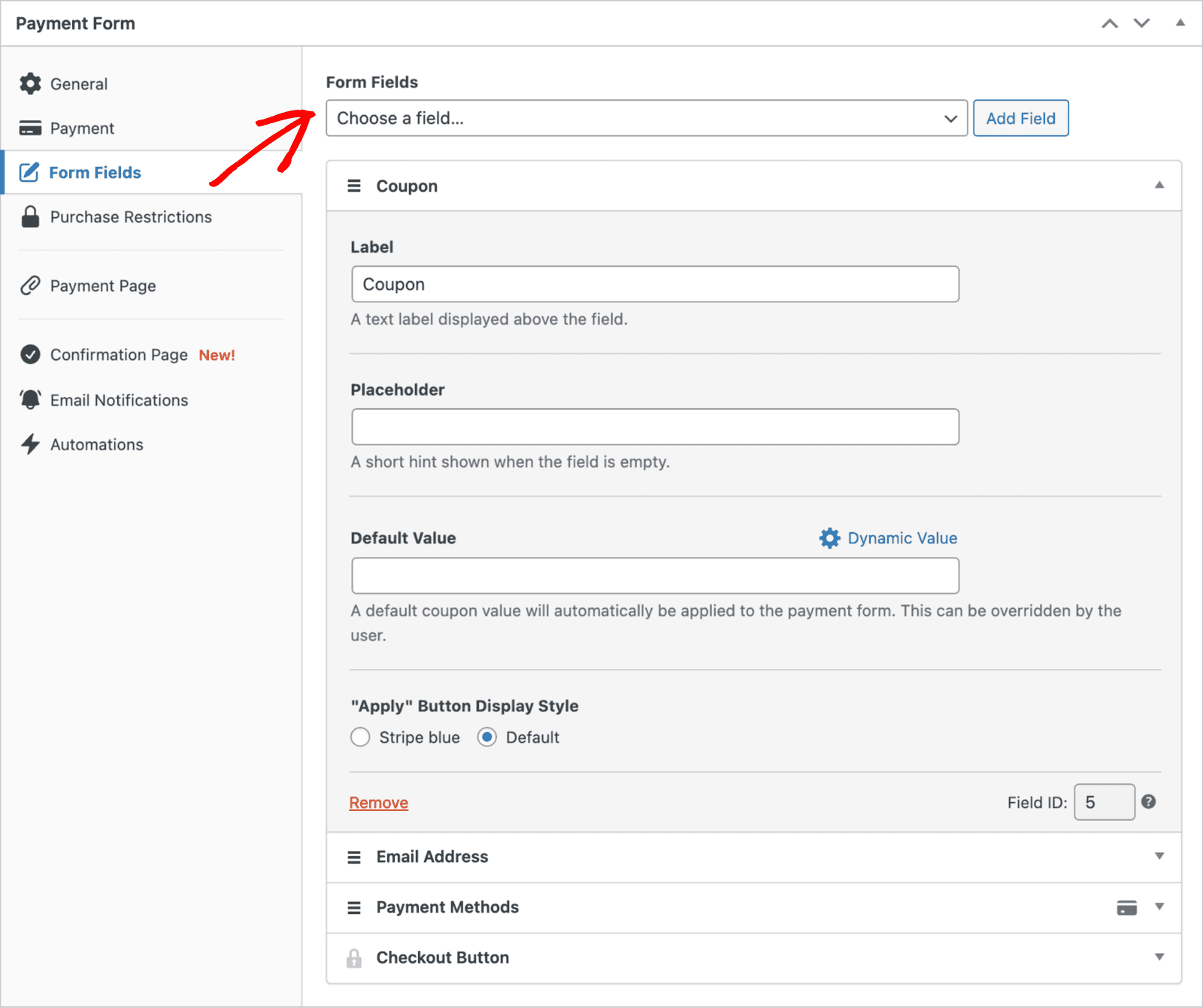
To let your payment form accept a coupon, go to the Form Fields tab of the form builder and add the Coupon field where you want it.
Importing a Coupon That Already Exists in Stripe
If your WP Simple Pay coupon records were lost, for example after a database restore, a site migration, or a reinstall, the coupons may still exist in your Stripe account. You can bring them back without changing anything in Stripe.
- Go to WP Simple Pay → Coupons → Add New.
- Enter the coupon’s code and fill in the form. If you want the coupon to be limited to certain payment forms, select them now.
- Click Add Coupon.
If a coupon with that code already exists in Stripe and was created by WP Simple Pay on this site, you are returned to the Coupons list with a notice offering to import it. The notice shows the coupon’s terms as they are in Stripe (for example, “30% off once”).

- Click Import Coupon.
The coupon is added to your Coupons list with its settings from Stripe. Any payment form restrictions you selected are kept. Nothing is changed in Stripe.
Which Coupons Can Be Imported
Since WP Simple Pay 4.17.5, every new coupon is tagged in Stripe with the site that created it. Only coupons tagged with your current site can be imported. If the coupon was created on another site, created before 4.17.5, or created directly in the Stripe dashboard, there is no import offer and you see the usual message that the coupon already exists. In that case, delete the coupon in Stripe and add it again in WP Simple Pay.
If your site’s domain has changed since the coupon was created, a developer can use the simpay_coupon_site_domain filter to match the old domain.
Coupons Created Outside of WP Simple Pay
Coupons previously created in the Stripe dashboard can still be applied to payment forms, even though they don’t appear in the WP Simple Pay admin. Always create new coupons in WP Simple Pay, as described above, so that redemption restrictions are respected and automatic payment mode syncing happens.
Frequently Asked Questions
Do I need separate uppercase and lowercase versions of a coupon?
No. Since WP Simple Pay 4.17.5, one coupon matches its code in any capitalization.
Does importing a coupon reset how many times it has been redeemed?
No. Importing doesn’t change the coupon in Stripe, so its terms and its redemption history in Stripe stay as they are.
What’s Next?
- How to Configure a Payment Form’s Fields and Collect Custom Data – Add the Coupon field and other fields to your form
- How to Resolve the ‘Coupon security check failed’ Error – Troubleshoot coupon errors
Still have questions? We're here to help!
Last Modified: