
How to Use the Notification Inbox
In This Document
- 1 Overview
- 2 Prerequisites
- 3 Where to Find the Inbox
- 4 Reading Notifications
- 5 Dismissing Notifications
- 6 Empty Inbox
- 7 Frequently Asked Questions
- 7.1 Will the inbox spam me with promotional messages?
- 7.2 Can I disable the Notification Inbox entirely?
- 7.3 Do notifications appear for all admin users?
- 7.4 Are notifications sent via email?
- 7.5 Why does the unread badge persist after I read a notification?
- 7.6 How long do notifications stay active?
- 7.7 Can I forward a notification to a colleague?
- 8 What’s Next?
Reading time: 3 minutes | Difficulty: Beginner
Overview
The Notification Inbox is WP Simple Pay’s in-plugin messaging system. It surfaces important, time-sensitive information directly inside your WordPress admin so you don’t miss it amid the flood of WordPress dashboard notices. Examples of what shows up here:
- License expiration warnings and renewal reminders
- Important plugin updates and security advisories
- New feature announcements with quick-action buttons
- Recommendations based on your store activity (e.g., suggesting CAPTCHA after fraud declines)
- Time-limited promotional offers
Notifications are created by WP Simple Pay and don’t share data about your store with third parties. The inbox is local to your site — what you see is what was published for your specific plugin version, license tier, and configured features.
Prerequisites
- WP Simple Pay (any tier)
- WordPress admin access (
manage_optionscapability)
Where to Find the Inbox
The Notification Inbox is accessible from two places:
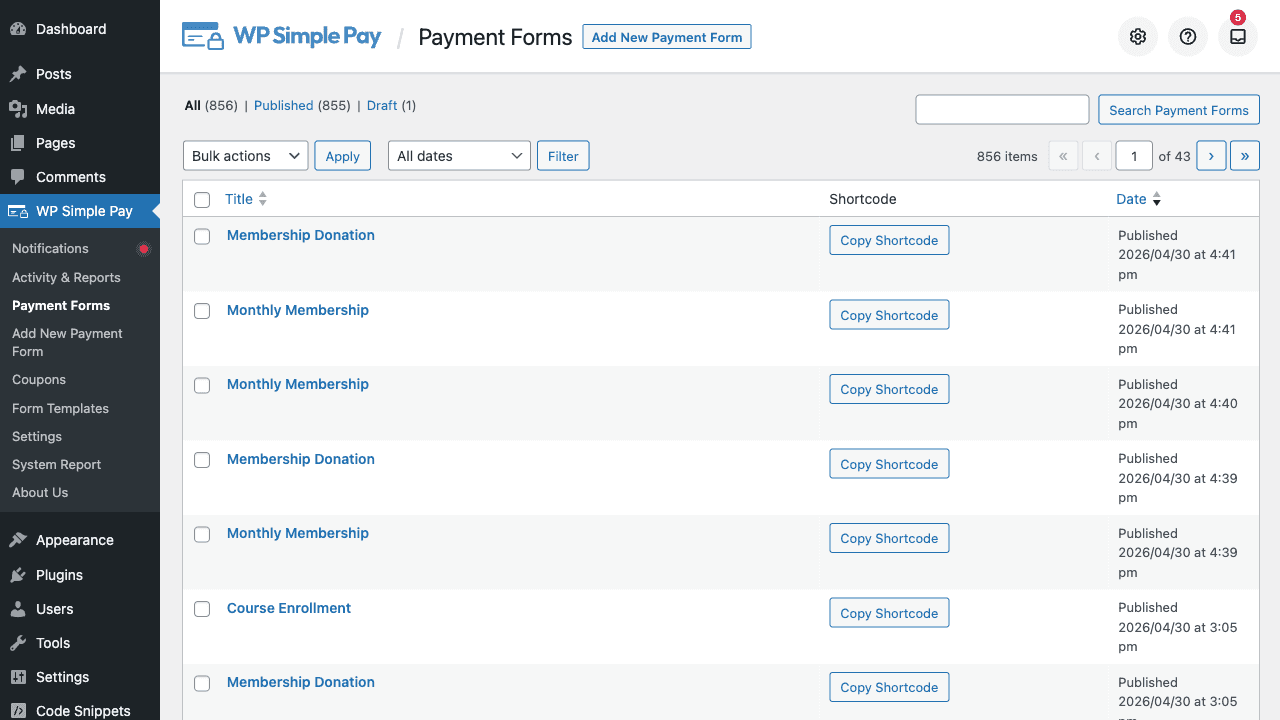
- The notification bell icon in the WP Simple Pay admin branding bar — the colored ring at the top of every WP Simple Pay screen. A red dot on the bell indicates unread notifications, with a number showing how many.
- The Notifications submenu item under the main WP Simple Pay menu. The menu label includes a small indicator dot when unread items exist.
Click either entry point to slide open the inbox panel.
Reading Notifications
The inbox lists all active notifications, sorted with the most recent at the top. Each notification includes:
- Title — Short headline
- Body — A few sentences of detail
- Date — When the notification was published
- Action button(s) — Optional links to act on the notification (renew license, view docs, install a plugin, etc.)
Click a notification’s action button to follow its primary call-to-action. Most actions either deep-link to a relevant settings screen or open external pages (license renewal, documentation, etc.).
Dismissing Notifications
Each notification has a small × dismiss button in its top-right corner. Clicking it removes the notification from your inbox permanently — it won’t reappear unless WP Simple Pay re-publishes it for a new reason.
There’s no undo for dismissals. If you dismiss something important and need to find it again, the underlying setting or feature is still accessible through the regular admin menu.
Empty Inbox
If you have no active notifications, the inbox shows an empty state message. This is normal — most stores have an empty or near-empty inbox most of the time. Notifications are reserved for genuinely useful information, not generic marketing.
Frequently Asked Questions
Will the inbox spam me with promotional messages?
No. WP Simple Pay deliberately limits notifications to license-related, security-related, and high-value feature/use-case announcements. You won’t see daily marketing messages.
Can I disable the Notification Inbox entirely?
Developers can disable it programmatically with the simpay_use_notification_inbox filter, returning false. Most users should leave it enabled — it’s the channel WP Simple Pay uses to alert you about license expirations and other things you don’t want to miss.
add_filter( 'simpay_use_notification_inbox', '__return_false' );Do notifications appear for all admin users?
Notifications are evaluated based on the current admin user’s capabilities. The inbox itself requires the manage_options capability — typically administrators only. Editors, authors, and lower-privilege users don’t see the inbox.
Are notifications sent via email?
No. Notifications appear in the inbox only. For transactional email notifications (payments, refunds, subscription cancellations), see Email Types Reference.
Why does the unread badge persist after I read a notification?
Reading a notification doesn’t automatically mark it as dismissed. To clear the unread badge, dismiss notifications individually using the × button on each item.
How long do notifications stay active?
Each notification has a server-side expiration. Time-limited notifications (e.g., promotional offers) automatically disappear after their end date. Static notifications (license expiration warnings, security advisories) remain until you dismiss them or the underlying condition is resolved.
Can I forward a notification to a colleague?
Notifications aren’t user-shareable from inside the inbox. If you need a colleague to act on something, copy the title and body manually or send them the link the action button points to.
What’s Next?
- How to Activate Your WP Simple Pay Pro License – Resolve license-expiration notifications
- Email Types Reference – Configure transactional email notifications instead
Still have questions? We're here to help!
Last Modified: