
How to Configure an Advanced Stripe Webhook Setup
In This Document
This document contains advanced setup options that are not needed for most sites.
See our standard webhook documentation for basic setup.
Webhooks allow Stripe to send messages back to your WordPress site. Setting up webhooks is required for some functionality of WP Simple Pay such as sending emails, creating installment plans, allowing customers to update their subscription payment details, and using its integration with AffiliateWP.
If a Webhook Is Missed
A webhook that never arrives is no longer permanent. Once an hour WP Simple Pay checks Stripe for records it may have missed and brings them into line: checkouts that completed while the customer never returned to your site, payments that succeeded or were canceled later, and refunds or chargebacks applied straight from the Stripe Dashboard. A payment that used to sit as a pending placeholder resolves on its own.
You should still set up webhooks properly, since the hourly check runs after the fact and anything that depends on an immediate response (emails, installment plans) needs the live event. But you don’t have to hunt down a single dropped event by hand. You can confirm the result on Payment Forms > Transactions — see How to Use the Transactions Page.
Adding the Webhook Endpoint
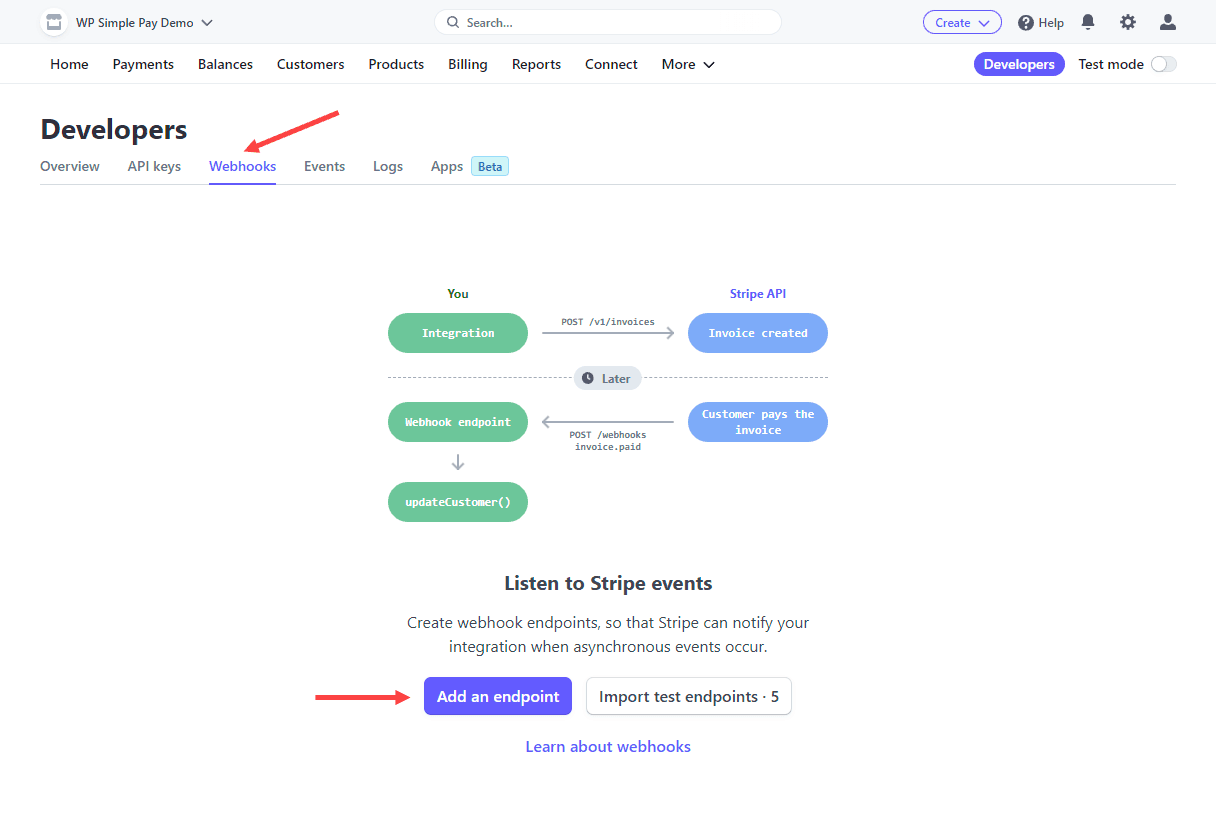
To add the appropriate webhook endpoints, in your Stripe Dashboard, go to Developers → Webhooks.
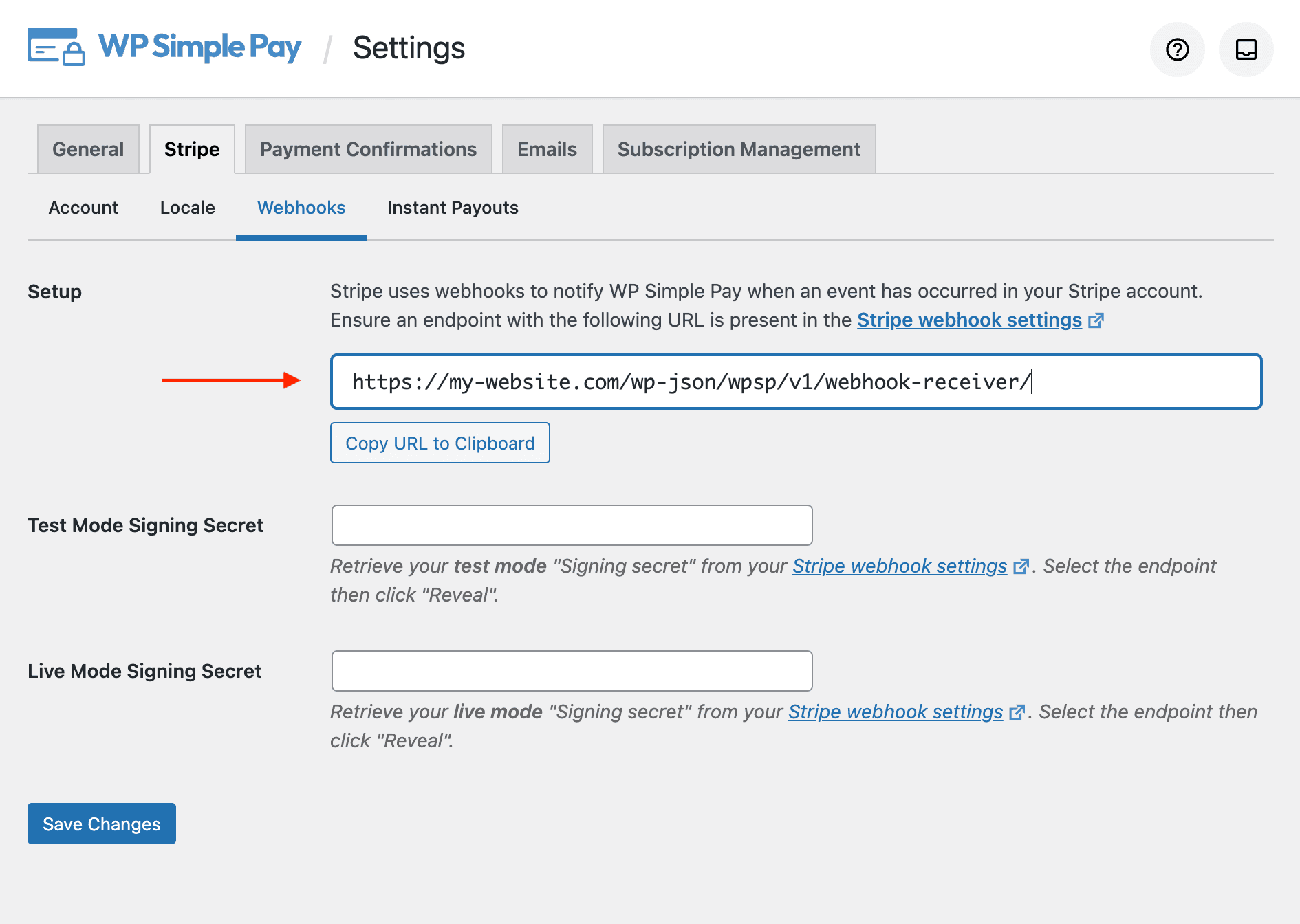
Click Add Endpoint, then add the URL found in WP Simple Pay → Settings → Stripe → Webhooks.
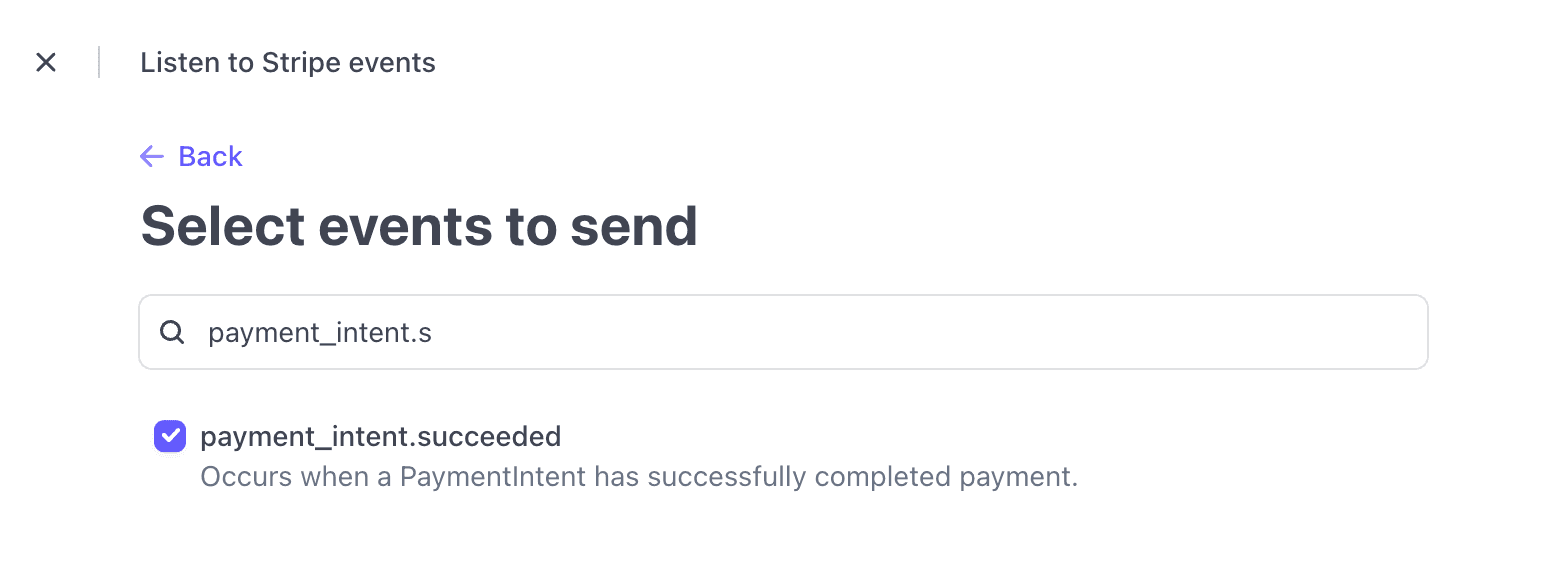
You now will need to add the specific events to listen to by clicking the button labeled +Select events. After doing that, you can copy and paste each event listed below into the Select events to send → Search events search box.
After searching each term, click the checkbox to add it, and the search additional terms. Do not click Add events until you’ve checked all events listed below:
**charge.failed**charge.refundedcharge.succeededcheckout.session.completedinvoice.payment_succeededinvoice.upcomingpayment_intent.processingpayment_intent.succeededcustomer.subscription.deletedcustomer.subscription.updatedcharge.dispute.createdcharge.dispute.closed
Details about the functionality of each of these events is shown at the bottom of this document.
When you’re done adding events, click Add endpoint to complete the process. After you add the endpoint, you should see the new URL listed in the webhooks settings.
Configuring the Webhook Signing Secret
Stripe can sign the webhook events it sends to your endpoints for added security, and we strongly recommend that you set this up.
To do so, retrieve your endpoint’s secret from your Dashboard’s webhooks settings. Select an endpoint for which you want to obtain the secret, then click the Reveal button.
Then copy the signing secret from the Stripe Dashboard, head back to the Stripe Setup tab in your WP admin, then paste it into the Endpoint Secret text box for the current payment mode.
Your webhooks are now set up and secure.
Currently, WP Simple Pay utilizes the following events:
Event Type Descriptions
invoice.payment_succeeded
- Used to increment installment plans and send “Payment Confirmation” and “Payment Notification” emails for Subscriptions.
- Exposes the
simpay_webhook_subscription_createdaction for further processing after a successful Subscription.
**payment_intent.succeeded
**
- Sends the “Payment Confirmation” and “Payment Notification” emails for one-time payments.
- Exposes the
simpay_webhook_payment_intent_succeededaction for further processing after successful payment
**charge.succeeded
**
- Sends the “Payment Confirmation” and “Payment Notification” emails for one-time payments using ACH Debit.
- Exposes the
simpay_webhook_charge_succeededaction for further processing after successful payment
invoice.upcoming
- Sends the “Upcoming Invoice” email reminder for updating a Payment Method. Learn more
checkout.session.completed
- Used to remove generated abandoned Stripe Checkout records.
- Exposes the
simpay_webhook_checkout_session_completedaction for further processing if needed.
plan.updated
- Used to ensure the list of Subscription Plans is up-to-date when configuration Subscription Options.
**charge.failed**
- Exposes the
simpay_webhook_charge_failedaction for further processing after a Charge fails.
charge.dispute.created
- Marks the matching payment as disputed while a chargeback stands, so it shows under the Disputed view on the Transactions page. Requires WP Simple Pay Pro.
- Exposes the
simpay_webhook_charge_dispute_createdaction for further processing when a chargeback is opened.
charge.dispute.closed
- Restores the payment’s previous status when the dispute closes in your favour, whether it was won, closed as an inquiry, or prevented by Stripe. A payment that was partially refunded goes back to partially refunded rather than plain succeeded. A lost dispute stays disputed, since the funds really have been withdrawn. Requires WP Simple Pay Pro.
- Exposes the
simpay_webhook_charge_dispute_closedaction for further processing when a chargeback closes.
Still have questions? We're here to help!
Last Modified: