
How to Use the Automations Tab
In This Document
Reading time: 4 minutes | Difficulty: Beginner
Overview
The Automations tab in the form builder lets you connect a payment form to Uncanny Automator, a workflow plugin that wires WP Simple Pay events to actions in 150+ other apps and plugins. When a customer completes a payment, Automator can send a Slack notification, add the customer to a Mailchimp list, append a row to a Google Sheet, create a WordPress user, send a webhook — and dozens of other actions, all without writing code.
The Automations tab itself doesn’t run automations. It’s a launchpad: search the available integrations, then jump straight to Uncanny Automator’s recipe builder pre-scoped to the form you’re editing.
Prerequisites
- WP Simple Pay (any tier — the Automations tab ships with the free plugin)
- A WordPress installation where you can install plugins
Step 1: Open the Automations Tab
- Navigate to WP Simple Pay > Payment Forms and edit the form you want to automate.
- Click the Automations tab in the form editor.
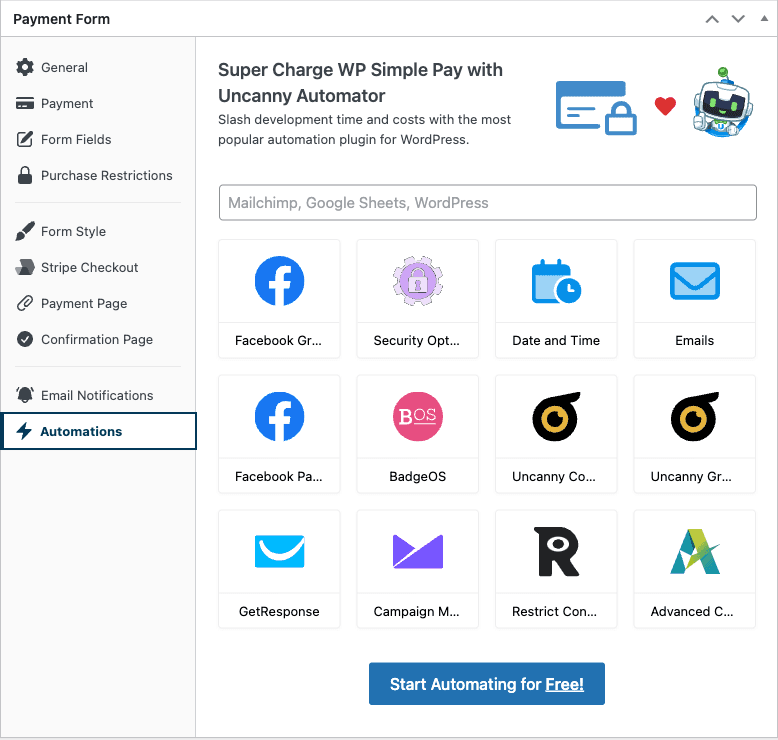
If Uncanny Automator is not installed, the tab shows a primary call-to-action — Start Automating for Free! — that installs the free version of Uncanny Automator from WordPress.org with one click.
If Uncanny Automator is installed, the call-to-action changes to Automate this Payment Form and links directly into Automator’s recipe builder.
Step 2: Browse Available Integrations
The tab includes a searchable grid of every integration Uncanny Automator currently supports. Type into the Search available integrations box to filter — try Mailchimp, Google Sheets, or Slack — and the grid narrows in real time.
Clicking any integration tile opens Uncanny Automator’s recipe screen so you can build an automation that uses that integration as the action.
Step 3: Build a Recipe
Once Uncanny Automator is installed and you’ve clicked Automate this Payment Form, you’ll be inside Automator’s recipe builder. The general flow is:
- Choose a Trigger — pick a WP Simple Pay trigger such as A user completes a payment.
- Select the specific payment form (or “any form”).
- Choose an Action — for example, “Add the user to a Mailchimp audience” or “Send a message to a Slack channel”.
- Map fields from the payment (customer name, email, amount, form metadata) to fields in the action.
- Publish the recipe.
From the moment a recipe is live, every matching payment on your site fires the configured action automatically.
Common Use Cases
- Email marketing — Add paying customers to a Mailchimp, ConvertKit, or ActiveCampaign list.
- Spreadsheets — Append a row to a Google Sheet for every successful payment.
- Team notifications — Post to Slack, Microsoft Teams, or Discord when a payment is received.
- CRM updates — Create or update a contact in HubSpot, Pipedrive, or Salesforce.
- WordPress user creation — Register a WordPress user account after a course or membership payment.
- Webhook fan-out — Send the payment payload to a custom endpoint without writing PHP.
Frequently Asked Questions
Is Uncanny Automator required to use WP Simple Pay?
No. Uncanny Automator is optional. The Automations tab is a convenience for users who want no-code automations. WP Simple Pay also exposes Stripe webhooks and PHP/JS hooks for developers who prefer to wire integrations directly.
Does the Automations tab cost extra?
The Automations tab is part of WP Simple Pay at no additional cost. Uncanny Automator itself has both a free and a paid tier — most simple recipes work on the free tier, while advanced apps and unlimited credits require the Pro version.
How is this different from the 3rd Party Integrations menu?
The Integrations documentation category covers compatibility with page builders, membership plugins, and other site-level tools. The Automations tab is specifically about Uncanny Automator’s no-code recipe system, which lives inside the form editor and is scoped to a single form.
Can I connect to Zapier or Make instead?
Uncanny Automator is the integration shipped in the Automations tab. To use Zapier, Make, or Pabbly, configure them via Stripe webhooks or via the platform’s WordPress connector.
Why is the integration list shuffled every time I open the tab?
The list is randomized to surface different integrations on each visit and help you discover options you might not have searched for. Use the search box to find a specific integration directly.
What’s Next?
- How to Configure a Payment Form’s General Settings – Configure the rest of the form
- Email Notifications Reference – Use built-in emails alongside automations
Still have questions? We're here to help!
Last Modified: