
How to Customize Email Subjects Per Form
In This Document
Reading time: 3 minutes | Difficulty: Beginner
Overview
WP Simple Pay sends email notifications when payments are completed — a Payment Receipt to the customer and a Payment Notification to the site administrator. By default, these emails use the subject lines configured in your global email settings.
You can override the email subject on individual payment forms. This is useful when different forms serve different purposes and you want each to send contextually relevant emails. For example, a donation form could send “Thank you for your donation!” while a course registration form sends “Your enrollment confirmation.”
Prerequisites
- WP Simple Pay Pro (any tier)
- Email notifications enabled in WP Simple Pay > Settings > Emails
Step 1: Set a Custom Receipt Subject
The payment receipt is the email sent to your customer after a successful payment.
- Navigate to WP Simple Pay > Payment Forms and edit the form.
- Click the Email Notifications tab.
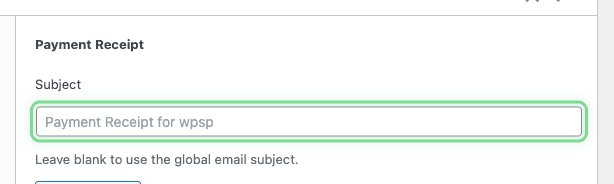
- In the Payment Receipt section, find the Email Subject field.
- Enter your custom subject line. The placeholder text shows the current global default for reference.
- Click Publish or Update to save the form.
Step 2: Set a Custom Notification Subject
The payment notification is the email sent to you (the site administrator) when a payment is received.
- Navigate to WP Simple Pay > Payment Forms and edit the form.
- Click the Email Notifications tab.
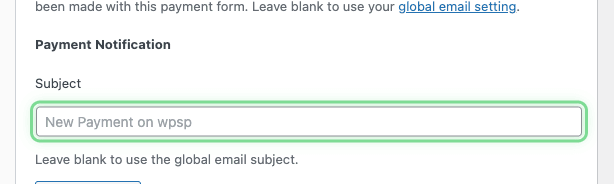
- In the Payment Notification section, find the Email Subject field.
- Enter your custom subject line.
- Click Publish or Update to save the form.
How the Fallback Works
When you leave a per-form email subject field empty, the form automatically uses the global email subject configured in WP Simple Pay > Settings > Emails.
This means you only need to set per-form subjects where you want them to differ from the global default. All other forms continue using the global setting without any additional configuration.
A link to your global email settings is shown beneath the subject field for quick reference.
Frequently Asked Questions
Can I use smart tags in the subject line?
Yes. You can use any smart tags supported by WP Simple Pay in your email subject lines, such as {form-title}, {customer-name}, or {total-amount}. See Using Smart Tags for a full list.
Does this override apply to all email types?
Currently, per-form subject overrides are available for the Payment Receipt (customer email) and Payment Notification (admin email). Other email types such as subscription cancellation or upcoming invoice emails continue to use the global subject settings.
What happens if I clear a previously set subject?
The form will revert to using the global default subject. Simply remove the text from the subject field and save the form.
Where do I change the global email subject?
Navigate to WP Simple Pay > Settings > Emails and select the email type you want to configure. See Email Settings and Notifications for more details.
What’s Next?
- Email Settings and Notifications – Configure global email settings
- Using Smart Tags – Use dynamic content in email subjects and bodies
Still have questions? We're here to help!
Last Modified: