
How to Use Form Templates
In This Document
Reading time: 4 minutes | Difficulty: Beginner
Overview
Form Templates are pre-built starting points for new payment forms. Instead of building a form from a blank slate, you can clone any of 80+ templates that ship with WP Simple Pay and customize from there. Templates cover the most common use cases — recurring donations, subscription services, event registration, product purchases, fundraising drives — and arrive pre-configured with the right field types, payment methods, and styling for that scenario.
If your form will resemble any common pattern, starting from a template will save you 5–15 minutes per form and reduce the chance of forgetting an important field (e.g., omitting the Amount Breakdown field on a tax-collecting form).
Prerequisites
- WP Simple Pay (any tier — many templates require Pro)
- Stripe connected (see Stripe Setup)
Step 1: Open the Form Templates Page
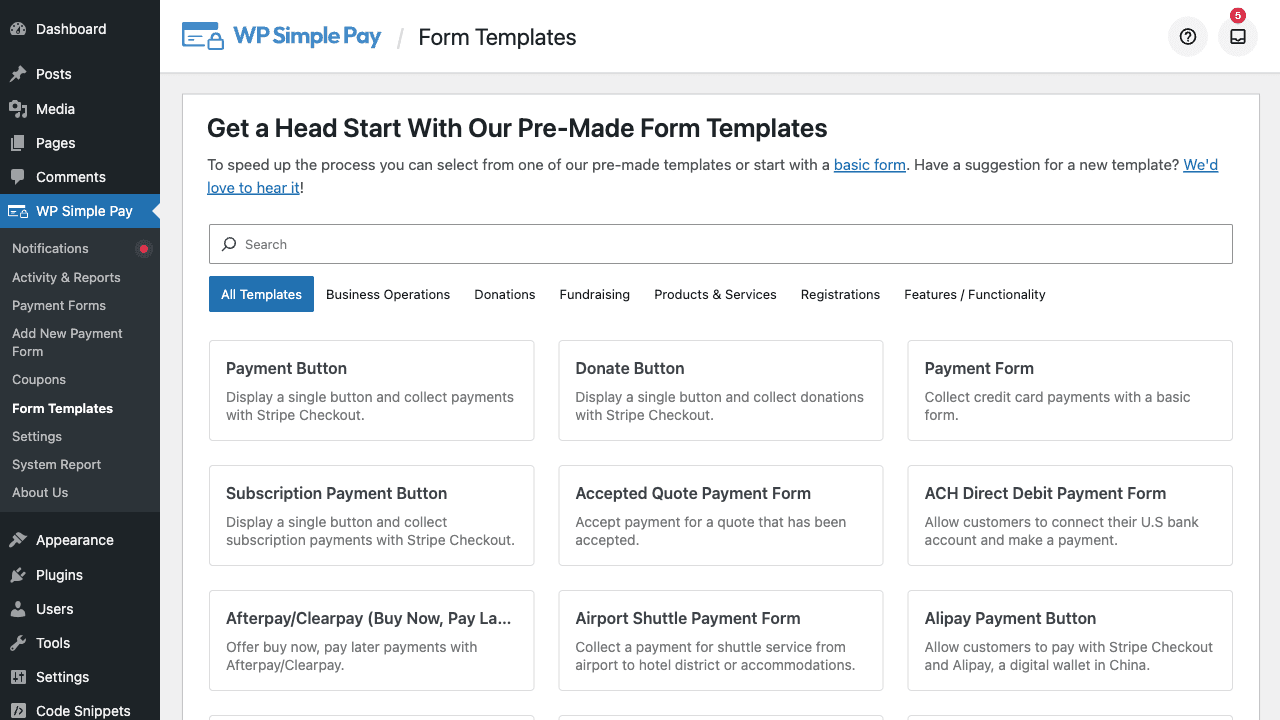
Navigate to WP Simple Pay > Form Templates in your WordPress admin menu. The page displays a grid of all available templates, each with a thumbnail, title, and short description.
Step 2: Browse and Filter Templates
Templates are organized into categories so you can narrow the list quickly. Common categories include:
- Donation forms — One-time, recurring, custom-amount, and fundraising templates
- Subscription forms — Service subscriptions, recurring memberships, opt-in trials
- Event registration — Race signups, tournament entries, class registrations
- Service-based — Coaching, cleaning, landscaping, professional services
- Payment buttons — Single-method buttons (Apple Pay, Google Pay, iDEAL, etc.)
- Region-specific — SEPA, ACH, Bacs, Bancontact, Przelewy24, Klarna, Afterpay/Clearpay
Use the search box at the top of the page to filter by keyword (e.g., type donation, subscription, tuition, or a payment method name like Klarna).
Templates that require a higher license tier than your current one are still visible but display an upgrade prompt. Templates marked New! were added in recent releases.
Step 3: Preview a Template
Hover over a template card and click Preview to see what the resulting form will look like. The preview shows the full rendered form — title, description, fields, payment methods, and submit button — so you can decide whether the structure fits your needs before committing.
Step 4: Use a Template
When you’ve found the right template:
- Click Use Template on the template card.
- WP Simple Pay creates a new draft payment form pre-populated with the template’s settings.
- The form editor opens immediately so you can customize.
The newly created form is a fully independent copy — editing it does not affect the original template, and you can use the same template multiple times to create variations.
Step 5: Customize Your New Form
Treat the cloned form like any other:
- General tab — Update the form title and description.
- Payment tab — Adjust prices to your actual amounts.
- Form Fields tab — Add or remove fields (see Custom Field Types Reference).
- Form Style tab — Apply your brand colors (see How to Style Your Payment Forms with Form Style).
- Confirmation Page tab — Choose where customers land after paying (see How to Configure the Confirmation Page Tab).
Click Publish when ready, and embed the form on a page using the Payment Form Block or the shortcode.
When to Use a Template vs. Start from Scratch
| Scenario | Recommendation |
|---|---|
| First time building any payment form | Use a template — even if it’s not a perfect fit |
| Standard donation, subscription, or product form | Use a template |
| Highly bespoke flow with unusual field combinations | Start from scratch (or template + heavy customization) |
| Region-specific payment method as the primary trigger | Use the matching method-specific template |
| Reproducing an existing form’s structure | Use the duplicate-form action on the existing form |
Frequently Asked Questions
Will using a template overwrite my existing forms?
No. Each template creates a brand new form. Your existing forms are untouched.
Can I create my own templates?
Custom templates aren’t user-creatable from the admin UI in the current release. To reuse a structure across multiple forms, duplicate an existing form: navigate to WP Simple Pay > Payment Forms, hover the form, and click Duplicate.
Why does a template I want require an upgrade?
Some templates use Pro-only features (subscriptions, custom fields, taxes, fee recovery, advanced payment methods). The plugin will tell you which license tier you need before letting you create the form.
Can I delete a template?
Built-in templates can’t be deleted — they’re part of the plugin’s data files and serve as defaults for all users. They don’t take up space in your database; they’re loaded from JSON files only when you use one.
Do templates configure Stripe products and prices?
Templates include suggested prices, but you should always review and update them to match your actual offerings before publishing. The amounts in templates are placeholders.
Are new templates added over time?
Yes. New templates ship with most major WP Simple Pay releases. Templates added recently are flagged with a New! badge in the menu and the templates grid.
What’s Next?
- How to Create Your First Payment Form – Walkthrough using the Setup Wizard
- How to Style Your Payment Forms with Form Style – Customize the appearance after cloning
- Custom Field Types Reference – Learn what every field type does
Still have questions? We're here to help!
Last Modified: