
How to Customize Transaction Descriptions in Stripe
In This Document
Reading time: 3 minutes | Difficulty: Beginner
Overview
Every payment processed through WP Simple Pay includes a text description sent to Stripe. This description appears in your Stripe Dashboard next to each transaction, making it easier to identify what a payment was for. You can control the source of this description on a per-form basis.
Prerequisites
- WP Simple Pay Pro (any tier)
Step 1: Choose a Description Source
- Navigate to WP Simple Pay > Payment Forms and edit the form you want to customize.
- Click the General tab.
- Find the Transaction Description Source dropdown.
- Select your preferred source from the available options.
- Click Publish or Update to save the form.
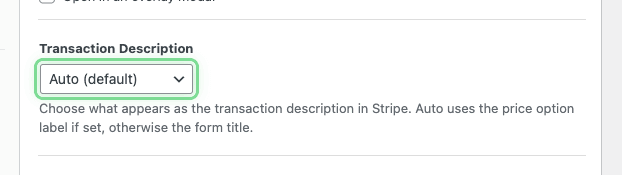
Description Source Options
Auto (Default)
Uses the price option label if one is set. If no label is configured, falls back to the payment form’s title. This is the recommended option for most use cases.
Form Title
Always uses the payment form’s title as the transaction description, regardless of any price option labels.
Form Description
Uses the payment form’s description text. If the form has no description, the description in Stripe will be empty.
Price Option Label
Uses the label from the specific price option the customer selected. This is useful when a single form offers multiple products or services and you want each transaction to clearly identify what was purchased.
Custom
Allows you to enter a custom text string that will be used for all transactions from this form.
Where the Description Appears
The transaction description is visible in several places within your Stripe account:
- Payments list in the Stripe Dashboard
- Individual payment details page
- Exported payment reports and CSV files
- Invoice line items for subscription payments
This makes it easier to search, filter, and identify payments in Stripe without needing to cross-reference your WordPress site.
Frequently Asked Questions
What description is used if I don’t change this setting?
The default behavior (Auto) uses the price option label when available and falls back to the form title. This matches how WP Simple Pay has always worked.
Can I use smart tags in the custom description?
No. The custom description is a plain text field. Smart tags are not supported in this setting.
Does this affect what customers see?
The transaction description primarily appears in your Stripe Dashboard. Customers may see it on their bank or credit card statement depending on your Stripe statement descriptor settings.
Does this work with Stripe Checkout forms?
Yes. The transaction description source setting applies to all form types, including Stripe Checkout (off-site) forms.
What’s Next?
- Stripe Dashboard Overview – Learn how to navigate your Stripe Dashboard
- Payment Options – Configure pricing tiers and payment settings
Still have questions? We're here to help!
Last Modified: