
How to Use the Subscriptions Page
In This Document
Reading time: 5 minutes | Difficulty: Beginner
Overview
The Subscriptions page lists every recurring payment your site has taken. It gives your recurring revenue the same at-a-glance view one-time payments get, including when each subscription is due to renew next, so you can answer “is this customer still paying, and when do they pay again?” without opening the Stripe Dashboard.
The page lists recurring payments only. One-time payments live on the Transactions page, covered in How to Use the Transactions Page.
Prerequisites
- WP Simple Pay Pro (any tier). Selling subscriptions is a Pro capability, so this page is only useful once you have Pro installed and at least one subscription form.
- A connected Stripe account.
The companion Transactions page is available on every tier, including the free Lite plugin. The Subscriptions page is not a substitute for it, and the two lists never show the same record.
Step 1: Open the Subscriptions Page
Navigate to Payment Forms > Subscriptions.
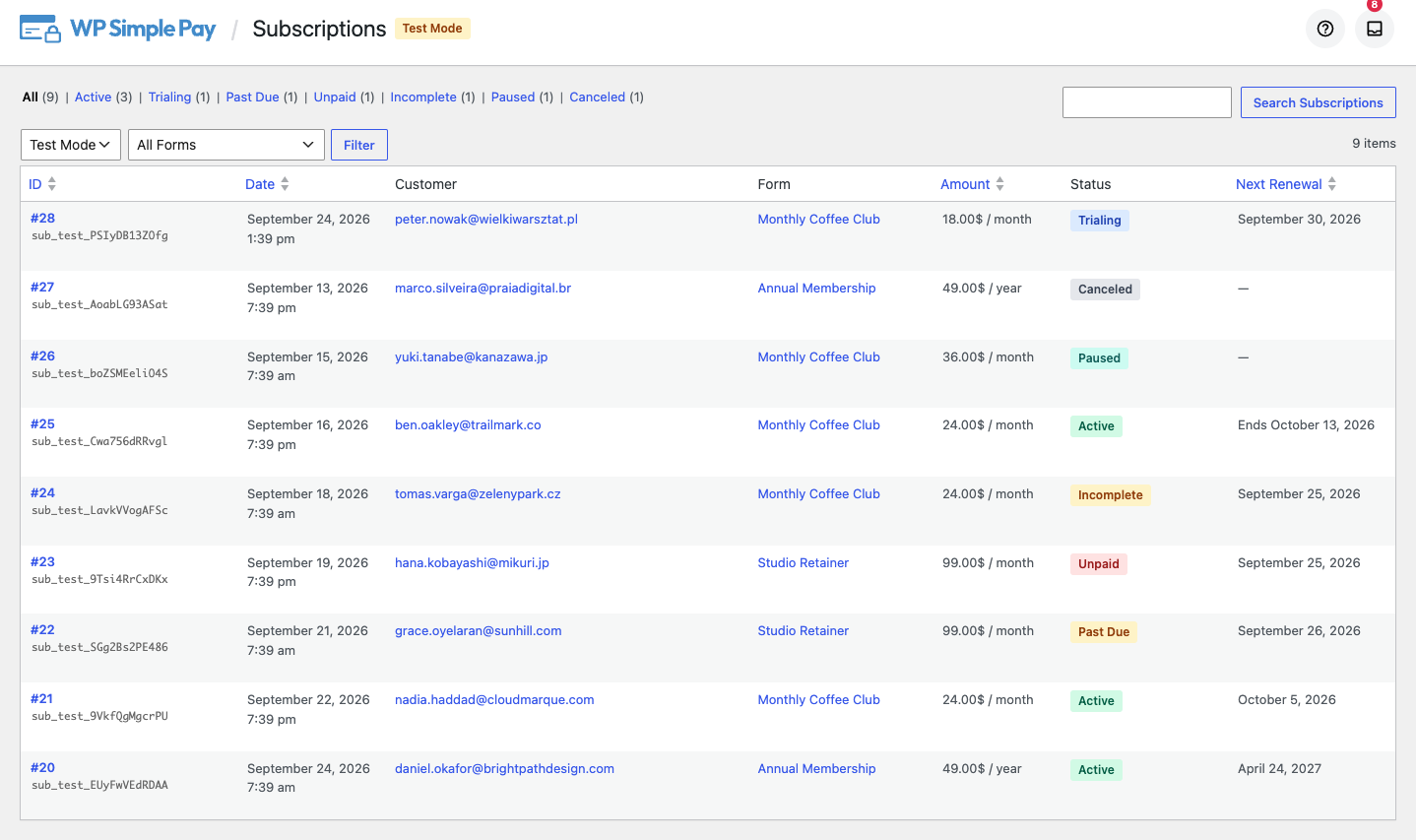
The table has seven columns:
- ID – the subscription’s local ID, which links to its detail view, with its Stripe subscription ID shown underneath.
- Date – when the subscription started.
- Customer – the customer’s email address, linked to them in your Stripe Dashboard.
- Form – the payment form the subscription came from, linked to that form’s editor.
- Amount – the recurring amount and its billing interval, for example “$24.00 / month” or “$49.00 / year”.
- Status – the subscription’s current status.
- Next Renewal – when it renews next. This column has its own section below, because it is the one most often misread.
You can sort the table by ID, Date, Amount, or Next Renewal by clicking the column heading.
Step 2: Filter the List
Status Views
The links across the top of the table are status views. Each one carries its own count, and every status a subscription can have belongs to exactly one view, so the counts always add up to All:
| View | What it means |
|---|---|
| Active | Billing normally. |
| Trialing | In a free trial, not yet billed. |
| Past Due | A renewal payment failed and Stripe is still retrying. |
| Unpaid | Stripe stopped retrying a failed renewal. |
| Incomplete | The first payment was never completed. Subscriptions whose initial payment window expired are also counted here. |
| Paused | Temporarily not billing. |
| Canceled | Ended and will not bill again. |
The counts respect whichever payment mode, payment form, and search term are active, so they always describe the list you are looking at.
Payment Mode and Payment Form
Two selectors sit above the table.

- Live Mode / Test Mode picks which set of records to show. This selector is independent of your global test mode setting. It changes only what is on screen and never touches a setting. It matters because an individual payment form can override the global mode, so live and test subscriptions can exist side by side on the same site. When you are viewing test records, a Test Mode badge appears next to the page heading.
- All Forms narrows the list to a single payment form.
Pick your options and click Filter.
Search
The Search Subscriptions box matches the customer’s email address, their Stripe customer ID, and the Stripe subscription ID. Searching keeps the payment mode, form, and status view you already had selected.
Step 3: Read the Next Renewal Column
Next Renewal is the column most likely to be misread, so it is worth being precise about. It shows one of three things.
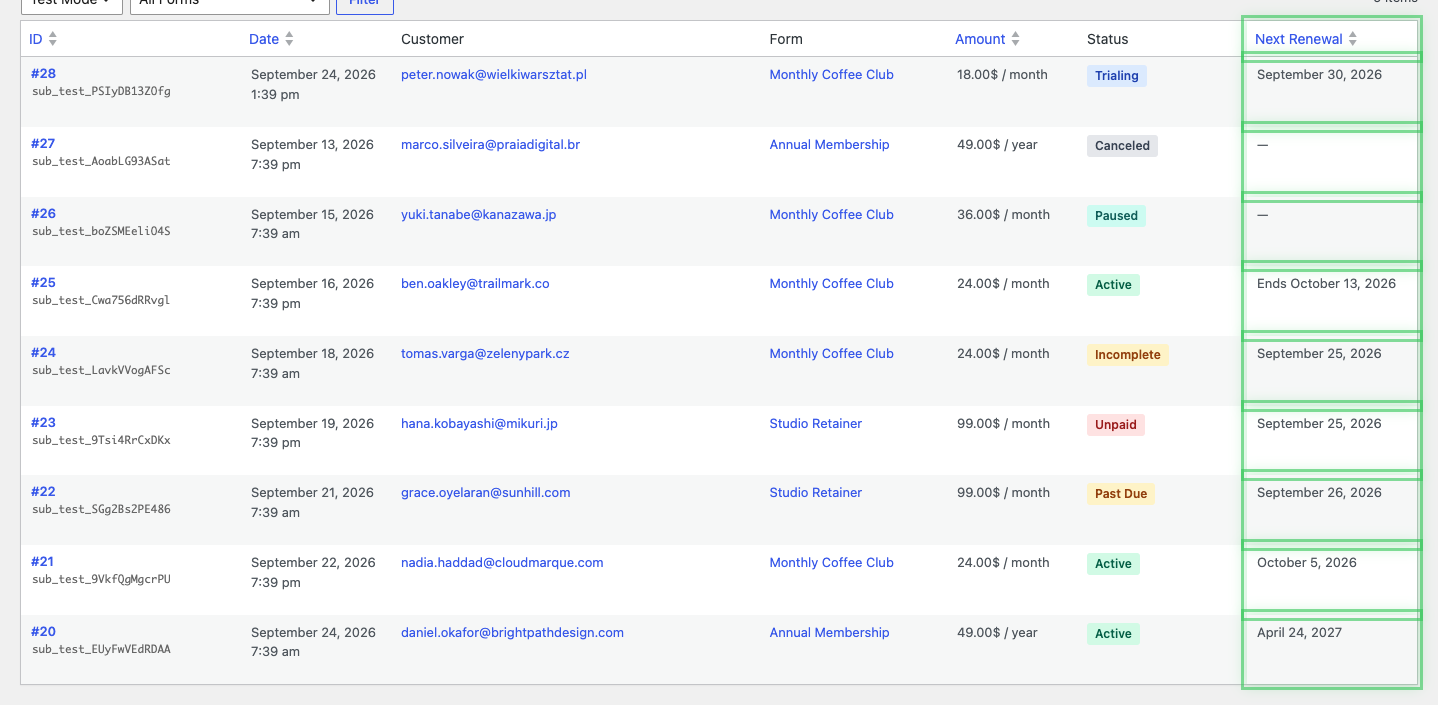
- A plain date. The subscription renews on that date and will be billed again.
- “Ends” followed by a date. The subscription is still running, but it is set to stop at the end of the current period. It will not be billed again. This is what you see after a customer cancels a subscription that has already been paid through to a future date.
- A dash (—). Nothing is scheduled. You see this for a canceled subscription, one whose initial payment window expired, and a paused one.
The dash is deliberate. A paused or canceled subscription has no renewal to promise, and printing the last period’s end date there would read as a billing date that is never going to happen. An empty cell is the honest answer.
A dash also appears in the rare case where Stripe has not reported a period end for a subscription yet.
Step 4: Open a Subscription’s Detail View
Click a subscription’s ID, or its View link, to open its detail view.
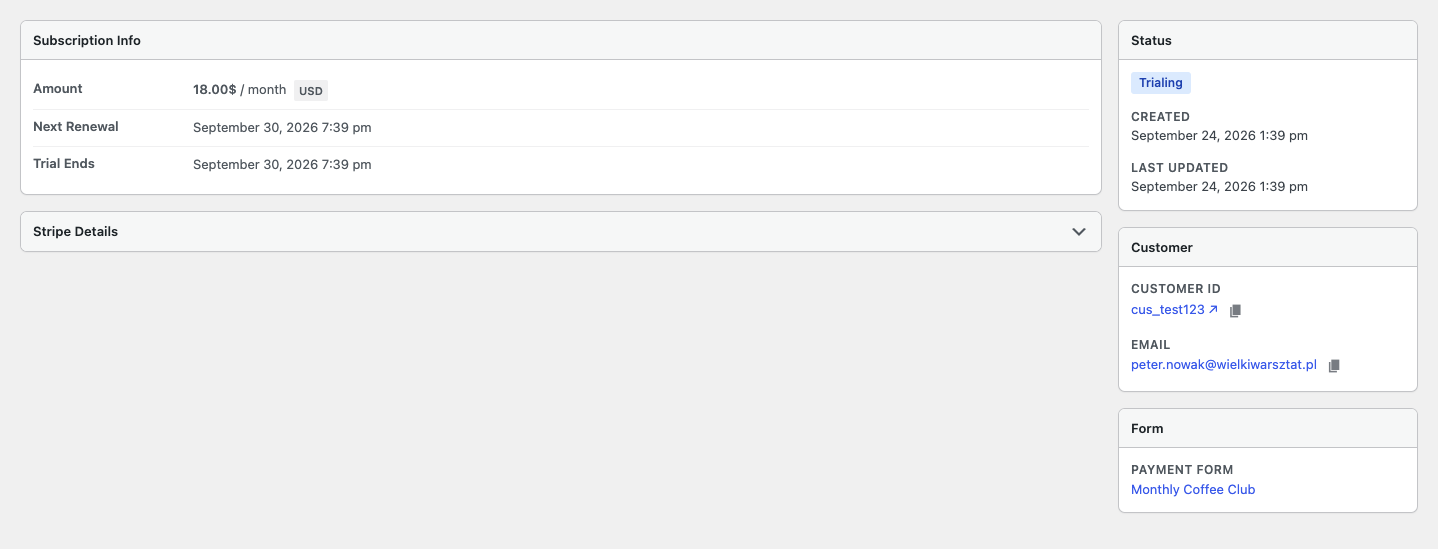
Alongside what the list already showed, the detail view adds:
- The billing interval next to the amount, so a $99.00 charge reads as “$99.00 / 3 months”.
- The next renewal or end date, labelled to match which of the two it is.
- Trial Ends, when the subscription is in or has been through a trial.
- Canceled, the date the subscription was canceled, when it has been.
- Created and Last Updated timestamps.
- The Stripe subscription ID and customer ID, each with a copy button and a link straight to the matching record in your Stripe Dashboard.
- The payment form the subscription came from.
The detail view is read-only. Use the Back to Subscriptions link to return to the list, which reopens in the same payment mode as the subscription you were viewing.
Step 5: Let Existing Stripe Subscriptions Import
If your site was already taking recurring payments before you updated, you do not have to wait for new signups to fill this page up.
A background job walks through the subscriptions already in your connected Stripe account, one page at a time, and imports them. It runs on a schedule rather than all at once, so on an account with a lot of subscription history the page fills in gradually over hours rather than instantly. There is nothing to start and nothing to configure. Leave it alone and check back.
Two things worth knowing:
- The import only brings in subscriptions that were created by WP Simple Pay. Subscriptions your Stripe account holds from other tools or from the Stripe Dashboard directly are left out, because this page reports on your forms.
- Connecting a different Stripe account restarts the import from the beginning for that new account.
Connected Account Scoping
Every record on this page is tied to the Stripe account it belongs to. If you disconnect one Stripe account and connect another, the previous account’s subscriptions stop appearing. The list, the status counts, and the detail view all respect that boundary. You will not see one account’s customers while working in another.
Frequently Asked Questions
Why is the Next Renewal cell empty for one of my subscriptions?
Because the subscription has no renewal coming. That is the case for a canceled subscription, a paused one, and one whose initial payment window expired. A date in that cell would be a billing date that never arrives, so the column shows a dash instead. If the subscription is still active and set to stop at the end of the period, you will see “Ends” followed by the date rather than a blank.
I have a subscription in Stripe that isn’t on this page yet. Where is it?
Most likely the background import has not reached it. The job walks your Stripe subscriptions a page at a time on a schedule, so a large account takes a while to work through. Wait and check again.
If it still has not appeared, check three things: that you are viewing the right payment mode (a test-mode subscription will not show in the Live Mode list), that no payment form filter or search term is narrowing the list, and that the subscription was actually created by a WP Simple Pay form. Subscriptions created outside the plugin are not imported.
What happens to this page after I switch Stripe accounts?
The list shows only the newly connected account’s subscriptions. The previous account’s records are no longer displayed, and the background import starts over for the new account, so give it time to populate.
How is this different from the customer subscription management feature?
They serve different people. This page is for you, in the WordPress admin: a read-only record of what your forms have sold. The customer subscription management feature is a front-end page your customers log into to update their own payment method or cancel their own subscription. See How to Configure the Customer Subscription Management Settings.
Can I cancel a subscription from this page?
No. The Subscriptions page and its detail view are read-only. The only action available on a row is View. To cancel or change a subscription, use the links on the detail view to open it in your Stripe Dashboard, or let the customer cancel it themselves through the customer subscription management page.
Why do I see subscriptions in test mode that I don’t remember creating?
Test-mode records come from test submissions, including your own while setting a form up. Switch the payment mode selector to Live Mode to see only real subscriptions.
Does the page show one-time payments too?
No. Anything that is not recurring appears on the Transactions page instead. See How to Use the Transactions Page.
What’s Next?
- How to Use the Transactions Page – the same view for one-time payments, with CSV export and refunds.
- How to Configure the Customer Subscription Management Settings – let customers manage their own subscriptions.
- How to View Subscription Details in Stripe – what the Stripe Dashboard shows for a subscription.
Still have questions? We're here to help!
Last Modified: