
How to Accept Klarna Buy Now, Pay Later Payments
In This Document
Reading time: 3 minutes | Difficulty: Beginner
Overview
Klarna offers flexible payment options that give customers more freedom to choose when and how to pay for a purchase. Klarna provides payment solutions for 90 million consumers and over 200,000 businesses across 19 markets.
There are four different ways for customers to pay for a transaction with Klarna: Pay in Installments, Pay Later, Pay Now, and Financing. You can choose to offer one, two or multiple options. You are paid upfront and are protected against fraud and customer payment risk.
Klarna Pay in Installments allows customers to make an online purchase and spread the cost over three or four interest-free payments.
For more information, please visit Stripe’s Klarna buy now, pay later docs.
| Payment Method Type | Buy now, pay later |
| Relevant Payer Geography | Austria, Belgium, Denmark, Finland, France, Germany, Italy, Norway, Spain, Sweden, The Netherlands, United Kingdom, United States |
| Presentment Currency | EUR, GBP, USD |
| Country Availability | Austria, Belgium, Denmark, Estonia, Finland, France, Germany, Greece, Ireland, Italy, Latvia, Lithuania, Netherlands, Norway, Slovakia, Slovenia, Spain, Sweden, United Kingdom, United States |
| Recurring Payments | No |
| Refunds | Yes |
| Disputes | Yes, for non-fraud disputes |
| Payment Completion | Immediate for Pay Now. In most countries, Pay Later is also immediate. |
Prerequisites
- WP Simple Pay Pro
- A Stripe account in a country where Klarna is available
Enable Klarna Payments
To accept Klarna payments, visit the Payment tab in the payment form builder, and enable Klarna (buy now, pay later).
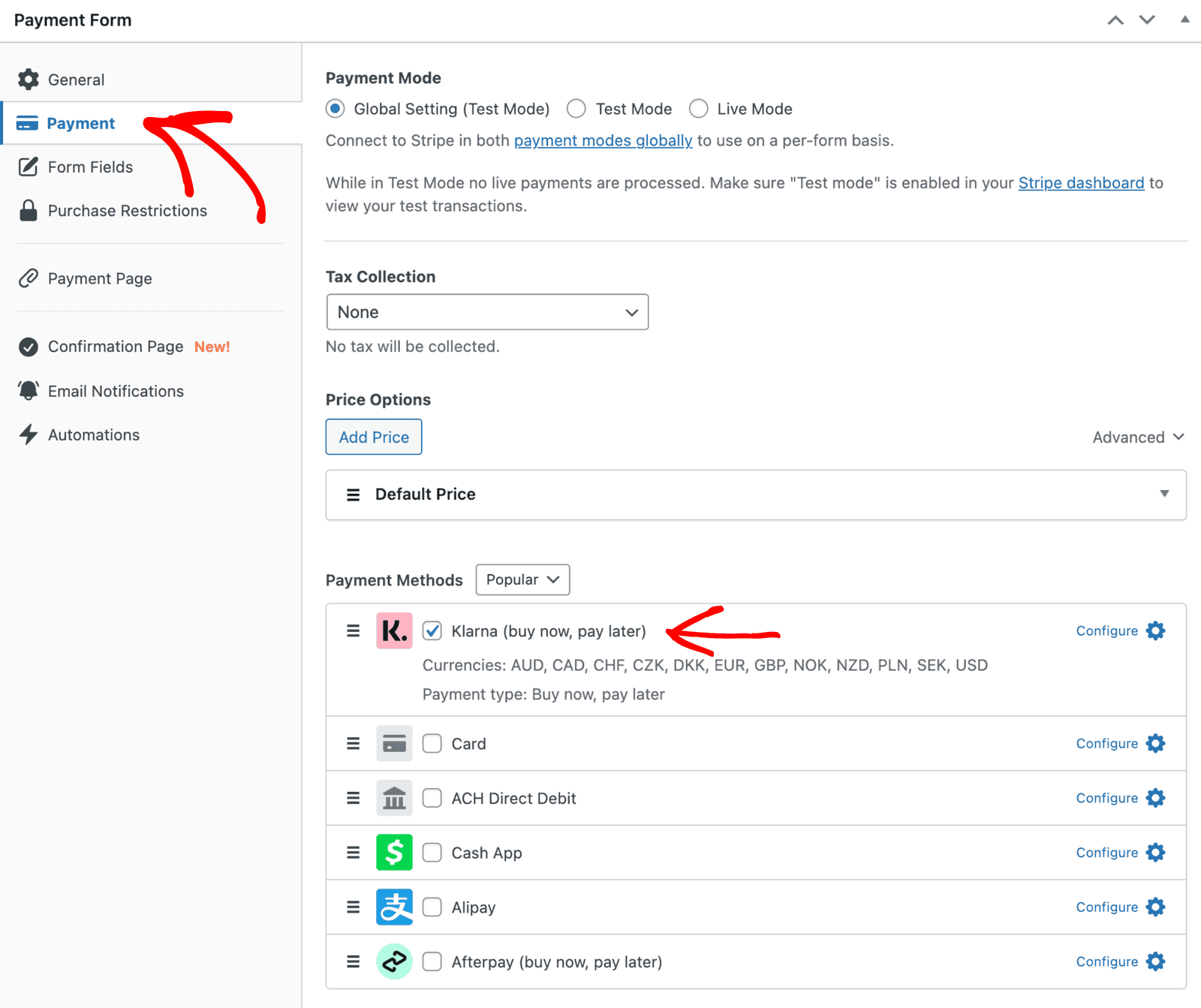
Klarna requires certain customer details, such as the billing name, billing address, and in some cases a shipping address. If these fields are not already on the form, WP Simple Pay adds them automatically when you enable the payment method.
How the Address Is Collected
On on-site forms, the form’s Address field is the only place customers enter their address. Klarna doesn’t show a second address block, and the country the customer picks in the Address field is the one sent to Klarna (this also applies when paying with Apple Pay).
- Address Type set to Billing: the billing address from the form is sent to Stripe.
- Address Type set to Shipping: Klarna uses the shipping address as the billing address.
If conditional logic hides the Address field, Klarna asks for the address itself instead.
What’s Next?
- How to Accept Afterpay/Clearpay Buy Now, Pay Later Payments – Offer another buy now, pay later option
- How to Configure a Payment Form’s Fields and Collect Custom Data – Configure the Address field
- Which Payment Methods Does WP Simple Pay Support? – Compare every payment method
Still have questions? We're here to help!
Last Modified: