如何为 WordPress 付款表单添加条件逻辑
最后更新于
Imagine a freelance consultant sets up a payment form for new client projects. Every visitor who lands on the page sees the same fields: “Company Name,” “Tax ID,” and “Invoice Reference,” even individual buyers paying a simple deposit.
The form looks like it was built for someone else. Some visitors close the tab before completing the payment.
That’s the cost of WordPress payment forms without conditional logic: the form asks the same questions of every visitor, regardless of context.
Site owners who want to handle multiple buyer types either clutter the form with fields that don’t apply to everyone or build a separate form for each scenario, doubling the maintenance work whenever a price changes.
This is where you need conditional logic in your payment forms. Conditional logic allows you to show or hide fields based on what a visitor selects or enters.
In this article, we will show you how to add conditional logic to WordPress payment forms.
Why Conditional Logic Matters for Payment Forms
We’ve worked with many site owners who built polished payment pages only to see checkout completion suffer because the form felt generic. Conditional logic addresses a handful of friction points that show up repeatedly:
- Long forms drive checkout abandonment: Every field that doesn’t apply to a visitor is a reason to pause before paying. Conditional logic keeps the visible form length short and relevant for each person filling it out.
- Irrelevant fields create confusion before checkout: A solo buyer who sees a “Tax ID” field wonders if they landed on the right form. That moment of doubt at checkout is often enough to make them leave.
- Multiple forms multiply maintenance work: Without conditional logic, many site owners build a separate payment form for every buyer type or pricing scenario. When a price or confirmation message changes, every form needs to be updated separately.
- Bad data ends up in Stripe: When optional fields are always visible, visitors fill them with placeholder text or leave them blank. Conditional logic ensures a field only appears when it applies, so the customer data flowing into Stripe stays accurate and useful.
That said, let’s see how you can easily set up in WordPress.
Set Up Conditional Logic in Payment Forms
You add conditional logic to your payment forms using WP Simple Pay. It seamlessly connects directly to Stripe without WooCommerce or a full shopping cart, and it comes with a conditional logic feature.

WP Simple Pay is the #1 Stripe payments plugin for WordPress, built for freelancers, non-profits, event organizers, and small businesses who want to accept one-time and recurring payments without a full eCommerce setup.
Unlike general-purpose form builders that bolt Stripe on as an add-on, WP Simple Pay is built exclusively for Stripe payments: conditional logic, custom fields, and payment processing are all part of the same plugin.
其可视化表单构建器包含条件逻辑选项,让您可以构建能够适应每个访问者的付款表单。
以下是 WP Simple Pay 提供的一些功能:
- 条件表单字段:根据访问者选择或输入的内容显示或隐藏任何自定义字段。无需代码、无需单独的表单、无需变通方法。
- 21 种自定义字段类型:从下拉菜单、单选按钮、复选框、文本输入、日期选择器等中进行选择。每个字段都有自己独立的条件规则。
- 实时字段可见性:当访问者与表单互动时,条件会在访问者的浏览器中即时评估。无需重新加载页面。
- 10 多种付款方式:卡、Apple Pay、Google Pay、ACH 直接借记、Klarna 等。条件逻辑与 WP Simple Pay 支持的每种付款方式协同工作。
这样,我们来看看如何使用 WP Simple Pay 为 WordPress 付款表单添加条件逻辑。
步骤 1:安装并激活 WP Simple Pay
首先,您可以访问 WP Simple Pay 网站并选择一个套餐。请注意,条件逻辑功能仅适用于 WP Simple Pay Pro 或更高级别的用户。
接下来,您可以从 WP Simple Pay 账户仪表盘下载 .zip 文件,方法是点击 下载 WP Simple Pay Pro 按钮。
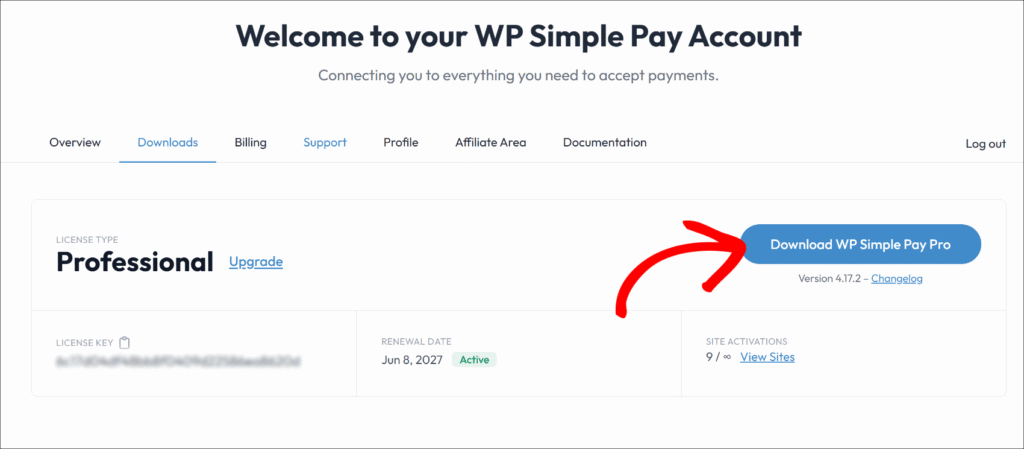
然后,导航到您的 WordPress 仪表盘,上传插件文件,然后安装并激活插件。如果您以前没有安装过 WordPress 插件,这篇安装 WordPress 插件的分步指南将详细介绍整个过程。
插件激活后,WP Simple Pay 设置向导会自动启动。继续点击 开始设置 以开始入门流程。
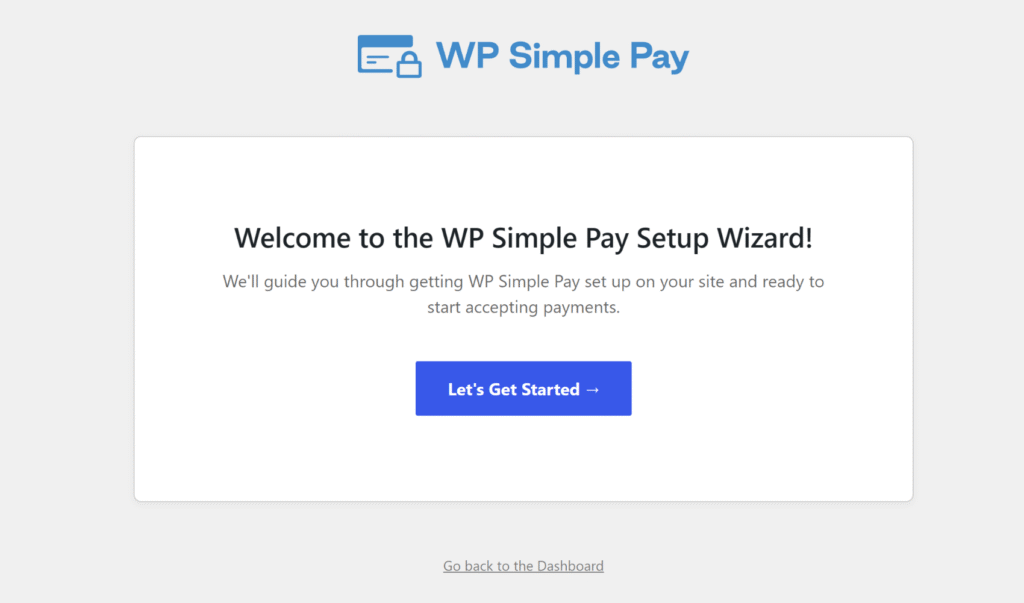
如果向导未出现,请导航到 WP Simple Pay » 设置 » 常规 » 高级 并点击 启动设置向导。
现在应该已安装并准备好 WP Simple Pay。接下来,我们将将其连接到 Stripe。
第 2 步:连接 WordPress 与 Stripe
在设置向导中,您可以点击 连接 Stripe 按钮并输入 Stripe 账户的电子邮件地址。
新用户可以在不离开 WordPress 的情况下,从同一个屏幕创建免费的 Stripe 账户。
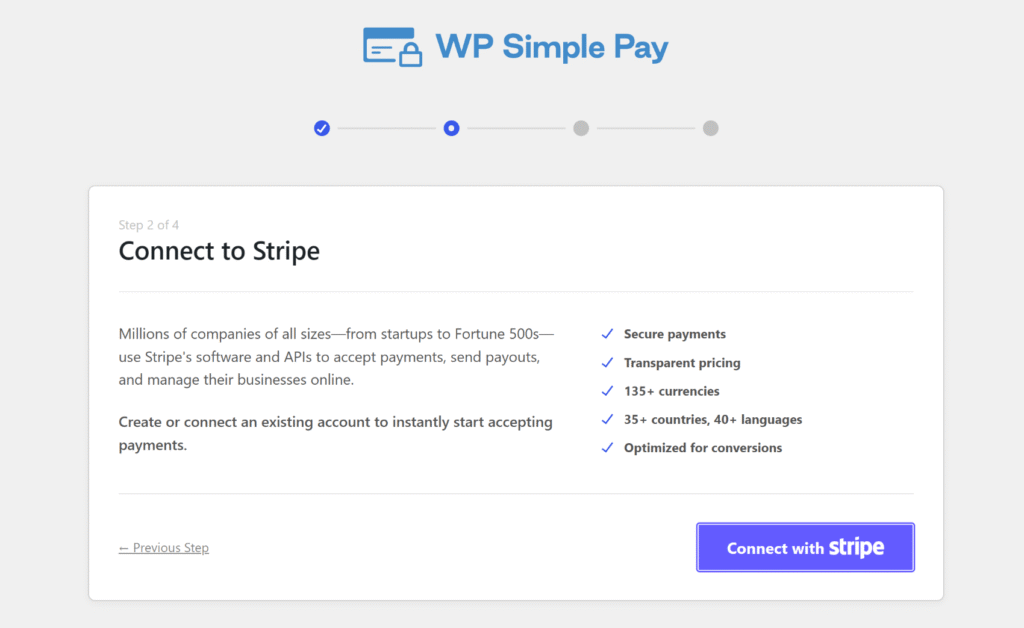
完成身份验证后,向导会自动前进。
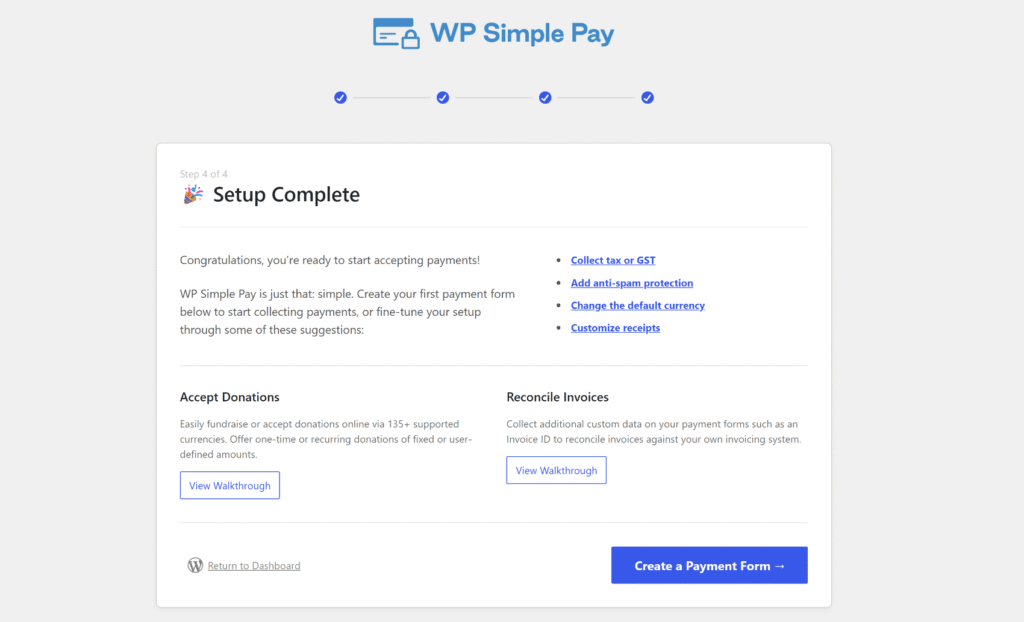
确认 设置完成 屏幕以完成设置。您的网站现已链接到 Stripe,并准备好处理付款。
第 3 步:创建付款表单并添加自定义字段
接下来,您可以点击设置向导中的“创建付款表单”按钮。
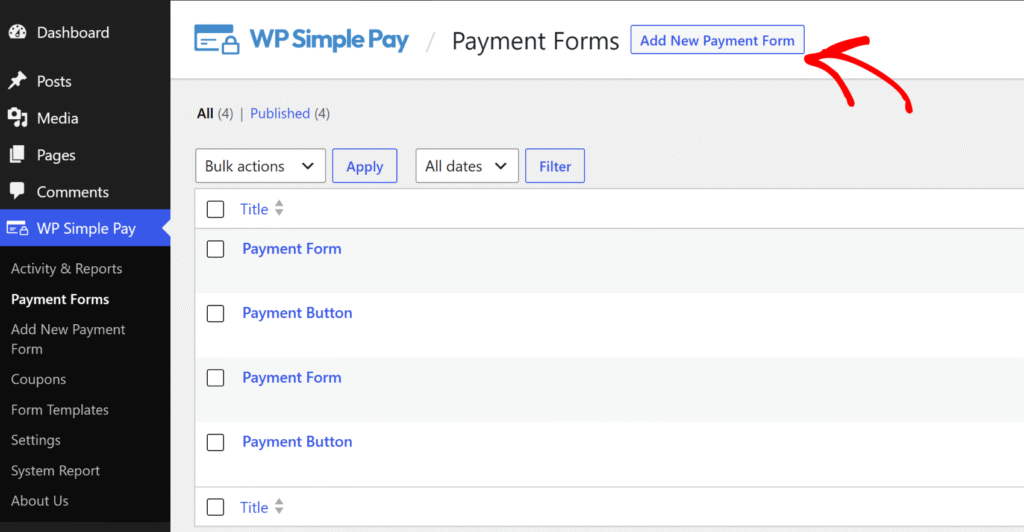
或者,您可以导航到 WP Simple Pay » 付款表单 并点击“添加新的付款表单”按钮来添加一个新表单。
在这里,您将看到多个内置表单模板。
继续选择一个表单模板。
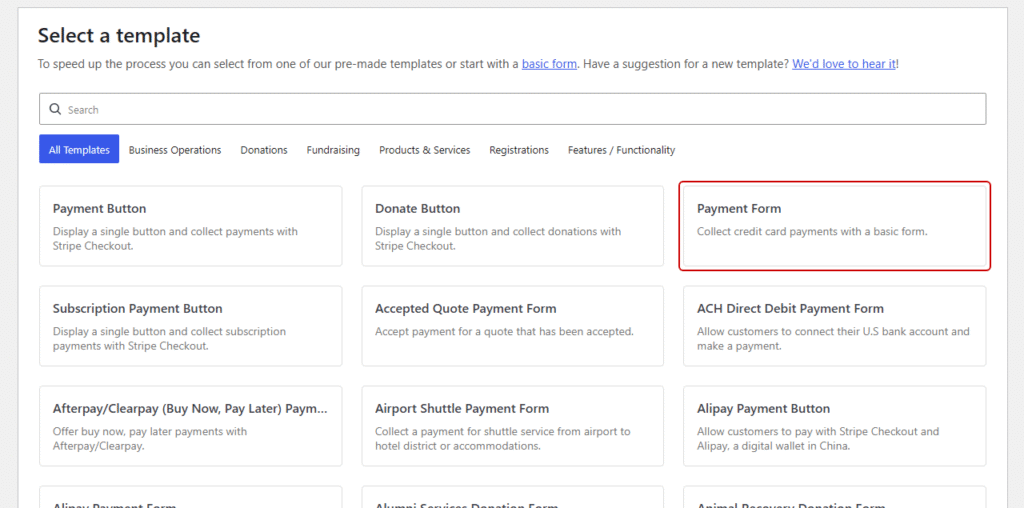
付款表单适用于大多数用例,但根据您的目标,订阅付款表单或像趣味跑步注册表单这样的用例模板同样适用。
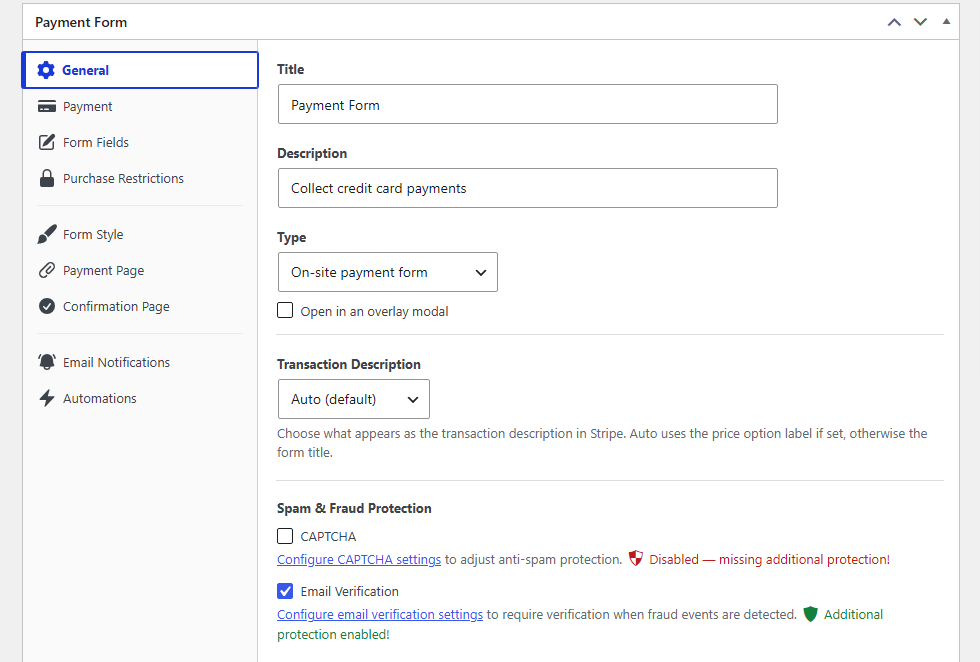
After selecting a form template, you can head to the General tab, give the form a title, and choose a display type.
The On-site payment form type works for most use cases. You can also check the Open in an overlay modal option to show the form as a popup.
On the other hand, you can also select Off-site Stripe Checkout form from the Type dropdown to redirect visitors to Stripe’s hosted checkout page.

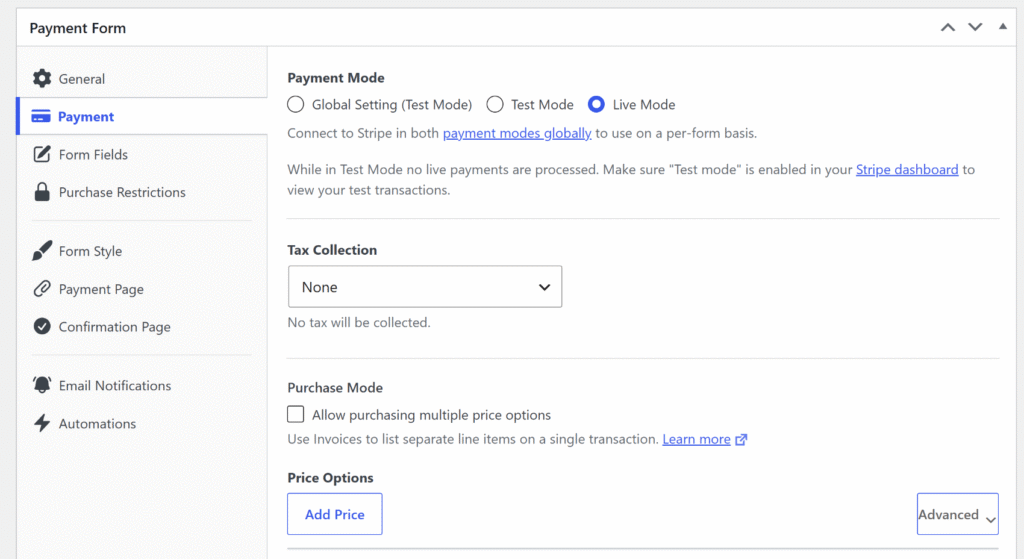
Next, open the Payment tab and configure the currency, amount, and whether the payment is one-time or recurring.

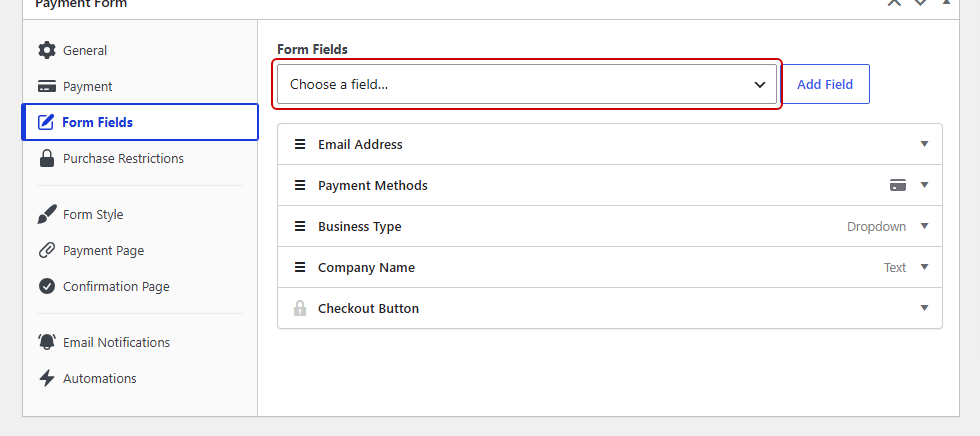
From there, you’ll need to open the Form Fields tab. Use the field type dropdown to add the fields that will act as triggers and targets for the conditional rules.
For this example, let’s add a Dropdown field labelled “Customer Type” with options “Individual” and “Business,” then add a Text field labelled “Company Name.”

Step 4: Add Conditional Logic to Your Form Fields
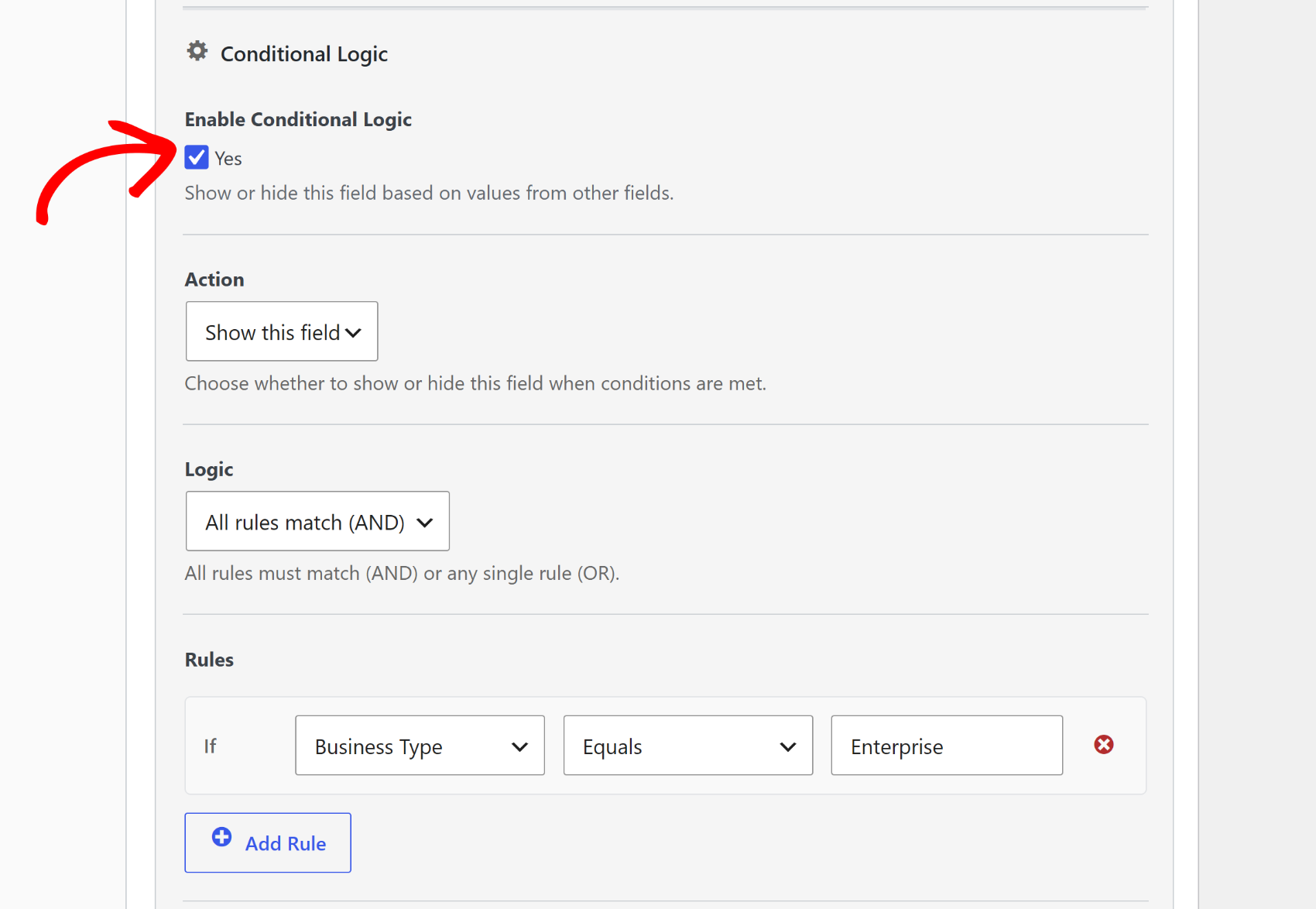
With both fields in place, expand the Company Name field in the list and scroll down to the Conditional Logic section.
Go ahead and check the ‘Yes’ checkbox under the Enable Conditional Logic label.

WP Simple Pay shows two settings: the action for the field (Show this field or Hide this field) and the rule logic (All rules match (AND) or Any rule matches (OR)).
Set the action to Show this field and leave the logic set to All rules match (AND).
Next, add a rule by setting the source field to Business Type, the operator to Equals, and the value to what you want to set (in our case, it will be Enterprise). From this point, the Company Name field stays hidden until a visitor selects “Enterprise” from the dropdown.
Pro Tip: WP Simple Pay doesn’t just visually hide fields; it disables them completely. A required field like “Company Name” won’t block submission if it’s hidden for a visitor who selected “Individual.” Other form builders hide the field visually but leave the required validation active, which causes phantom checkout errors for visitors who never saw the field.
Plus, you can use Any rule matches (OR) when a field should appear for more than one selection. For example, show a “Shipping Address” field when a visitor picks either “Physical Product” or “Event Kit” from a product type dropdown.
Repeat the process for any other fields that need conditional rules. Each field manages its own rules independently, so adding more conditions to a form is straightforward.
Step 5: Publish and Test Your Conditional Logic Form
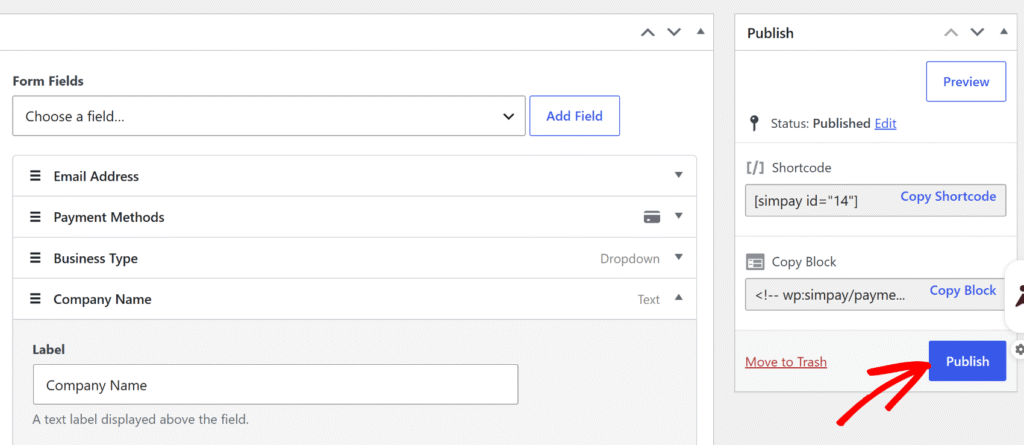
When you’re done, simply click Publish to save the form.

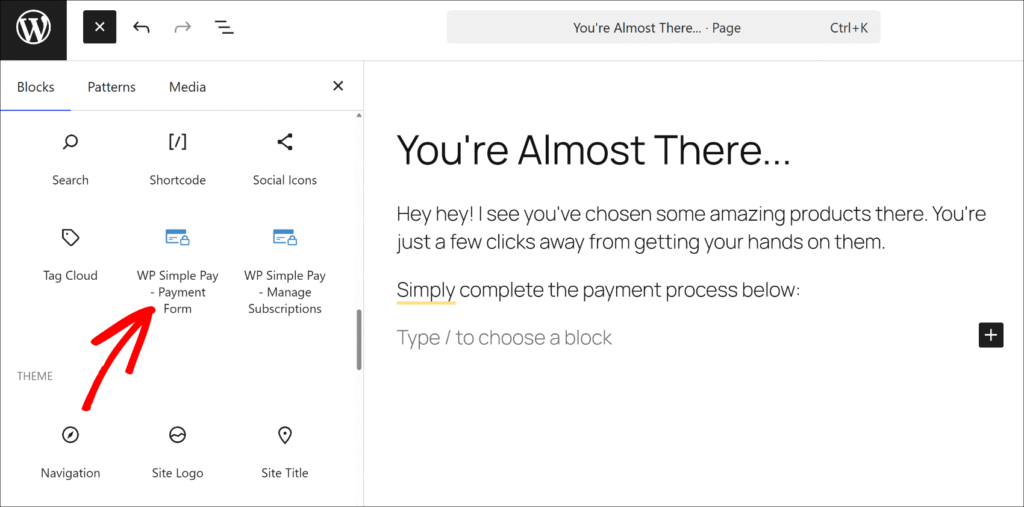
Next, you can add it to any page or post by inserting the WP Simple Pay – Payment Form block from the WordPress content editor, or by pasting the shortcode.

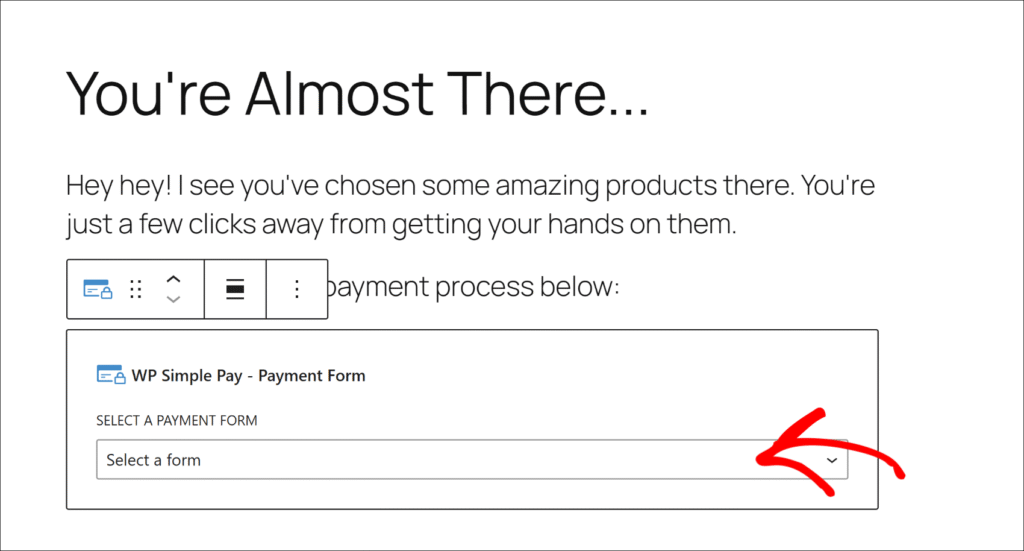
Once you’ve added the block, simply select your form from the dropdown menu.

Now, you can visit the published page and test your payment form with conditional logic.
For example, when we change the Business Type to “Enterprise,” the new field appears where users can enter their company name.

Bonus: Use Conditional Logic with Price Options
WP Simple Pay’s Payment tab supports multiple price options, and the conditional logic system can trigger off which price option a visitor selects.
For example, a registration form with “Standard” and “VIP” tiers, a “T-shirt Size” dropdown can appear only for VIP buyers, keeping the standard checkout clean.
If the form has multiple price options configured in the Payment tab, the price selector appears automatically as a trigger option in the conditional logic rule builder. Simply set the operator to Equals and choose the specific price option that should reveal the field.
See our guide on using payment form templates in WordPress to boost sales for more ideas on building smarter checkout flows.
FAQs about Payment Form Conditional Logic
1. What is conditional logic in a payment form?
Conditional logic lets a payment form show or hide fields based on what a visitor has already selected or entered. A “Company Name” field can stay hidden until a visitor picks “Business” from a customer type dropdown. It keeps forms short and ensures visitors only see the fields that apply to their situation.
2. Does WP Simple Pay support conditional logic?
Yes. WP Simple Pay includes conditional logic in its visual form builder for all Pro plans. Site owners can enable it on any custom field from the Form Fields tab without any code. Conditional logic is not available in WP Simple Pay Lite.
3. Can I show different fields based on which price option a visitor selects?
Yes. The conditional logic system includes a Price equals operator that triggers off the price option a visitor selects. This means a field like “T-shirt Size” can appear only when a visitor picks a specific pricing tier or package on the form.
4. How do I show or hide a field based on a dropdown selection?
In the Form Fields tab, expand the target field and check Enable Conditional Logic. Set the source field to the dropdown, choose equals as the operator, and enter the option value that should trigger the rule. The form updates in real time in the visitor’s browser as they make their selection.
5. Can I add multiple conditions to one field?
是。每个字段支持多个规则,您可以选择应用所有规则匹配 (AND) 或 任一规则匹配 (OR)。这可以处理诸如仅当选择了特定产品类型和最低购买金额时才显示字段之类的场景。
开始使用支付表单的条件逻辑
为 WordPress 支付表单添加条件逻辑,使每次结账都更具相关性。访问者仅看到适用于其情况的字段,流入 Stripe 的数据保持干净,并且网站所有者只需管理一个表单,而不是多个表单。
希望本文能帮助您了解如何为 WordPress 支付表单添加条件逻辑。您可能还想查看我们关于为您的 Stripe 支付表单添加自定义字段和在 WordPress 中创建每个表单的电子邮件确认消息的指南。
准备好开始收款了吗?立即开始使用 WP Simple Pay。
要阅读更多此类文章,请在 X 上关注我们。
披露:我们的内容由读者支持。这意味着如果您点击我们的一些链接,我们可能会赚取佣金。我们只推荐我们认为能为读者带来价值的产品。

留下回复