
如何在WordPress中接受付款而无需WooCommerce
最后更新于

大多数想要在WordPress中收款但又不想使用WooCommerce的WordPress网站所有者,最终还是会安装WooCommerce。而对于任何需要收款表单而不是在线商店的人来说,WooCommerce都是错误的工具。
WooCommerce是一个完整的电子商务平台,围绕产品、库存、购物车和订单管理而构建。如果您是自由职业者、非营利组织或课程创建者,这些功能都与您的情况无关。
我们亲身经历过。设置一个商店来收取服务费或处理捐款,意味着需要配置您永远不会使用的税务和运费规则,并且在客户付款前,需要通过购物车进行所有操作。
这会给本应在几秒钟内完成的结账流程增加阻力,而每一个不必要的步骤都可能导致用户放弃。这时WP Simple Pay就派上用场了。它可以在几分钟内,在任何页面上实时显示收款表单,而无需购物车。
在本文中,我们将向您展示如何在不使用WooCommerce的情况下在WordPress中收款。
为什么收款不需要WooCommerce
收款和运营在线商店是两回事,而WooCommerce将它们捆绑在一起。
专用的收款插件可以在没有商店机制的情况下处理收款。因此,您将获得一个收款表单,而无需配置您原本需要的产品目录、购物车或订单管理。
仅收款插件可将您的WordPress网站直接连接到收款处理程序,对于WP Simple Pay而言,该处理程序是Stripe。您只需创建一个表单,设置价格,选择收款类型(一次性或定期),然后发布即可。
根据我们的经验,这种设置适用于大多数WordPress网站所有者:收取定金的自由职业者、进行捐款活动的非营利组织、收取课程费用的课程创建者以及需要表单而非完整商店的活动组织者。
结果是在任何页面上显示Stripe收款表单,客户和付款按钮之间没有任何购物车阻碍。
现在,让我们看看为什么对您的WordPress网站而言,使用WooCommerce是“杀鸡焉用牛刀”。
为什么WooCommerce收款是“杀鸡焉用牛刀”
我们与许多网站所有者合作过,他们安装WooCommerce来收取一笔款项,但花费在设置上的时间却远远超出了他们的预期。
以下是容易出现阻力的地方:
- 它为商店而建,而非表单:WooCommerce围绕产品、库存和购物车设计,因此要实时显示独立的收款表单,意味着需要创建一个“产品”,配置一个结账页面,并禁用您永远不会使用的功能。
- 设置耗时过长:全新的WooCommerce安装需要先完成收款网关、税务和运费设置,然后才能上线,即使您只收取固定服务费。
- 每次收款都必须经过购物车:WooCommerce在结账前会将客户引导至“添加到购物车”流程,这对于多件商品商店来说是正确的用户体验。但对于服务费、捐款或会员付款而言,这是一个不必要的障碍。
- 持续的维护成本很高:WooCommerce 及其扩展需要定期更新、兼容性检查和周期性维护,而仅包含支付功能的插件维护起来要简单得多。
WP Simple Pay 消除了所有这些开销,为 WordPress 网站所有者提供了他们所需的一切:在几分钟内即可在任何页面上实时显示 Stripe 付款表单。要直接了解付款插件与完整商店的区别,请参阅我们的WooCommerce vs WP Simple Pay 对比分析。
话不多说,让我们看看如何在 WordPress 中设置 WP Simple Pay 并创建一个简单的付款表单。
如何在没有 WooCommerce 的情况下接受付款
要在没有购物车的情况下接受 WordPress 上的 Stripe 付款,WP Simple Pay 是市场上最好的解决方案。
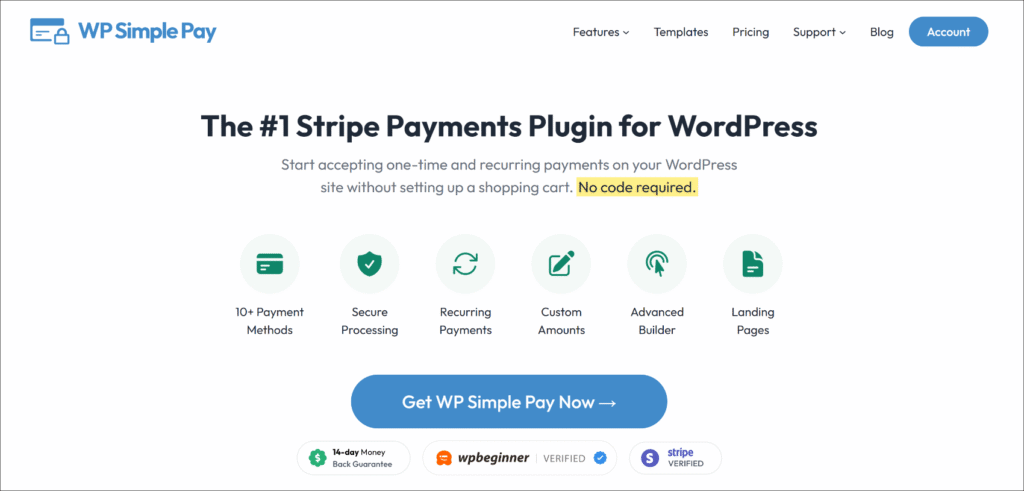
WP Simple Pay 是 WordPress 的排名第一的 Stripe 付款插件。它允许您通过一个拖放式表单收集一次性付款和定期付款,支持 10 多个支付服务,例如通过 Stripe 提供的Apple Pay、Google Pay、ACH 直接借记、Klarna、Afterpay、Affirm 等,而无需设置购物车或编写任何代码。
以下是它成为本次教程正确选择的原因:
- 10 多种付款方式 — 通过 Stripe 接受信用卡、Apple Pay、Google Pay、ACH 直接借记、Klarna、Afterpay、Affirm、Cash App Pay 等,所有这些都来自同一个表单,无需为每种方式单独配置。
- 预制付款模板 — 从一次性付款、订阅、捐赠、活动注册等现成模板中进行选择,这样您就可以从可用的基础开始,而不是从空白页面开始。
- 无额外 3% 交易费 — WP Simple Pay Pro 取消了大多数 Stripe 插件在 Stripe 标准处理费之上额外收取的 3% 插件费用。
- 一次性付款和定期付款 — 在同一个表单构建器中接受这两种付款类型,无需单独的订阅插件。
好了,让我们看看如何在没有 WooCommerce 的情况下使用 WP Simple Pay 在 WordPress 中接受付款。
步骤 1:安装并激活 WP Simple Pay
首先,您可以访问WP Simple Pay 网站并选择适合您需求的套餐。
购买完成后,从您的 WP Simple Pay 账户仪表板下载插件 ZIP 文件。
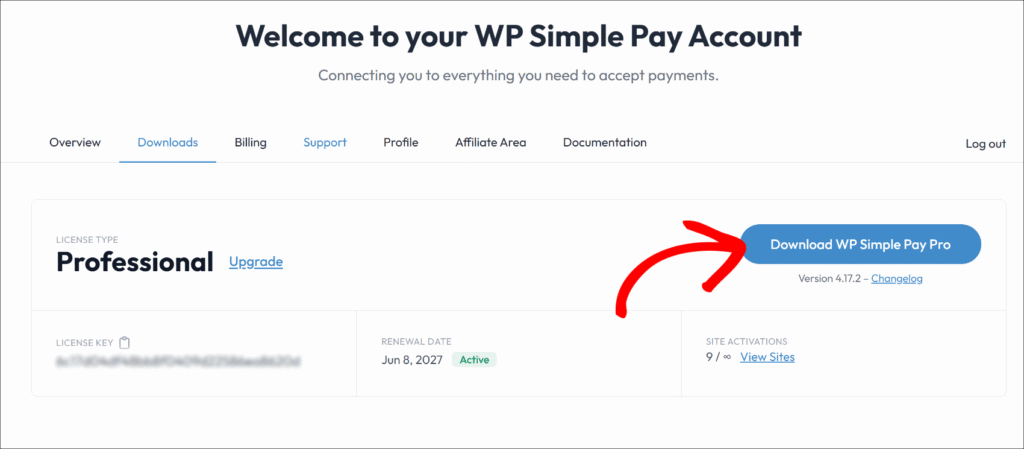
然后,您可以从 WordPress 管理面板上传插件文件并安装和激活插件。
激活后,WP Simple Pay 设置向导会自动启动。请点击开始设置以连接您的 Stripe 账户。
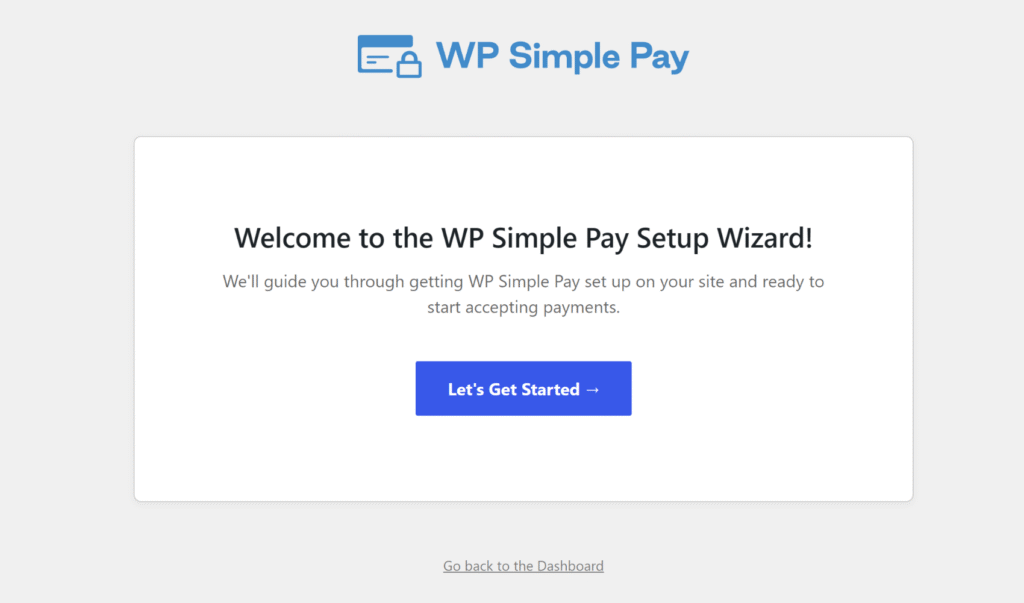
注意:如果向导未出现,请导航至 WP Simple Pay » 设置 » 常规 » 高级 并点击 启动设置向导 按钮。有关安装插件的帮助,请参阅 WPBeginner 关于如何安装 WordPress 插件的指南。
WP Simple Pay 已安装并准备就绪。接下来,您需要将其连接到您的 Stripe 账户。
第 2 步:连接 WordPress 与 Stripe
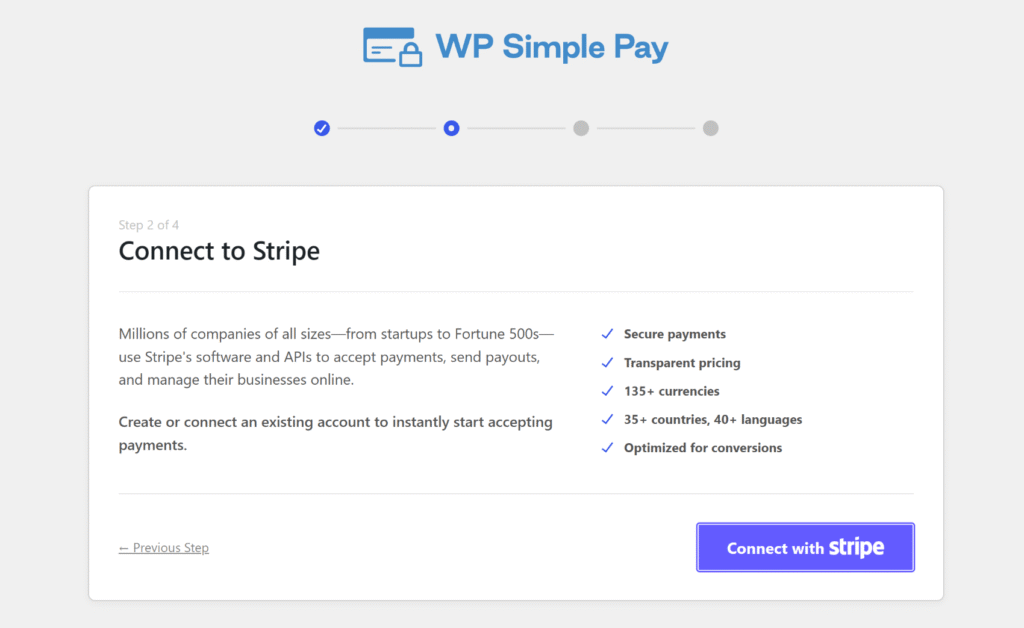
在设置向导中,请点击连接到Stripe并输入与您的Stripe账户关联的电子邮件地址。
授权将您的WordPress网站连接到Stripe,新用户无需单独注册即可在同一屏幕上创建Stripe账户。
完成连接后,向导将引导您完成几个额外的设置步骤,然后到达🎉 设置完成屏幕,此时WP Simple Pay已准备好构建付款表单。
有关Stripe连接的更多详细信息,请参阅WP Simple Pay Stripe设置文档。
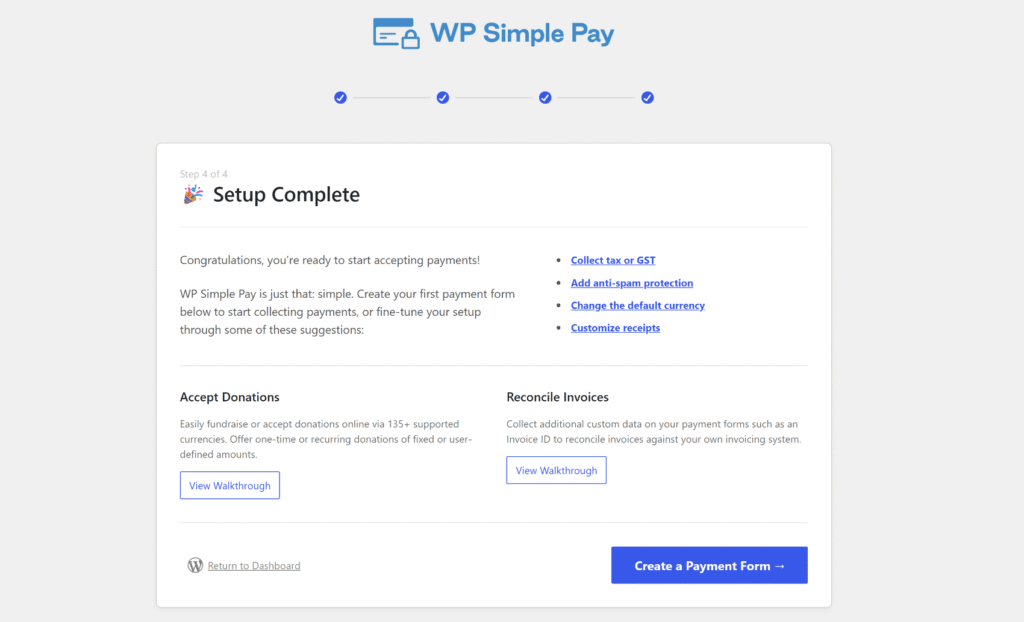
注意:WP Simple Pay默认以测试模式连接。测试模式允许您使用Stripe测试卡运行付款,然后再上线,以便在涉及真实资金之前确认一切正常运行。
第3步:创建您的付款表单
接下来,您可以为您的网站创建一个新的付款表单。您只需在设置向导中点击创建付款表单按钮即可开始。
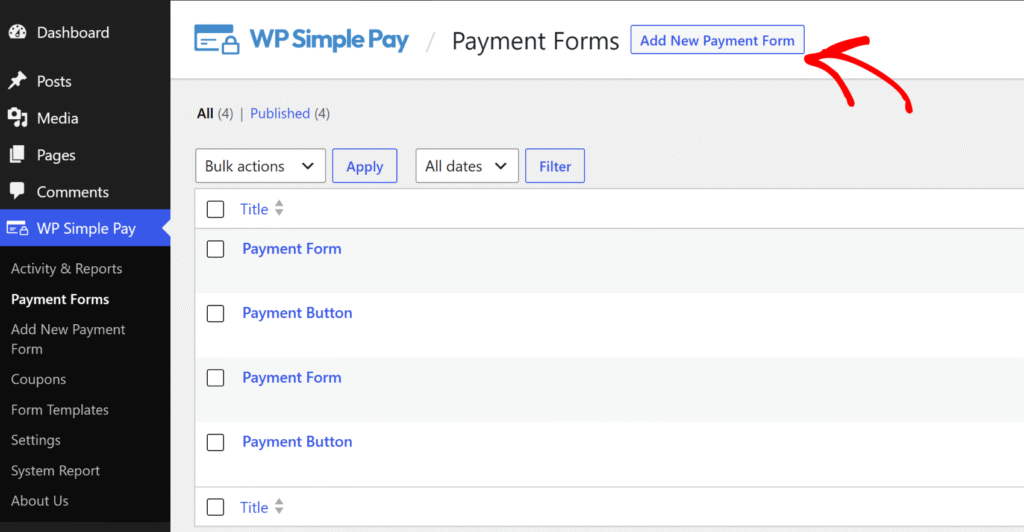
或者,在您的WordPress仪表板中,转到 WP Simple Pay » 付款表单 ,然后点击 添加新的付款表单。
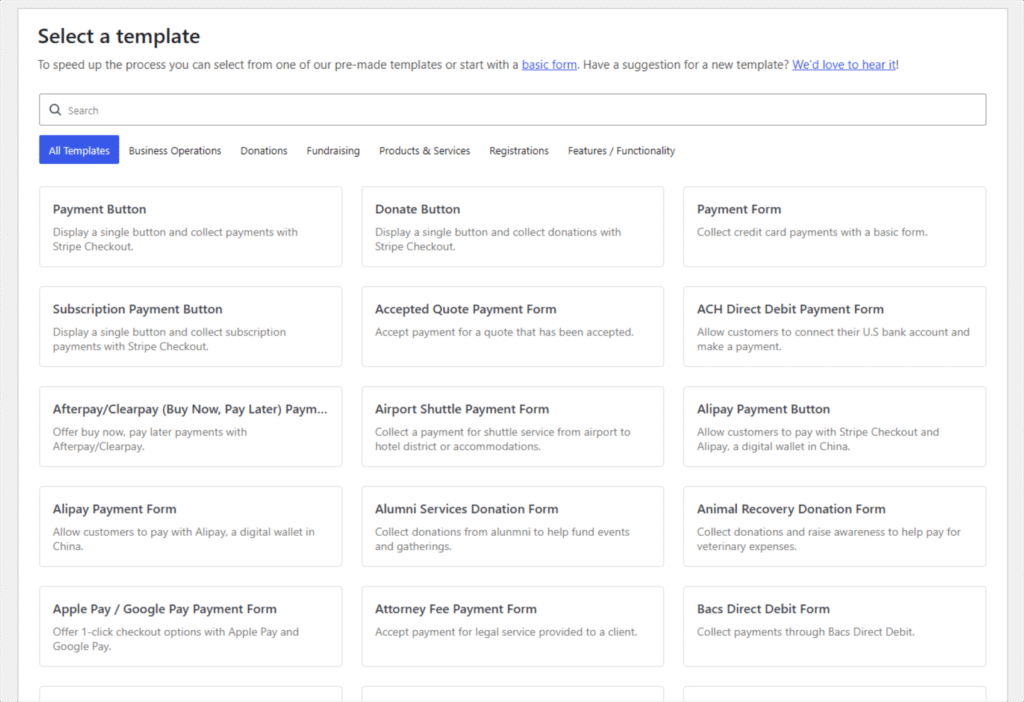
WP Simple Pay将打开模板选择器,您将在此选择表单的起点。
对于一般的单次付款,请选择付款表单模板;对于筹款页面,请选择捐赠按钮;对于定期账单,请选择订阅付款表单。每个模板都完全可定制,有关如何从中获得更多信息的技巧,请参阅我们关于如何在WordPress中使用付款表单模板来提高销量的指南。
每个模板都完全可定制,有关如何从中获得更多信息的技巧,请参阅我们关于如何在WordPress中使用付款表单模板来提高销量的指南。
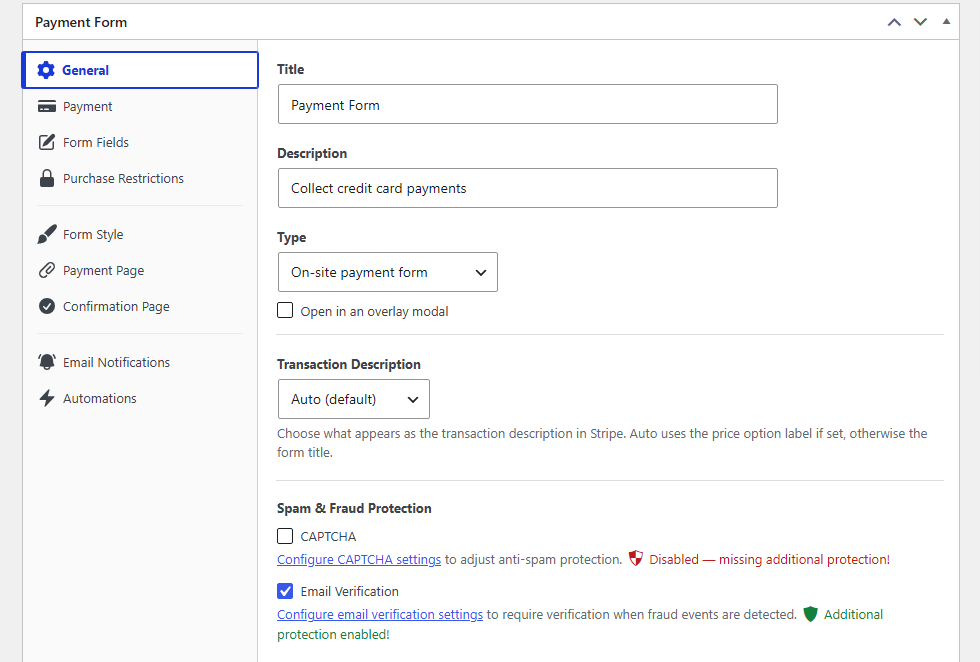
在常规选项卡上,为您的表单设置标题和描述。之后,您可以通过点击类型下拉菜单来选择显示类型。在这里,您应该会看到2个选项:
- 站内付款表单将表单直接嵌入页面。
- 站外Stripe Checkout表单会将客户发送到Stripe托管的结账页面。
在类型下拉菜单下方,您会看到在覆盖模态框中打开复选框,该复选框将其作为弹出窗口启动。
有关帮助您在这些选项之间做出选择,请参阅我们关于嵌入式与覆盖模态框与Stripe Checkout付款表单的指南。
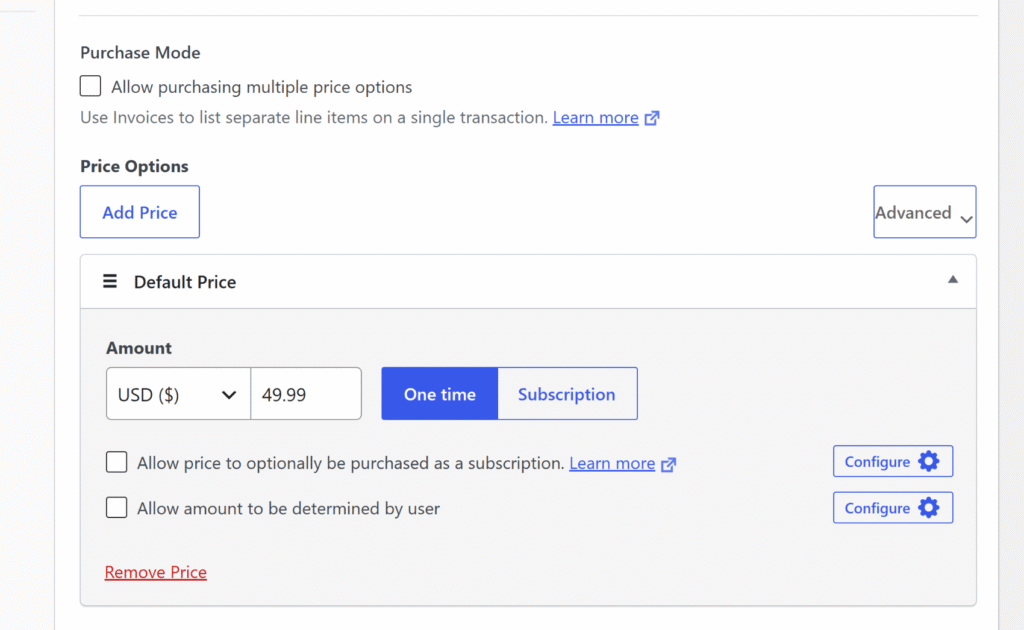
接下来,您可以点击付款选项卡,设置货币、付款金额和账单类型(一次性或订阅)。
要让客户在多种价格之间进行选择,请点击添加价格以添加额外的价格行,或参阅WP Simple Pay付款选项文档了解更多信息。
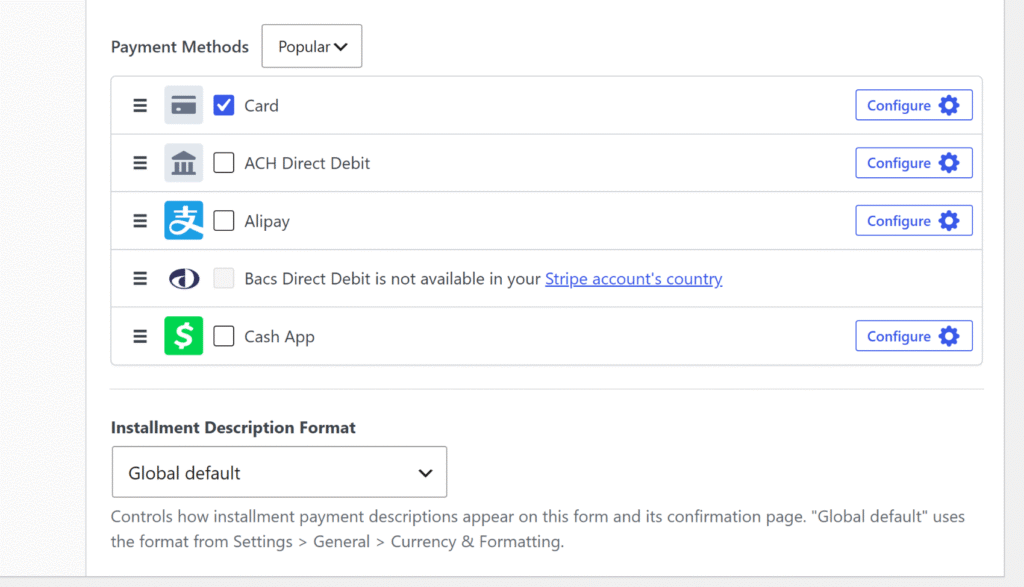
然后,您可以向下滚动并选择您想提供给客户的付款方式。
WP Simple Pay提供10多种付款选项,让用户更容易选择他们认为方便的选项。
完成后,您可以自定义您的付款表单。
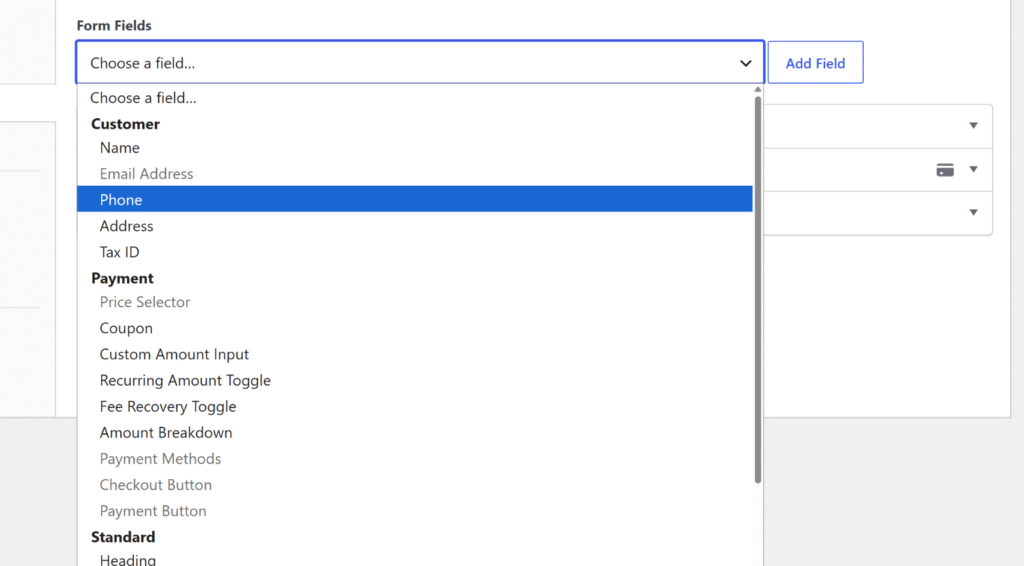
在表单字段选项卡中,您将看到表单向客户显示的默认字段:电子邮件地址字段、价格选择器和卡片输入字段。
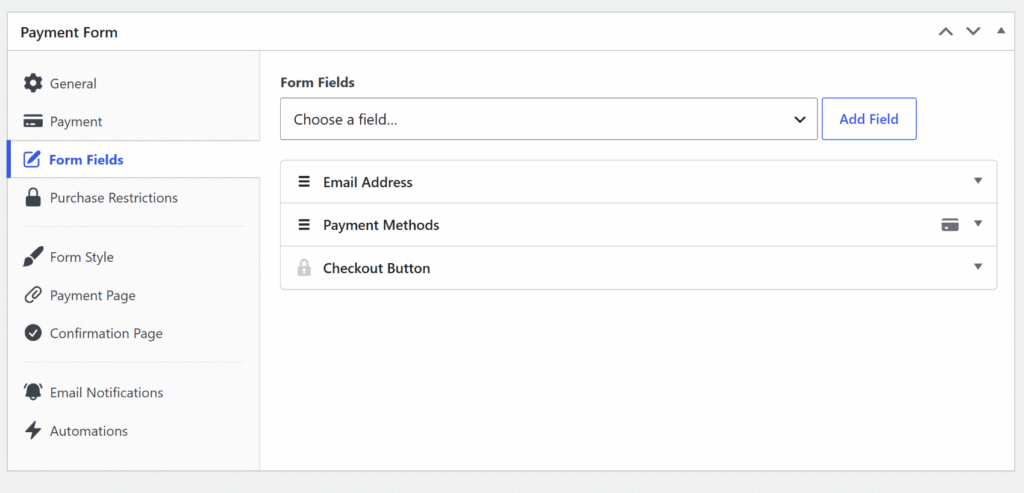
继续从选择字段下拉菜单中选择一个字段类型,然后点击添加字段进行插入。
它可以是电话号码、文本输入或复选框。
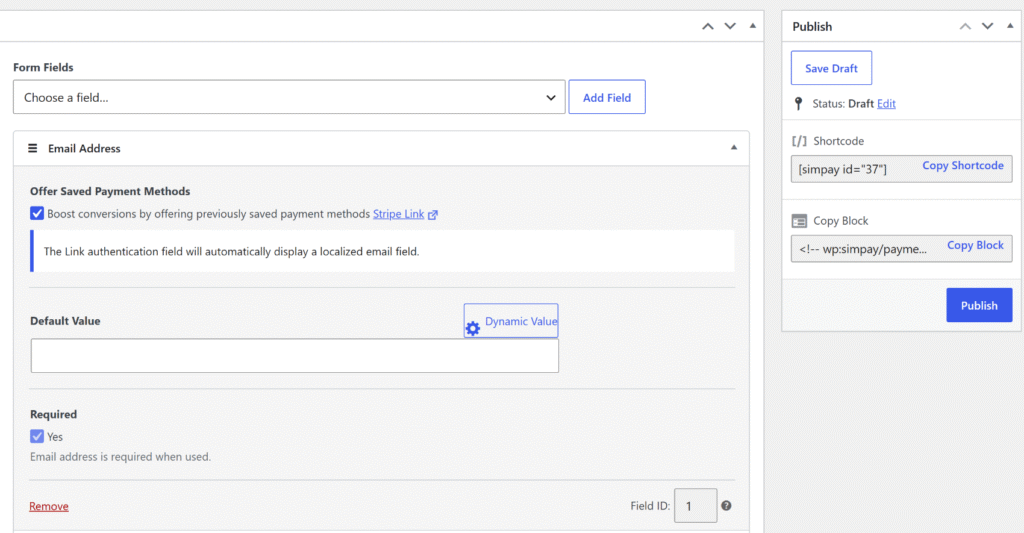
接下来,您可以展开每个表单字段并添加更多详细信息。
配置好表单后,点击发布。
第 4 步:将表单添加到页面并运行测试付款
现在您的表单已准备就绪,您可以将其放置在网站的任何位置来收款。
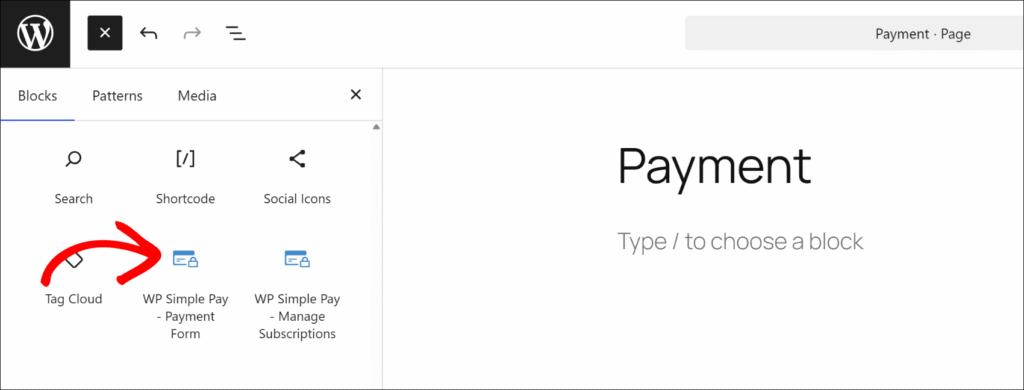
首先,创建一个新的 WordPress 页面或打开一个现有页面,然后从 WordPress 内容编辑器中添加一个WP Simple Pay – 付款表单块。
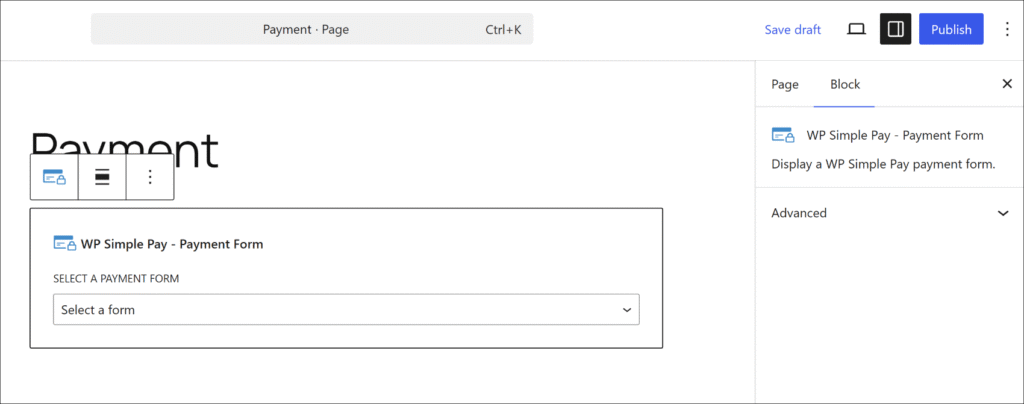
添加块后,从下拉菜单中选择您已发布的表单。
现在,您可以点击更新或发布使页面上线。
您也可以从表单编辑器中复制简码,并将其粘贴到页面上的任何文本区域或简码块中。
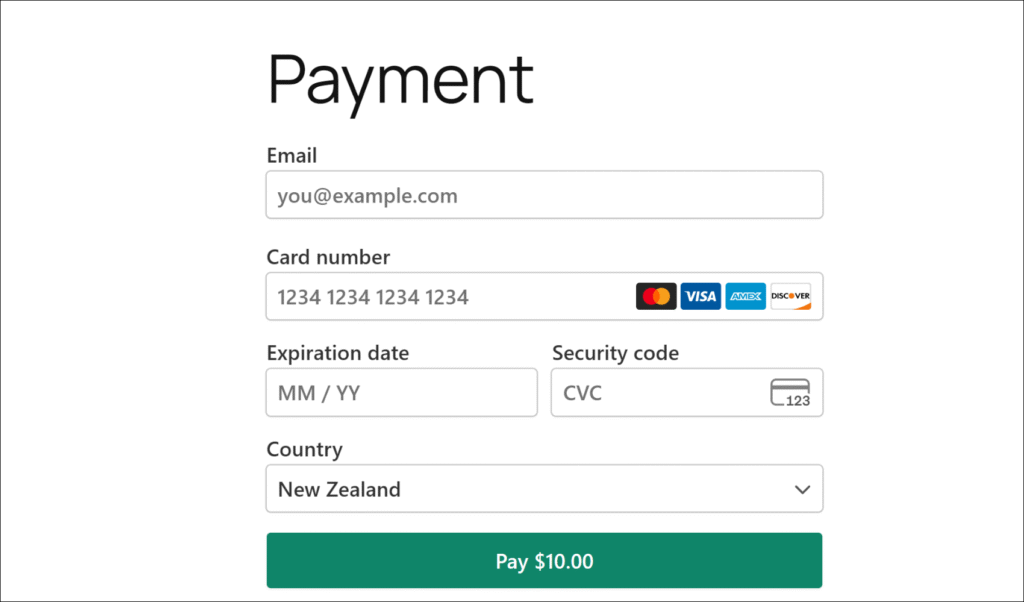
在表单处于测试模式上线后,输入 Stripe 测试卡号 4242 4242 4242 4242、任何未来的到期日期和任何 3 位数的 CVC,然后提交。确认消息将出现,您可以在Stripe 的测试文档中找到不同付款场景的完整测试卡列表。
然后,您可以转到 WP Simple Pay » 活动与报告 以确认测试付款是否出现在最近的活动信息流中。
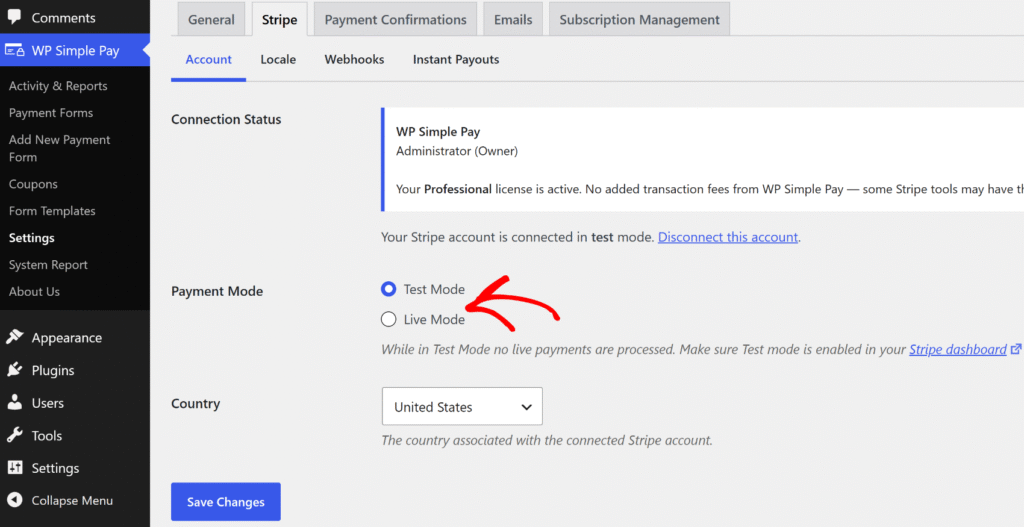
确认测试付款有效后,转到 WP Simple Pay » 设置 » Stripe » 账户 ,并将 付款模式 单选按钮从 测试模式 切换到 实时模式。
您的表单现在已准备好接受真实付款。
奖励:在 WordPress 中接受定期付款
如果您需要按计划向客户收费,WP Simple Pay 可以直接在同一个表单构建器中处理定期账单,而无需单独的插件。
在付款选项卡中,将付款类型更改为订阅并设置账单间隔:每日、每周、每月或每年。
您还可以添加设置费、免费试用期或固定次数的账单收费——这些高级订阅选项需要 WP Simple Pay Pro 专业版或更高版本。基本的定期账单在所有 WP Simple Pay Pro 版本中都可用,从个人版开始。
有关完整演练,请参阅我们关于如何通过您的 WordPress 网站接受定期付款的指南。
关于不使用 WooCommerce 的付款表单的常见问题解答
1. 我可以在不使用 WooCommerce 的情况下在 WordPress 中收款吗?
是的。像 WP Simple Pay 这样的专用付款插件可以直接将 WordPress 连接到 Stripe,而无需 WooCommerce。您可以构建一个品牌化的付款表单,将其发布到任何 WordPress 页面,并在几分钟内开始收款。无需产品目录、购物车或商店配置。
2. 最佳不带 WooCommerce 的 WordPress 付款插件是什么?
WP Simple Pay 是 WordPress 的头号 Stripe 付款插件,有超过 14,000 名网站所有者使用它来在没有完整电子商务商店的情况下收款。它支持一次性付款和定期付款、10 多种付款方式,以及用于捐赠、订阅和活动注册的预制模板。设置只需几分钟,无需开发人员或购物车。
3. 我需要 Stripe 账户才能使用 WP Simple Pay 吗?
是的。WP Simple Pay 由 Stripe 提供支持,Stripe 负责所有付款处理,并且专为数字服务业务而非零售业务而构建。设置向导包含一个“连接到 Stripe”按钮,无需任何 API 密钥即可完成整个连接过程。新用户可以在设置过程中直接从向导创建 Stripe 账户,Stripe 支持 45 多个国家/地区的 135 多种货币。
4. 如何在没有 WooCommerce 的情况下向 WordPress 添加付款表单?
安装 WP Simple Pay,使用设置向导将其连接到 Stripe,然后转到“WP Simple Pay » 付款表单”,点击“添加新的付款表单”,然后选择一个模板。在相关选项卡上设置金额、付款类型和任何自定义字段,然后点击“发布”。使用“WP Simple Pay – 付款表单”块或短代码将表单添加到任何 WordPress 页面。
5. WP Simple Pay 是否收取除 Stripe 之外的额外费用?
WP Simple Pay Pro 不会收取除 Stripe 标准处理费之外的额外交易费。Stripe 自有的处理费适用于所有交易,无论使用哪个插件。WP Simple Pay Lite 包含每笔交易额外 3% 的费用,在所有 Pro 套餐中均不收取此费用。请访问 WP Simple Pay 定价页面了解完整的套餐明细。
您现在知道如何在没有 WooCommerce 的情况下接受 WordPress 付款:安装 WP Simple Pay,将其连接到 Stripe,在几分钟内构建付款表单,然后将其发布到任何页面。
我们希望本文能帮助您了解如何在没有 WooCommerce 的情况下接受 WordPress 付款。您可能还想查看我们关于如何通过您的 WordPress 网站接受定期付款以及关于在 9 个步骤中设计完美的付款表单的指南。
准备好开始收款了吗?立即开始使用 WP Simple Pay。
要阅读更多此类文章,请在 X 上关注我们。
披露:我们的内容由读者支持。这意味着如果您点击我们的一些链接,我们可能会赚取佣金。我们只推荐我们认为能为读者带来价值的产品。

留下回复