
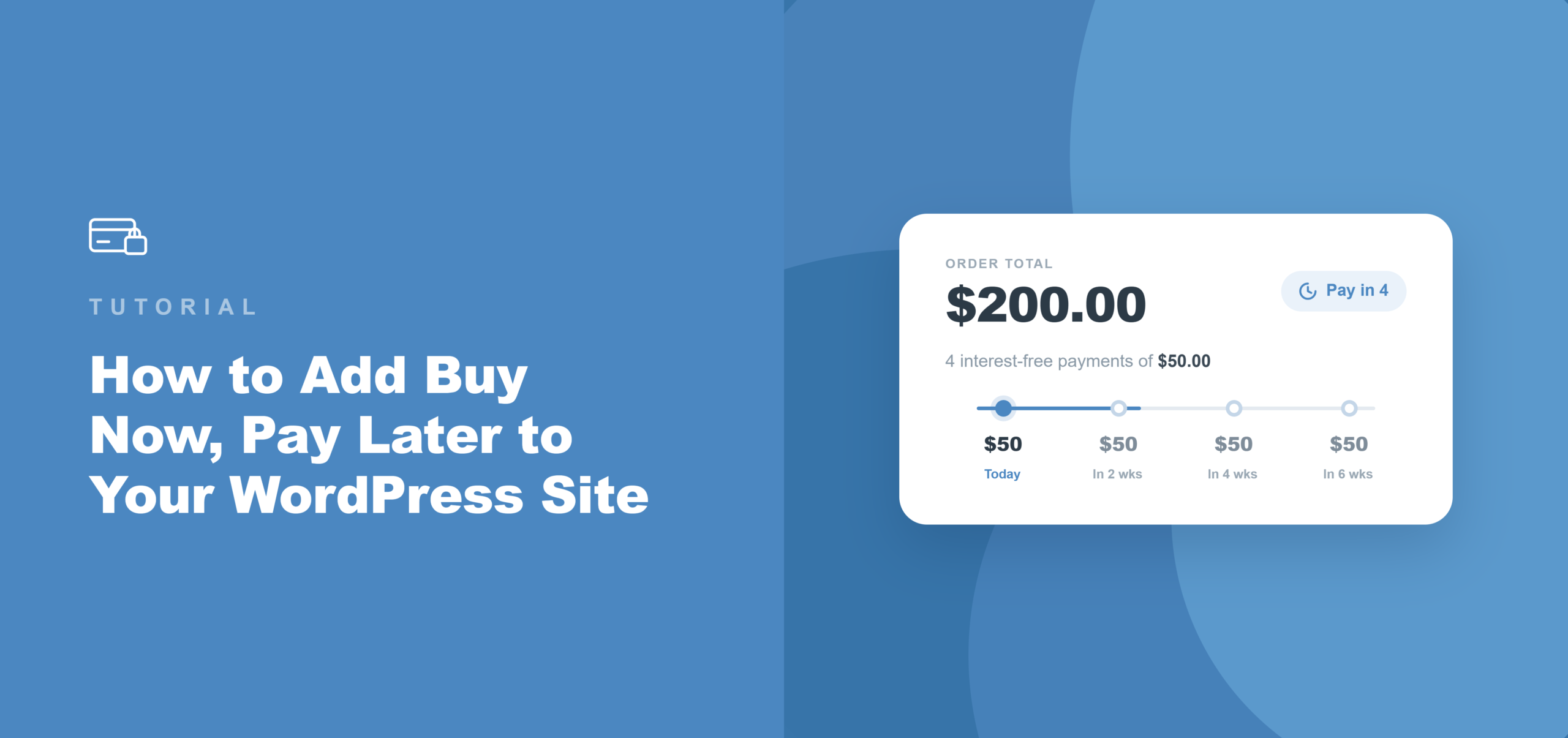
WordPressサイトに「今すぐ購入、後払い」を追加する方法
最終更新日

欲しいものを、分割払いで後から支払いたいと思ったことはありませんか?
そこで、WordPressサイトに「今すぐ購入、後払い」オプションが必要になります。
残念ながら、ほとんどのWordPressの支払い設定では、一度に全額を支払うことしかできません。しかし、コーチングプログラム、イベントチケット、非営利団体の会員資格などの高額商品を購入するバイヤーの増加に伴い、チェックアウト時に支払いを分割できるオプションを期待するようになっています。
そのオプションがない場合、支払い計画を求めるメールは送られてきません。彼らは去っていきます。
これに対する迅速かつ簡単な解決策は、WP Simple Payを使用して「今すぐ購入、後払い」(BNPL)オプションを追加することです。これは、顧客が支払いを分割できる人気の支払いプロバイダーをサポートしています。一番良い点は、コードを編集する必要がないことです。
この記事では、WordPressサイトに「今すぐ購入、後払い」を追加する方法をご紹介します。
WordPressサイトに「今すぐ購入、後払い」を追加する理由
「今すぐ購入、後払い」とは、バイヤーが購入代金を一度に全額支払うのではなく、短期間で分割して2〜4回に分けて支払うことができるチェックアウト時の支払いオプションです。
バイヤーは分割で支払いますが、マーチャントはStripeのような支払いゲートウェイから取引の全額を前もって受け取ります。
私たちの経験から、ほとんどのサイトオーナーは、支払いオプションがないことによるコストを過小評価しています。BNPLが実際に何を変えるのかを見てみましょう。
- 割引なしで価格の壁がなくなります。 400ドルで躊躇するバイヤーは、同じ金額が4回の100ドルの分割払いに分割されると、購入を完了することがよくあります。このオプションを追加するだけで、高額商品の完了したチェックアウトが増加するのを見てきました。収益は同じで、手間は少なく、価格を下げる必要はありません。
- 販売者は回収リスクを一切負いません。手動の支払い計画とは異なり、BNPLプロバイダーがバイヤーからの分割払いの回収を直接管理します。Stripeは、バイヤーがすべての分割払いを期日通りに支払ったかどうかにかかわらず、取引の全額をマーチャントに即座に入金します。
- 若いバイヤーはそれを期待しています。ミレニアル世代の買い物客の4分の1以上が最近の購入で「今すぐ購入、後払い」を選択したことをご存知ですか?チェックアウト時にBNPLがない場合、その層は不完全な支払い体験と見なし、代替カードではなく、戻るボタンを押します。
- 個別のマーチャント申請は不要です。ほとんどのプラットフォームを通じてKlarnaまたはAfterpayを追加するには、マーチャントプログラムに申請し、承認を待つ必要があります。WP Simple PayとStripeを使用すると、バイヤーの地域と通貨に基づいて両方の方法が自動的にアクティブになります。販売者側で必要な唯一のアクションは、フォームビルダーでチェックボックスをオンにすることです。
さて、WordPressウェブサイトに「今すぐ購入、後払い」を追加する方法を見ていきましょう。
WordPressにBNPLを追加する最良の方法は何ですか?
WordPressで、ショッピングカートをセットアップせずに、後払い決済を受け入れる最も簡単な方法として、WP Simple Payをお勧めします。
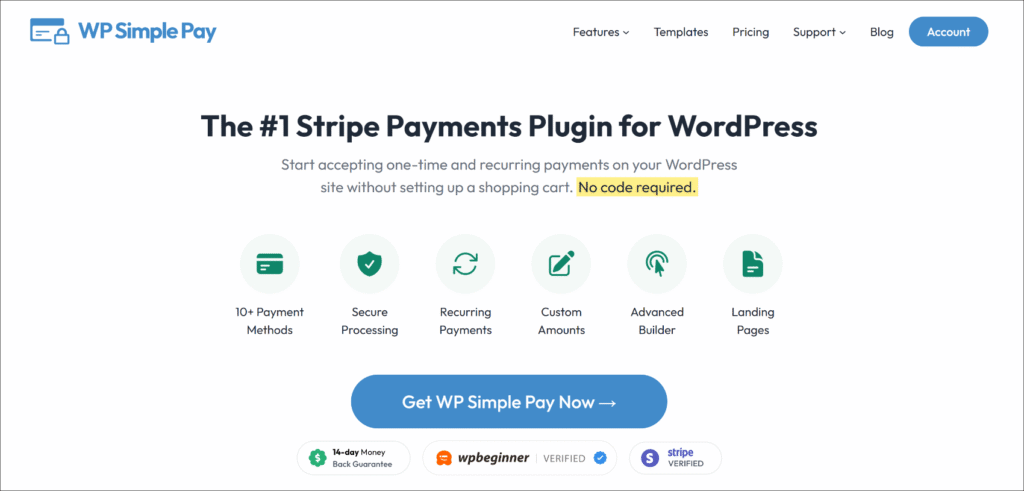
WP Simple Payは、WordPress向けのNo.1のStripe決済プラグインです。サイト所有者は、コード不要のドラッグ&ドロップフォームビルダーで、単発および定期的な支払いを受け入れることができます。
BNPL(後払い決済)については、ProfessionalおよびEliteプランでStripe経由でKlarna、Afterpay、Affirmに接続でき、取引全額が事前にマーチャントに振り込まれます。
これが、このチュートリアルに最適なツールである理由です。
- Klarna、Afterpay、Affirmが組み込まれています。これら3つのBNPLプロバイダーは、ProfessionalおよびEliteプランで利用できます。個別のプラグイン、マーチャント申請、Stripeの標準処理レートを超える追加料金は不要です。
- Stripe Checkout連携。WP Simple PayのStripe Checkoutフォームタイプは、購入者の地域と購入金額に基づいてBNPLオプションが自動的に表示される、Stripeホスト型チェックアウトを経由して購入者をルーティングします。
- 全額を前払い。Stripeはマーチャントに即時に支払います。BNPLプロバイダーは、独自のスケジュールでバイヤーからの分割払いを処理します。
- 10以上の支払い方法、1つのフォーム。同じフォームで、カード、Apple Pay、Google Pay、ACHダイレクトデビット、BNPLを受け入れることができます。各方法に個別のフォームは不要です。
それでは、WP Simple Payを使用してWordPressに後払い決済を追加する方法を見てみましょう。
ステップ1:WP Simple Payのインストールと有効化
BNPLは、WP Simple PayのProfessionalプラン以上で利用可能です。開始するには、WP Simple Payのウェブサイトにアクセスし、新規アカウントにサインアップしてください。
購入完了後、確認メールまたはWP Simple Payアカウントエリアのダウンロードタブからプラグインの.zipファイルをダウンロードできます。
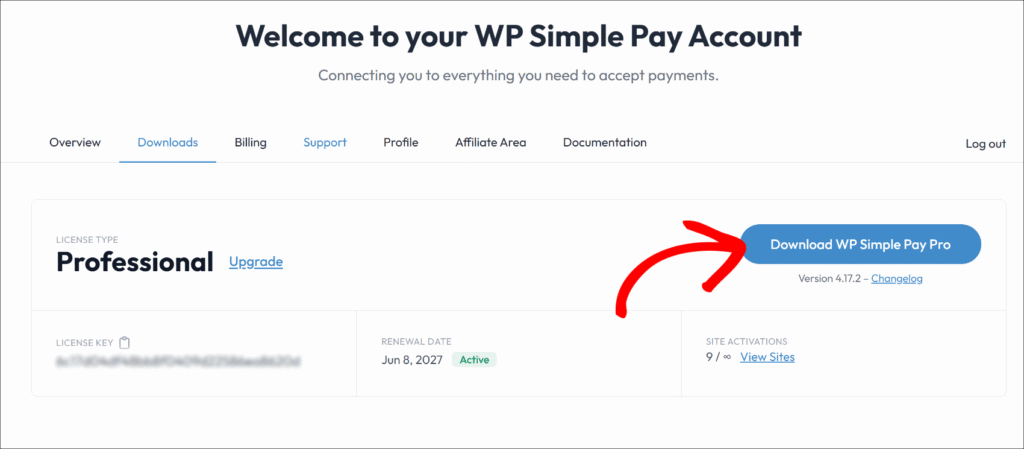
次に、プラグインファイルをウェブサイトにアップロードし、プラグインをアクティブ化してインストールできます。
注意:WordPressプラグインのインストールが初めての場合は、このWordPressプラグインのインストールガイドを参照してください。プロセスが詳細に説明されています。
プラグインがアクティブになると、セットアップウィザードが自動的に起動します。初期設定を進めるには、開始するをクリックしてください。
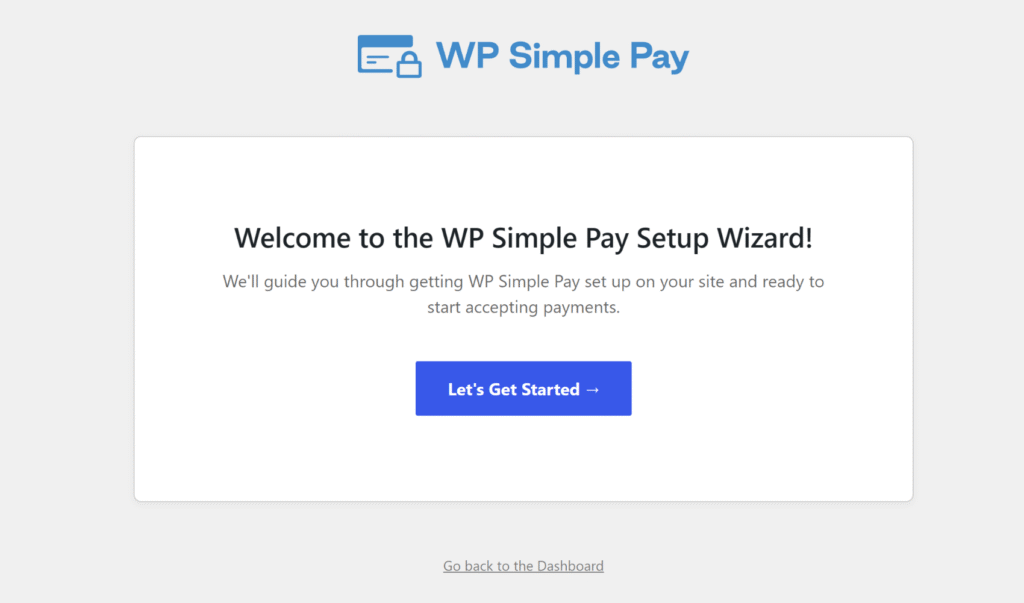
または、ウィザードが表示されない場合は、WP Simple Pay » 設定 » 一般 » 詳細設定に移動し、セットアップウィザードを起動ボタンをクリックしてください。
WP Simple Payがアクティブになりました。Stripeに接続する準備ができました。
ステップ2:WordPressサイトをStripeに接続する
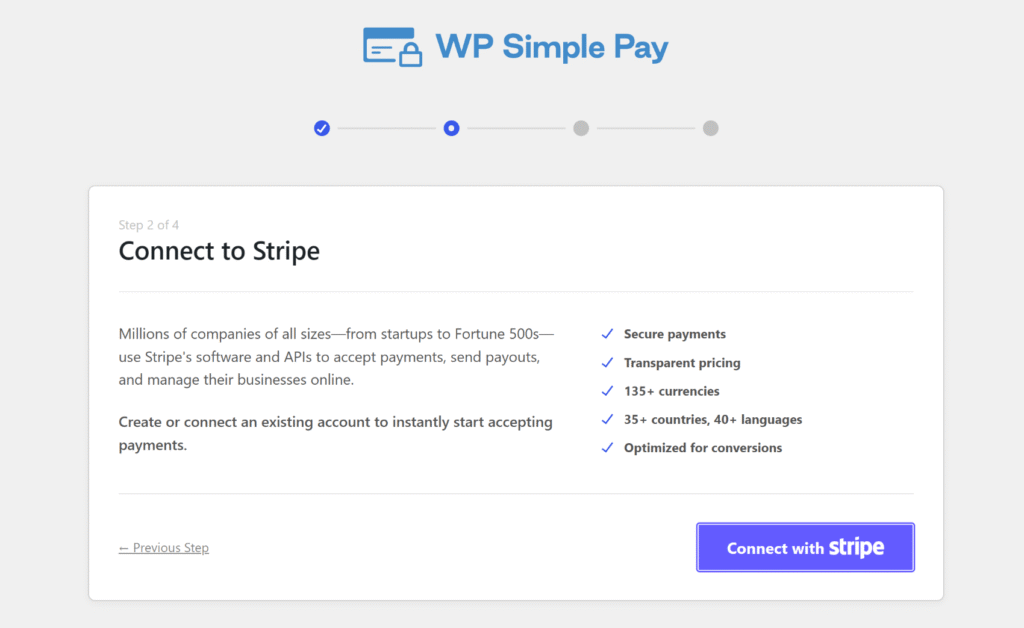
セットアップウィザードで、Stripeで接続をクリックできます。Stripeアカウントのメールアドレスを入力し、OAuth認証を完了してください。まだStripeアカウントをお持ちでない場合は、WordPressを離れることなく同じ画面から作成できます。
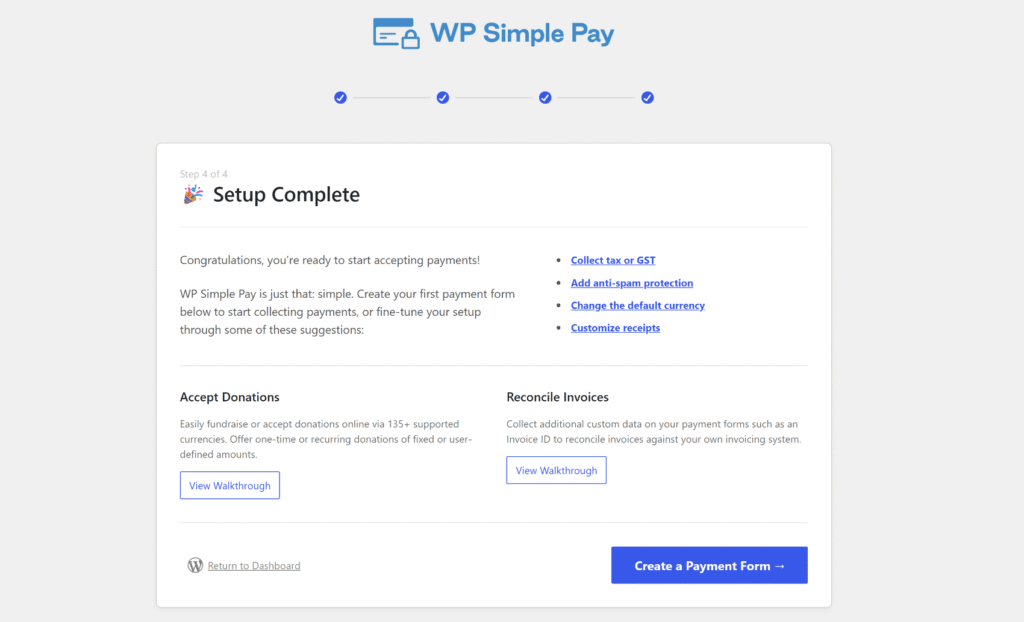
接続を承認した後、StripeはWordPressにリダイレクトし、「セットアップ完了」の確認を表示します。
ここから、WP Simple PayはあなたのStripeアカウントにリンクされ、支払いの処理準備が整います。
注意: Stripeは、購入者の所在地と支払い通貨に基づいてBNPLの適格性を自動的に判断します。Klarna、Afterpay、またはAffirmのためにStripeダッシュボードで別途有効化する手順は必要ありません。
ステップ3:BNPLを有効にしたStripe Checkout支払いフォームを作成する
次に、あなたのウェブサイトでBNPL支払いを受け付けるための新しい支払いフォームを作成できます。
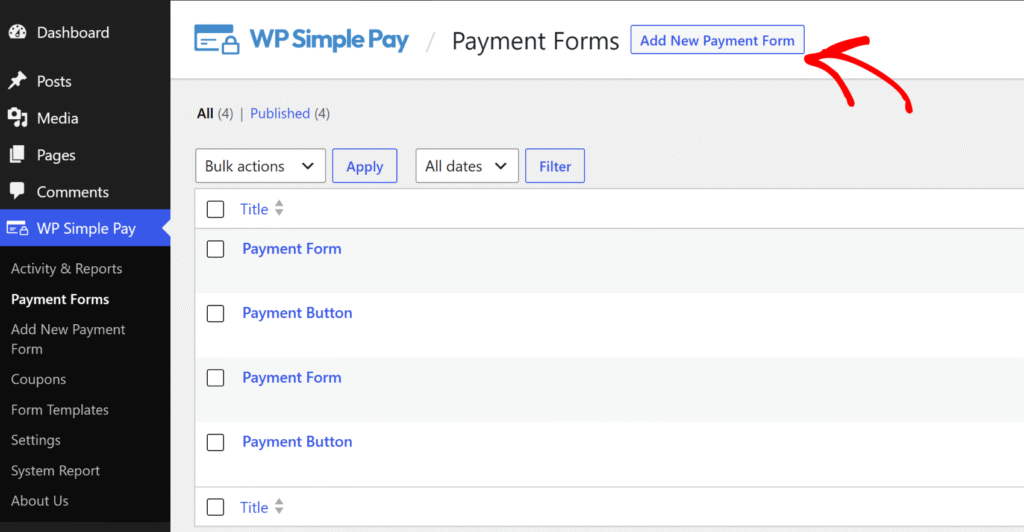
開始するには、WordPress管理メニューからWP Simple Pay » 支払いフォームに移動し、「新しい支払いフォームを追加」ボタンをクリックしてください。
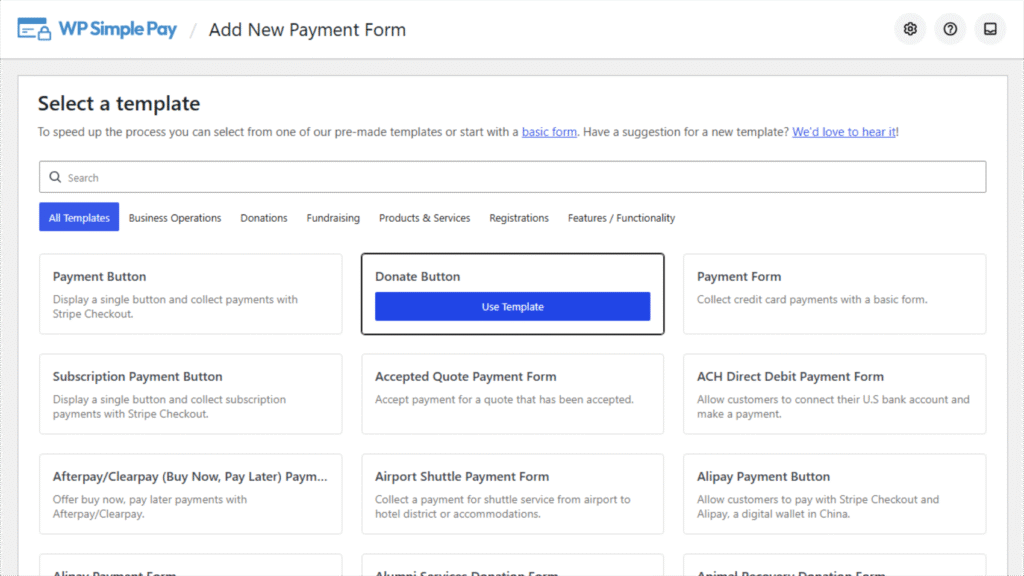
WP Simple Payは、あらかじめ構築された支払いフォームテンプレートのライブラリを表示します。
一般的なチェックアウトのための支払いフォームを選択するか、イベント登録のための 寄付ボタン または サブスクリプション支払いボタン、あるいはイベント登録のためのファンラン登録フォームのようなユースケーステンプレートを選択できます。これはフォームの目的に応じて異なります。
このチュートリアルでは、後払い購入支払いフォームを設定するために寄付ボタンを使用します。
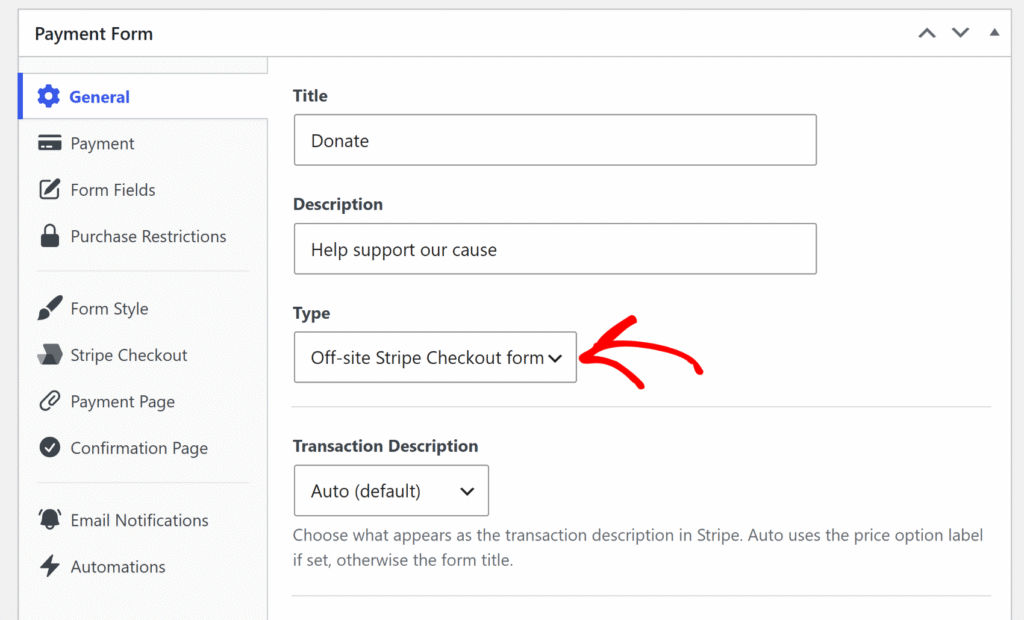
フォームビルダーが開いたら、一般タブをクリックできます。
ここで、タイプフィールドを見つけて、ドロップダウンからオフサイトStripe Checkoutフォームを選択します。
この手順は必須です。BNPL支払い方法はStripe Checkoutフォームでのみ利用可能であり、このオプションが選択されていない限り支払いタブには表示されません。
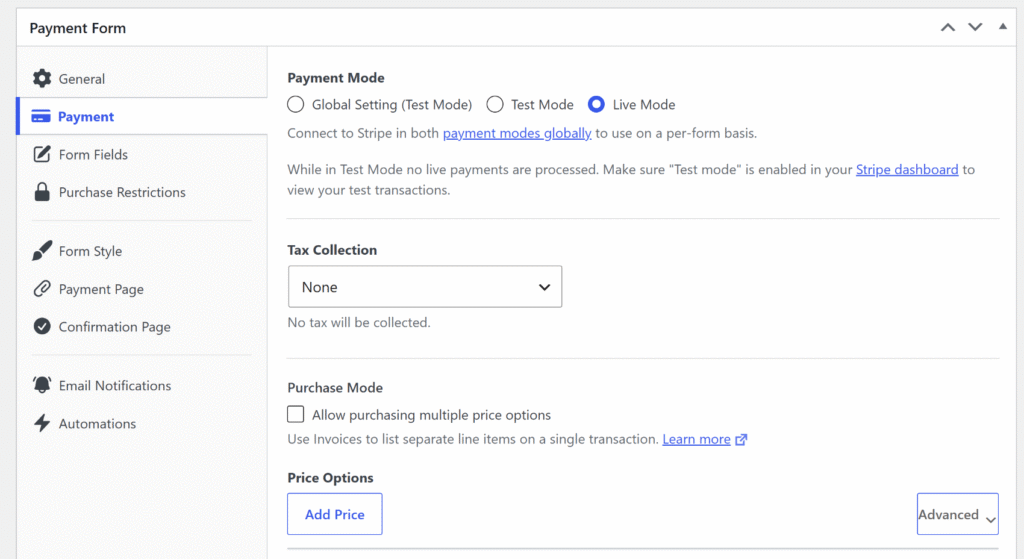
次に、支払いタブをクリックして、あなたの製品の支払い詳細を入力できます。
これには、税金収集方法と価格オプション(通貨、価格、および一括払いまたはサブスクリプション支払い)が含まれます。
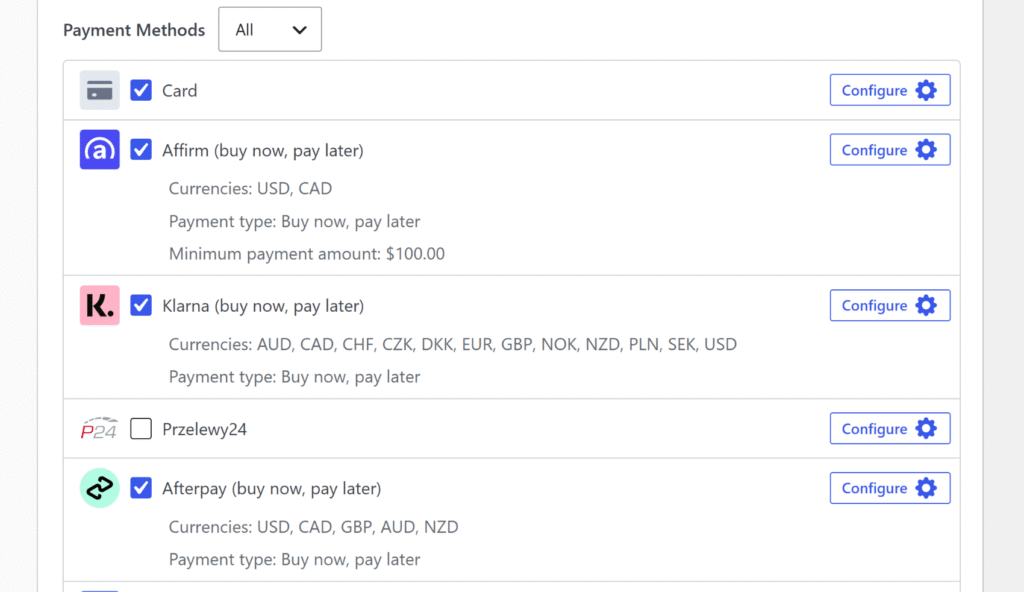
その後、支払い方法リストまでスクロールダウンできます。
Klarna(後払い購入)、Afterpay(後払い購入)(英国拠点のStripeアカウントではClearpay(後払い購入)と表示)、およびAffirm(後払い購入)のチェックボックスをオンにします。
Stripeはチェックアウト時に購入者の地域で利用可能な方法のみを表示するため、3つすべてを同時に有効にすることができます。
フォームを設定する際に留意すべき点がいくつかあります:
- Affirmは最低100ドルが必要です。 Affirmは、購入金額が100米ドル(または同等のカナダドル)未満の場合、チェックアウト時に表示されません。フォームの価格がそのしきい値を下回る場合は、KlarnaとAfterpayを有効にし、Affirmのチェックは外してください。
- Afterpayは英国の販売者にはClearpayと表示されます。 接続されているStripeアカウントが英国を拠点としている場合、WP Simple Payはフォームビルダーでその方法をClearpayと表示します。それ以外の国のアカウントでは、Afterpayと表示されます。Stripe Checkoutでは、Stripeは購入者の所在地に基づいて各購入者に適切なブランドを個別に表示します。どちらの場合も追加の設定は必要ありません。
- 通貨によって利用可否が決まります。 AffirmはUSDとCADのみをサポートしています。AfterpayはUSD、CAD、GBP、AUD、NZDをサポートしています。Klarnaは25カ国以上で12の通貨をサポートしています。フォームの通貨を、提供する主要市場に合わせて設定してください。
BNPL(後払い)方法を有効にしたら、公開をクリックできます。
ステップ4:BNPL(後払い)決済フォームの埋め込みとテスト
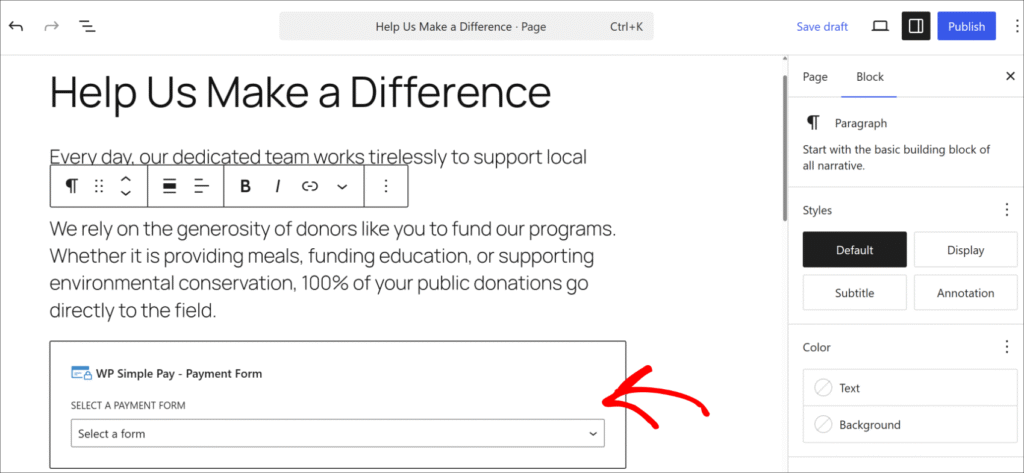
これで、WordPressのコンテンツエディターでWP Simple Pay – Payment Formブロックを使用して、公開済みのフォームをWordPressのページまたは投稿に追加するか、ショートコードを貼り付けることができます。
まず、後払い決済オプションを表示したいページを編集するか、新しいページを作成します。次に、+ボタンをクリックして、「WP Simple Pay – Payment Form」ブロックを追加します。
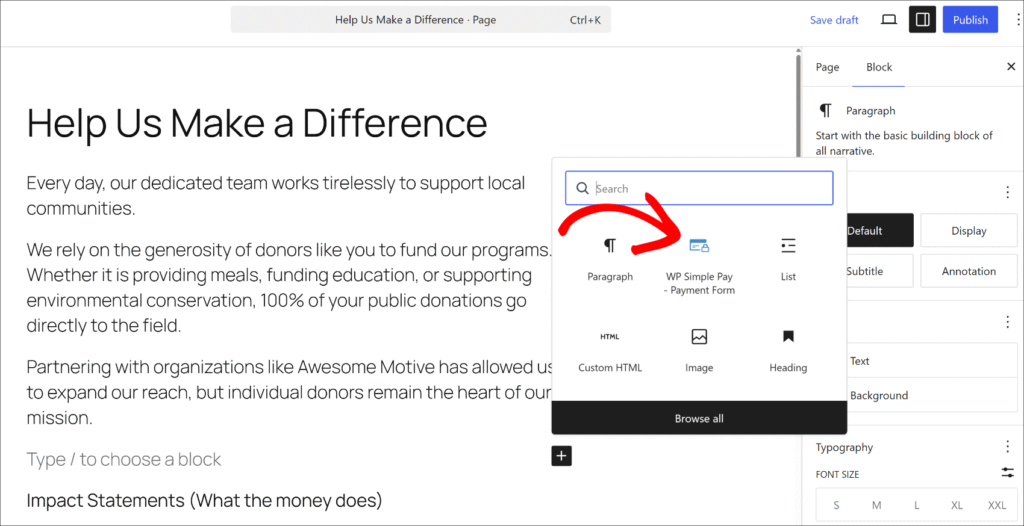
次に、ブロックのドロップダウンメニューから、作成したばかりのフォームを選択できます。
それが完了したら、ページを公開します。
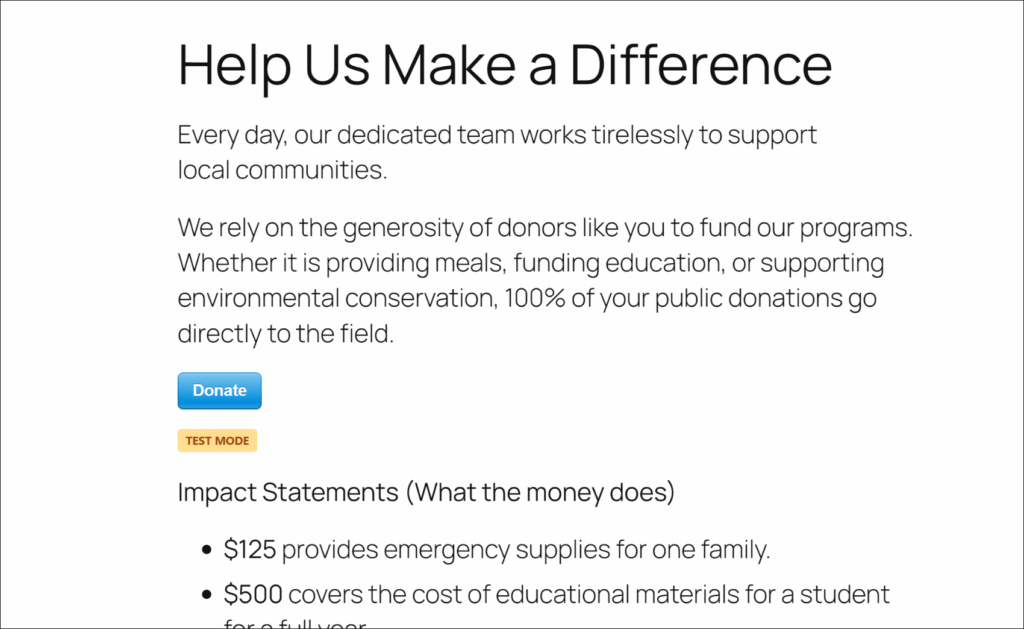
次に、新しいブラウザウィンドウで開いて、フォームが表示されることを確認します。
Stripeがテストモードのままであることを確認し、公開済みのページで決済ボタンをクリックします。Stripe Checkoutウィンドウが開き、標準のカードフィールドと並んで利用可能なBNPL(後払い)オプションが表示されます。BNPL(後払い)方法をテストするには、決済オプションからKlarna(またはAfterpay)を選択し、シミュレーションされたBNPL(後払い)フローを完了します。実際の支払いは請求されません。
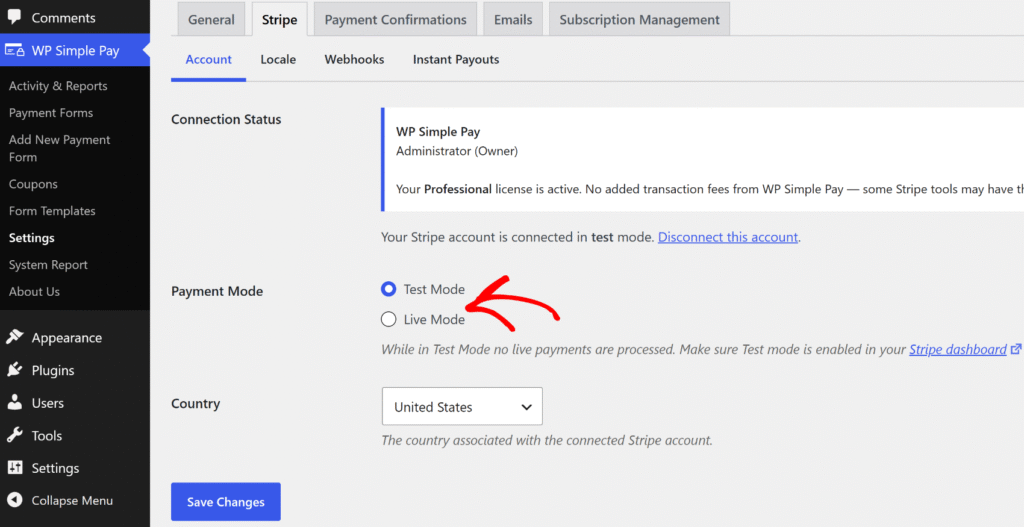
テスト決済が完了したら、テストモードからライブモードに変更できます。
WP Simple Pay » 設定 » Stripeに戻り、テストモードからライブモードに切り替えるだけで、実際の支払いの受け付けを開始できます。
ボーナス:高額商品向けに分割払いプランを追加する
BNPL(後払い)により、購入者はKlarnaまたはAfterpayの分割払いスケジュールで支払いを分割できます。分割払いの構造(特定の金額、特定の期間、定義された回数の請求など)を完全に制御したいサイト所有者にとっては、WP Simple Payの分割払いプラン機能が最適なツールです。
分割払いプランでは、支払い回数、間隔、および請求ごとの金額を設定します。Stripeは、プランが完了するまで自動請求を処理します。
購入者はチェックアウト時に構造を明確に確認できます(例:「250ドルの支払いを4回」)。最終請求後に請求は自動的に停止し、キャンセルするサブスクリプションはありません。
後払い(Buy Now, Pay Later)に関するFAQ
1. WP Simple Payはどの後払いプロバイダーをサポートしていますか?
WP Simple Payは、Stripe経由でKlarna、Afterpay(英国ではClearpayと呼ばれます)、およびAffirmをサポートしています。これら3つすべてがProfessional+プランで利用可能であり、購入者の地域と通貨に基づいてStripe Checkoutフォームに自動的に表示されます。いずれの場合も、別途マーチャント申請は必要ありません。
2. 後払いはWP Simple Payの定期支払いと連携しますか?
いいえ、後払いは1回限りの支払いフォームでのみ利用可能です。サブスクリプションおよび定期支払いフォームは、Klarna、Afterpay、またはAffirmをサポートしていません。自動分割請求による柔軟な高額商品価格設定については、WP Simple Payの分割払いプラン機能がこのユースケースのために設計されています。
3. KlarnaまたはAfterpayを使用するために、購入者はアカウントまたはアプリが必要ですか?
購入者は、チェックアウト時にBNPLを利用するために、個別のアプリやアカウントを必要としません。KlarnaとAfterpayは、Stripe Checkoutフロー内で、購入時に簡単なオンボーディングを処理します。このプロセスは数秒で完了し、完全なサインアップの障壁にはなりません。
4. WP Simple PayでBNPLの最低購入金額はありますか?
Affirmは最低100米ドルの購入金額が必要で、そのしきい値を下回る金額の場合、チェックアウト時に表示されません。WP Simple Payでは、KlarnaとAfterpayにプラグインレベルでの最低金額はありませんが、Stripeおよび個々のBNPLプロバイダーは、地域と金額に基づいて独自の適格性ルールを適用する場合があります。
5. WP Simple Payで、どの国が後払い購入をサポートしていますか?
Klarnaは、米国、英国、オーストラリア、カナダ、およびヨーロッパのほとんどを含む25か国以上で利用可能です。Afterpay(Clearpay)は、AU、CA、FR、IE、IT、NZ、ES、US、GBをサポートしています。Affirmは米国とカナダのみをサポートしています。Stripeは、購入者の場所ごとに利用可能な方法のみを表示するため、国ごとの手動設定は不要です。
WordPressでBNPL決済フォームを開始する
WP Simple Payを使用すると、Klarna、Afterpay、およびAffirmをWordPressの決済フォームに追加するのに10分もかかりません。
個別の加盟店契約、コード、ショッピングカートは不要です。購入者はチェックアウト時に、地域に合ったBNPLオプションを確認でき、全額がStripeアカウントに即座に入金されます。
この記事が、WordPressウェブサイトに後払い購入を追加する方法を学ぶのに役立ったことを願っています。また、WordPressでGoogle PayとApple Payを受け入れる方法や埋め込み、オーバーレイ、Stripe Checkoutフォームの違いに関するガイドもご覧ください。
後払い購入の支払いを受け付け始めませんか? 今すぐWP Simple Payで始めましょう。
このような記事をもっと読むには、 X でフォローしてください。
開示: 当社のコンテンツは読者によってサポートされています。これは、当社のリンクの一部をクリックすると、手数料が発生する可能性があることを意味します。当社は、読者に価値をもたらすと信じる製品のみを推奨しています。
返信する