
How to Customize a Payment Form’s Payment Options
In This Document
Reading time: 6 minutes | Difficulty: Beginner
Overview
The Payment tab in the form builder controls how a payment form charges customers: its payment mode, tax collection, price options, subscriptions, and the payment methods it offers.
Prerequisites
- WP Simple Pay installed and connected to Stripe
- A payment form opened in the form builder
Payment Mode
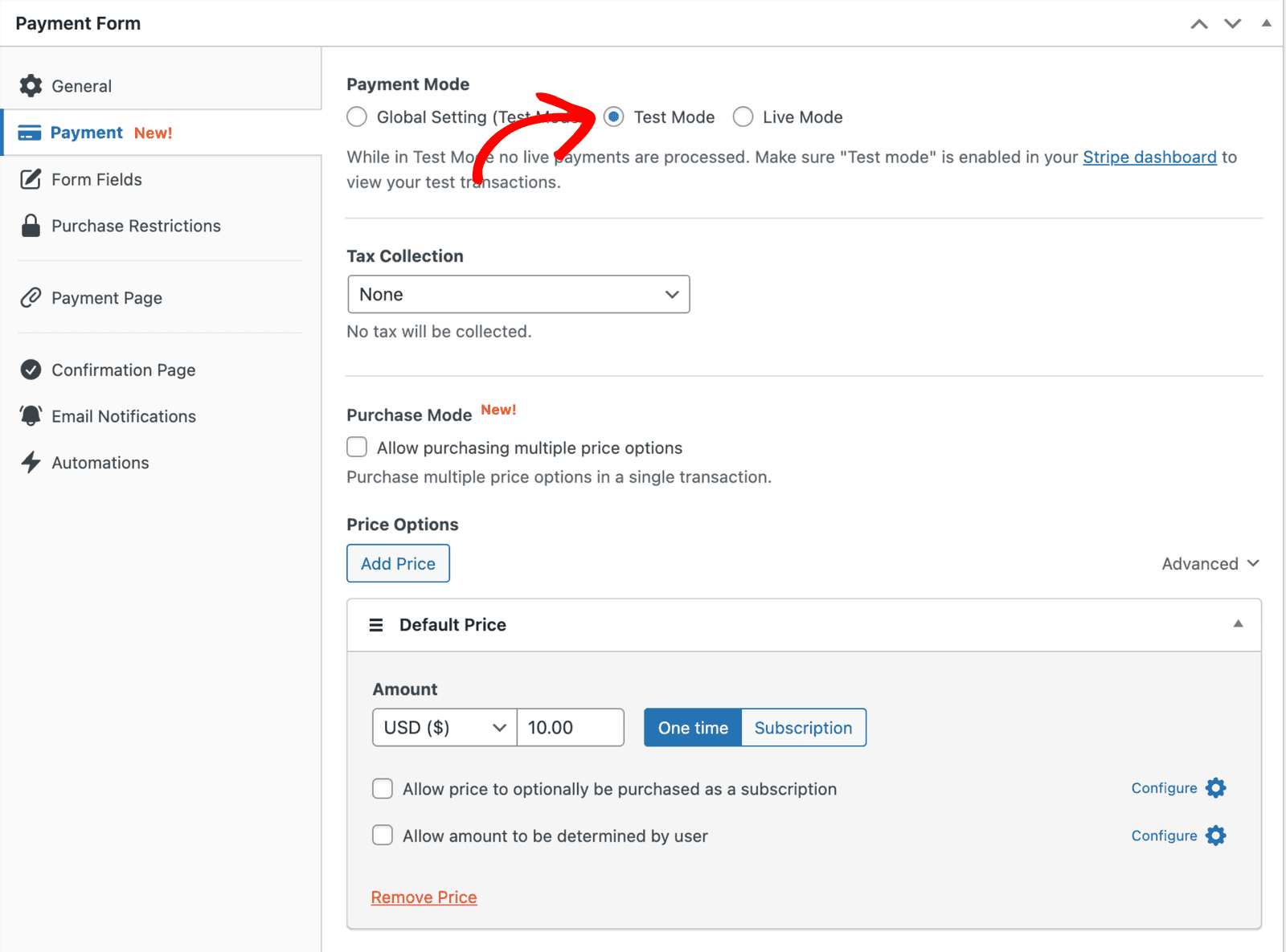
By default, when a payment is made, the transaction is processed in the currently set global Test Mode setting found in WP Simple Pay → Settings → Stripe → Account.
This setting can be overridden for each payment form. Adjust the form’s Payment Mode to process transactions in a mode other than the global setting if you need to perform tests, gradually roll out additional forms, or similar.
Tax Collection
Determines how taxes are calculated for the payment. Learn more about tax collection →
Purchase Mode
Enabling Allow purchasing multiple price options lets you create a payment form where multiple price options can be purchased in a single transaction and offers significant payment form convenience and flexibility.
Our documentation, found here, provides more information.
Price Options
A payment form can have a single price option (no price selector is shown), or many price options (a price selector is shown). To add a new price option, click Add Price.
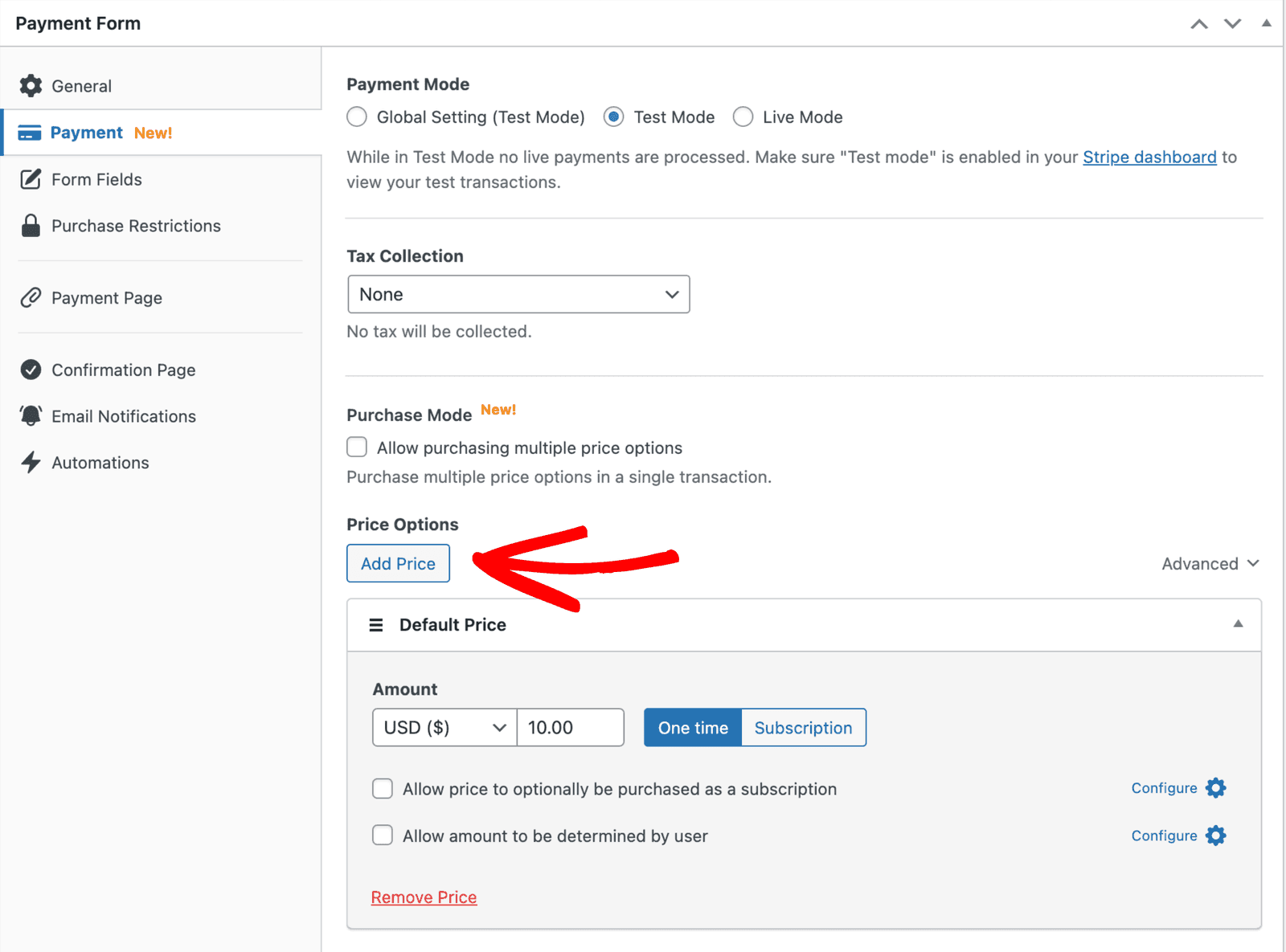
If there is only one price option, the respective settings will automatically be applied to the payment, and no price selector will be shown.
Label
Add an optional custom label for this price.
Amount
Select a currency and an amount for this price.
Amount Type
Determines if the payment will be one-time or recurring (subscription).
Subscription functionality uses Stripe Billing (billed separately by Stripe) for automatic invoice processing on your set billing cycle.
Choosing “One time” allows a price to default to a one-time payment with the option to be optionally purchased as a subscription. When enabled a checkbox appears on the form builder that allows the payer to choose the amount type—great for donations!
Subscription Settings
Billing Period
Determines the billing cycle—the interval of payments—for the price option.
Installment Plan
This determines if the subscription payments should be canceled after a set number of invoices/payments. The number entered should include the initial payment.
Free Trial
The number of days before subscription billing begins.
Setup Fee
An amount is added to the initial invoice payment but not subsequent invoices.
Custom Amount Settings
This option allows the user to determine the payment amount. When enabled, an amount input will be added to the payment form, allowing a custom amount for the selected currency and amount type.
Minimum Amount
Set a minimum amount based on the expected payment amounts you will receive.
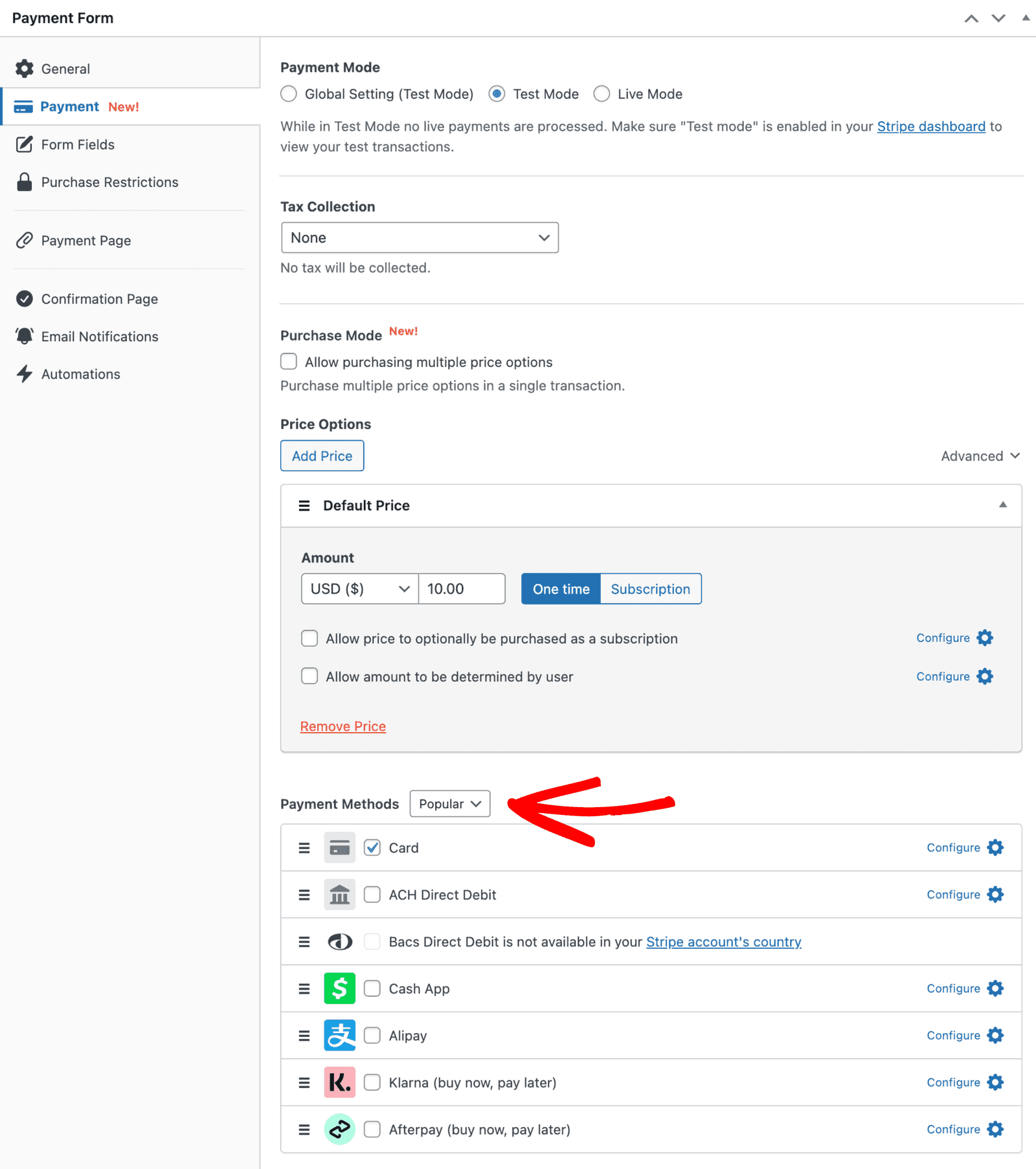
Payment Methods
Payment Method Settings
Mobile Wallets
Enable Apple Pay, Google Pay, and Microsoft Pay mobile wallets. Applies only to the Card payment method.
Fee Recovery
We add an additional fee to payments made with this payment method. Our documentation, found here, provides more information.
Enable the payment methods you wish to present to users on your payment form. Not all payment methods are available to all locales, license levels, etc.
- Card
- ACH Direct Debit
- SEPA Direct Debit
- Alipay
- Bancontact
- FPX
- giropay
- iDEAL
- Klarna (Buy now, pay later)
- Afterpay / Clearpay (Buy now, pay later)
- Przelewy24
- 1-Click Payments (Apple Pay / Google Pay)
Payment Method Amount Limits
Some payment methods only accept payments within a certain amount. WP Simple Pay offers these methods only when the payment amount is within range, and hides them otherwise, so the rest of the form’s payment methods keep working:
- Afterpay/Clearpay — the total must be between the minimum and maximum for its currency (for example, up to £1,200 in GBP). See How to Accept Afterpay/Clearpay Buy Now, Pay Later Payments.
- Affirm — the price must be at least 100.00.
On forms where the amount can change, such as custom amounts, quantities, or coupons, the list updates as the amount changes. If none of the form’s payment methods accept the amount, the customer sees This payment amount is outside the range accepted by the available payment methods. Please change the amount and try again. Enabling cards alongside these methods avoids this.
What’s Next?
- Which Payment Methods Does WP Simple Pay Support? – Compare every payment method
- How to Collect Taxes on Payments – Configure tax collection
- How to Create Installment Plans – Split a price into a set number of payments
Still have questions? We're here to help!
Last Modified: