
WooCommerceなしでWordPressで支払いを受け入れる方法
最終更新日

WordPressサイトの所有者のほとんどは、WooCommerceなしでWordPressで支払いを受け付けたい場合、結局それをインストールすることになります。そしてそれは、ストアではなく支払いフォームを必要とする人にとっては間違ったツールです。
WooCommerceは、製品、在庫、ショッピングカート、注文管理を中心に構築された完全なeコマースプラットフォームです。あなたがフリーランサー、非営利団体、またはコース作成者であっても、それらのどれもあなたの状況には当てはまりません。
私たちはこれを直接見てきました。サービス料を徴収したり寄付を処理したりするためにストアをセットアップすることは、使用しない税金や配送料のルールを設定し、支払う前にすべての顧客をカートに通すことを意味します。
それは数秒で完了するはずのチェックアウトに積み重なった摩擦であり、不要なステップごとに誰かがプロセスを放棄する可能性があります。ここでWP Simple Payが役立ちます。ショッピングカートなしで、数分で任意のページに支払いフォームを公開できます。
この記事では、WooCommerceなしでWordPressで支払いを受け付ける方法を説明します。
支払いのためにWooCommerceが必要ない理由
支払いを受け付けることとオンラインストアを運営することは別々のことであり、WooCommerceはそれらをバンドルしています。
専用の支払いプラグインは、ストアの仕組みなしで支払い側を処理します。そのため、設定する必要のある製品カタログ、カート、または注文管理なしで、お金を徴収するフォームが得られます。
支払い専用プラグインは、WordPressサイトを支払い処理業者に直接接続します。WP Simple Payの場合、その処理業者はStripeです。フォームを作成し、価格を設定し、支払いタイプ(1回限りまたは定期)を選択して公開します。
私たちの経験から、このセットアップはほとんどのWordPressサイト所有者をカバーしています。フリーランサーがデポジットを徴収する場合、非営利団体が寄付キャンペーンを実行する場合、コース作成者が登録料を請求する場合、イベント主催者がフルストアではなくフォームを必要とする場合などです。
結果として、顧客と支払いボタンの間にカートがない、任意のページ上のStripe支払いフォームが作成されます。
次に、WordPressサイトで支払いを行うためにWooCommerceを使用するのが過剰である理由を見てみましょう。
支払いのためにWooCommerceが過剰である理由
私たちは、単一の支払いを受け付けるためにWooCommerceをインストールし、予想以上に多くの時間をセットアップに費やした多くのサイト所有者と協力してきました。
ここで摩擦が現れがちです:
- フォームではなくストア向けに構築されている: WooCommerceは製品、在庫、ショッピングカートを中心に設計されているため、スタンドアロンの支払いフォームを公開するには、「製品」を作成し、チェックアウトページを設定し、使用しない機能を無効にする必要があります。
- セットアップに不必要に時間がかかる: WooCommerceの新規インストールでは、たとえ定額のサービス料を徴収する場合でも、何も公開する前に支払いゲートウェイ、税金、配送料の設定を完了する必要があります。
- すべての支払いはカートを経由する: WooCommerceは、チェックアウト前に「カートに追加」フローを通じて顧客をルーティングします。これはマルチアイテムストアにとっては適切なUXですが、サービス料、寄付、またはメンバーシップの支払いにとっては不要な障壁です。
- 継続的なメンテナンスの積み重ね: WooCommerceとその拡張機能は、定期的なアップデート、互換性チェック、および時折の注意が必要ですが、支払い専用プラグインはメンテナンスする表面積がはるかに小さくなります。
WP Simple Payは、これらのオーバーヘッドをすべて排除し、WordPressサイトの所有者に必要なもの、つまり数分で任意のページに表示されるStripe支払いフォームを提供します。支払いプラグインとフルストアの比較については、WooCommerce vs WP Simple Payの解説をご覧ください。
それでは、WordPressでWP Simple Payを設定し、簡単な支払いフォームを作成する方法を見てみましょう。
WooCommerceなしで支払いを受け付ける方法
ショッピングカートなしでWordPressでStripe支払いを受け付けるには、WP Simple Payが市場で最良のソリューションです。
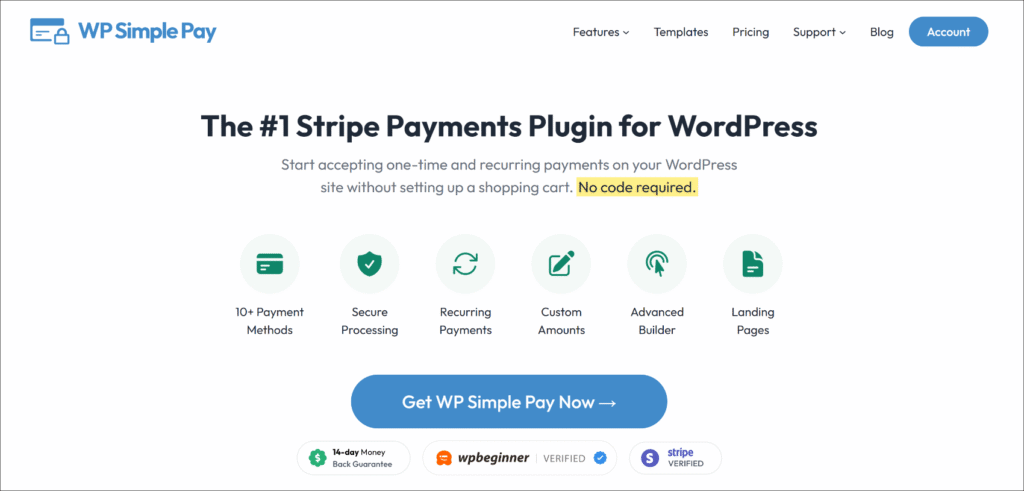
WP Simple Payは、WordPress向けのナンバーワンのStripe支払いプラグインです。ドラッグアンドドロップフォーム1つで、単発および定期的な支払いを受け付けられ、Stripe経由でApple Pay、Google Pay、ACHダイレクトデビット、Klarna、Afterpay、Affirmなど10以上の支払いサービスをサポートしており、ショッピングカートの設定やコードの記述は一切不要です。
これが、このチュートリアルで適切な選択肢となる理由です。
- 10以上の支払い方法 — カード、Apple Pay、Google Pay、ACHダイレクトデビット、Klarna、Afterpay、Affirm、Cash App PayなどをStripe経由で受け付けられます。すべて同じフォームから、メソッドごとの設定は不要です。
- 事前構築済みの支払いテンプレート — 単発支払い、サブスクリプション、寄付、イベント登録などの既製のテンプレートから選択できるため、空白のページからではなく、動作するベースラインから開始できます。
- 追加の3%トランザクション手数料なし — WP Simple Pay Proは、ほとんどのStripeプラグインがStripeの標準処理手数料に加えて請求する追加の3%プラグイン手数料を削除します。
- 単発および定期的な支払い — 別のサブスクリプションプラグインを必要とせずに、同じフォームビルダーから両方の支払いタイプを受け付けられます。
これで、WooCommerceなしでWordPressで支払いを受け付けるためにWP Simple Payを使用する方法を見てみましょう。
ステップ1:WP Simple Payのインストールと有効化
まず、WP Simple Payのウェブサイトにアクセスし、ニーズに合ったプランを選択できます。
購入が完了したら、WP Simple PayアカウントダッシュボードからプラグインZIPファイルをダウンロードします。
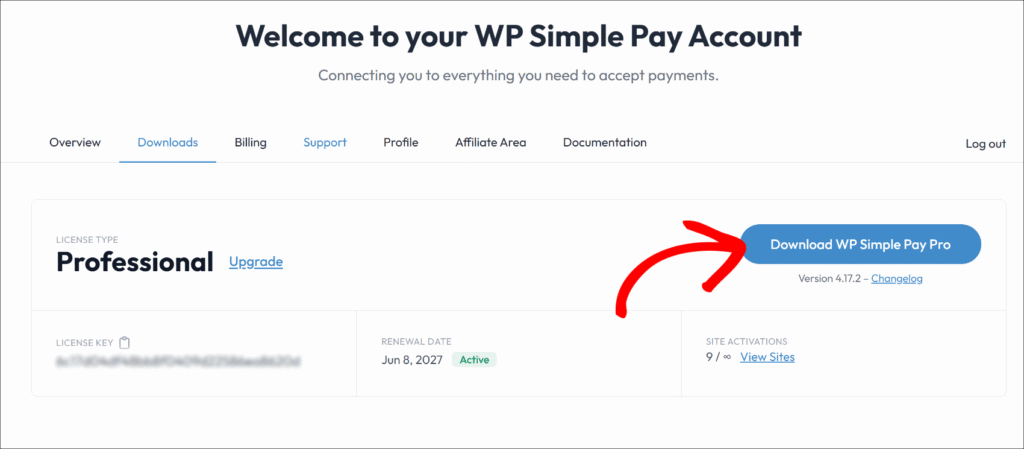
次に、WordPress管理パネルからプラグインファイルをアップロードし、プラグインをインストールしてアクティブ化できます。
アクティブ化後、WP Simple Payセットアップウィザードが自動的に起動します。開始するをクリックして、Stripeアカウントの接続を開始してください。
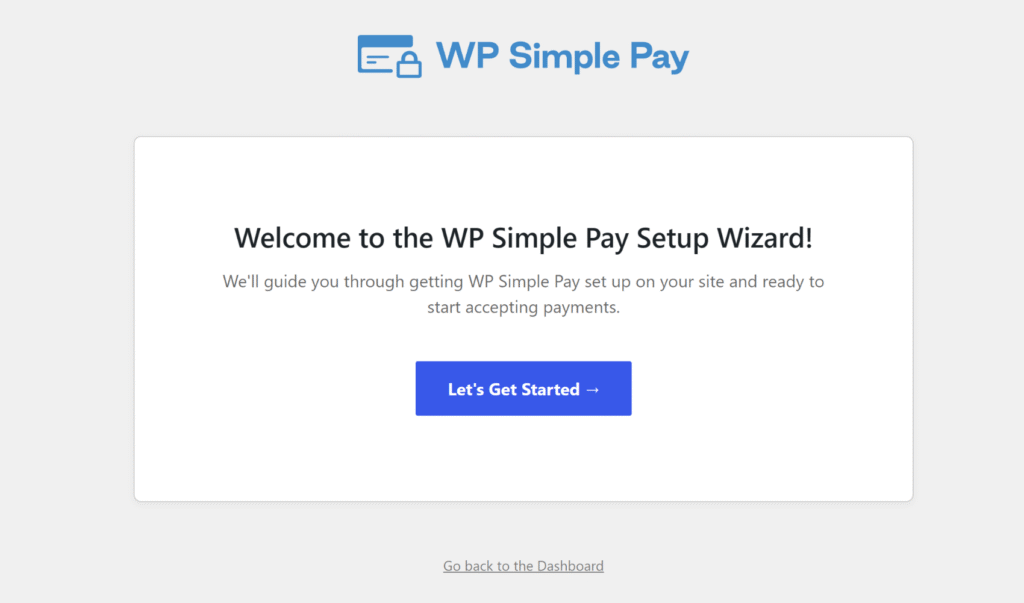
注意:ウィザードが表示されない場合は、WP Simple Pay » 設定 » 一般 » 詳細設定に移動し、セットアップウィザードを開始ボタンをクリックしてください。プラグインのインストールについては、WPBeginnerのWordPressプラグインのインストール方法ガイドを参照してください。
WP Simple Payがインストールされ、準備ができました。次に、Stripeアカウントに接続します。
ステップ2:WordPressとStripeを接続する
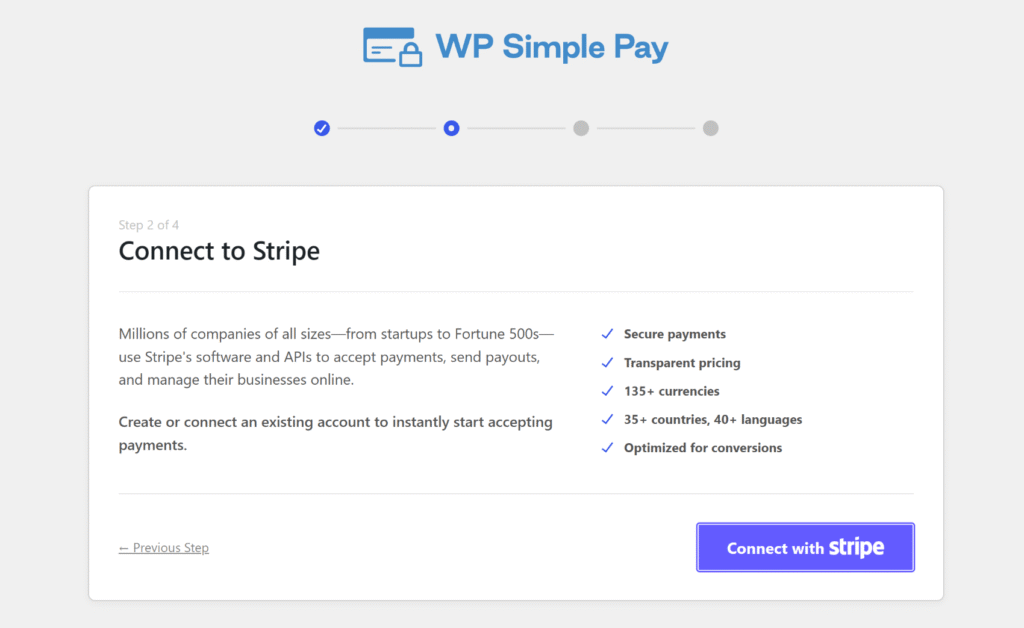
セットアップウィザードから、Stripeで接続をクリックし、Stripeアカウントに関連付けられたメールアドレスを入力してください。
この認証により、WordPressサイトがStripeに接続され、新しいユーザーは別のサインアップなしで同じ画面からStripeアカウントを作成できます。
接続が完了すると、ウィザードはさらにいくつかのセットアップ手順を進み、🎉 セットアップ完了画面に到達します。この時点で、WP Simple Payは支払いフォームの作成準備が整います。
Stripe接続の詳細については、WP Simple Pay Stripeセットアップドキュメントをご覧ください。
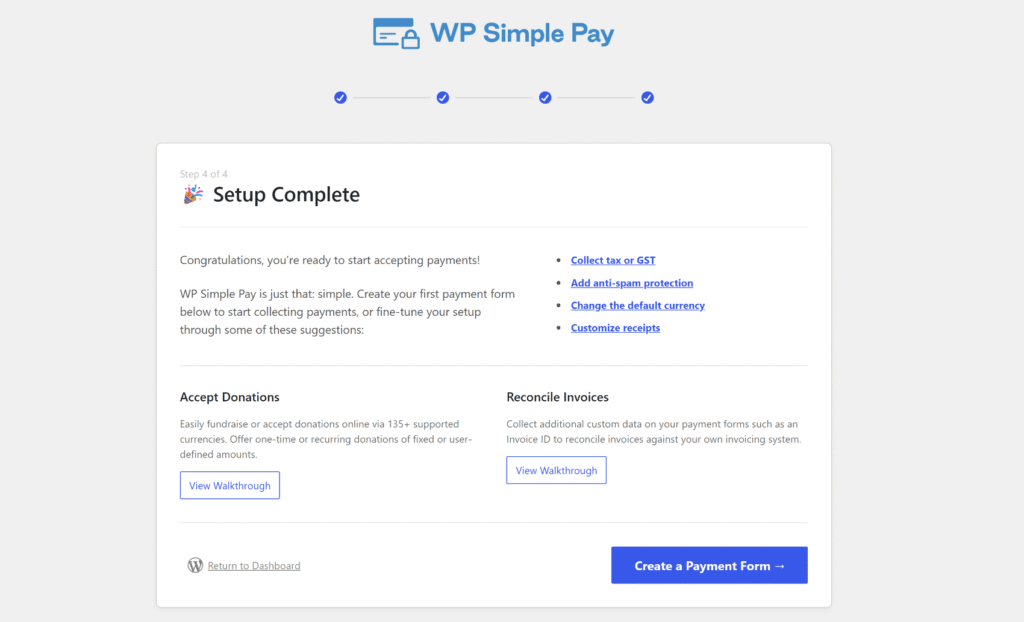
注意: WP Simple Payはデフォルトでテストモードで接続されます。テストモードでは、本番稼働前にStripeのテストカードを使用して支払いを実行できるため、実際の金銭が関わる前にすべてが機能することを確認できます。
ステップ3:支払いフォームを作成する
次に、ウェブサイト用の新しい支払いフォームを作成できます。セットアップウィザードの支払いフォームを作成ボタンをクリックするだけで開始できます。
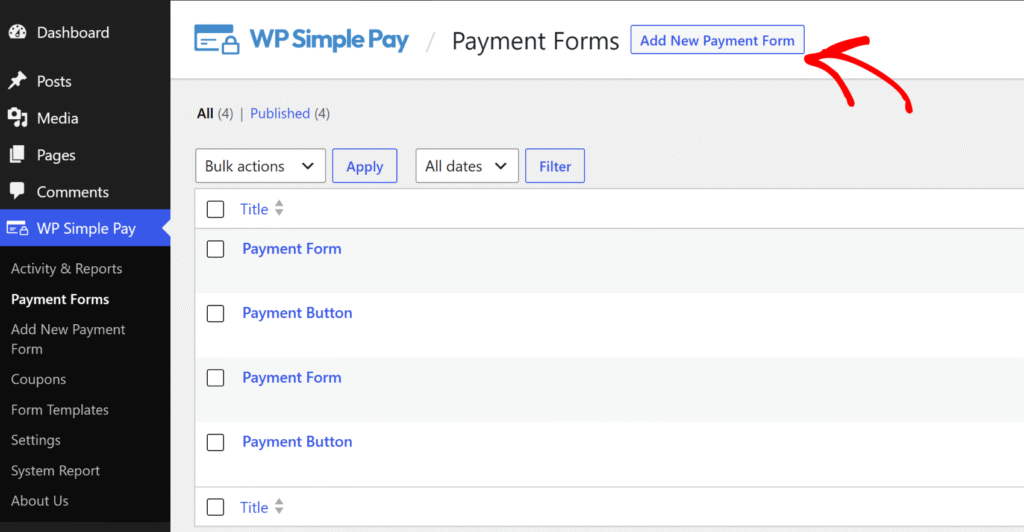
または、WordPressダッシュボードから WP Simple Pay » 支払いフォーム に移動し、新規支払いフォームを追加をクリックします。
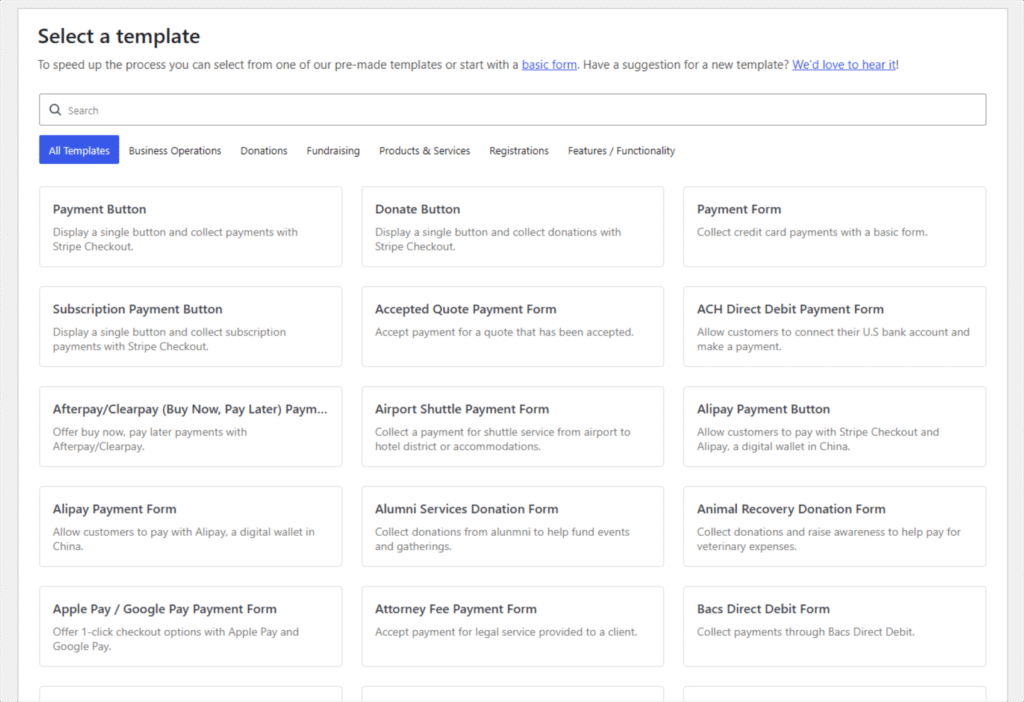
WP Simple Payはテンプレートピッカーを開きます。ここでフォームの開始点を選択します。
一般的な単発支払いには支払いフォームテンプレートを選択し、募金ページには寄付ボタン、定期請求にはサブスクリプション支払いフォームを選択します。すべてのテンプレートは完全にカスタマイズ可能であり、それらを最大限に活用するためのヒントについては、WordPressで支払いフォームテンプレートを使用して売上を伸ばす方法に関するガイドをご覧ください。
すべてのテンプレートは完全にカスタマイズ可能であり、それらを最大限に活用するためのヒントについては、WordPressで支払いフォームテンプレートを使用して売上を伸ばす方法に関するガイドをご覧ください。
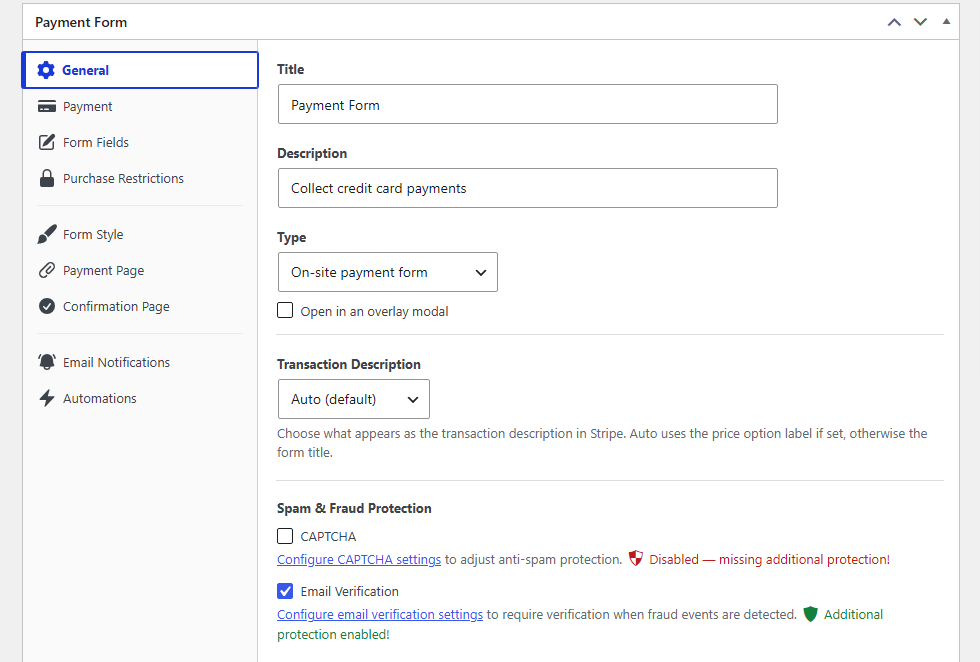
一般タブで、フォームのタイトルと説明を入力します。その後、タイプドロップダウンメニューをクリックして表示タイプを選択できます。ここでは、2つのオプションが表示されます:
- オンサイト支払いフォームは、フォームをページに直接埋め込みます。
- オフサイトStripeチェックアウトフォームは、顧客をStripeホストのチェックアウトページに送信します。
そして、タイプドロップダウンの下には、オーバーレイモーダルで開くチェックボックスがあり、これをチェックするとポップアップとして起動します。
これらのオプションの選択に役立つ情報については、埋め込み、オーバーレイ、Stripeチェックアウト支払いフォームの比較に関するガイドをご覧ください。
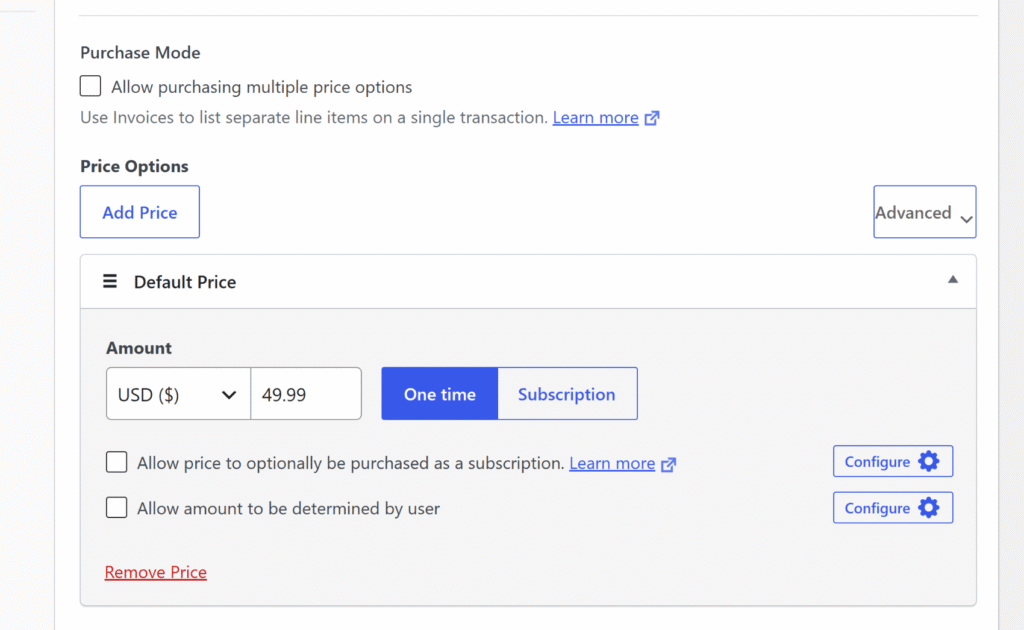
次に、支払いタブをクリックして、通貨、支払い金額、請求タイプ(単発またはサブスクリプション)を設定できます。
顧客に複数の価格オプションから選択させるには、価格を追加をクリックして追加の価格行を追加するか、詳細についてはWP Simple Pay支払いオプションのドキュメントをご覧ください。
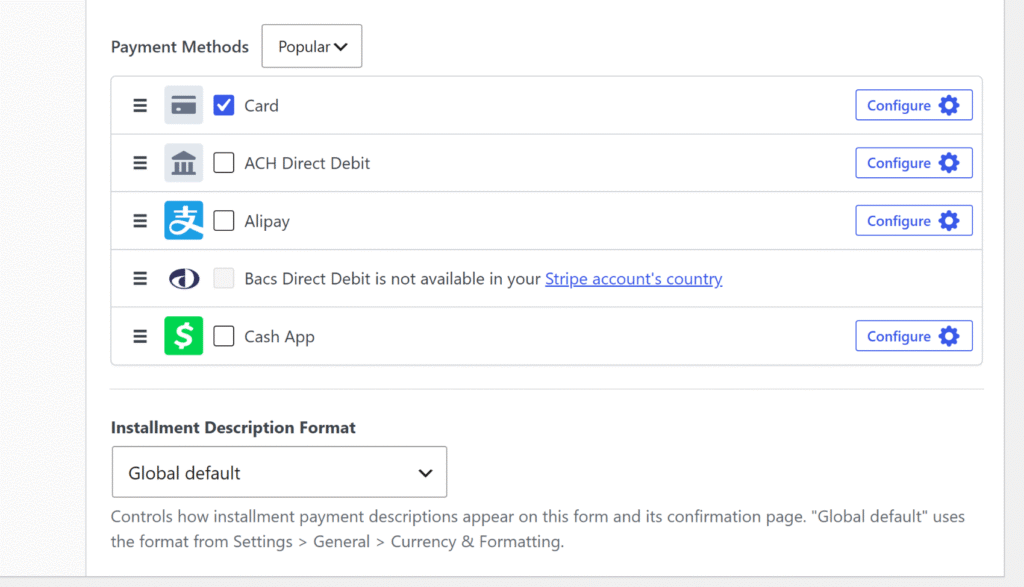
その後、下にスクロールして、顧客に提供したい支払い方法を選択できます。
WP Simple Payは10以上の支払いオプションを提供しており、ユーザーが便利なオプションを選択しやすくなっています。
それが完了したら、支払いフォームをカスタマイズできます。
フォーム項目タブには、フォームが顧客に表示するデフォルトの項目(メールアドレス、価格選択、カード入力欄)が表示されます。
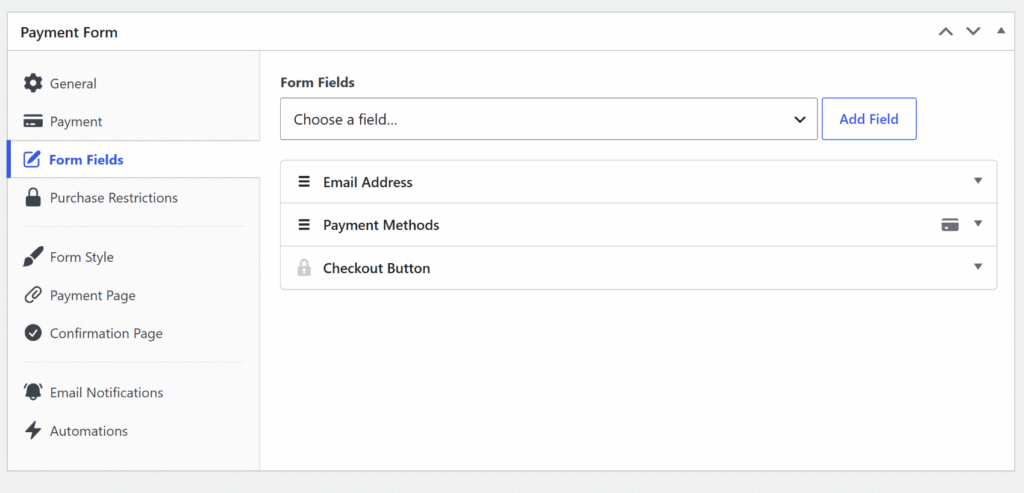
フィールドを選択ドロップダウンからフィールドタイプを選択し、フィールドを追加をクリックして挿入します。
電話番号、テキスト入力、チェックボックスなどがあります。
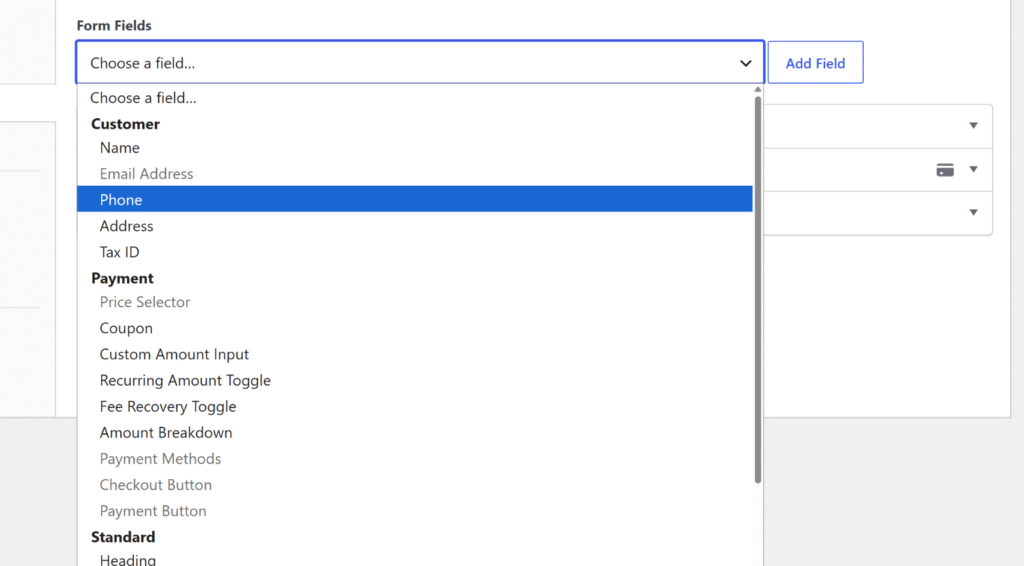
次に、各フォームフィールドを展開して詳細を追加できます。
フォームの設定が完了したら、公開をクリックします。
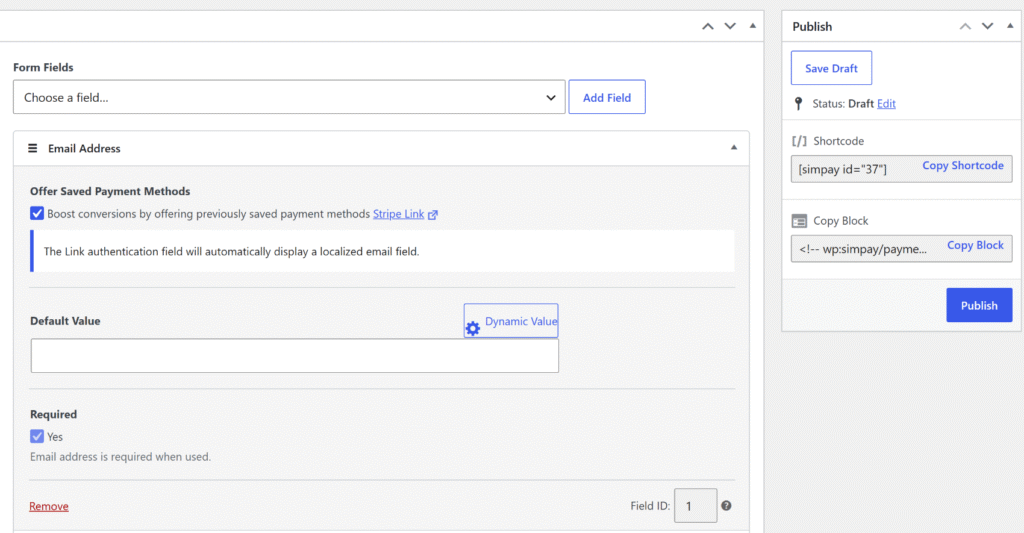
ステップ4:フォームをページに追加してテスト決済を実行する
これでフォームの準備ができたので、サイトのどこにでも配置して支払いを受け付けることができます。
まず、新しいWordPressページを作成するか、既存のページを開き、WordPressコンテンツエディターからWP Simple Pay – 支払いフォームブロックを追加します。
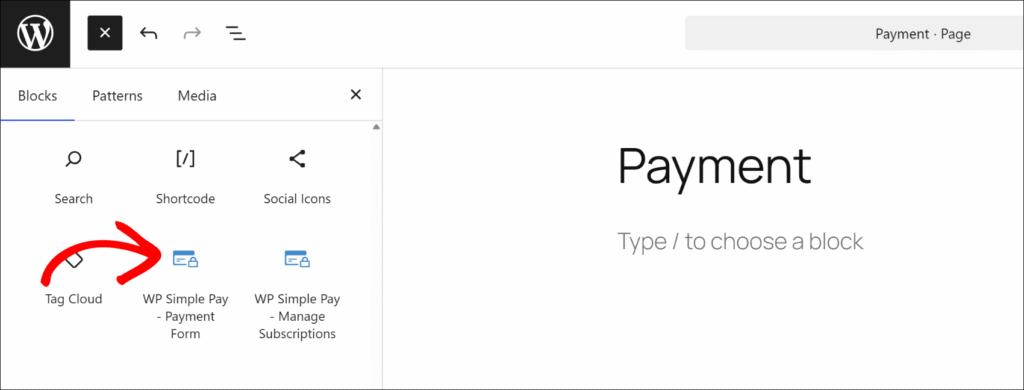
ブロックを追加したら、ドロップダウンから公開済みのフォームを選択します。
次に、更新または公開をクリックしてページを公開します。
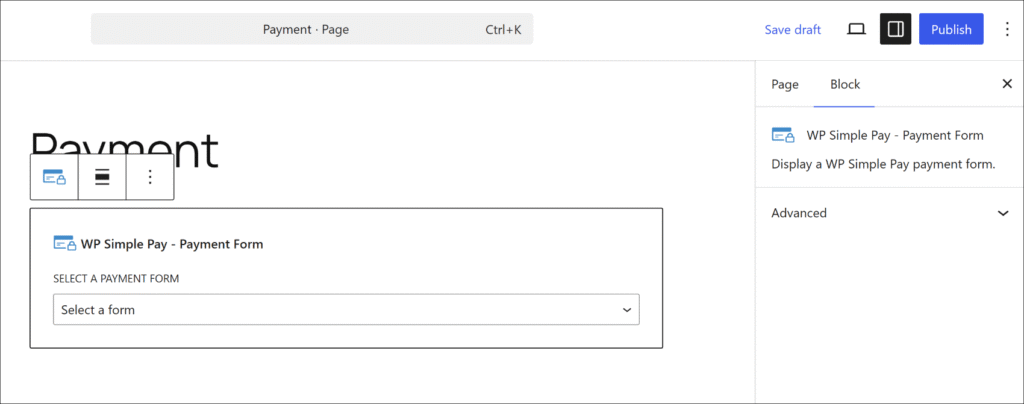
フォームエディターからショートコードをコピーして、ページ上の任意のテキストエリアまたはショートコードブロックに貼り付けることもできます。
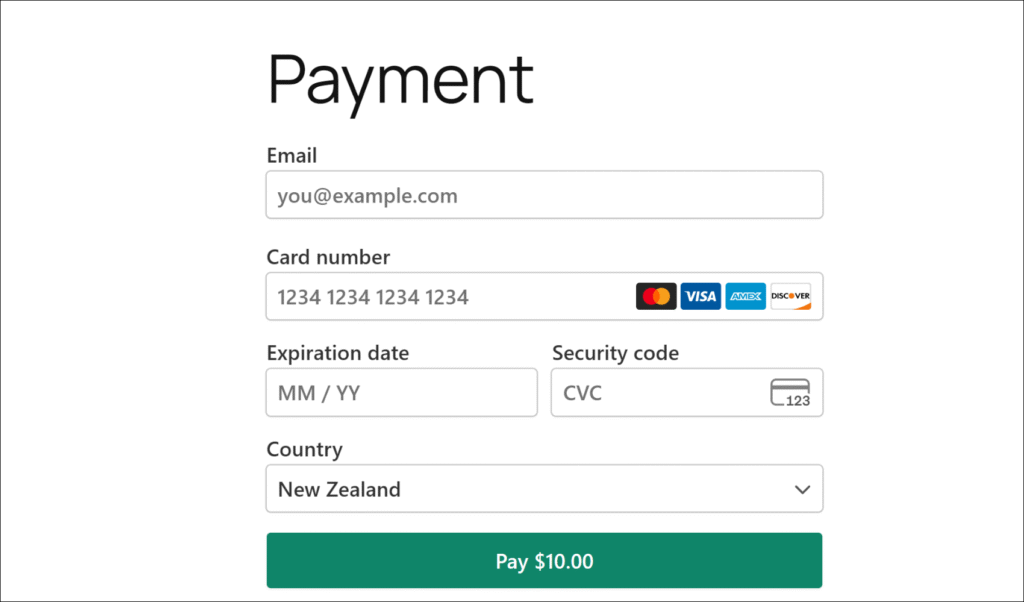
フォームをテストモードで公開したら、Stripeのテストカード番号4242 4242 4242 4242、将来の有効期限、3桁のCVCを入力して送信します。確認メッセージが表示され、さまざまな支払いシナリオのテストカードの全リストはStripeのテストドキュメントで確認できます。
そこから、WP Simple Pay » アクティビティとレポートに移動して、最近のアクティビティフィードにテスト決済が表示されていることを確認できます。
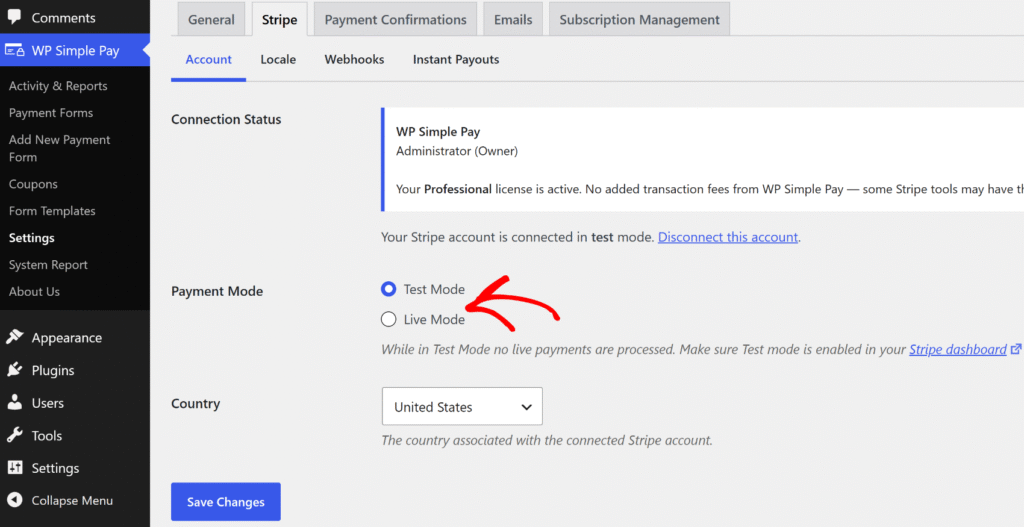
テスト決済が機能することを確認したら、WP Simple Pay » 設定 » Stripe » アカウントに移動し、支払いモードラジオボタンをテストモードからライブモードに切り替えます。
これで、フォームは実際の支払いを受け付ける準備ができました。
ボーナス:WordPressで定期的な支払いを受け付ける
顧客に定期的に請求する必要がある場合、WP Simple Payは、別のプラグインを必要とせずに、同じフォームビルダーから定期的な請求を処理します。
支払いタブで、支払いタイプをサブスクリプションに変更し、請求間隔(毎日、毎週、毎月、または毎年)を設定します。
セットアップ料金、無料トライアル、または分割払いスタイルの請求のための定義済みの回数の請求を追加することもできます。これらの高度なサブスクリプションオプションには、WP Simple Pay Pro Professionalプラン以上が必要です。基本的な定期請求は、Personalプランから始まるすべてのWP Simple Pay Proプランで利用できます。
完全なチュートリアルについては、WordPressサイトで定期的な支払いを受け付ける方法に関するガイドを参照してください。
WooCommerceなしの支払いフォームに関するFAQ
1. WooCommerceなしでWordPressで支払いを受け付けられますか?
はい。WP Simple Payのような専用の支払いプラグインは、WooCommerceなしでWordPressをStripeに直接接続します。ブランド化された支払いフォームを作成し、任意のWordPressページに公開して、数分で支払いを受け付け始めることができます。製品カタログ、ショッピングカート、ストアの設定は不要です。
2. WooCommerceなしで最高のWordPress決済プラグインは何ですか?
WP Simple Payは、WordPress向けのStripe決済プラグインの第1位です。eコマースストア全体を必要とせずに決済を収集する必要がある14,000以上のサイトオーナーが利用しています。単発および定期的な支払い、10以上の支払い方法、寄付、サブスクリプション、イベント登録用の事前構築済みテンプレートをサポートしています。開発者やショッピングカートなしで数分でセットアップできます。
3. WP Simple Payを使用するためにStripeアカウントは必要ですか?
はい。WP Simple PayはStripeによって提供されており、すべての決済処理を処理します。Stripeは小売業ではなくデジタルサービスビジネス向けに構築されています。セットアップウィザードにはStripeに接続ボタンが含まれており、APIキーなしで完全な接続を案内します。新規ユーザーは、セットアップ中にウィザードから直接Stripeアカウントを作成できます。Stripeは45以上の国で135以上の通貨をサポートしています。
4. WooCommerceなしでWordPressに決済フォームを追加するにはどうすればよいですか?
WP Simple Payをインストールし、セットアップウィザードを使用してStripeに接続してから、WP Simple Pay » 決済フォームに移動し、新しい決済フォームを追加をクリックしてテンプレートを選択します。関連タブで金額、支払いタイプ、カスタムフィールドを設定し、公開をクリックします。WP Simple Pay – 決済フォームブロックまたはショートコードを使用して、フォームを任意のWordPressページに追加します。
5. WP Simple PayはStripe以外に追加料金を請求しますか?
WP Simple Pay Proは、Stripeの標準処理手数料以外に追加のトランザクション手数料を課しません。Stripe独自の処理手数料は、プラグインに関係なくすべてのトランザクションに適用されます。WP Simple Pay Liteには、トランザクションごとに3%の追加手数料が含まれていますが、これはすべてのProプランで削除されます。詳細なティアの内訳については、WP Simple Payの料金ページをご覧ください。
これで、WooCommerceなしでWordPressで支払いを受け付ける方法がわかりました。WP Simple Payをインストールし、Stripeに接続し、数分で決済フォームを作成して、任意のページに公開します。
この記事が、WooCommerceなしでWordPressで支払いを受け付ける方法を学ぶのに役立ったことを願っています。また、WordPressサイトで定期的な支払いを受け付ける方法および完璧な決済フォームを9ステップでデザインする方法に関するガイドも参照してください。
支払いの受け付けを開始する準備はできましたか?今すぐWP Simple Payで始めましょう。
このような記事をもっと読むには、 X でフォローしてください。
開示: 当社のコンテンツは読者によってサポートされています。これは、当社のリンクの一部をクリックすると、手数料が発生する可能性があることを意味します。当社は、読者に価値をもたらすと信じる製品のみを推奨しています。

返信する