
How to Customize Off-Site Stripe Checkout Options
In This Document
The Stripe Checkout tab in the form builder is where you’ll configure all options available for the Off-site Stripe Checkout payment forms if it’s the Type elected on the General tab.
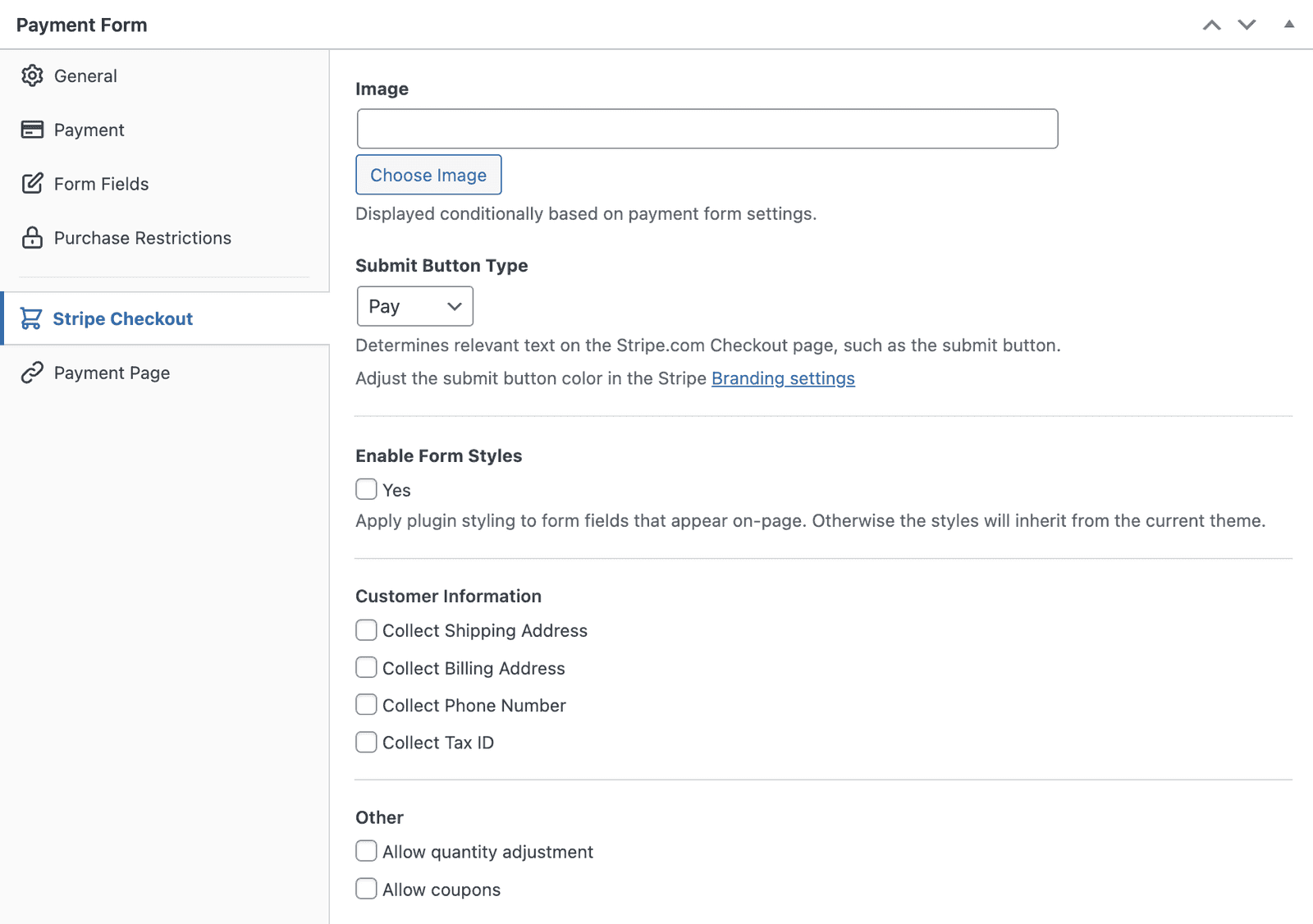
Image
An image displayed on the Stripe-hosted payment page. Conditionally shown based on the payment type and other configurations.
Submit Button Type
Determines the relevant text on the Stripe-hosted payment page.
Enable Form Styles
Applies WP Simple Pay’s opinionated form styling to additional fields displayed on-site.
Customer Information
Determines which additional customer fields are shown.
Collect Shipping Address
Determines if shipping address fields are displayed.
Collect Billing Address
Determines if billing address fields are displayed.
Collect Tax ID
Determines if tax IDs fields are displayed.
Other
Allow quantity adjustment
Determines if the quantity of the purchase can be changed by the user.
Allow coupons
Determines if the payment can accept coupon codes.
Disable Stripe Link
Added in WP Simple Pay 4.17.3.
Hides Stripe’s own Link wallet from the off-site Stripe Checkout page. Link is enabled by default by Stripe on every Checkout Session; this setting is the per-form override that turns it off.
- Unchecked (default): Link is offered. Returning Stripe customers see a “Continue with Link” option and saved-card autofill. This matches the previous behavior, and matches Stripe’s default for new sessions.
- Checked: Link is removed from the off-site Checkout session. Customers see only the payment methods you’ve enabled on the Payment tab.
Check this box when you want to keep the checkout strictly to your own payment-method selection. Common reasons: Link’s autofill competes with your branded flow, you’re seeing customers complete checkout through Link in a way that bypasses your form’s analytics/tracking, or your brand guidelines disallow third-party wallets.
This setting only applies to off-site Stripe Checkout forms (Type set to “Off-site Stripe Checkout” on the General tab). On-site embedded forms have their own per-payment-method configuration.
Additional Stripe Checkout Settings
When using Stripe Checkout, Stripe dictates what can and cannot be configured on the checkout page as it is served by Stripe’s servers.
Among the various settings you can configure for Checkout such as Faster Checkout and Address Autocomplete.
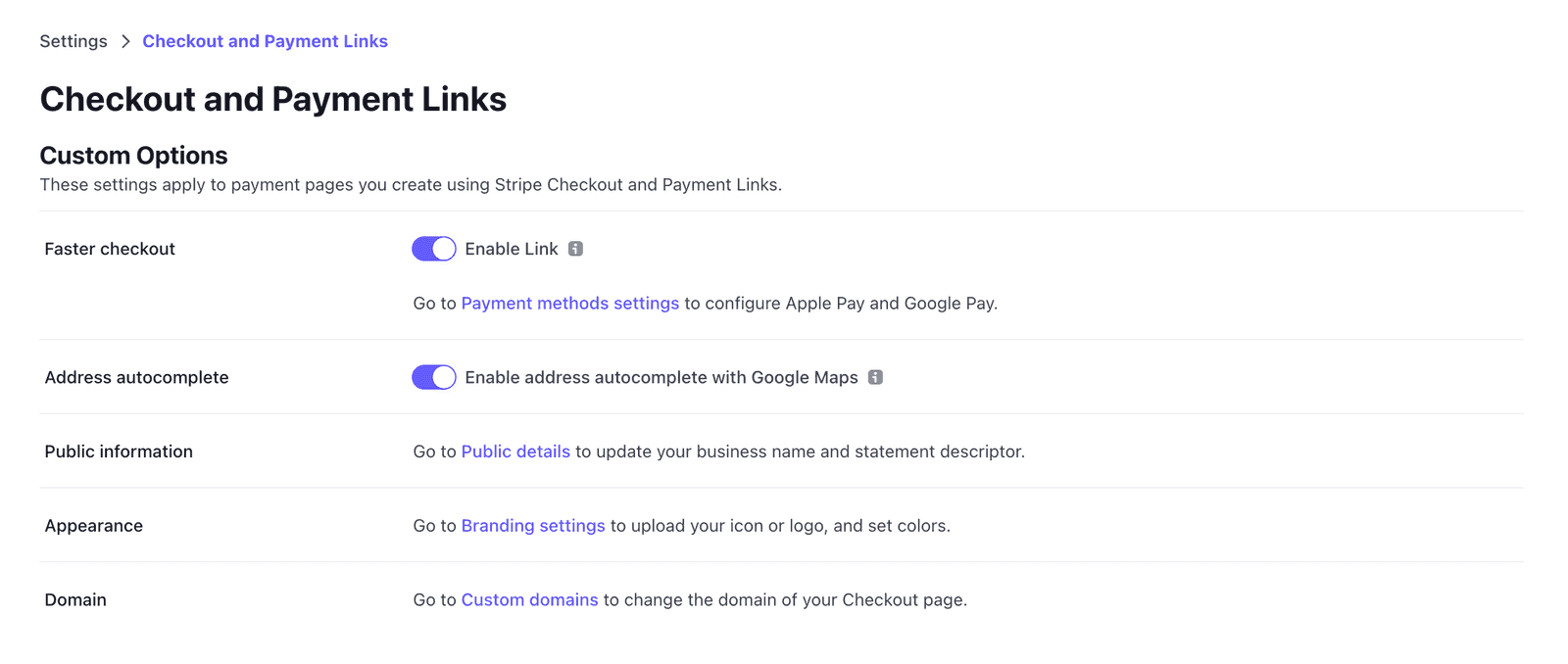
Faster checkout allows your customers to securely save their information with Stripe, allowing them to use 1-click checkout on thousands of sites that use Stripe for payment processing.
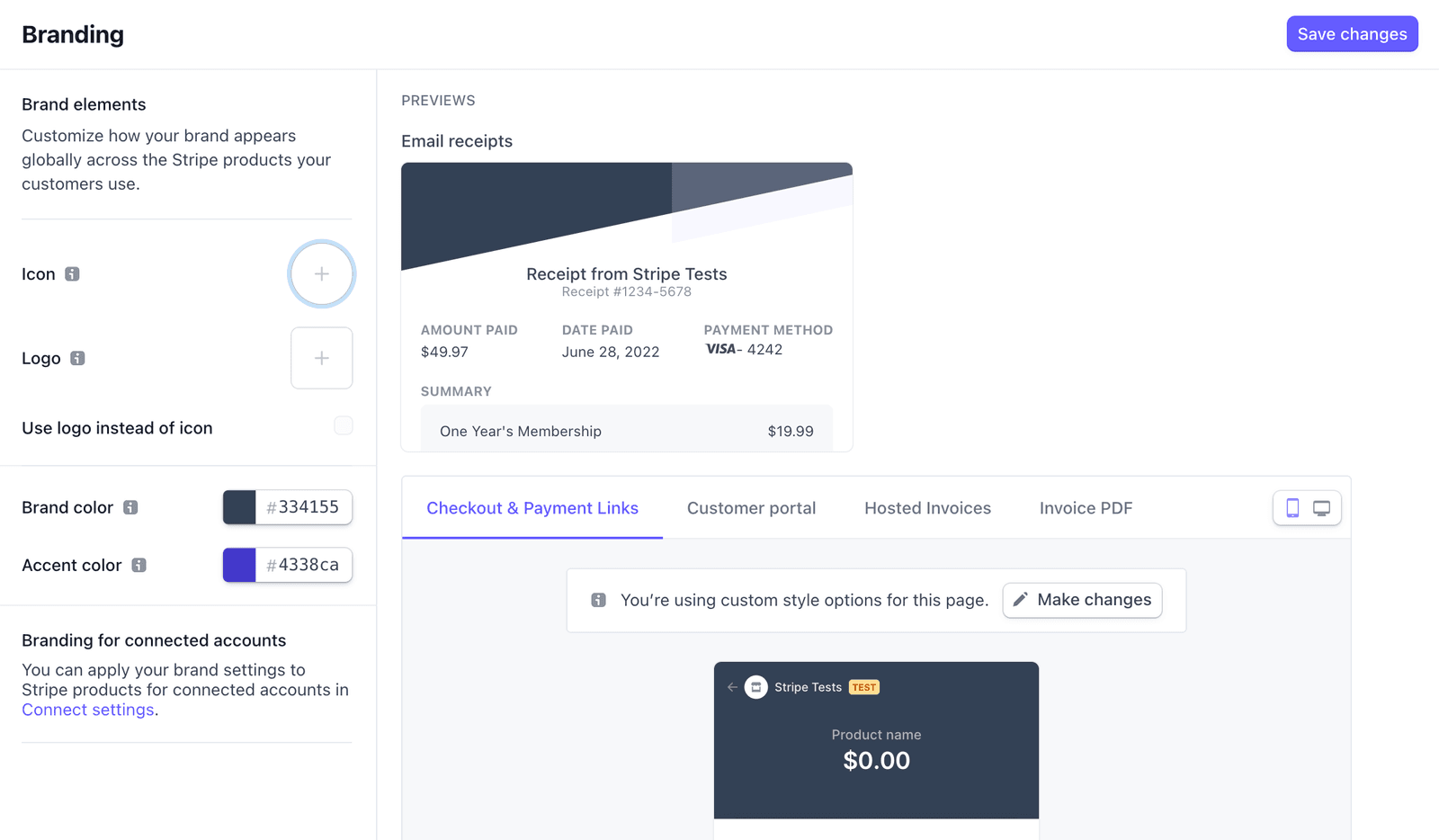
You can alter the color of the Stripe Checkout background and payment button that appears on the checkout page, customer portal, and Stripe hosted invoices by changing various settings in the account branding section of the Stripe Dashboard.
Still have questions? We're here to help!
Last Modified: