
How to Configure WP-Optimize Settings
In This Document
Reading time: 2 minutes | Difficulty: Beginner
Overview
Are your payment forms not working correctly for logged out users, or only some of the time, with WP-Optimize active? Follow the steps below to make sure WP Simple Pay works as expected alongside WP-Optimize.
Since WP Simple Pay 4.17.5, payment forms load their data from your site as the page opens, so pages with payment forms can be cached. You only need to exclude your payment confirmation pages, plus WP Simple Pay’s scripts if you use minification.
Prerequisites
- WP Simple Pay 4.17.5 or later. On earlier versions, also exclude your payment form pages.
- The WP-Optimize plugin installed and active
Cache Settings
Exclude Payment Confirmation Pages from Caching
In the WP-Optimize → Cache → Advanced Settings tab, add the paths to your payment confirmation pages. There is no need to include https://yoursiteurl.com.
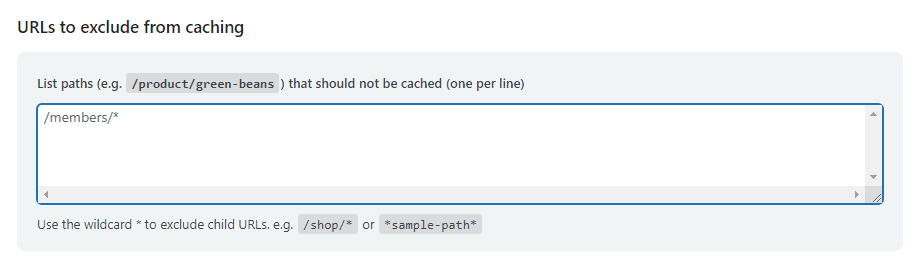
After updating WP Simple Pay to 4.17.5, purge the WP-Optimize cache once.
JavaScript Settings
Exclude WP Simple Pay JavaScript from Processing
In the WP-Optimize → Minify → JavaScript tab, exclude the following scripts from any processing so your payment forms work as expected.
js.stripe.com/v3/
simpay-public-shared.js
simpay-public-upe.js
accounting.min.js
simpay-public-pro-upe.js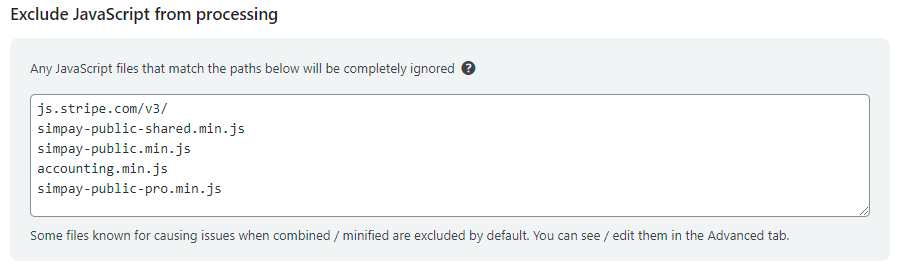
What’s Next?
- How to Resolve Issues Caused by Cache and Optimization Plugins – General caching and JavaScript optimization guidance
- How to Set Payment Success and Failure Pages – Find the pages to exclude
Still have questions? We're here to help!
Last Modified: