
通知インボックスの使用方法
このドキュメントについて
読むのにかかる時間: 3分 | 難易度: 初級
概要
通知受信トレイは、WP Simple Pay のプラグイン内メッセージシステムです。重要な、時間制限のある情報を WordPress 管理画面内に直接表示するため、WordPress ダッシュボードの通知の洪水の中で見逃すことがありません。ここに表示されるものの例:
- ライセンス失効の警告と更新リマインダー
- 重要なプラグインアップデートとセキュリティアドバイザリ
- クイックアクションボタン付きの新機能アナウンス
- ストアアクティビティに基づいた推奨事項(例:不正請求の拒否後に CAPTCHA を提案するなど)
- 期間限定のプロモーションオファー
通知は WP Simple Pay によって作成され、ストアに関するデータがサードパーティと共有されることはありません。受信トレイはサイトローカルであり、表示される内容は、特定のプラグインバージョン、ライセンスティア、および設定された機能に対して公開されたものです。
前提条件
- WP Simple Pay(全ティア)
- WordPress 管理画面へのアクセス (
manage_options権限)
受信トレイの場所
通知受信トレイには、2つの場所からアクセスできます:
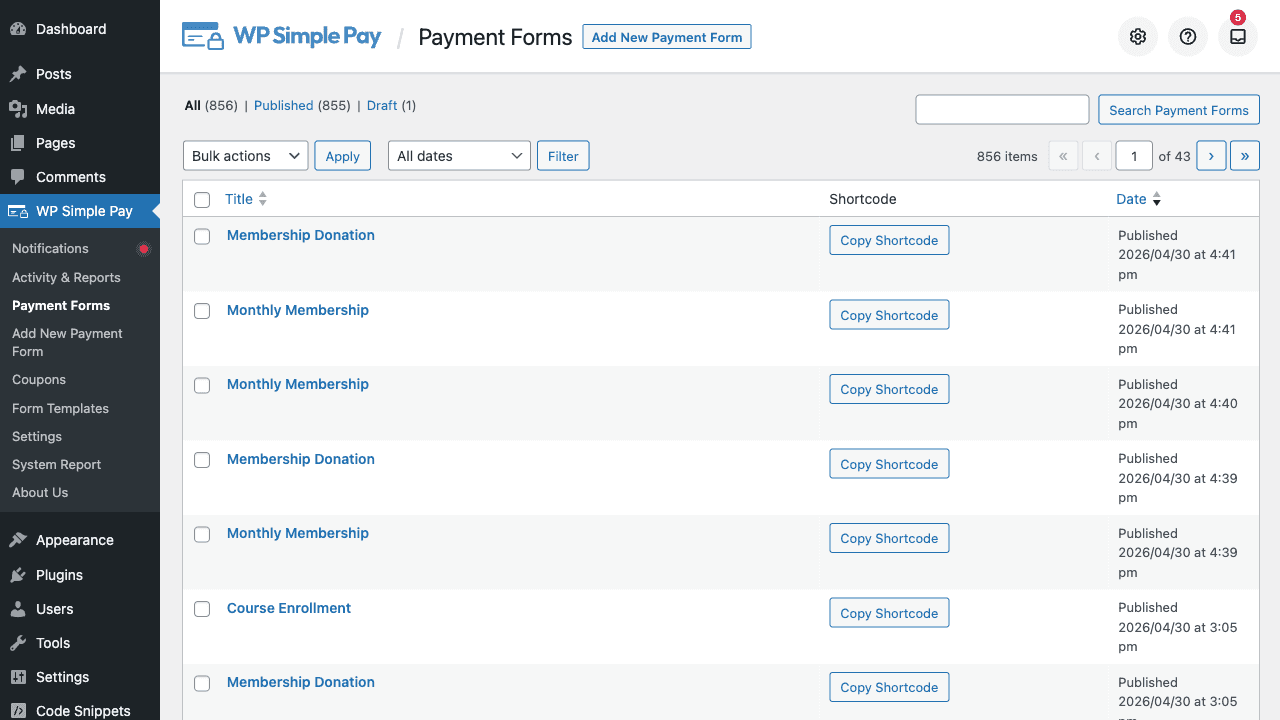
- WP Simple Pay 管理ブランドバーの通知ベルアイコン — すべての WP Simple Pay 画面の上部にあるカラーリングです。ベルに赤い点が表示されている場合は未読通知があり、その数を示しています。
- メインの WP Simple Pay メニューの下にある 通知 サブメニュー項目。未読アイテムが存在する場合、メニューラベルに小さなインジケータードットが含まれます。
どちらかのエントリーポイントをクリックすると、受信トレイパネルが開きます。
通知の読み取り
受信トレイには、すべてのアクティブな通知が、最新のものが一番上に表示されるようにソートされてリスト表示されます。各通知には以下が含まれます:
- タイトル — 短い見出し
- 本文 — 数行の詳細
- 日付 — 通知が公開された日時
- アクションボタン — 通知に対してアクションを実行するためのオプションリンク(ライセンス更新、ドキュメント表示、プラグインのインストールなど)
通知のアクションボタンをクリックすると、その主な呼び出しに応じた操作が実行されます。ほとんどのアクションは、関連する設定画面へのディープリンク、または外部ページ(ライセンス更新、ドキュメントなど)を開きます。
通知の非表示
各通知の右上隅には小さな×の非表示ボタンがあります。これをクリックすると、通知は受信トレイから完全に削除されます。WP Simple Payが新しい理由で再発行しない限り、再表示されることはありません。
非表示の取り消し機能はありません。重要なものを非表示にしてしまい、再度見つける必要がある場合は、通常の管理メニューから元の設定または機能にアクセスできます。
受信トレイが空です
アクティブな通知がない場合、受信トレイには空の状態メッセージが表示されます。これは正常です。ほとんどのストアでは、ほとんどの時間、受信トレイは空か、ほぼ空の状態です。通知は、一般的なマーケティングではなく、本当に役立つ情報のために予約されています。
よくある質問
受信トレイはプロモーションメッセージでスパムになりますか?
いいえ。WP Simple Payは、通知をライセンス関連、セキュリティ関連、および価値の高い機能/ユースケースの発表に意図的に限定しています。毎日のマーケティングメッセージが表示されることはありません。
通知受信トレイを完全に無効にできますか?
開発者は、simpay_use_notification_inboxフィルターを使用してプログラムで無効にし、falseを返すことができます。ほとんどのユーザーは有効のままにしておくべきです。これは、WP Simple Payがライセンスの有効期限や見逃したくないその他のアラートに使用するチャネルです。
add_filter( 'simpay_use_notification_inbox', '__return_false' );すべての管理者ユーザーに通知が表示されますか?
通知は、現在の管理者ユーザーの権限に基づいて評価されます。受信トレイ自体にはmanage_options権限が必要です。通常は管理者のみです。エディター、作成者、および権限の低いユーザーは受信トレイを表示しません。
通知はメールで送信されますか?
いいえ。通知は受信トレイにのみ表示されます。トランザクションメール通知(支払い、返金、サブスクリプションキャンセル)については、メールの種類のリファレンスを参照してください。
通知を読んだ後も未読バッジが残るのはなぜですか?
通知を読んでも、自動的に非表示としてマークされるわけではありません。未読バッジをクリアするには、各アイテムの×ボタンを使用して通知を個別に非表示にしてください。
通知はどのくらいの期間アクティブですか?
各通知にはサーバー側の有効期限があります。期間限定の通知(例:プロモーションオファー)は、終了日後に自動的に消えます。静的通知(ライセンス有効期限の警告、セキュリティアドバイザリ)は、非表示にするか、根本的な条件が解決されるまで残ります。
同僚に通知を転送できますか?
受信トレイ内から通知をユーザーと共有することはできません。同僚に何かに対処してもらう必要がある場合は、タイトルと本文を手動でコピーするか、アクションボタンが指しているリンクを送信してください。
次にやること
- WP Simple Pay Proライセンスのアクティブ化方法 – ライセンス失効通知の解決
- メールの種類のリファレンス – 代わりにトランザクションメール通知を設定する
まだ質問がありますか?私たちが喜んでお手伝いします!
最終更新日: