
Cómo usar la lógica condicional para campos de formulario
En este documento
Tiempo de lectura: 5 minutos | Dificultad: Intermedio
Resumen
La lógica condicional te permite mostrar u ocultar un campo en tu formulario de pago basándote en lo que el cliente ha introducido o seleccionado previamente en otros campos. Úsala para mantener los formularios cortos ocultando preguntas irrelevantes, mostrar ofertas adicionales cuando se eligen ciertos planes, o ramificar un único formulario en múltiples flujos, todo ello sin escribir código.
Cuando un campo está oculto por una regla, WP Simple Pay también lo elimina de la validación y el envío, por lo que un campo requerido pero oculto nunca bloqueará el proceso de pago.
Prerrequisitos
- WP Simple Pay Pro (cualquier nivel)
- Un formulario de pago con al menos dos campos: uno cuyo valor impulsará la regla (la "fuente") y otro que deseas mostrar u ocultar (el "objetivo").
Paso 1: Abrir el Panel de Lógica Condicional
- Navega a WP Simple Pay > Formularios de pago y edita el formulario que deseas personalizar.
- Haz clic en la pestaña Campos del formulario.
- Expande el campo que deseas mostrar u ocultar.
- Desplázate hasta la sección Lógica Condicional en la parte inferior de la configuración del campo.
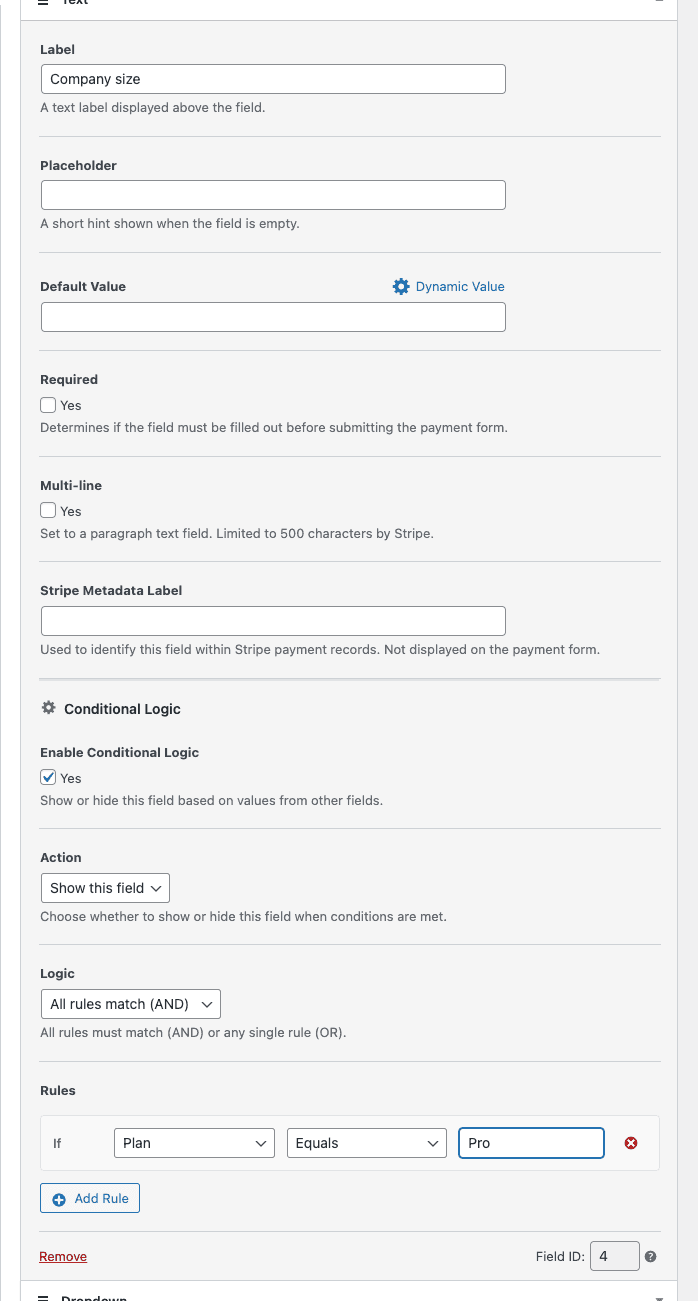
El panel de Lógica Condicional está oculto para los campos que no tienen sentido como objetivos condicionales, como el selector de método de pago, el botón de envío y el botón de solicitud de pago.
Paso 2: Habilitar y Elegir una Acción
- Marca Habilitar Lógica Condicional.
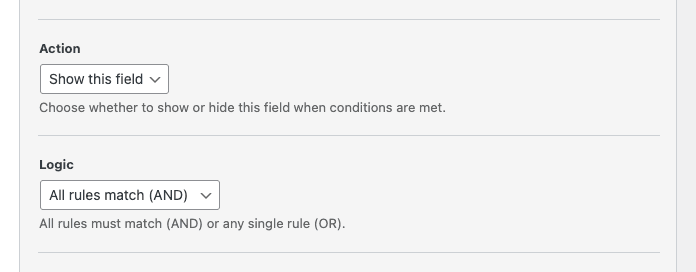
- Establece Acción en una de las siguientes opciones:
- Mostrar este campo: el campo está oculto por defecto y aparece solo cuando las reglas coinciden.
- Ocultar este campo: el campo es visible por defecto y desaparece cuando las reglas coinciden.
- Establece Lógica para controlar cómo se combinan múltiples reglas:
- Todas las reglas coinciden (Y): cada regla debe ser verdadera.
- Alguna regla coincide (O): la acción se activa cuando al menos una regla es verdadera.
Paso 3: Crear tus Reglas
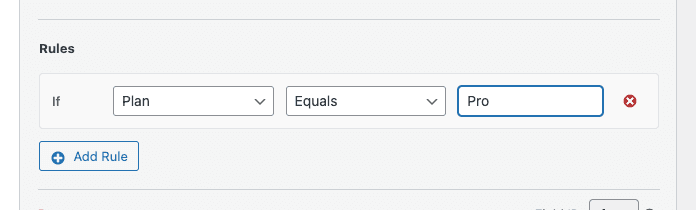
Una regla tiene tres partes: un campo de origen, un operador y un valor con el que comparar.
- Haz clic en Añadir Regla para agregar una nueva fila de regla.
- Selecciona el campo de origen del menú desplegable; solo los campos elegibles en este formulario aparecen en la lista.
- Selecciona un operador. Los operadores disponibles cambian según el tipo de campo de origen (consulta la sección Operadores Disponibles a continuación).
- Introduce el valor con el que comparar. Para casillas de verificación y ciertos operadores como Está vacío, el campo de valor se ignora.
- Repite para reglas adicionales según sea necesario.
Guarda el formulario haciendo clic en Publicar o Actualizar.
Operadores Disponibles
Los operadores se filtran para que coincidan con el tipo de campo de origen, por lo que solo verá comparaciones que tengan sentido.
| Campo de origen | Operadores disponibles |
|---|---|
| Texto, Nombre, Correo electrónico, Teléfono, ID fiscal, Fecha, Cupón | Igual a, No es igual a, Contiene, Está vacío, No está vacío |
| Menú desplegable | Igual a, No es igual a, Está vacío, No está vacío |
| Radio | Igual a, No es igual a |
| Casilla de verificación, Conmutador de recuperación de tarifas, Conmutador de importe recurrente | Está marcado, No está marcado |
| Número, Importe personalizado | Igual a, No es igual a, Mayor que, Menor que, Está vacío |
| Selector de precio/plan | El precio es igual a (compara con la opción de precio seleccionada) |
Tipos de campo admitidos
Las reglas de lógica condicional pueden hacer referencia a estos tipos de campo de origen en el mismo formulario:
- Texto, Número, Menú desplegable, Radio, Casilla de verificación
- Nombre del cliente, Correo electrónico, Teléfono, ID fiscal, Fecha
- Selector de precio/plan
- Cupón, Importe personalizado
- Conmutador de recuperación de tarifas, Conmutador de importe recurrente
Casi todos los campos del formulario pueden ser un objetivo (el campo que muestra u oculta), con la excepción de campos estructurales como el selector de método de pago, el botón de envío, el botón de solicitud de pago y un pequeño número de otros elementos no objetivos.
Preguntas frecuentes
¿Qué sucede con un campo obligatorio cuando se oculta?
WP Simple Pay elimina los campos ocultos tanto de la validación como del envío. Un campo obligatorio que esté oculto actualmente por una regla no impedirá que el cliente complete el pago, y su valor no se enviará con el pago.
¿Con qué rapidez se muestran u ocultan los campos?
Las reglas se evalúan en tiempo real a medida que el cliente escribe o cambia una selección. Las reglas basadas en correo electrónico comienzan a evaluarse una vez que la entrada del cliente es una dirección de correo electrónico válida.
¿Puedo hacer referencia a un campo de un formulario diferente?
No. Las reglas solo pueden hacer referencia a campos que existen en el mismo formulario de pago.
¿Qué pasa si elimino o reemplazo el campo de origen de una regla?
Abra el campo que posee la regla y seleccione un nuevo campo de origen en el menú desplegable o elimine la regla por completo. La configuración de lógica condicional para campos no objetivos también se limpia automáticamente cuando se guarda el formulario, por lo que las reglas huérfanas no se acumulan.
¿Funciona la lógica condicional con los formularios de Stripe Checkout (fuera del sitio)?
La lógica condicional se aplica a los formularios de pago en el sitio (incrustados y superpuestos). Los formularios de Stripe Checkout se muestran en la página alojada de Stripe y no admiten la lógica condicional por campo.
¿Qué Sigue?
- Cómo configurar los campos de un formulario de pago y recopilar datos personalizados: obtenga información sobre los tipos de campo que puede referenciar en sus reglas
- Referencia de tipos de campo personalizados: lista completa de los tipos de campo de formulario disponibles
- Cómo establecer un valor predeterminado dinámico para un campo: combine valores predeterminados dinámicos con lógica condicional para prellenar y mostrar campos según los parámetros de la URL
¿Todavía tiene preguntas? ¡Estamos aquí para ayudarle!
Última modificación: