
WP Simple Pay'e Özel Kod Ekleme
Bu makale, özel kodun WordPress sitenize nasıl ekleneceğini ayrıntılı olarak anlatır ve geliştiricilere yöneliktir. Kendi özel geliştirme hizmetlerimizi sunmasak da, yardıma ihtiyacınız olursa, Seahawk Media'yı şiddetle tavsiye ederiz.
Sağlanan özel kod parçacıkları olduğu gibi verilmektedir ve birden fazla WP Simple Pay sürümünde çalışmaya devam edeceklerine dair bir garanti yoktur.
WP Simple Pay ödeme formlarınıza, eklenti ayarlarında bulunmayan belirli işlevler eklemeniz mi gerekiyor?
Deneyimli bir WordPress geliştiricisi değilseniz ancak PHP veya JavaScript konusunda biraz rahatsanız, kod parçacıklarını kopyalayıp yapıştırmak oldukça basittir.
Yalnızca önce sitenizin yedeğini aldığınızdan ve canlı sitenizi değiştirmeden önce bir hazırlık veya yerel sitede test ettiğinizden emin olun.
Oradan, WPBeginner'dan Web'den WordPress'e Parçacık Yapıştırma Hakkında Başlangıç Kılavuzu'nu izleyin.
Kod Parçacığı Kitaplığımızı Kullanma
Ayrıca WP Simple Pay için bir kod parçacığı kitaplığımız bulunmaktadır. Bu kitaplık, eklentide bulunan çeşitli filtre ve eylem kancalarını kullanan örnek kodları içerir.
Kod parçacığı kitaplığımızdan kod eklerken ücretsiz WP Code eklentisini kullanmanızı öneririz.
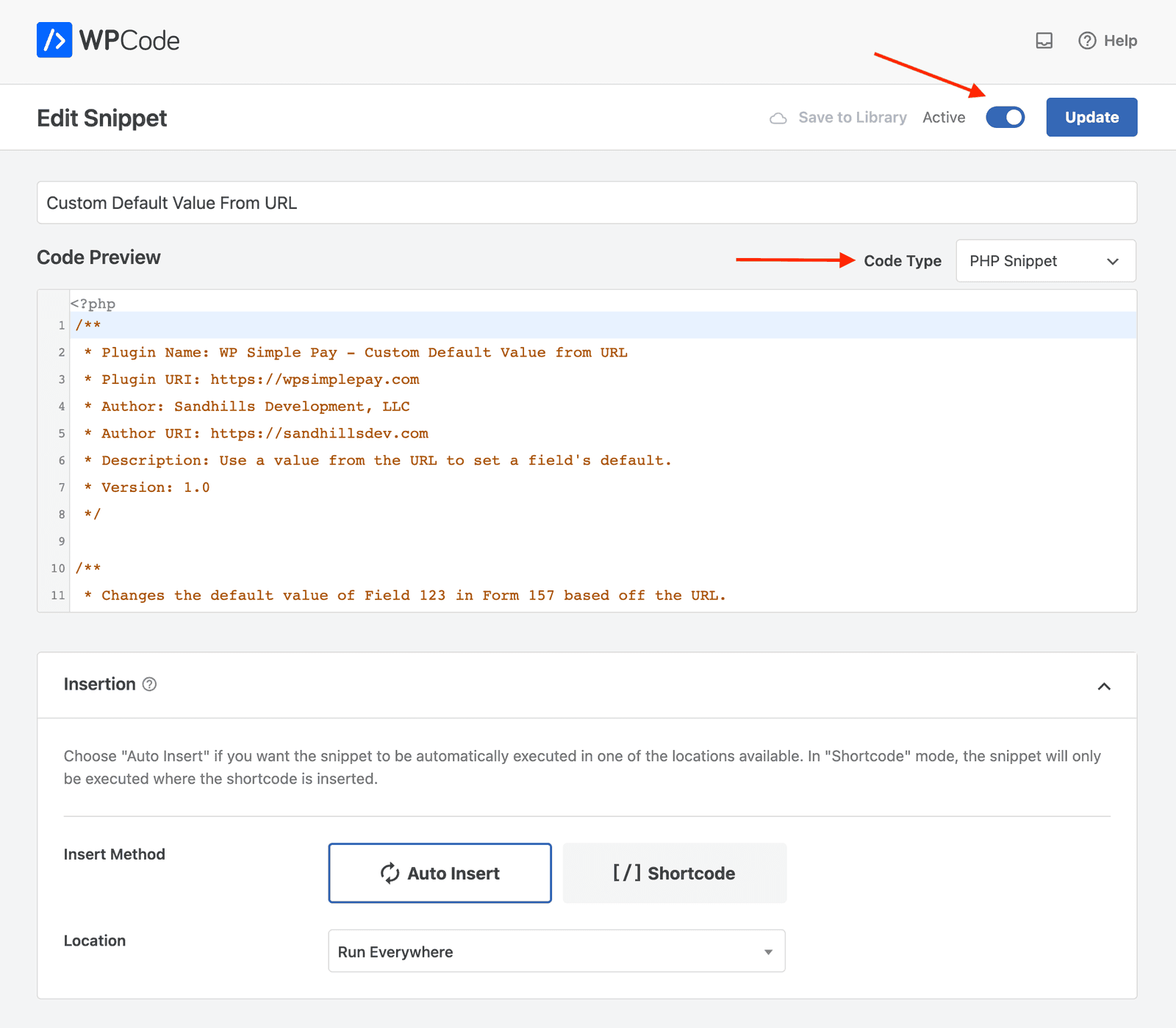
WP Code ile kod parçacıklarımızdan birini kullanmak için Kod Parçacıkları → +Parçacık Ekle'ye gidin ve Özel Kodunuzu Ekle parçacığını seçin.
Bir PHP Parçacığı kod türü seçtiğinizde, WP Code otomatik olarak açılış <?php etiketini ekler. Lütfen istemeden ikinci bir etiket eklemediğinizden emin olun.
Gerekli değişiklikleri yaptıktan ve kodu canlı hale getirmeye hazır olduğunuzda PHP Parçacığı Kod Türünü seçtiğinizden ve parçacığınızı Aktif olarak ayarladığınızdan emin olun. Diğer tüm ayarlar varsayılan olarak kalabilir.
Mevcut kod parçacıklarından yalnızca birkaç tanesi şunlardır:
- Eklenti betiklerini ve stillerini koşullu olarak devre dışı bırakın.
- Tek seferlik veya abonelik ücretlerinin e-posta adresini kullanarak yeni bir WordPress kullanıcısı oluşturun.
- iOS ve mobil tarayıcılarda ondalık anahtarı göstermek için özel tutar alanını "sayı" türüne değiştirin.
Hala sorularınız mı var? Yardım etmek için buradayız!
Son Değiştirilme: